The Kerberos Key Distribution Center (KDC) proxy service acts as a secure bridge, which allows remote clients to use Kerberos authentication when they can’t directly reach Active Directory domain controllers. The KDC proxy is used for Kerberos authentication scenarios involving external users (i.e., those connecting from the Internet) or workgroup users. The KDC proxy service was originally designed for DirectAccess, Remote Desktop Gateway, Azure Virtual Desktop (AVD), and SMB over QUIC file access. However, with Microsoft’s planned deprecation of the NTLM v1 and v2 auth protocols may be necessary to use a KDC proxy for additional remote access services.
The following ports must be open to perform Kerberos authentication between the client and the KDC service on the Active Directory (AD) domain controller.
- UDP/TCP 88 – Kerberos authentication, obtaining Ticket Granting Tickets (TGT)
- UDP/TCP 464 – changing a user’s password via Kerberos
Opening these ports to domain controllers for external users is not secure, so a KDC proxy service can be created at the user connection point instead. The KDC proxy runs on a domain-joined server, listens for Kerberos requests on HTTPS (TCP/443) port from external clients, and tunnels them securely to the DC.
Consider the following simple scenario: a Remote Desktop Gateway server is deployed within the internal perimeter, and external users connect to it. External users on non-domain machines cannot connect due to NTLM authentication being disabled on the RD Gateway host, which is operating in Kerberos-only mode. This results in an RDP error:
An authentication error has occurred.
The function requested is not supported
Remote computer: xxxx
This could be due to CredSSP encryption oracle remediation.
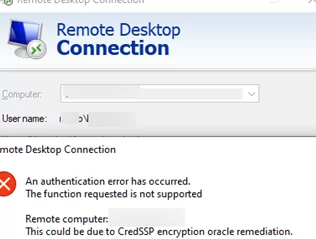
In this situation, as the client cannot authenticate on the DC via Kerberos, an attempt will be made to fall back to NTLM, which is disabled on the host. This will result in the user being unable to log in remotely.
To enable external clients to authenticate on this RDP host via Kerberos, the KDC Proxy Service (KPSSVC) will be deployed on the RDGW host.
The KDC proxy service host must have an installed certificate for encrypting traffic and server authentication. The Extended Key Usage (EKU) of the certificate must include Server Authentication, Client Authentication, and Kerberos Authentication. The subject alternative name (SAN ) of the certificate must include the fully qualified domain name (FQDN) of the KDC proxy that clients will use to connect. Such a certificate can be issued by an internal or commercial CA (for test and non-production deployments, a self-signed certificate can be used).
The certificate must be added to the server’s certificate store. Copy the thumbprint of your certificate:
Get-ChildItem -Path Cert:\LocalMachine\My | Where-Object { $_.Subject -like "*CN=rds01.woshub.com*" } | Select-Object -ExpandProperty Thumbprint

Now, let’s move on to configuring the KDC proxy service.
Create a connection URL endpoint:
NETSH http add urlacl url=https://+:443/KdcProxy user="NT authority\Network Service"
URL reservation successfully added

Generate a unique GUID:
$appguid = [Guid]::NewGuid().ToString("B")
Set the certificate thumbprint value:
$kdccert= "F00AB752B63F3B840A44BF6A20F6EF0E25DEF4D4"
Bind the certificate to the connection endpoint:
netsh http add sslcert ipport=0.0.0.0:443 certhash=$kdccert appid=$appguid
SSL Certificate successfully added

As I don’t intend to use smart card or Windows Hello authentication, I will disable HTTPS client certificate authentication requirements for KDC Proxy operations. This will allow alternative methods, such as passwords or Kerberos over HTTPS, to be used without smart cards.
REG ADD "HKLM\SYSTEM\CurrentControlSet\Services\KPSSVC\Settings" /v HttpsClientAuth /t REG_DWORD /d 0x0 /f
Enable password authentication:
REG ADD "HKLM\SYSTEM\CurrentControlSet\Services\KPSSVC\Settings" /v DisallowUnprotectedPasswordAuth /t REG_DWORD /d 0x0 /f
Enable the KDC Proxy Service (KPSSVC):
Set-Service kpssvc -StartupType Automatic
Start-Service kpssvc
Allow incoming traffic on TCP port 443 on the server so that clients can connect to the KDC Proxy. Create a Windows Firewall allow rule using PowerShell:
New-NetFirewallRule -DisplayName "KDCProxy TCP_In" -Direction Inbound -Protocol TCP -LocalPort 443
Now, let’s make some changes on the client side so that they use the KDC proxy for connections.
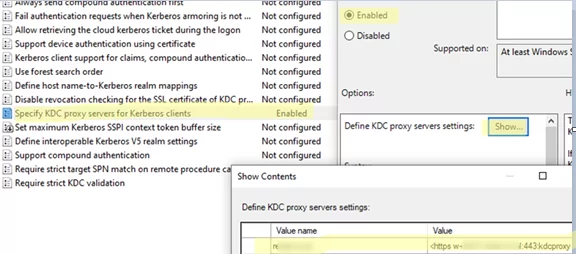
KDC proxy settings on clients can be configured via the Specify KDC proxy servers for Kerberos clients Group Policy option in the Computer Configuration -> Policies -> Administrative Templates -> System -> Kerberos section.
Enable the policy, click Show button, and add a connection string for your KDC proxy. The string should be in the following format:
- Value name: your AD domain name,
woshub.com - Value: KDC proxy connection string for this domain (multiple servers can be specified):
<https rds01.woshub.com:443:kdcproxy />
Or you can configure the KDC proxy settings directly on the client via the registry.
reg add "HKLM\SOFTWARE\Microsoft\Windows\CurrentVersion\Policies\System\Kerberos" /v KdcProxyServer_Enabled /t REG_DWORD /d 1 /f
 reg add "HKLM\SOFTWARE\Microsoft\Windows\CurrentVersion\Policies\System\Kerberos\KdcProxy\ProxyServers" /v woshub.com /t REG_SZ /d "<https rds01.woshub.com:443:kdcproxy />" /f
In order to apply the GPO settings, the client computer must be restarted.
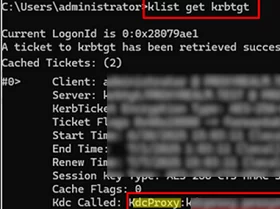
Now, try logging in to the RDP gateway from the client. The client should use the KDC proxy to authenticate with the domain controller and obtain a Kerberos ticket. To check that a Kerberos ticket was issued via kdcproxy, run the command below:
klist get krbtgt
In future Windows releases, Microsoft plans to automate and simplify KDC proxy deployment via the Windows Admin Center (WAC) web interface.