This article explains how to safely remove a PowerShell module installed on a Windows computer. This may be necessary in order to uninstall old or unused modules, resolve PowerShell slow startup issues, or fix module conflicts.
Use this command to list third-party PowerShell modules installed on a computer via registered repositories.
Get-InstalledModule
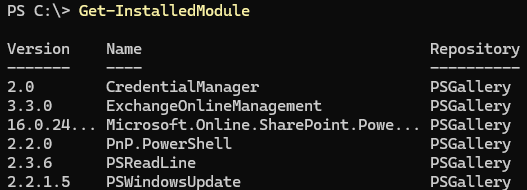
This command lists third-party PowerShell modules installed and registered via the Install-Module cmdlet. In my case, all the PS modules are installed via the PSGallery repository.
To remove an installed module, specify its name in the Uninstall-Module command. For example:
Uninstall-Module -Name PSWindowsUpdate
A computer may have more than one version of the module installed. Therefore, this cmdlet will either remove the most recent version of the module or will fail if multiple versions are found. The available versions of the module can be displayed as follows:
Get-Module pswindowsupdate -ListAvailable
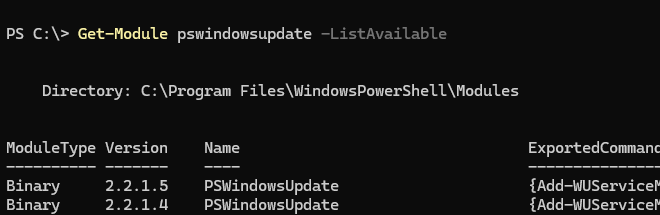
To uninstall a specific module version
Uninstall-Module -Name PSWindowsUpdate -RequiredVersion 2.2.1.4 -Verbose
Remove all versions of a specific module except the latest one.
$moduleName = "PSWindowsUpdate"
 $versions = Get-InstalledModule -Name $moduleName -AllVersions | Sort-Object Version -Descending
 $versions | Select-Object -Skip 1 | ForEach-Object { Uninstall-Module -Name $moduleName -RequiredVersion $_.Version -Force }
Remove all module versions:
Uninstall-Module -Name PSWindowsUpdate -AllVersions
Invoke-Command -ComputerName mun-dc01 -ScriptBlock {Uninstall-Module PSWindowsUpdate -RequiredVersion 2.2.1.2 -Force -Verbose}
When uninstalling a module, an error may appear stating that the module is in use.
WARNING: The version '2.2.1.4' of module 'PSWindowsUpdate' is currently in use. Retry the operation after closing the applications.
PackageManagement\Uninstall-Package : Module 'PSWindowsUpdate' is in currently in use or you don't have the required permissions.

To remove such a module, first close the PowerShell session in which it was loaded (imported). List the PS modules loaded in the current session:
Get-Module
To unload a module from memory without closing the current PS console, run the following command:
Remove-Module -Name PSWindowsUpdate
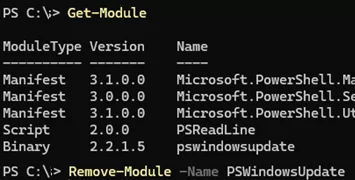
Try removing the module again after this (in some cases, you need to add the -Force option to force the module removal, but be careful, as this can break the dependencies of other modules):
Uninstall-Module -Name PSWindowsUpdate -Force
If the module that you want to uninstall loads automatically when you open a PowerShell session, you can bypass this by launching the PowerShell console without loading your PS1 profile files:
Powershell.exe -NoProfile -Command "Uninstall-Module ImportExcel"
The complete list of all the PowerShell modules available on a computer (including those installed through the repository and those installed manually) can be displayed as follows:
Get-Module -ListAvailable|select name,version,path
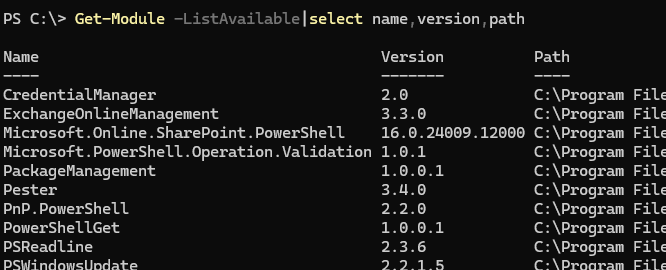
The Path column shows where the module files are located. In Windows PowerShell, you can use (import) modules that have been installed (copied) to the following directories:
C:\Users\%username%\Documents\WindowsPowerShell\Modules
C:\Program Files\WindowsPowerShell\Modules
C:\Windows\system32\WindowsPowerShell\v1.0\Modules
You can find this list of paths in the environment variable $env:PSModulePath:

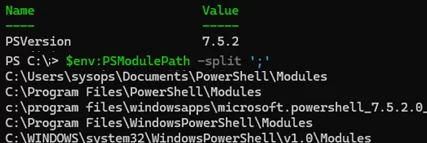
In PowerShell Core 7.x, the $env:PSModulePath variable includes the following additional paths:
C:\program files\windowsapps\microsoft.powershell_7.5.2.0_x64__8wekyb3d8bbwe\Modules
C:\Program Files\PowerShell\Modules
C:\program files\powershell\7\Modules
Residual files may remain in the module directory after uninstallation. These files must be manually removed. This PS script, for example, will uninstall a module and clear the contents of its folder if the folder is not empty.
$Module = Get-Module ImportExcel -ListAvailable
 Uninstall-Module $Module.Name -verbose
 Remove-Item $Module.ModuleBase -Recurse -Force