Windows 10 and 11 include a built-in feature that allows automatically switch the wireless NIC to the Wi‑Fi access point broadcasting the same SSID with the strongest available signal. The AutoSwitch feature can prevent a Windows device from staying connected to a Wi-Fi AP with a weak signal when a stronger signal is available.
The AutoSwitch feature can be enabled in the WLAN adapter settings.
- Open the Network Connections management panel (
ncpa.cpl) - Right-click on a Wi-Fi connection and select Status
- Click the Wireless Properties button and enable the option Look for other wireless networks while connected to this network

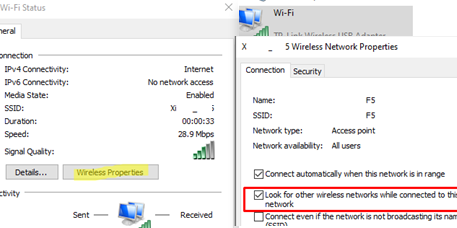
After enabling AutoSwitch for a network adapter, Windows will automatically connect to the Wi-Fi network with the strongest available signal.
(netsh wlan show interfaces) -Match '^\s+Signal' -Replace '^\s+Signal\s+:\s+',''

You can enable or disable auto-switching for a specific WLAN profile by using the netsh wlan command.
List the Wi-Fi profiles saved in Windows:
netsh wlan show profiles
Get the settings for a specific WLAN profile:
netsh wlan show profile name=WOSHUB05
Check the “Profile Information” section to see the status of the AutoSwitch option. It is disabled by default:
AutoSwitch : Do not switch to other networks
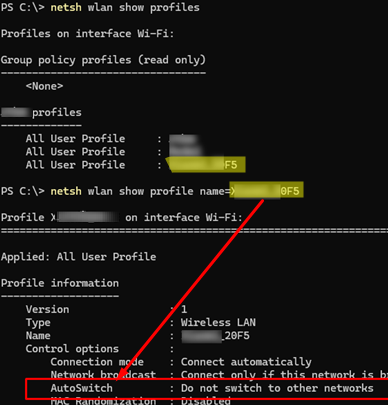
Enable the AutoSwitch option for a specific Wi-Fi profile:
netsh wlan set profileparameter name=WOSHUB05 autoswitch=Yes
This will change the option to:
AutoSwitch: Switch to more preferred network if possible
In the network adapter driver settings, you can configure how aggressively the client should perform roaming between Wi-Fi networks. This option is called Roaming Aggressiveness (or Roaming Sensitivity). Its availability depends on the specific network adapter model and the driver in use.
- Open the properties of the WLAN adapter and go to the Advanced tab.
- In the network adapter driver properties, look for the Roaming Aggressiveness option (in my case, it is a Realtek network adapter)
- Use the drop-down menu to select a sensitivity level between 1 and 6. This defines how aggressively the adapter switches to the network with the strongest signal. When set to the highest sensitivity level, the device will continuously monitor the quality of the connected Wi-Fi network. If signal degradation is detected, the device attempts to locate and connect to an access point with a stronger signal.
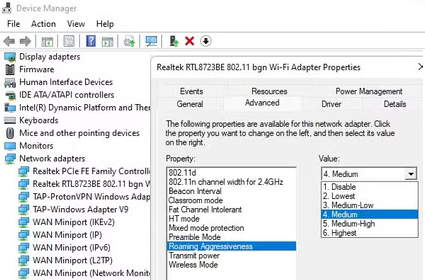
You can use PowerShell to display the current sensitivity level for Wi-Fi roaming of a WLAN adapter.
Get-NetAdapterAdvancedProperty -Name "Wi-Fi" | ft DisplayName, DisplayValue, ValidDisplayValues
The command lists both the current roaming aggressiveness value and the allowed values.
Roaming Aggressiveness 1. Lowest {1. Lowest, 2. Medium-low, 3. Medium, 4. Medium-High...}To adjust the sensitivity of the current WLAN auto-switch:
Set-NetAdapterAdvancedProperty -Name "Wi-Fi" -DisplayName "Roaming Aggressiveness" -DisplayValue "4. Medium-High"
The auto-switching and roaming aggressiveness options available in Windows can enhance connection quality for users operating within seamless Wi‑Fi networks.