In this guide, we’ll cover how to create a custom Windows 10/11 installation image with pre-installed apps, necessary files, and other environment and application settings. Currently, many admins prefer deploying a clean Windows image and then installing all required applications and tools afterward. This can be done using software deployment via GPO, using the installation commands defined in AutoUnattend.xml or with the %WINDIR%\Setup\Scripts\SetupComplete.cmd script (allow to install software during OOBE), as well as GPO logon scripts. or using other automation tools (SCCM, Intune, MDT, Ansible).
However, in some cases, business specifics require that a fully pre-configured Windows image containing all the necessary programs be deployed to end-user computers. Such an image can be rapidly deployed across multiple machines within an organization without the need for manual software installation or basic system configuration. This article has been updated to reflect the latest Windows 11 25H2 build.
The process of creating your custom Windows installation image with pre-installed software can include the following steps:
- Deploy a clean Windows instance on a reference computer (virtual machine).
- Boot Windows in Audit Mode, then install the apps and configure the environment.
- Boot the device into the WinPE environment and use the DISM command to capture the WIM image of the installed Windows.
- Replace the original install.wim file on the installation USB stick (ISO image).
Build a Reference Windows Image with Pre-installed Software
The first step is to create a reference image of Windows with all the programs, files, and settings you need. Perform a clean Windows installation on either a virtual machine or a physical computer.
Download the original Windows 11 installation image as an ISO file, or use the Media Creation Tool or Rufus to burn it directly to a bootable USB flash drive.
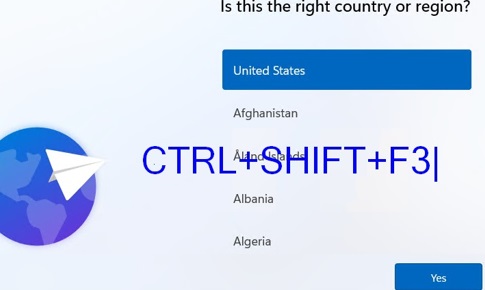
Perform a manual Windows installation and press CTRL+SHIFT+F3 at the OOBE stage (when prompted to select regional settings and create an account). This will put the computer into Audit Mode, and you will be automatically logged in using the built-in Administrator account
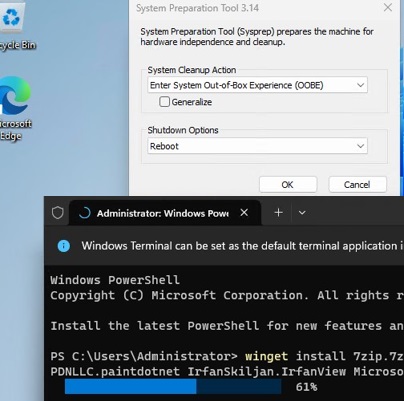
When the desktop appears, minimize the Sysprep window (don’t close it!!). Then you can start installing programs and updates, and configuring the necessary Windows settings.
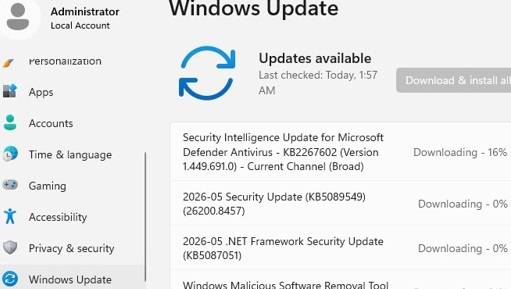
Download and install all the latest updates for your version of Windows (either automatically via Settings > Windows Update, manually, or using the PowerShell update management module).
Install all the necessary software, such as Microsoft Office, and install any device drivers, tools, services, and apps that your users need.
I will use the built-in WinGet package manager to install various apps and tools on Windows. Please note that apps should be installed for all users of the computer (--scope machine), not just the current user (otherwise, this will cause additional problems when preparing the image via Sysprep, as discussed below).
winget install -e --scope machine 7zip.7zip Git.Git Microsoft.VisualStudioCode Microsoft.Sysinternals Notepad++.Notepad++ VideoLAN.VLC WinDirStat.WinDirStat dotPDN.PaintDotNet IrfanSkiljan.IrfanView
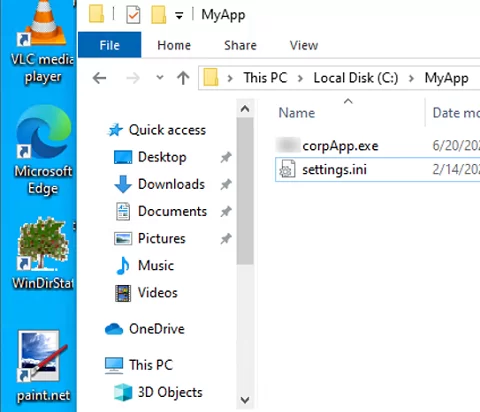
I also manually created directories and copied files for several business apps
Create the desktop shortcuts, customize the Start menu and Taskbar layout, pin items to the taskbar, customize wallpapers, screensavers, color schemes, and more. Configure local Group Policy settings using the gpedit.msc editor. These settings will be applied to all computers that you deploy from this custom Windows image.
Check if the BitLocker encryption is disabled for the system drive (in Windows 11, BitLocker drive encryption is automatically enabled on all supported devices):
manage-bde -status
Disable the BitLocker encryption:
manage-bde -off C:
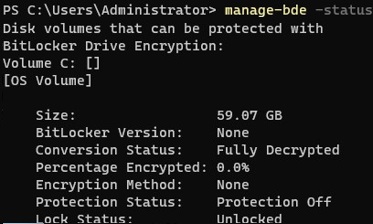
Once you have finished configuring the operating system and applications, you need to prepare the system for deployment, clean up, and optimize Windows to minimize the final image size.
Delete the C:\Windows.old folder (otherwise, a Windows installation error will appear when deploying from such a WIM image.):
rmdir c:\windows.old -Force -Recurse
Delete existing shadow copies and system restore points:
vssadmin delete shadows /All /Quiet
Clean up unused components and update files in the WinSxS folder:
Dism.exe /Online /Cleanup-Image /StartComponentCleanup /ResetBase
Delete the Windows Update cache files:
del %windir%\SoftwareDistribution\Download\*.* /f /s /q
Perform a disk cleanup using the cleanmgr tool:
Cleanmgr /sagerun:1
for /F "tokens=*" %1 in ('wevtutil.exe el') DO wevtutil.exe cl "%1"
Empty the Recycle Bin in Windows:
Clear-RecycleBin -Force
To apply the current user’s settings to the Default user (used as a template when creating new Windows users), create an unattend.xml answer file in the C:\Windows\System32\Sysprep directory.
<?xml version="1.0" encoding="utf-8"?>
<unattend xmlns="urn:schemas-microsoft-com:unattend">
<settings pass="specialize">
<component name="Microsoft-Windows-Shell-Setup" processorArchitecture="amd64" publicKeyToken="31bf3856ad364e35" language="neutral" versionScope="nonSxS" xmlns:wcm="http://schemas.microsoft.com/WMIConfig/2002/State" xmlns:xsi="http://www.w3.org/2001/XMLSchema-instance">
<CopyProfile>true</CopyProfile>
</component>
</settings>
</unattend>
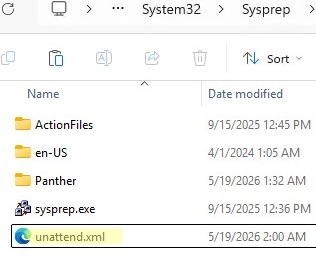
The final step is to use the sysprep.exe tool to prepare your custom Windows 11 image for deployment. Expand the Sysprep window and select the following options:
- Enter System Out-of-Box Experience (OOBE)
- Generalize
- Shutdown
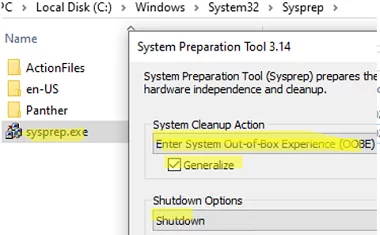
Generalize option prepares the image for deployment and resets the local machine security identifier (SID), ensuring that no computers in your environment have duplicate SIDs.You may receive the following error after running the Sysprep command:
Sysprep was not able to validate your Windows installation. Review the log file at %WINDIR%\System32\Sysprep\Panther\setupact.log for details. After resolving the issue, use Sysprep to validate your installation again.
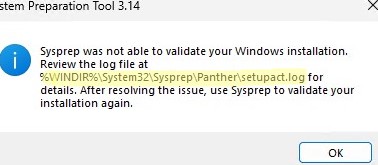
Open and analyse the Sysprep log file (setupact.log) in the %WINDIR%\System32\Sysprep\Panther directory for the most recent errors.
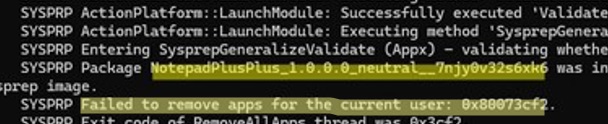
In my case, the last error in the setupact.log file indicates that the Notepad++ Microsoft Store app is installed only for the current user and has not been provisioned for all users in the Windows image:
Error  SYSPRP Package NotepadPlusPlus_1.0.0.0_neutral__7njy0v32s6xk6  was installed for a user, but not provisioned for all users. This package will not function properly in the sysprep image.
Error  SYSPRP Failed to remove apps for the current user: 0x80073cf2.
To successfully prepare the image with SysPrep, you need to:
- Uninstall this Microsoft Store app:
Get-AppxPackage -AllUsers | where-object {$_.PackageFullName -like '*NotepadPlus*'}| Remove-AppPackage –AllUsers -verbose - Or, you can install the app into the system account using the
Add-AppxProvisionedPackagecommand, which will automatically install the app for all new users.
Run the Sysprep again. If the error persists, repeat these steps for each Microsoft Store app that appears in the error log.

When this process is complete, the computer will automatically shut down.
Capture a Custom Windows Image Using DISM
At this stage, you will need to capture an offline Windows image from a local drive, save it as a WIM file, and place it on a separate drive (we connected an empty 60 GB drive to the computer).
Boot the computer with the referenced Windows image into the WinPE or WinRE environment. If you are using a Windows installation USB stick, boot the computer from it and press Shift+F10 to open the command prompt.
Identify the drive letters assigned to the Windows partition and the empty drive to which the WIM file will be copied. Run the commands:
diskpart
 list disk
 exit
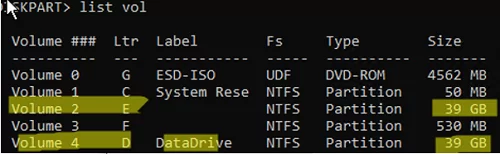
In this example, the drive containing Windows is assigned the letter E: and the empty drive is D:.
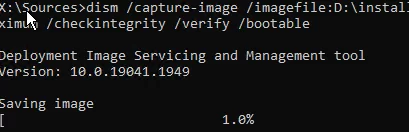
To capture an offline Windows image drive E:\ and save the resulting WIM image to the drive D:\, run the command:
dism /capture-image /imagefile:D:\install.wim /capturedir:E:\ /ScratchDir:D:\ /name:"MyWinImage" /compress:maximum /checkintegrity /verify /bootable
It took about 30 minutes to capture the image in my case.
Replace the Original Install.wim File in the Windows Installation Image
Once you have captured your customized Windows image, you can replace the original install.wim or install.esd image file in the\sources folder on the installation USB flash drive or ISO image file (ESD is the compression format with the highest compression ratio used for WIM files).
In my case, I renamed the old image file to install.esd_bak and copied the new install.wim image to the USB stick.
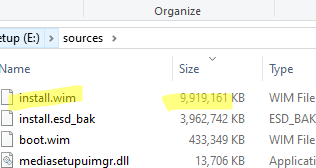
Note that the WIM image size with pre-installed software has increased significantly, from 7GB to 10GB.
If you use a FAT32 bootable USB key to install Windows on UEFI computers, you cannot save a WIM file larger than 4GB to this file system. A large WIM image file must be split into several smaller SWM files:
Dism /Split-Image /ImageFile:D:\sources\install.wim /SWMFile:c:\tmp\install.swm /FileSize:3500
In this case, DISM will create the following files install.swm, install2.swm, install3.swm, and so on. Copy these files to the \sources folder on the installation media or ISO image. When Windows Setup installs the operating system, it merges the SWM files.
Now you can use your bootable USB flash drive to deploy the Windows image you created to any computer (you can also install Windows over the network using PXE boot).
Windows 11 Installation has failed
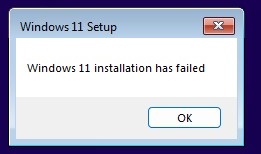
In my example, the installation failed at 78%.
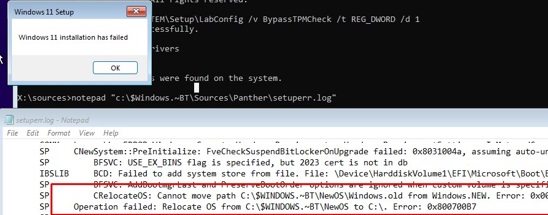
To view a detailed explanation of the error, open the command prompt by pressing Shift+F10 and enter the following command:
notepad C:\$Windows.~BT\Sources\Panther\setuperr.log
This will open a text log of errors relating to a clean Windows 11 installation. Scroll to the end of the log and review the most recent errors. In my case, it was clearly stated that the installation error was caused by Windows.Old folder which located in the root directory of the system drive (I forgot to delete this folder when preparing my reference image). You can install Windows after deleting the folder from the system image. It is possible to mount and modify a WIM installation image without having to recapture it from scratch using the DISM /mount-wim command (see an example here).
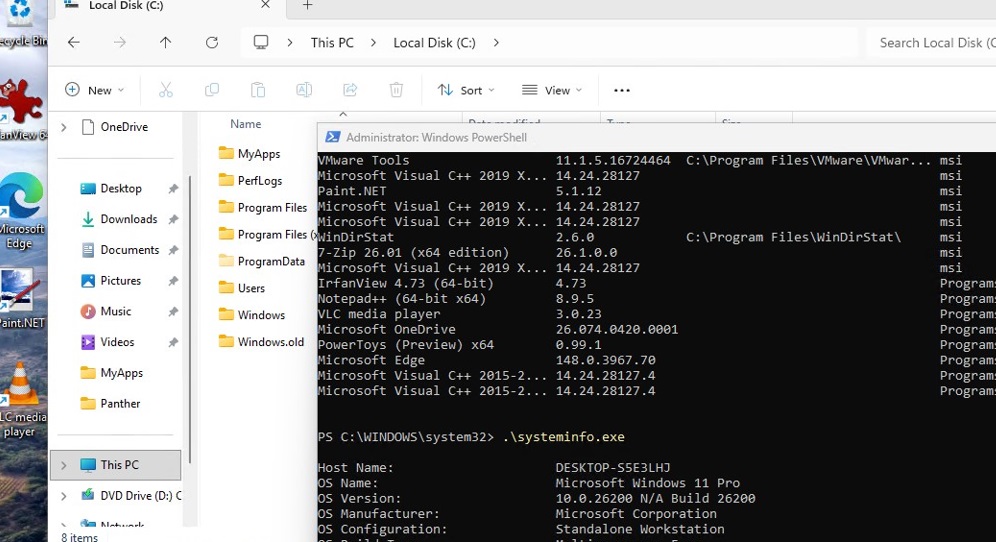
Check that all preinstalled apps are available after Windows installation is complete:
Get-Package
The downside of this method of deploying a preconfigured Windows image is that you have to rebuild the image to update any of the apps it contains.
11 comments
Thanks for the awesome tutorial!
It has given me great insight on how to prep my custom ISO since I have not had great success with other methods.
I do have a few questions that I hope don’t mind answering. It could save me much time and aggravation.
I do not have a “reference computer” or any experience with virtual machines. Can Hyper-V Manager accomplish the task in the article?
If not, is there a free virtual machine service, like Oracle VM VirtualBox or VMware Workstation Player, that can do this and use the hardware drivers from the host machine?
Thanks again!
Thank you for tutorial!
I did everything from it.
Tried to install the image, get to the point I need to enter license key and after entering right key (from the label on the bottom of the laptop) I get an error message saying: “The product key entered does not match any of the windows images available for installation. Enter a different product key”
I’m using Win11 Pro OEM version
Tried to create PID.txt file with: [PID] Value=xxxxx-xxxxx-xxxxx-xxxxx-xxxxx, with license key itself – doesn’t work.
Tried to create ei.cfg file and write in it: [Channel] Retail
[VL] 0
doesn’t work.
Would appreciate help
i have the same issue if you had already solved it, please tell me the solution
thanks in advance
Is it mandatory to customize the image in audit mode? In other words, what isntead if I setup everything when the physical pc boots up the first time and then once finished I run the sysprep /oobe /generalize /shutdown ? Thanks.
In the audit mode, the default user profile settings are updated. These settings are then applied to all new users. Also, this allows to remove user-specific information from the user profile.
If audit mode is not used, the user setting in the profile will be lost during OS deployment.
Advice here:
*The best disk part command is “list volume”. For me anyway list disk does not show drive letters.
*I had to remove “client web experience” and “widgets platform runtime” to finish sysprep. Also had to remove notepad++ that I had installed from winget.
*i found one of the commands didn’t work: “ del %windir%\SoftwareDistribution\Download\*.* /f /s /q” i had to find an updated command for this but now i can’t remember what it was sorry!
Hi Woshub Team,
I used this tutorial twice,
In Windows 11 22H2, this method worked very well, but now in Windows 11 24H2 & 25H2 it states an error “Windows 11 Installation Failed” during Installation even everything is fine and if I use that captured ‘Install.wim’ in Windows 11 23H2’s ISO it just work fine without any issue.
Please help me out getting it fixed.
Thanks
Vincent Oliver
Hi Vincent,
Start troubleshooting your case by checking the Windows deployment logs on the device. This guide explains the relationship between common Windows deployment scenarios and phases and different log files.
https://learn.microsoft.com/en-us/windows-hardware/manufacture/desktop/deployment-troubleshooting-and-log-files?view=windows-11
Remove C:\Windows.old before running sysprep
Windows 11 installation failed after selecting the installation drive, can the administrator guide me to fix it specifically, I’m a newbie
Is it possible to automate the deploy with MDT and capture the WIM file through MDT instead over USB? Is there a difference? Thank you for your time and manual to this topic.