To help users explore the features of the Windows operating system before purchasing a license, Microsoft offers Windows evaluation versions. These Windows evaluation editions grant users full access to all operating system features for a limited trial period. Windows evaluation editions can be used for testing, training, and demonstration purposes, but not for commercial use.
The following Windows evaluation versions are available:
- Windows Server Evaluation (https://www.microsoft.com/en-us/evalcenter/evaluate-windows-server-2025) – evaluation versions of Windows Server 2025, 2022, and 2019 with a 180-day trial period.
- Windows 11 Enterprise and Enterprise LTSC Evaluation (https://www.microsoft.com/en-us/evalcenter/evaluate-windows-11-enterprise) – a 90-day trial license.
After installing an evaluation edition of Windows, the number of days remaining until the license expires is displayed as a watermark in the lower-right corner of the desktop.
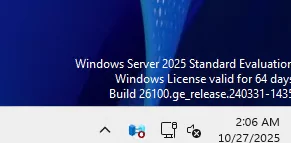
Once the Windows trial period has expired, the desktop background will turn black, and the watermark will change:
Windows 11 Enterprise Evaluation
Windows License is expired
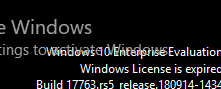
Additionally, the Windows License Manager Service (WLMS) will shutdown Windows every hour, pushing the user to obtain a license.
Once the Windows evaluation license has expired, the user can:
- Convert the existing Windows Evaluation installation to a full (retail) version. This is supported on Windows Server, which can be converted from the Evaluation to the Standard or Datacenter edition. In-place conversion is not officially supported for desktop Windows 11/10 Evaluation Enterprise editions (a clean reinstall is required).
- Extend the Windows evaluation period.
The Windows Server evaluation edition trial period can be extended up to six times (180 days each) using the rearm procedure. This increases the total trial period to three years.
To extend your Windows evaluation period, follow these steps:
- Open the command prompt as an administrator
- Make sure you are using the Evaluation edition of Windows. Use the command below to check your Windows version:
wmic os get caption
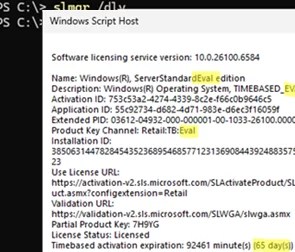
- Check the Windows activation status and how much time is left in your trial period:
slmgr /dlvName: Windows(R), ServerStandardEval edition Description: Windows(R) Operating System, TIMEBASED_EVAL channel Product Key Channel: Retail:TB:Eval License Status: Licensed Timebased activation expiration: 92416 minute(s) (65 day(s)) Remaining Windows rearm count: 6 Remaining SKU rearm count: 6
The Remaining Windows rearm count value indicates the number of remaining trial counter reset attempts. The default rearm count is 6. - To extend the evaluation period, run the command:
slmgr /rearm - Then, restart Windows using the command:
shutdown -f -r -t 0

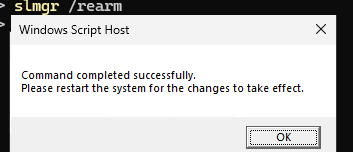
This resets the remaining activation timer to 180 or 90 days (depending on whether it is a Windows Server or a desktop edition) and allows you to use the evaluation version of Windows without license activation. The remaining rearm count decrements by one.

If the evaluation period has been extended more than six times, running slmgr /rearm will return an error:
Error: 0xC004D307 The maximum allowed number of re-arms has been exceeded. You must re-install the OS before trying to re-arm again
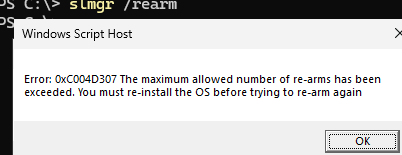
In this case, you will need to either reinstall Windows or upgrade to the full edition.
reg add "HKLM\SOFTWARE\Microsoft\Windows NT\CurrentVersion\SoftwareProtectionPlatform" /v SkipRearm /t REG_DWORD /d 00000001
The trial version of Microsoft Office can be extended using the built-in OSPPREARM.EXE tool.