Windows OS Hub
  • Windows
    • Windows 11
    • Windows 10
    • Windows Server 2025
    • Windows Server 2022
    • Windows Server 2019
    • Windows Server 2016
  • Microsoft
    • Active Directory (AD DS)
    • Group Policies (GPOs)
    • Exchange Server
    • Azure and Microsoft 365
    • Microsoft Office
  • Virtualization
    • VMware
    • Hyper-V
    • Proxmox
  • PowerShell
  • Linux
  • Home
  • About

Windows OS Hub

  • Windows
    • Windows 11
    • Windows 10
    • Windows Server 2025
    • Windows Server 2022
    • Windows Server 2019
    • Windows Server 2016
  • Microsoft
    • Active Directory (AD DS)
    • Group Policies (GPOs)
    • Exchange Server
    • Azure and Microsoft 365
    • Microsoft Office
  • Virtualization
    • VMware
    • Hyper-V
    • Proxmox
  • PowerShell
  • Linux

 Windows OS Hub / Windows 11 / Disable Microsoft Edge First-Run Experience Wizard in Windows

January 19, 2026

Disable Microsoft Edge First-Run Experience Wizard in Windows

When a user launches the built-in Microsoft Edge browser under a new user profile, the First Run Experience is automatically invoked. This initial setup wizard presents several configuration screens and prompts the user with a series of onboarding questions. The user is prompted to import existing data from a Microsoft or Google account, migrate their browsing history from another browser, choose a visual theme, and configure other initial preferences. Most users find the initial setup wizard for Microsoft Edge annoying and prefer to skip it.
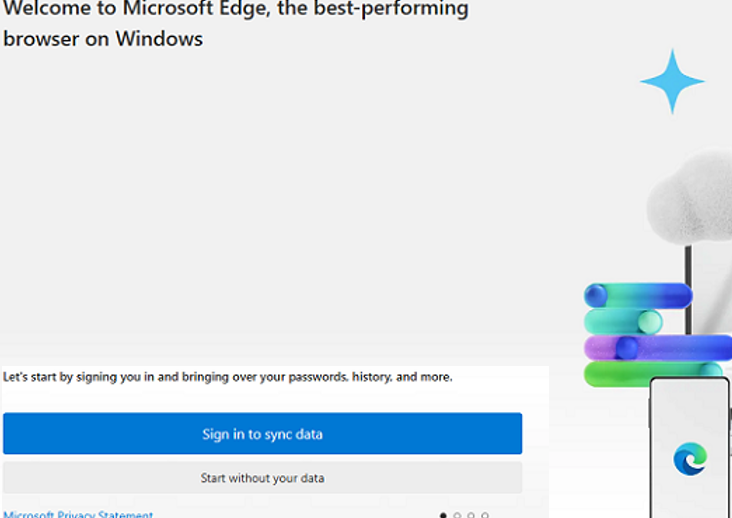
 First-run experience and the splash screen in Microsoft Edge

Administrators can use GPO to prevent the First-Run Experience screen from opening when Microsoft Edge is launched for the first time.

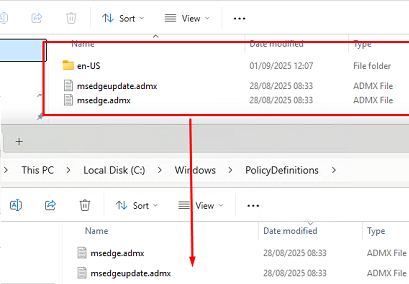
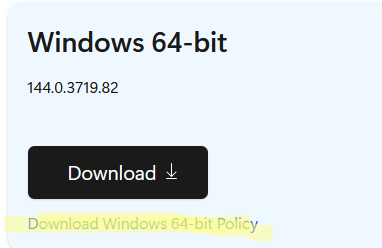
  1. Download the Microsoft Edge Group Policy ADMX templates here. download Edge ADMX policy
  2. Extract the archive, then copy the ADMX and the necessary language pack (ADML) files to the PolicyDefinitions directory (see how to install administrative GPO templates in Windows). Copy Edge ADMX files to PolicyDefinitions
  3. Open the Group Policy Editor. Use the Local Group Policy Editor (gpedit.msc) snap-in to the change settings on the current computer only, or use the Group Policy Management Console (gpmc.msc).
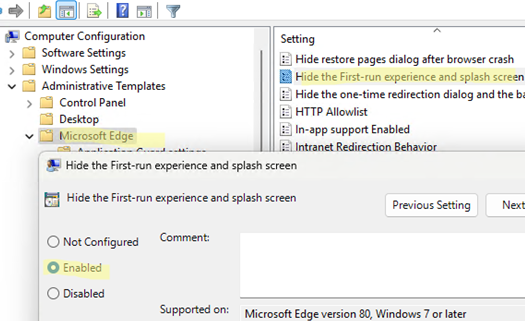
  4. Go to Computer Configuration (if you want to apply the setting to all users of the computer) -> Administrative Templates -> Microsoft Edge. Enable the policy Hide the First-run experience and splash screen. GPO: Hide the First-run experience and splash screen
  5. After updating the GPO settings on a computer, users will no longer see the initial setup and splash screens when launching the Edge browser for the first time. Microsoft Edge now launches almost instantly, opening a new blank tab without delay. Start with an empty new tab, then open Edge for the first time.
If you don’t want to install the ADMX policy templates for the browser on a computer, you can disable the Edge first-run experience wizard through the registry. Create the HideFirstRunExperience parameter and set its value to 1:

reg add "HKEY_LOCAL_MACHINE\SOFTWARE\Policies\Microsoft\Edge" /v HideFirstRunExperience /t REG_DWORD /d 1 /f
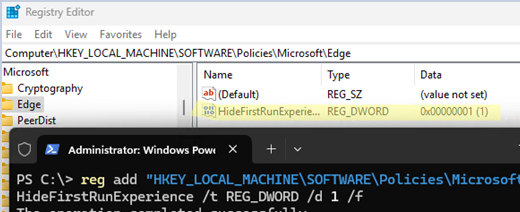
HideFirstRunExperience registry option

If the first-run experience is disabled, Microsoft Edge will use the default import and sync settings:

  • If the user signs in to a computer with an MSA or Entra ID (Azure AD) account, the Edge browser will automatically use that account.
  • The MSN News channel feed and Inspirational design layout will be used for the new page tab
  • Importing data from other browsers is disabled.

These settings can be overridden using separate GPO options:

  • Browser sync settings via Microsoft account: GPO option Disable synchronization of data using Microsoft sync services
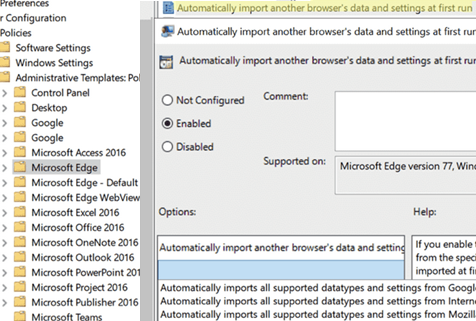
  • Settings for importing data from other browsers: Automatically import another browser’s data and settings at first run Additional Edge GPO options for first launch
  • Allow or disallow the sending of browser activity to Microsoft for personalization purposes (news, search, advertising, etc.): Allow personalization of ads, Microsoft Edge, search, news and other Microsoft services by sending browsing history, favorites and collections, usage and other browsing data to Microsoft
  • Microsoft Edge telemetry settings: Send required and optional diagnostic data about browser usage
0 comment
0
Facebook Twitter Google + Pinterest
Questions and AnswersWindows 11Windows Server 2025
previous post
Fix: Can’t Open a Downloaded Word/Excel File
next post
How to Extract Printer Drivers from Windows

Related Reading

Configuring RemoteApps Hosted on Windows 10/11 (without Windows...

January 25, 2025

Change BIOS from Legacy to UEFI without Reinstalling...

April 23, 2025

How to Prefer IPv4 over IPv6 in Windows...

April 15, 2025

How to Detect Which User Installed or Removed...

June 25, 2025

Find a Process Causing High Disk Usage on...

July 16, 2025

Map a Network Drive over SSH (SSHFS) in...

May 13, 2025

Fix: The referenced assembly could not be found...

March 25, 2025

How to Move (Migrate) Existing Windows Shares to...

December 24, 2025

Leave a Comment Cancel Reply

join us telegram channel https://t.me/woshub
Join WindowsHub Telegram channel to get the latest updates!

Recent Posts

  • How to Remove Old (Unused) PowerShell Modules

    January 12, 2026
  • How to Move (Migrate) Existing Windows Shares to a New File Server

    December 24, 2025
  • Using KDC (Kerberos) Proxy in AD for Remote Access

    December 23, 2025
  • Windows: Create (Install) a Service Manually

    December 16, 2025
  • Windows: Auto Switch to Strongest Wi-Fi Network

    December 10, 2025
  • How to Enable or Disable VBScript in Windows after Deprecation

    December 10, 2025
  • Start Menu Not Working (Unresponsive) on Windows Server RDS

    November 27, 2025
  • AppLocker: Configure Application Restriction Policies in Windows

    November 19, 2025
  • Enable/Disable Random Hardware (MAC) Address for Wi-Fi on Windows

    November 14, 2025
  • Automate Software and Settings Deployment with WinGet Configure (DSC)

    November 13, 2025

Follow us

  • Facebook
  • Twitter
  • Telegram
Popular Posts
  • Converting Windows 10 to Enterprise LTSC Without Losing Data
  • How to Remove ‘Some Settings are Managed by Your Organization’ on Windows 11 or 10
  • Remove the Max Path Length Limit (260-Characters) on Windows
  • How to Pause (Delay) Update Installation on Windows 11 and 10
  • Uninstalling Windows Updates via CMD/PowerShell
  • Configure Windows to Auto Restart/Shutdown with Task Scheduler
  • How to Enable or Disable Windows Defender Firewall
Footer Logo

@2014 - 2024 - Windows OS Hub. All about operating systems for sysadmins


Back To Top