Windows OS Hub
  • Windows
    • Windows 11
    • Windows 10
    • Windows Server 2025
    • Windows Server 2022
    • Windows Server 2019
    • Windows Server 2016
  • Microsoft
    • Active Directory (AD DS)
    • Group Policies (GPOs)
    • Exchange Server
    • Azure and Microsoft 365
    • Microsoft Office
  • Virtualization
    • VMware
    • Hyper-V
    • Proxmox
  • PowerShell
  • Linux
  • Home
  • About

Windows OS Hub

  • Windows
    • Windows 11
    • Windows 10
    • Windows Server 2025
    • Windows Server 2022
    • Windows Server 2019
    • Windows Server 2016
  • Microsoft
    • Active Directory (AD DS)
    • Group Policies (GPOs)
    • Exchange Server
    • Azure and Microsoft 365
    • Microsoft Office
  • Virtualization
    • VMware
    • Hyper-V
    • Proxmox
  • PowerShell
  • Linux

 Windows OS Hub / PowerShell / Monitor Windows Log Files in Real Time with PowerShell

March 17, 2026

Monitor Windows Log Files in Real Time with PowerShell

Some apps or services in Windows don’t use binary Event Viewer logs (*.evtx) to store their logs, but instead save them as plain text log files. When troubleshooting certain issues, it can be useful to view the contents of the log file on screen in real time with automatic updates as new lines are appended to the log. In Linux, the tail command is typically used to display the contents of a log file on the screen and update it in real-time. For live (real-time) log monitoring in Windows, you can use the PowerShell cmdlet Get-Content as an analogue of the tail command.

The following command outputs log file contents to the console, displaying new lines in real time as they are appended to the log:

Get-Content -Path "C:\LogFolder\appact.log" -Wait
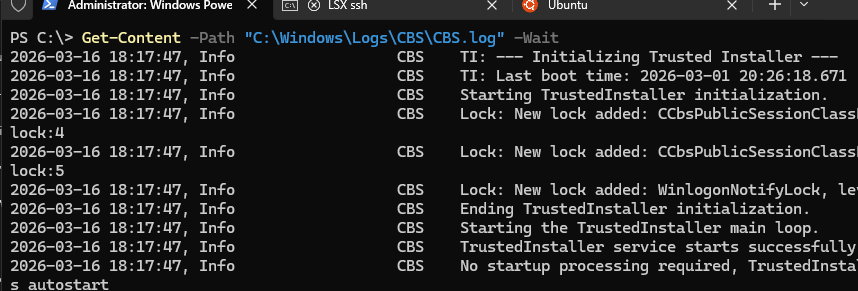
List log file and show new entries added using Get-Content PowerShell cmdlet with -Wait option

Press CTRL+C to stop the live log output in the PowerShell console.

A drawback of the previous command is that it first displays the entire log file before showing new lines as they are appended. It is more convenient to only display several of the latest log entries on the screen. For example, to show only the last 10 lines of a log file and wait for new lines to appear, add the -Tail 10 argument.

Get-Content -Path "C:\LogFolder\appact.log" -Wait -Tail 10

PowerShell enables real-time filtering of log files to display only the lines that match specific criteria. For example, I want to display only the firewall log entries containing a specific IP address:

$IP = "123.12.2.22"
Get-Content "C:\windows\system32\LogFiles\Firewall\pfirewall.log" -Tail 40 -Wait | ? { $_ -match $IP }

Filtering and displaying specific lines from a log file using Get-Content

PowerShell can also be used to colorize the output of the log file contents to make them easier to read. For example, I would like lines containing the keyword Success to be highlighted in green and lines containing errors to be highlighted in red.

Get-Content C:\Windows\System32\LogFiles\setupcln\setupact.log -Wait -Tail 50 | ForEach-Object {
switch -Regex ($_ ) {
"ERROR" { Write-Host $_ -F White -B Red }
"Success" { Write-Host $_ -F Green }
default { Write-Host $_ }
}
}

The log file output on the screen is now much more readable.
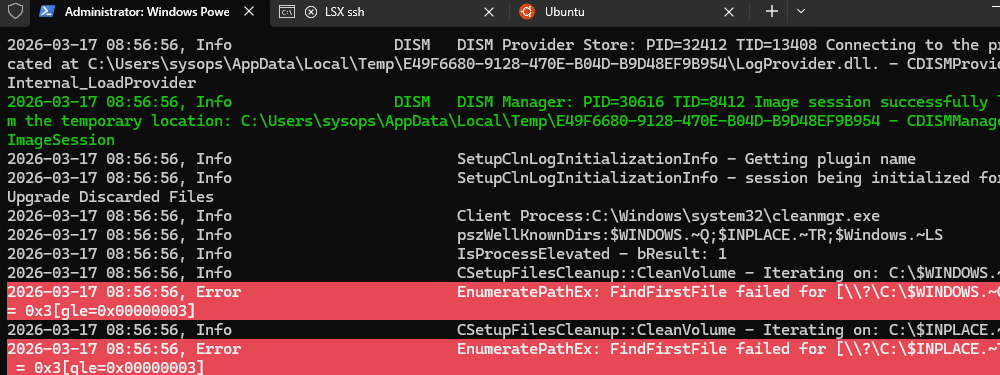
Colourful logs from PowerShell output, highlight errors

Thus, PowerShell provides a simple and convenient tool for real-time monitoring of log file changes. Of course, PowerShell doesn’t handle very large log files (several GB) particularly well. However, with the -Tail parameter, it only reads the end of the file rather than the entire log. So, this real-time log file monitoring method does not result in high memory usage.

0 comment
1
Facebook Twitter Google + Pinterest
PowerShellQuestions and AnswersWindows 11Windows Server 2022
previous post
Pin and Unpin Apps to Taskbar in Windows 11 via PowerShell

Related Reading

Uninstalling Windows Updates via CMD/PowerShell

March 10, 2026

Pin and Unpin Apps to Taskbar in Windows...

March 10, 2026

Run Elevated Commands with Sudo on Windows 11

August 21, 2025

Automate Software and Settings Deployment with WinGet Configure...

November 20, 2025

Enable/Disable Random Hardware (MAC) Address for Wi-Fi on...

November 20, 2025

How to Disable PowerShell on Windows for Non-Admin...

November 27, 2025

How to Remove Old (Unused) PowerShell Modules

January 13, 2026

Where Windows Stores Certificates and Private Keys

February 9, 2026

Leave a Comment Cancel Reply

join us telegram channel https://t.me/woshub
Join WindowsHub Telegram channel to get the latest updates!

Recent Posts

  • Load and Initialize Network Drivers in Windows PE or Recovery Environment

    February 25, 2026
  • How to Set a Custom Drive Icon in Windows

    February 17, 2026
  • Managing Per-User Services in Windows

    February 11, 2026
  • Change Default OU for New Computers and Users in AD

    February 2, 2026
  • Where Windows Stores Certificates and Private Keys

    January 22, 2026
  • How to Remove Old (Unused) PowerShell Modules

    January 12, 2026
  • How to Move (Migrate) Windows Shares to a New File Server

    December 24, 2025
  • Using KDC (Kerberos) Proxy in AD for Remote Access

    December 23, 2025
  • Windows: Create (Install) a Service Manually

    December 16, 2025
  • Windows: Auto Switch to Strongest Wi-Fi Network

    December 10, 2025

Follow us

  • Facebook
  • Twitter
  • Youtube
  • Telegram
Popular Posts
  • Automate Software and Settings Deployment with WinGet Configure (DSC)
  • Run Elevated Commands with Sudo on Windows 11
  • Fix: Slow Startup of PowerShell Console and Scripts
  • How to Pause (Delay) Update Installation on Windows 11 and 10
  • Enable/Disable Random Hardware (MAC) Address for Wi-Fi on Windows
  • Pin and Unpin Apps to Taskbar in Windows 11 via PowerShell
  • How to Write Logs to the Windows Event Viewer from PowerShell/CMD
Footer Logo

@2014 - 2026 - Windows OS Hub. All about operating systems for sysadmins


Back To Top