Administrators sometimes need to pin certain apps or shortcuts to folders and other items in Windows users’ taskbars programmatically. The way pinned apps and items are managed on the taskbar has changed with every new version of Windows. In particular, we found that most previously used scripts for pinning or unpinning app icons to the taskbar, which worked in previous versions, do not work in Windows 11. In this post, I will cover several PowerShell scripts that can be used to pin or unpin items to the taskbar in Windows 11 25H2.
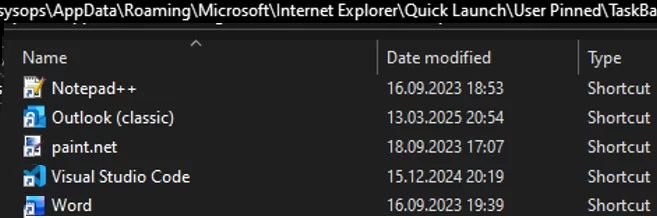
shell:::{4234d49b-0245-4df3-b780-3893943456e1} namespace interface via the Shell COM interface to pin shortcuts to the Windows taskbar programmatically. This namespace is available in all versions of Windows and contains all items that can be pinned or unpinned to the taskbar. You can even navigate to this path in File Explorer. However, in Windows 11, this namespace can only be used to unpin taskbar items (see below).Previously, it was also possible to copy the required shortcuts to the %AppData%\Microsoft\Internet Explorer\Quick Launch\User Pinned\TaskBar directory in order to pin them to the taskbar. In Windows 11, copying shortcuts manually to the \User Pinned\TaskBar folder doesn’t work either (although, in fact, this folder stores shortcuts to pinned apps).
It appears that Microsoft is deliberately closing all software methods for pinning shortcuts to the taskbar without users being aware of it. It is assumed that users can only manually pin items to the taskbar.
How to Pin Apps to the Taskbar in Windows Using PowerShell
To deploy a customized layout with pinned apps to the Windows 11 taskbar, you can use a special LayoutModification.xml file. You can apply an XML file that describes taskbar pinned items via Group Policy. However, this approach is not flexible for cases when you need, for example, to pin one application to a specific user’s taskbar after its installation. 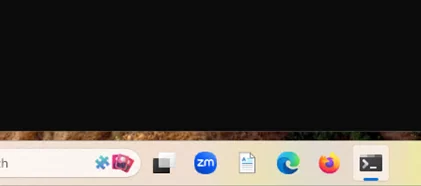
The following PowerShell script creates a shortcut (.lnk) to the target application in the Start Menu (this can be any installed or portable app). The script then generates a temporary XML layout file for the taskbar in the LayoutModificationTemplate markup with a shortcut to the application and saves it to the user profile (%AppData%\Microsoft\Windows\Shell\LayoutModification.xml ). After restarting, Windows Explorer reads and applies the taskbar layout from the XML file. After applying the taskbar layout, the script resets the template cache and deletes the XML file, thereby unlocking the layout.
$PinnedAppName = "tcpview64"
 $PinnedExePath = "C:\Tools\tcpview64.exe"
 $PinnedLnkPath = "$env:APPDATA\Microsoft\Windows\Start Menu\Programs\$PinnedAppName.lnk"
 if (-not (Test-Path $PinnedLnkPath)) {
 $WshShell = New-Object -Com WScript.Shell
 $app_shortcut = $WshShell.CreateShortcut($PinnedLnkPath)
 $app_shortcut.TargetPath = $PinnedExePath
 $app_shortcut.WorkingDirectory = Split-Path $PinnedExePath
 $app_shortcut.IconLocation = $PinnedExePath
 $app_shortcut.Save()
 }
 $xmlTemplate = @"
 <?xml version="1.0" encoding="utf-8"?>
 <LayoutModificationTemplate xmlns:defaultlayout="http://schemas.microsoft.com/Start/2014/FullDefaultLayout"
 xmlns:start="http://schemas.microsoft.com/Start/2014/StartLayout"
 xmlns:taskbar="http://schemas.microsoft.com/Start/2014/TaskbarLayout"
 xmlns="http://schemas.microsoft.com/Start/2014/LayoutModification"
 Version="1">
 <CustomTaskbarLayoutCollection PinListPlacement="Replace">
 <defaultlayout:TaskbarLayout>
 <taskbar:TaskbarPinList>
 <taskbar:DesktopApp DesktopApplicationLinkPath="$PinnedLnkPath"/>
 </taskbar:TaskbarPinList>
 </defaultlayout:TaskbarLayout>
 </CustomTaskbarLayoutCollection>
 </LayoutModificationTemplate>
 "@
 $xmlPath = "$env:LOCALAPPDATA\Microsoft\Windows\Shell\LayoutModification.xml"
 $xmlTemplate | Out-File -FilePath $xmlPath -Encoding UTF8 -NoNewline
 Remove-Item "$env:LOCALAPPDATA\Microsoft\Windows\Shell\DefaultLayouts" -Recurse -Force -ErrorAction SilentlyContinue
 Stop-Process -Name explorer -Force
 Start-Sleep 6
 Remove-Item $xmlPath -Force -ErrorAction SilentlyContinue
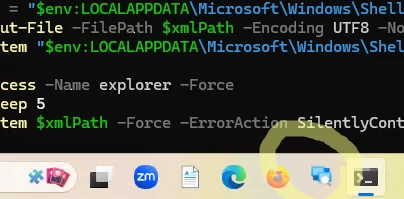
Unlike when using GPO, this method of pinning items allows you to avoid statically fixing the app shortcut to the taskbar. If users no longer need such a pinned app, they can unpin it themselves, and it won’t return to the taskbar the next time they sign in.
The syntax used in the XML file depends on the type of application being pinned:
- For classic Win32 apps: —
<taskbar:DesktopApp>(specify either the path to the application executable or its AppID, as returned by theGet-StartAppscommand) - For Microsoft Store (UWP) apps:
<taskbar:UWA>, specify the name of the app instead of its path.
To pin a Microsoft Store app, you need to get its name:
Get-AppxPackage -AllUsers| select PackageFamilyName
Specify the name and the AppID (Application User Model ID, AUMID) of the application in variables. In this example, I want to pin the Windows Terminal app:
$AppName = "Windows Terminal"
 $AppID = "Microsoft.WindowsTerminal_8wekyb3d8bbwe!App"
To pin a Microsoft Store app, replace the line <taskbar:DesktopApp> in the XML with the following:
<taskbar:UWA AppUserModelID="$AppID"/>
Unpin Apps from Taskbar in Windows 11 with PowerShell
It is much easier to unpin an app from the taskbar when using PowerShell. First, list the registered programs, management consoles, and Microsoft Store apps that are available for pinning to the taskbar.
$shell = New-Object -Com Shell.Application
 $shell.Namespace('shell:::{4234d49b-0245-4df3-b780-3893943456e1}').Items() | Select Name
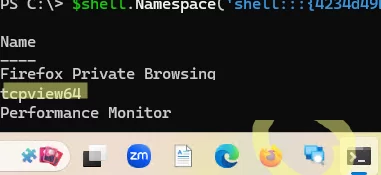
Copy the short name of the program you want to unpin. To unpin a specific app from the taskbar using PowerShell, run the following script:
$appname = "tcpview64"
 ((New-Object -Com Shell.Application).NameSpace('shell:::{4234d49b-0245-4df3-b780-3893943456e1}').Items() | ?{$_.Name -eq $appname}).Verbs() | ?{$_.Name.replace('&','') -match 'Unpin from taskbar'} | %{$_.DoIt(); $exec = $true}
Check whether the pinned app has disappeared from the taskbar.

1 comment
Programmatically pinning apps to the taskbar in Windows 11 is restricted to user-initiated actions for security.