The missing taskbar in Windows 11 leaves you without quick access to apps, the Start menu, and system tray icons. After logging into Windows 11, only the desktop and its contents are visible on the screen, but the taskbar at the bottom of the screen is missing. As a result, users cannot switch between open apps using taskbar icons or launch items from pinned icons or the Start menu.
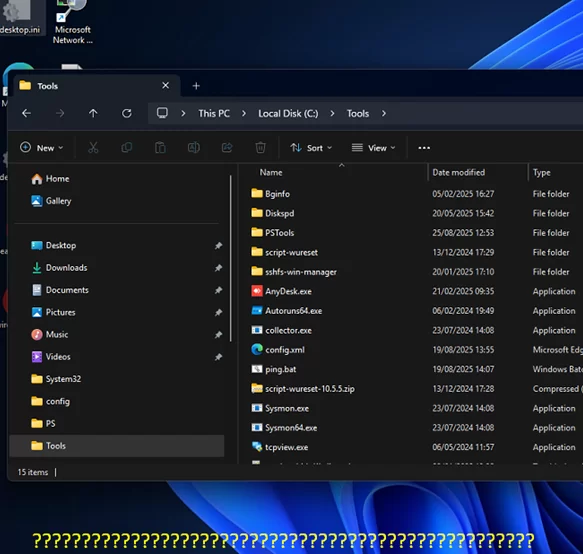
If Windows 11 taskbar disappearance is infrequent, the simplest fix is restarting the Explorer process, which also restarts the taskbar.
- Press
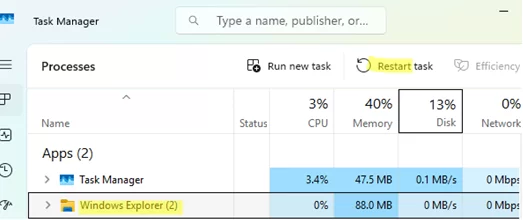
Ctrl+Shift+Escto open the Task Manager. - Find the
Windows Explorerprocess in the task list. - Click the Restart Task button at the top of the Task Manager.

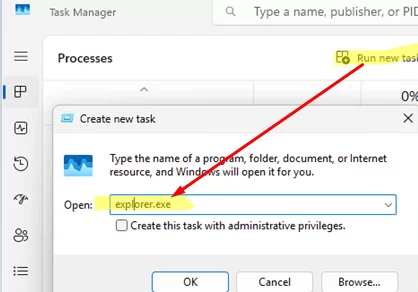
- If the Explorer process is not running, try starting it manually. Click Run new task -> and execute the
explorer.execommand.
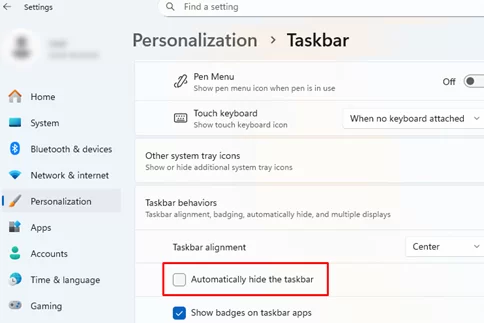
Also, verify whether the Automatically hide the taskbar option is enabled in the personalization settings, causing it to reappear only when moving the mouse pointer to the screen bottom
- Open the Settings app by pressing the
Win + Ikeys. - Go to Personalization -> Taskbar or press
Win+Rand run thems-settings:taskbarcommand to navigate to this Settings page - Expand the Taskbar behaviors
- Check whether the Automatically hide the taskbar option is disabled.
Although the explorer.exe handles the core display of the Windows taskbar, certain taskbar elements, like Widgets, based on Microsoft Store apps (APPX/MSIX format), are handled by a different process. Problems with the display of the taskbar may be caused by the malfunctioning of such APPX widget packages.
In such cases, try re-registering the Microsoft Store APPX package.
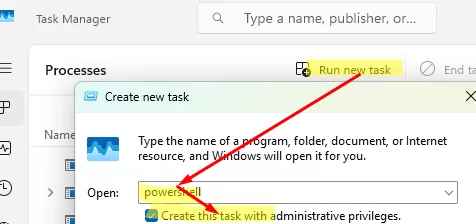
- Open the Task Manager
- Click “Run new task” and then run
powershell.exewith administrative privileges. - Execute the following command in the PowerShell prompt to re-register the Windows Shell Experience Host system app (it is responsible for rendering File Explorer graphical elements, including the Start menu, taskbar, and notifications):
Get-AppxPackage Microsoft.Windows.ShellExperienceHost | foreach {Add-AppxPackage -register "$($_. InstallLocation)\appxmanifest.xml" -DisableDevelopmentMode} - Restart the computer and verify if the issue is resolved and the taskbar appears. If not, re-register all installed Microsoft Store apps (ignore any errors):
Get-AppXPackage -AllUsers | Foreach {Add-AppxPackage -DisableDevelopmentMode -Register "$($_.InstallLocation)\AppXManifest.xml"} - Restart the computer.

Here are additional methods that can solve common taskbar display issues in Windows:
- In extended desktop mode, if you have multiple monitors connected to your computer, the taskbar will only be displayed on the first monitor. Try turning off the other monitors or switching to a different display mode via the Project menu (
Win+P). If multi-monitor mode is configured through the NVIDIA control panel, try disabling Nvidia Surround mode. - In one of the Windows 11 builds, there was an issue where the taskbar did not display due to problems with the
IrisService(used to load Windows Spotlight wallpapers and display tips and widgets on the Windows lock screen). Microsoft proposed the following solution: reg deleteHKCU\SOFTWARE\Microsoft\Windows\CurrentVersion\IrisService /f && shutdown -r -t 0 - If the problem occurred after installing the latest Windows update, you can uninstall and hide the update until Microsoft engineers resolve the issue.
- Check and repair the Windows component store using the commands:
DISM /Online /Cleanup-Image /RestoreHealth
sfc /scannow - If you have configured AppLocker rules to restrict the running of executable files in Windows, ensure that the default rule allowing all signed Microsoft Store apps is enabled (Everyone -> All signed packaged apps).