Sometimes, you may need to execute an external command, command-line tool, or EXE program from a terminal or PowerShell script. This post explores commonly used methods for running external programs and console tools from PowerShell, including passing several arguments with spaces and quotes, and capturing program output in scripts.
To run standard Windows command-line tools (like ping , tracert , diskpart, etc) from the PowerShell console, simply specify the tool name followed by its required arguments.
ping woshub.com
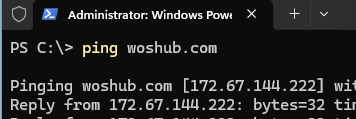
However, this will work only for commands whose paths are contained in the PATH environment variable. This means that system tools and commands in the %WINDIR% and %WINDIR%\System32 directories can be run from PowerShell without specifying an absolute path or additional arguments.
(Get-ChildItem env:Path).value -split ";"
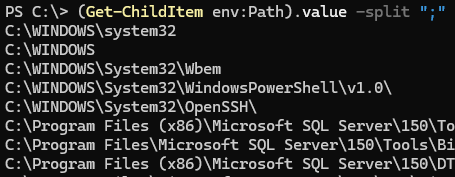
If you attempt to run an arbitrary executable from the current directory (e.g., after navigating with cd c:\folder), invoking it by name will result in an error:
psexec: The term 'psexec' is not recognized as a name of a cmdlet, function, script file, or executable program. Check the spelling of the name, or if a path was included, verify that the path is correct and try again.

Suggestion [3,General]: The command "psexec" was not found, but does exist in the current location. PowerShell does not load commands from the current location by default (see ''Get-Help about_Command_Precedence''). If you trust this command, run the following command instead:
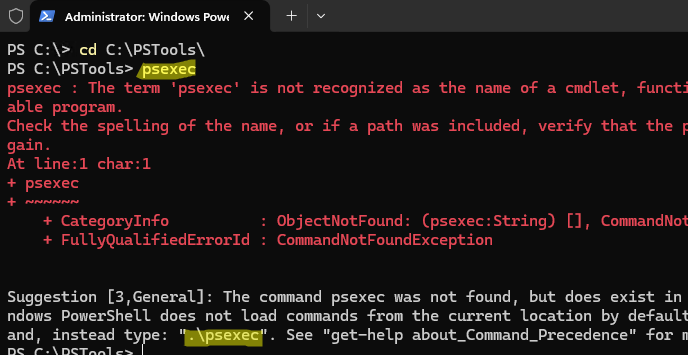
By default, PowerShell doesn’t load commands (programs) from the current directory unless that directory is added to the PATH system variable. To run an application from the current folder, prepend .\ (period followed by backslash) to the command name. For example:
.\psexec.exe
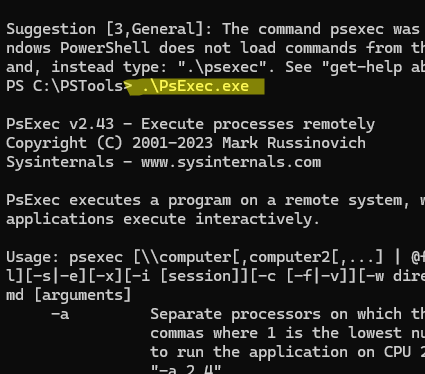
Or, to run the command or application, specify the full path to its executable.
C:\PSTools\PsLoggedon64.exe
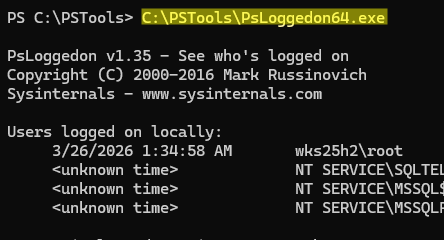
The call operator (&) can also be used to execute external commands and programs from within a PowerShell script. The following syntax is used
& <Command-String> <Arguments>
For example, to run a command-line tool and output the result to the PS console:
& 'C:\Tools\handle64.exe'
To pass multiple arguments to a program (tool) via the call operator (&) in PowerShell, use the following syntax:
$exe = "C:\PSTools\handle64.exe"
 $arguments = '-u', '12345', '-nobanner'
 & $exe $arguments
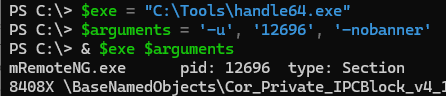
You can call the CMD.EXE shell to invoke programs directly from the PowerShell prompt. For example:
cmd.exe /c "echo Make CMD great again"
or:
cmd.exe /c "C:\PSTools\Pslist.exe msedge"
This command launches a new cmd.exe instance, runs the command specified by the /c argument, and prints the result to the console.
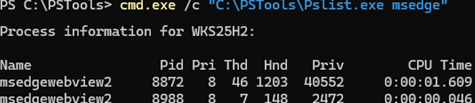
To launch an arbitrary application with command-line arguments from PowerShell, use the Start-Process cmdlet.
Start-Process -FilePath 'C:\Program Files\CORP\app.exe' -ArgumentList 'DaemonMode' -NoNewWindow -Wait
The Start-Process cmdlet doesn’t return output by default, but you can add the -PassThru parameter to return a process object for a running process:
$result_process = Start-Process ping -ArgumentList "-n 1 woshub.com" -NoNewWindow -Wait -PassThru
After this, you can access information about the process, including the PID, exit code, etc.
$result_process.ExitCode
To execute an external command (program) from PowerShell, capture its output, and process the results within a script, you can use the Invoke-Expression or Invoke-Command cmdlets:
$result=Invoke-Expression -Command "cmd.exe /c C:\PSTools\handle64.exe 12345 -u -nobanner"
$result=Invoke-Command -ScriptBlock {"C:\PSTools\handle64.exe 12345 -u -nobanner"}
