The following graphical MMC snap-ins are typically used to manage certificates in Windows: certlm.msc (Local Machine certificates), certmgr.msc (User Certificates), and the certutil command-line utility. All these tools interact with the logical certificate stores, which abstract the physical locations of public and private certificate keys on disk and in the registry from end users and apps.
Logical and Physical Certificate Store Locations in Windows
Certificate public and private keys in Windows are not stored in the same central place. The certificates’ public keys are stored in the registry (can be extracted), but their private keys (if any) are stored on the file system and are encrypted.
By default, the Windows Certificate Manager (certmgr.msc) displays only a logical view of certificate stores. To view the physical certificate stores in the console, select View -> Options from the menu and enable the Physical certificate stores. The console will now display certificate keys grouped by their physical storage location (registry, local computer, smart card, etc.).
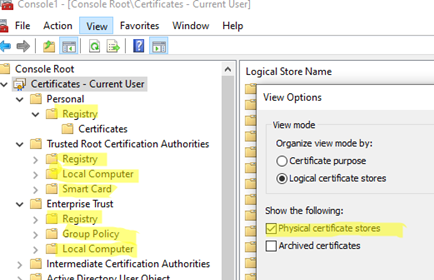
Certificates in the registry:
| Certificate Store | Registry key | Description |
| User | HKCU\SOFTWARE\Microsoft\SystemCertificates | Public keys of user certificates |
| User | HKCU\SOFTWARE\Policies\Microsoft\SystemCertificates | Public keys of user certificates deployed using AD Group Policies |
| Computer | HKLM\SOFTWARE\Microsoft\SystemCertificates | Machine certificate public keys |
| Computer | HKLM\SOFTWARE\Microsoft\Cryptography\Services | Public keys of common services |
| Computer | HKLM\SOFTWARE\Policies\Microsoft\SystemCertificates | Public keys of machine certificates installed via GPO |
| Computer | HKLM\SOFTWARE\Microsoft\EnterpriseCertificates | The machine’s public keys were installed from an enterprise CA in an AD domain. |
Certificate private keys on a system drive:
| User | %APPDATA%\Microsoft\SystemCertificates | This directory stores user public keys and pointers to private certificate keys. |
| User | %APPDATA%\Microsoft\Crypto | User private key containers |
| Computer | %ProgramData%\Microsoft\Crypto | Machine private key containers |
Similar to how you access objects on the file system, you can access the logical certificate store from PowerShell using the built-in Cert provider.
For example, this is a PowerShell command used to navigate to the computer’s certificate store.
cd Cert:\LocalMachine\my
List certificates in the LocalMachine store:
Get-Item *
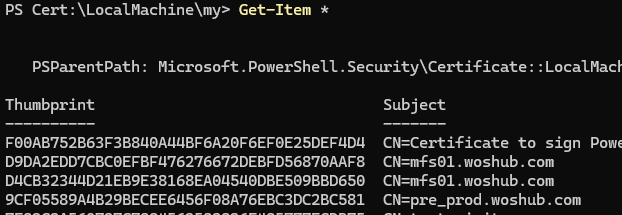
Or, you can use the certutil command to list the machine certificates:
certutil -store MY
Extracting Certificates from the Windows Registry
The certificates are stored under the HKEY_LOCAL_MACHINE\SOFTWARE\Microsoft\SystemCertificates\MY registry key. They can be identified by their thumbprint in the registry key name. The data for each certificate is stored in a BLOB binary value containing the full certificate in DER-encoded format.
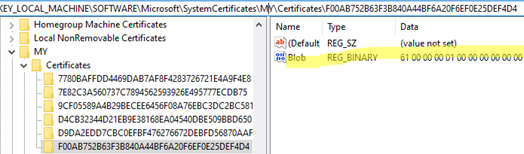
Use this PowerShell script to extract BLOB certificate data from the registry by its thumbprint. Then, convert the data to X509Certificate2 format and print the certificate information:
$regPath = "HKLM:\SOFTWARE\Microsoft\SystemCertificates\MY\Certificates\D9DA2EDD7CBC0EFBF476276672DEBFD56870AAF8"
 $blob = (Get-ItemProperty -Path $regPath).Blob
 $cert = New-Object System.Security.Cryptography.X509Certificates.X509Certificate2 -ArgumentList (, $blob)
 $cert | Format-List Subject, Issuer, NotBefore, NotAfter, Thumbprint
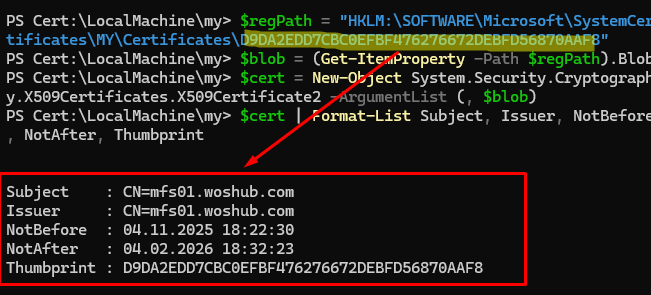
To export this public key certificate as a CER file (for transfer to another computer), run the following commands:
$certBytes = $cert.Export([System.Security.Cryptography.X509Certificates.X509ContentType]::Cert)
 [System.IO.File]::WriteAllBytes("c:\temp\exported_certificate.cer", $certBytes)
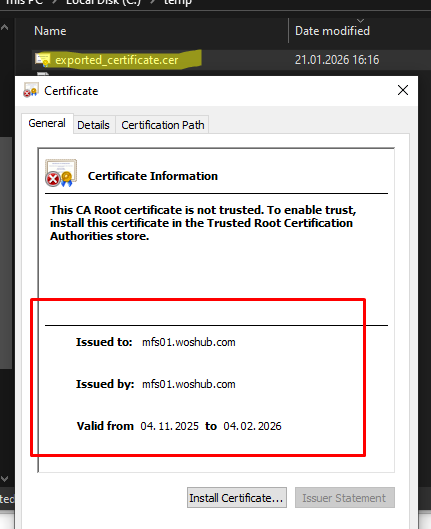
This approach is useful for analyzing the certificate store of a failed system by extracting data from its offline registry hives. This allows you to extract all the public parts of the certificates installed on a computer.