It may happen that you forget your Windows login password and cannot sign in to your computer. In this article, we will show you how to reset the local administrator account password using built‑in Windows tools, without relying on any third‑party utilities. This password reset guide applies to all supported Windows operating systems, including Windows 11, Windows 10, and Windows Server 2025, 2022, 2019, and 2016.
You can use this password reset method in Windows if:
- You have physical access to the console of the computer or virtual machine on which you want to reset the administrator password. This includes options for remote access to the server or computer console via IP-KVM, IPMI, HP iLO, Dell iDRAC, Intel vPro, and so on.
- The computer’s system drive must not be encrypted with BitLocker or other disk encryption tools (in Windows 11, drive partitions are automatically encrypted with BitLocker on compatible hardware). If your drive is encrypted with BitLocker and you have a recovery key, this post will show you how to decrypt the system drive before resetting the password.
- A local Windows account is used on the computer instead of a cloud‑based Microsoft account (MSA) (How to install Windows 11 with a local account). When an MSA is used, you can reset its password using the standard recovery tools on Microsoft’s website, including the password reset option accessible directly from the Windows sign-in screen.
Boot Computer into Recovery Mode (WinRE) or from Windows Installation Media
In order to reset the local administrator password, the computer must be booted from any bootable media. The easiest way is to restart your computer in the Windows Recovery Environment (WinRE) from the built-in recovery disk partition.
To reboot into the Windows Recovery Environment, hold down the Shift key at the login screen (or in the Start menu) and click the Restart button.

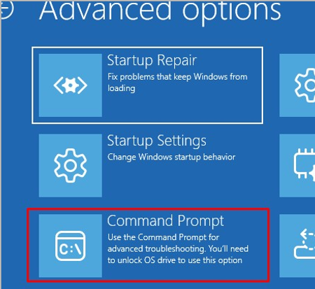
After restarting the computer in recovery mode, open the Command Prompt (go to Troubleshoot -> Advanced Options -> Command Prompt).
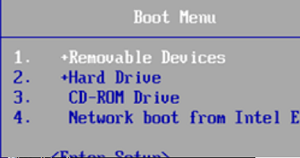
- After preparing the bootable USB drive, restart your computer and enter the BIOS/UEFI setup as it powers on (press
F1,F2orDeldepending on the hardware). Set your USB flash drive as the primary boot device. Find the Boot Order/Boot Device Priority menu item (menu item names depend on the manufacturer and BIOS/UEFI firmware version). Then set your removable USB flash drive as the primary boot source.
- When the computer starts, the message ‘Press any key to boot from CD/DVD/USB‘ should appear.
- The Windows Setup Wizard will start automatically. Use the key combination
Shift+F10(orShift + Fn + F10on laptops) to open the command prompt.
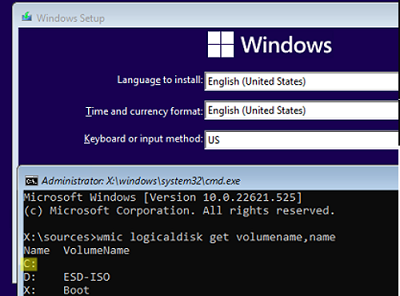
- After opening the command prompt, find out the drive letter assigned to the partition where Windows is installed. Run the command
wmic logicaldisk get volumename,nameIf local disks are not displayed in the WinPE environment, you most likely need to load drivers for the disk controller. In the WinPE environment, drivers can be loaded using thedrvloadcommand. See an example of how to manually load the NVMe driver during Windows installation.
- As you can see in my example, Windows is on the
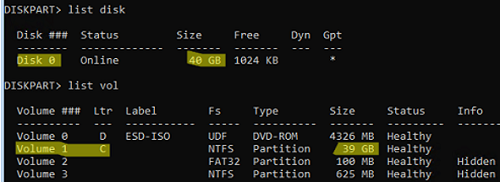
C:This is the drive letter we will use in the following commands.If your system partition is encrypted with BitLocker and you have the password to decrypt it, you must first unlock the BitLocker-encrypted drive with the command:manage-bde -unlock C: -pw. The administrator password can only be reset after this. - You can also identify partitions and their assigned drive letters in the WinPE environment using the diskpart command. For that, run the following commands one after the other:
diskpart->list disk(to display a list of hard disks available) ->list vol(list partitions and their assigned drive letters). In this example, there is only one Disk 0 with a GPT partition table and three partitions: the EFI system partition (with the FAT32 file system, which contains the Windows EFI bootloader), the recovery partition (with the WinRE recovery environment), and the primary partition with the NTFS file system and a size of 39GB (with the C drive letter assigned).
How to Open Command Prompt as System at Login Screen
At this step, you need to perform a small trick by replacing a system file, which allows you to open a privileged command prompt directly from the Windows login screen without authentication.
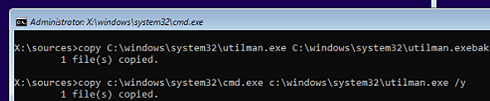
- Run the following command to back up the original utilman.exe file:
copy C:\windows\system32\utilman.exe C:\windows\system32\utilman.exebak - Then replace the utilman.exe file with the cmd.exe file:
copy c:\windows\system32\cmd.exe c:\windows\system32\utilman.exe /y

- If you used a bootable USB flash drive or other media containing the Windows installation image, remove it and restart your computer:
wpeutil reboot - Boot normally into Windows, which is installed on your computer.
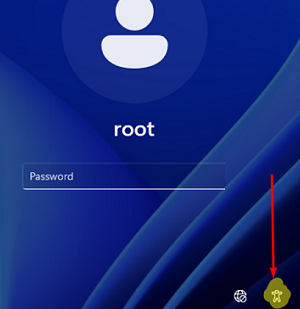
- On the login screen, click the Accessibility (Ease of Access) icon in the lower-right corner (in Windows 11, this is represented by a small person-shaped icon).

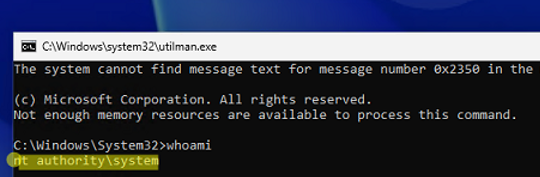
- A command prompt should appear. Make sure that the console is running under NT Authority\SYSTEM:
whoami

Reset the Windows Administrator Password from Command Prompt
From a command prompt that is run with SYSTEM privileges, you can manage any local Windows accounts.
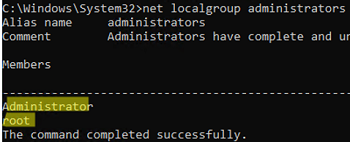
List the user accounts with administrator rights on the computer (members of the built-in Administrators group).
net localgroup administrators
Administrators in Windows varies by language. For example, in the localized French version of Windows, it is administrateurs.In this example, there are two users in the Administrators group. You can reset the password for any of these users to log on to Windows.
If the group is empty, this means that you need to assign administrator rights to one of the available local Windows users. List all local users:
net user
To add user1 to the local Administrators group, run the following command:
net localgroup administrators user1 /add
If you have no other users on the computer except the built-in Administrator account, you can reset the password for this account.
To reset the password for the user (in this example, the username is “root“), run the following command:
net user root *
Set a new password and confirm it. The new password must meet your Windows password policy requirements regarding complexity and length.
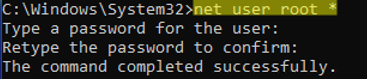
Now, ensure that your account is enabled. List the account information:
net user root
If the user is disabled (Account active: No ), enable it:
net user root /active:yes
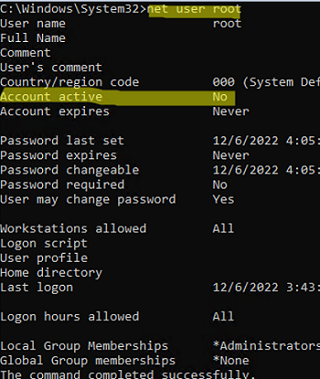
Now verify that you can access Windows with the account that you reset the password for (by default, the Windows sign-in screen displays the list of enabled local accounts).
Create a New Local User When Only a Microsoft Account Exists in Windows
If you use a Microsoft account on your computer, you can reset your password via https://account.live.com/password/reset. If you cannot recover your MSA password this way, you will need to enable the local Administrator account, reset its password and log in with it, or create a new local user with local administrator permissions (see below for details).
You can manually create a new local user, set a password for them, and add them to the built-in Administrators group. This can be useful if you only have a Microsoft account on your computer.
To see what types of accounts are available on your computer, run the following in the command prompt:
powershell.exe (to switch to PowerShell prompt)
Get-LocalUser| select Name,Enabled,PrincipalSource
The last PowerShell command will list the available user accounts on the computer. In my case, only one MicrosoftAccount, with the name winos, is enabled on a computer. The type of account (local, MSA, or domain) is identified by the value in the PrincipalSource field.
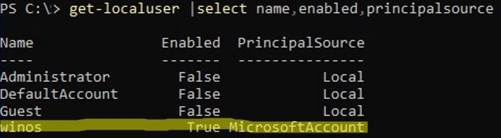
Run the following command to create a new local user.
net user myNewUser1 /add *
Set a password for the user.
Add the user to the local Administrators group. If you are using a localized version of Windows, change the group name.
net localgroup Administrators myNewUser1 /add
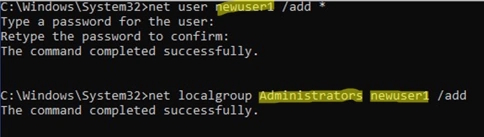
Once everything is working properly, replace utilman.exe with the original file to avoid leaving a security vulnerability in Windows. Restart the computer in recovery mode, or boot it from a USB stick or ISO image. Open a command prompt and replace utilman.exe with the original file from the backup.
copy c:\windows\system32\utilman.exebak c:\windows\system32\utilman.exe /y
Then restart your computer.
sethc.exe executable. If you replace the sethc.exe executable with cmd.exe, you can launch an elevated Command Prompt from the Windows sign-in screen by pressing the Shift key five times (this triggers the Sticky Keys accessibility feature, which executes sethc.exe). After resetting a user’s password, you will still have access to all files in the user profile, installed programs and settings, saved passwords in Windows Credential Manager, and other data available to that user; however, access to EFS‑encrypted files may be lost (as the encryption keys are tied to the original user credentials).
If the computer is joined to an Active Directory domain, additional domain Group Policies (GPOs) may affect local administrator accounts. For example, in managed environments, administrators can use Group Policy to: disable local user accounts, remove local users from the Administrators group, and automatically rotate the built-in local Administrator password using Windows LAPS. Resetting the local administrator password may not be enough because these policies can be reapplied once the computer contacts a domain controller.
So, if you need to reset the local administrator password on a domain-joined computer, you must first reset the local policies and clear the GPO cache, and then disconnect the computer from the network before signing in with the new local Administrator password. This helps prevent the domain from immediately reapplying policies that could disable the account or overwrite its password.
4 comments
Excellent doc thanks. Very clear instructions around the ease of access part
Thanks a lot for the guide
Very usefull. I’ve achieved to recover some important document from the laptop of my father whose recently deceased
Some notes :
– name of local groups (admnistrators for exemple) seems to be language related.
At least for french language, this is the case (administrateurs)
– if you can’t change the boot setting in the bios (lock by a password for exemple) and it don’t boot on removable device by default, it appear that the Windows troubleshoot menu can solve this (shift+clic the “reboot” menu when you are in the login screen)
hard to use it nowdays since bitlocker “blocks” it.
use the manage-bde command to unlock the protected drive using the recovery key then make the file changes. This method is commonly used for non-malicious reasons.
However, another issue is that this trick is more likely to destroy saved credentials and invalidate Office credentials in the target account