In Windows, per-user services are special services created for each user when they log on to the system and deleted upon the user’s logoff. They implement personalized tasks (like search indexing, notifications, data synchronization), execute in the user account context (not LocalSystem), and isolate user background processes from system services. The concept of per-user services is used starting from Windows 10/Windows Server 2016 (with Desktop Experience) and newer.
How to Find All Per-User Services in Windows
To view a list of user services on a Windows machine, open the Services Management snap-in (services.msc). This is a suffix, such as _da170, appended to the service name. Note that some service names end with a unique identifier (LUID). For example, Clipboard User Service_da170 , Contact Data_da170 , ConsentUX User Service_da170, etc. This LUID suffix is unique and generated when a user logs in.
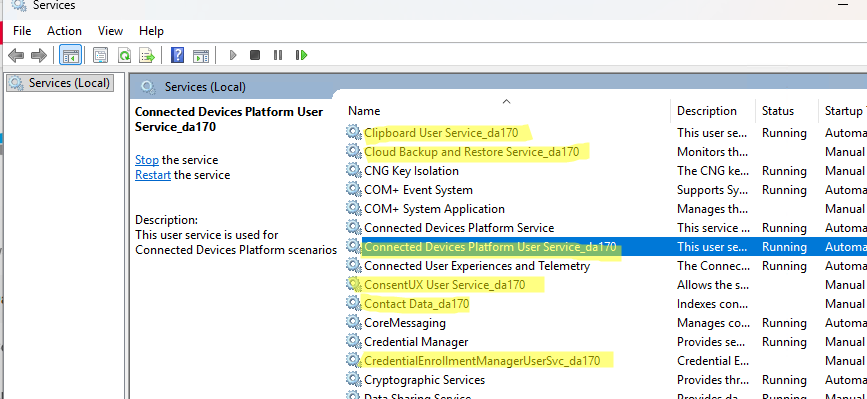
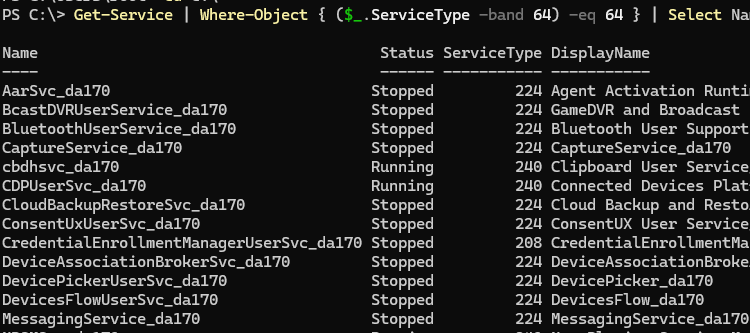
In my case, there are two active user sessions on the Windows host, so each user has its own set of per-user services. Using PowerShell, you can list per-user services by filtering by the SERVICE_USER_SERVICE type (0x40 in hex, or 64 in decimal).
Get-Service | Where-Object { ($_.ServiceType -band 64) -eq 64 } | Select Name, Status, ServiceType,DisplayName
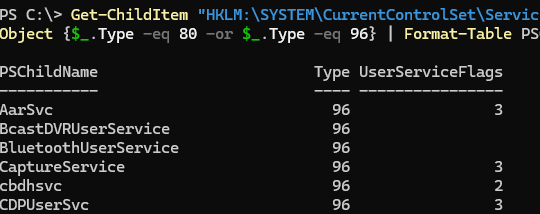
Windows uses service templates in the registry (HKLM\SYSTEM\CurrentControlSet\Services) to create personal services for each user when they log on. To list all per-user service templates in the Windows registry, run the following PowerShell command:
Get-ChildItem "HKLM:\SYSTEM\CurrentControlSet\Services" | ForEach-Object { Get-ItemProperty $_.pspath } | Where-Object {$_.Type -eq 80 -or $_.Type -eq 96} | Format-Table PSChildName, Type, UserServiceFlags
Below is a list of the default per-user services in Windows 11 25H2. Each service is accompanied by a brief description, its startup type, and information on whether it can be disabled.
| Service Name | Display Name | Startup Type | Can e Disabled | Description |
|---|---|---|---|---|
AarSvc | Agent Activation Runtime | Manual | ⛔ Do NOT disable | Launches app background agents |
BluetoothUserService | Bluetooth User Support Service | Manual | 🟢 Safe to disable | Provides Bluetooth user-level support |
CaptureService | Capture Service | Manual | 🟢 Safe to disable | Handles screen and video capturing |
cbdhsvc | Clipboard User Service | Manual | 🟢 Safe to disable | Manages shared clipboard and sync |
CDPUserSvc | Connected Devices Platform User Service | Automatic | 🟢 Safe to disable | Synchronizes connected devices and apps |
CloudBackupRestoreSvc | Cloud Backup and Restore Service | Manual | 🟡 No recommendation | Manages OneDrive or MS account backups |
ConsentUxUserSvc | ConsentUX User Service | Manual | 🟢 Safe to disable | Handles app consent dialogs |
PimIndexMaintenanceSvc | Contact Data | Manual | 🟢 Safe to disable | Indexes and maintains Contact data |
CredentialEnrollmentManagerUserSvc | Credential Enrollment Manager | Manual | ⛔ Do NOT disable | Stores and manages login credentials |
DeviceAssociationBrokerSvc | Device Association Broker | Manual | 🟡 No recommendation | Associate devices and peripherals |
DevicePickerUserSvc | Device Picker | Manual | 🟢 Safe to disable | Enables device selection (Miracast) |
DevicesFlowUserSvc | Devices Flow | Manual | 🟢 Safe to disable | Manages Wi-Fi and Bluetooth displays |
BcastDVRUserService | GameDVR and Broadcast Service | Manual | 🟢 Safe to disable | Used for game recording and streaming |
MessagingService | Messaging Service | Manual | 🟢 Safe to disable | Handles messaging applications |
NPSMSvc | Now Playing Session Manager Service | Manual | 🟡 No recommendation | Tracks current media sessions |
OneSyncSvc | Sync Host | Automatic | 🟢 Safe to disable | Syncs settings, mail, calendar, and OneDrive |
P9RdrService | Plan 9 Reader Service | Manual | 🟡 No recommendation | Provides Plan 9 protocol for WSL |
PenService | Pen Service | Manual | 🟡 No recommendation | Supports stylus and pen input |
PrintWorkflowUserSvc | Print Workflow | Manual | 🟡 No recommendation | UWP print service integration |
UdkUserSvc | Udk User Service | Manual | 🟢 Safe to disable | Coordinates shell environment for UWP apps |
UserDataSvc | User Data Access | Manual | 🟢 Safe to disable | Provides UWP user data access |
UnistoreSvc | User Data Storage | Manual | 🟢 Safe to disable | Stores user data for UWP apps |
WpnUserService | Windows Push Notifications User Service | Manual | ⛔ Do NOT disable | Delivers push notifications to apps |
How to Disable or Remove Per-User Services in Windows
Most per-user services are disabled by default and started only when needed. You can prevent the creation of certain Windows features when users log on by disabling the corresponding per-user services if you don’t use them. This can be very important for terminal servers (RDS hosts) and virtual desktops (VDI).
For example, you determine that users do not require the DevicesFlowUserSvc (for WiFi displays and Bluetooth device connectivity) or BcastDVRUserService (for game recording and broadcasting) services.
To disable these services, go to the registry key HKLM\System\CurrentControlSet\Services\BcastDVRUserService and create a REG_DWORD parameter with the name UserServiceFlags and the value 0. Create this registry item manually or via PowerShell.
New-ItemProperty -Path HKLM:\System\CurrentControlSet\Services\BcastDVRUserService -Name UserServiceFlags -PropertyType DWord -Value 0 -Force
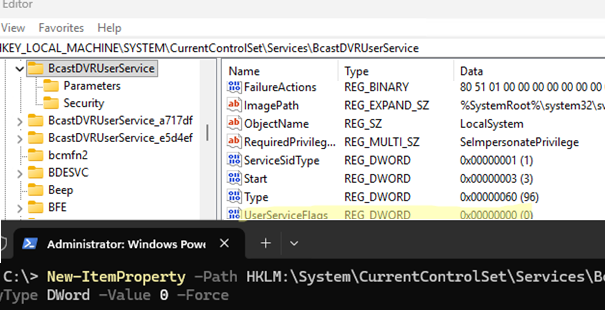
After restarting the computer, dynamic per-user services for them will not be created.
In an RDS terminal farm with a large number of users (or in desktop Windows editions that support user switching or multiple RDP sessions), per-user services can negatively impact server performance and manageability by sharply increasing the total service count. Therefore, if you are not using certain functions, you can disable those services.
The following services are disabled in my Windows Server 2022 RDS templates:
- CaptureService
- Cbdhsvc
- CDPSvc
- CDPUserSvc
- ConsentUxUserSvc
- DevicePickerUserSvc
- DevicesFlowUserSvc
- PimIndexMaintenanceSvc
- PrintWorkflowUserSvc
- UnistoreSvc
- UserDataSvc
- WpnUserService
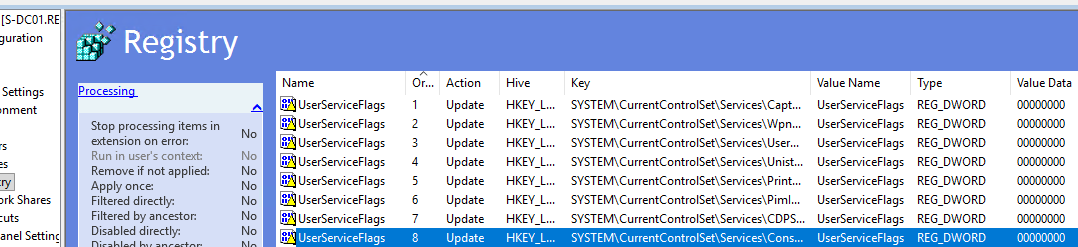
I use Group Policy to set the UserServiceFlags value to 0 for all of these services (See how to add a registry item via Group Policy Preferences)