When performing a clean Windows installation from an image on a computer or VM, you may encounter an error when attempting to select an edition:
Windows could not display the images available for installation
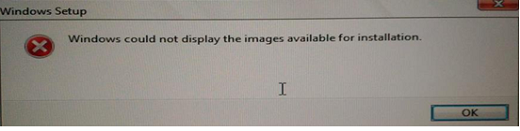
As a result, installing Windows on devices is impossible.
In the case of Windows Server 2019, 2022, or 2025, the error may look like this:
No images are available
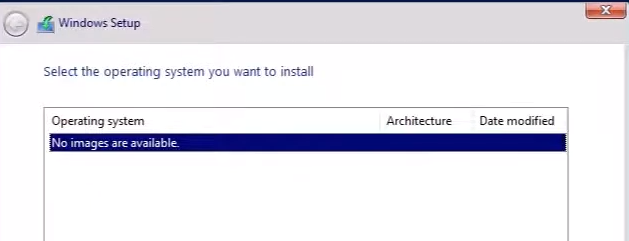
This installation issue may occur when using an AutoUnattend.xml answer file and/or a custom Windows image, including captured ones (this could include Windows images that contain pre-installed software, integrated drivers, or injected updates).
First of all, check that a description has been set for all Windows editions available in the install.wim file. Open a command prompt and type the path to the Install.WIM (or install.ESD) file on the installation USB stick or mounted Windows ISO image:
DISM /Get-WimInfo /WimFile:"E:\sources\install.wim"
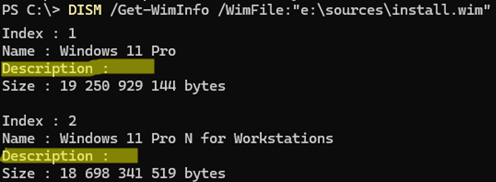
As you can see in my screenshot, the WIM image contains two editions of Windows 11, but the Description field is empty in both cases.
If you use a custom Windows image build script, check at what stage the edition description was removed (skipped).
The quickest way to fix an existing WIM installation image is to open it using a third-party tool such as DISM++ or GImageX. Open the install.wim file on the installation media and add a description for each edition of Windows in the image (fill in the Image Description attribute).
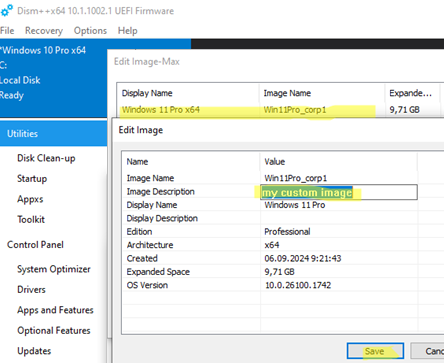
Save the changes and check that the Description field in the WIM file is now filled in. 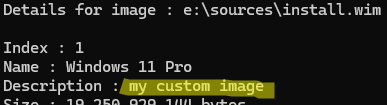
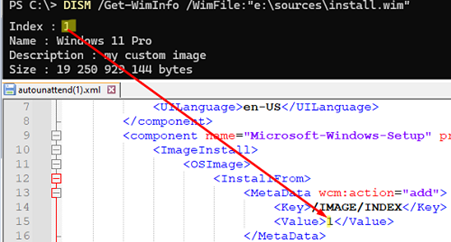
If the issue is not related to an empty description and you are using the Autounattend.xml answer file for automated Windows installation, the problem may be caused by an incorrect Windows edition index in the file.
Open the Autounattend.xml file in a text editor and verify that the Value parameter within the ImageInstall section contains the correct Windows edition index in the WIM image intended for the unattended installation.
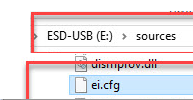
Another possible cause could be the presence of a Windows product key embedded in UEFI by the manufacturer. If the installation WIM image does not contain the edition corresponding to this key, the Windows Setup will fail. To make the Windows installer ignore the product key stored in UEFI, create a text file named ei.cfg in the sources directory on your installation USB drive with the following config:
[EditionID]
[Channel]
Retail
Other possible causes of the ‘Could not display images’ error:
- The installation image or media is corrupted.
- The Windows installation image that you are using is not the original version.
Use the official Media Creation Tool or Rufus to download and burn the original Windows installation image to a USB flash drive (or other media).