Although security best practices strongly discourage passwordless user accounts, they may be necessary in certain operational scenarios. In this article, we’ll look at how to create a new user with a blank password in Windows.
- If you need a passwordless user account to run one or two specific apps on a public computer, it is probably more secure to configure Windows to run in kiosk mode.
- To enable automatic logon to Windows without a password prompt, it is more secure to store the user’s password in the registry than to create an account with an empty password field. (see the linked article for details).
Create a New User with a Blank Password on a Windows Workstation
To create a new user without a password on a computer running Windows 10 or 11, open a command prompt window and run the following command:
net user test_usr /add *
Press Enter twice at the new password prompt to indicate that you want to leave the password blank.
However, the following error will most likely appear:
The password does not meet the password policy requirements. Check the minimum password length, password complexity and password history requirements. More help is available by typing NET HELPMSG 2245.
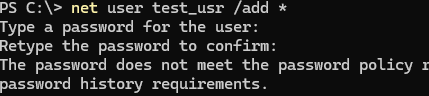
This is because the default security policies in Windows require passwords to be at least 7 characters long.
You can check your current local password policy settings in Windows using the command:
net accounts
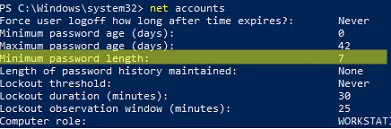
The minimum password length on my Windows device is 7 characters. To temporarily disable the minimum password length requirement, change it to 0 with the command:
net accounts /minpwlen:0
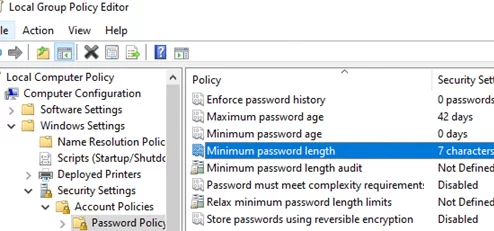
You will now be able to create a user with a blank password using the net use command. Then, restore the password policy to its previous configuration:
net accounts /minpwlen:7
After creation, the new user will appear in the list of local user accounts on the Windows login screen. To sign in as a new user, click on the account icon.
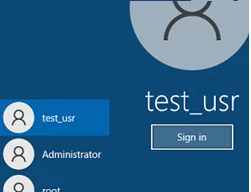
If you try to run a program (using runas) or a scheduler task under a user with a blank password, an error will appear:
1327: Account restrictions are preventing this user from signing in. For example: blank passwords aren't allowed, sign-in times are limited, or a policy restriction has been enforced.
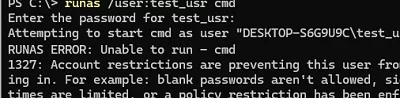
This occurs because the default Windows security policy prevents the use of passwordless accounts for all operations except for local logon (It cannot be used for remote logon via RDP, FTP, etc).
Open the local Group Policy Editor snap-in (gpedit.msc) and navigate to Computer Configuration -> Windows Settings -> Security Settings -> Local Policies -> Security Options. Find the option Accounts: Limit local account use of blank passwords to console logon only (this policy is disabled by default).
To allow running apps in batch job mode and allow the passwordless remote login, change the policy value to Disabled. Update the local Group Policy settings by running: gpupdate /force
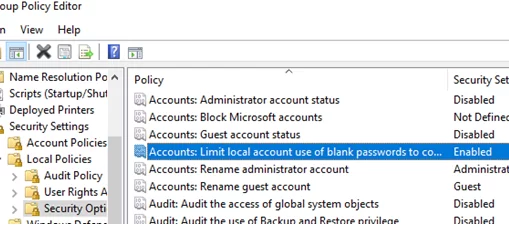
reg add "HKEY_LOCAL_MACHINE\SYSTEM\CurrentControlSet\Control\Lsa" /v LimitBlankPasswordUse /t REG_DWORD /d 1 /f
Now you can run programs on behalf of a new user account without entering a password:
runas /user:test_usr cmd
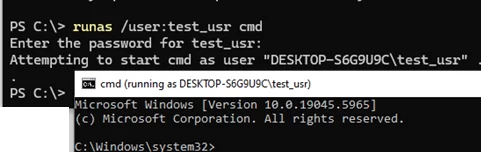
It is also possible to restrict local and remote logins, network access, and the use of this account in task schedulers through the local security policies
- Allow or Deny log on through Remote Desktop Services
- Allow or Deny log on locally
- Log on as a batch job
To prevent a user from changing their password, enable the User cannot change password option for them. This option can be enabled from the lusmgr.msc graphical snap-in, or use this PowerShell command to change the local user settings:
Get-LocalUser test_usr| Set-LocalUser –PasswordNeverExpires $True -UserMayChangePassword $False
Active Directory Domain User Without a Password
By default, the AD domain security policies also prevent the creation of domain user accounts without a password. However, there is a workaround that allows administrators to create a passwordless user account without changing the domain password policy settings.
First, enable the PASSWD_NOTREQD attribute for the target user account. To do this, you will need either Domain Admin or Account Operator permissions.
Get-ADUser j.smith | Set-ADUser -PasswordNotRequired $true
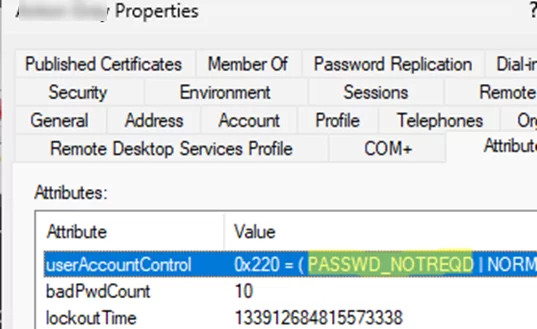
The administrator will then be able to set a blank password for this AD account. Run this command (press Enter twice when prompted to set a new password):
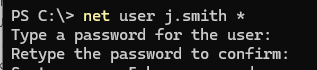
net user j.smith *