Microsoft Office 2024 LTSC (Long-Term Servicing Channel) is the latest perpetually licensed version of Microsoft Office, with end-of-support on October 9, 2029. Office 2024 LTSC is intended for use by corporate customers, requires no Microsoft 365 subscription, lacks cloud features, and suits environments with limited internet access. This article explains how to properly download, install, and activate the original MS Office 2024 LTSC package on your computer.
Download & Install Microsoft Office 2024 LTSC with the Office Deployment Tool (ODT)
With the release of Office 2019, Microsoft changed the download and installation process for Office suites for customers with Volume Licensing agreements. You cannot directly download installation packages for new Microsoft Office versions, including Office 2024 and 2021, from your personal account on the Volume Licensing Service Center (VLSC) website. Currently, MS Office distributions are stored in Microsoft’s distributed CDN network, and to download and install them on users’ computers, you need to use the Office Deployment Tool (ODT).
Download the Office Deployment Tool using this link https://www.microsoft.com/en-us/download/details.aspx?id=49117
Run the officedeploymenttool_19725-20126.exe executable and extract the ODT tool to the local directory. As a result, you will receive a setup.exe file and an XML file with a sample Microsoft 365 Apps for enterprise (formerly Office 365 ProPlus) installation configuration (configuration-Office365-x64.xml).
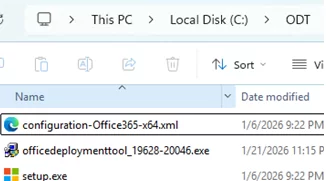
Now, let’s create an XML configuration file to deploy Microsoft Office 2024 LTSC. To generate such an XML file, you can use the online service Office Customization Tool (https://config.office.com/deploymentsettings).
If you’re using an online XML generator, set the following options:
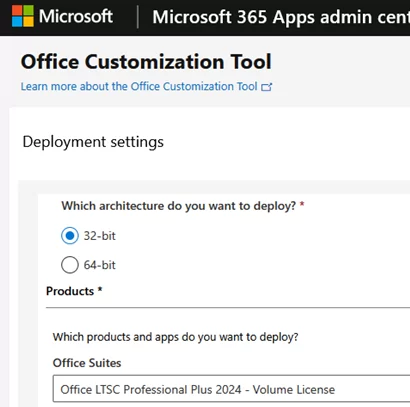
- Architecture: 32-bit (to ensure maximum compatibility with the add-ins and applications we use, I’m going to use the x86 version of Office)
- Products to install: Office LTSC Professional Plus 2024 – Volume License (below, select whether you want to additionally install Visio and Project apps).
Check the Microsoft Office apps you want to install. I chose to install Word, Excel, and the classic desktop version of Outlook.
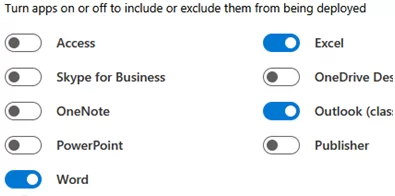
Answer the following questions in the Office Customization Tool, and when ready, click Export to generate and download the XML file with Office 2024 installation settings.
You can use my sample XML file to install Office 2024 LTSC (Word + Excel + Outlook only) with English and German language support (Office language packs), with Office auto-update enabled, and the RemoveMSI option enabled (used to uninstall previous MS Office versions that are deployed from MSI packages). The Office installation experience is enabled, meaning that progress bars, completion screens, error messages, and other user interface elements will be displayed. To run the MS Office installation in silent mode from the command prompt, add the following option <Display Level="None"> .
DeployOffice2024LTSC.xml
<Configuration>
<Add OfficeClientEdition="32" Channel="PerpetualVL2024">
<Product ID="ProPlus2024Volume">
<Language ID="en-us" />
<Language ID="de-de" />
<ExcludeApp ID="Access" />
<ExcludeApp ID="Lync" />
<ExcludeApp ID="OneDrive" />
<ExcludeApp ID="OneNote" />
<ExcludeApp ID="PowerPoint" />
<ExcludeApp ID="Publisher" />
</Product>
</Add>
<Updates Enabled="TRUE" />
<RemoveMSI />
<Display Level="Full" AcceptEULA="TRUE" />
</Configuration>
Copy your XML file into the ODT directory. Open a command prompt, navigate to the ODT folder, and run the following command to begin downloading and installing Microsoft Office according to the configuration file.
cd c:\install\odt
 Setup.exe /configure DeployOffice2024LTSC.xml
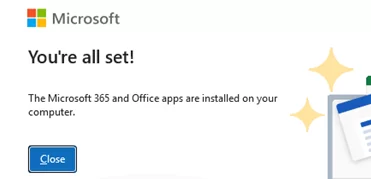
A window should appear showing the progress of the installation of Microsoft Office 2024 LTSC. Note that it displays the icons of the Office apps being installed.
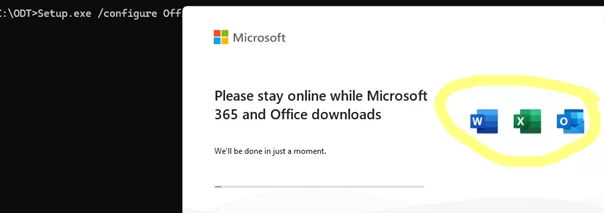
Wait until the Office 2024 LTSC installation is complete.
How to Active Microsoft Office 2024 LTSC in Windows
In order to use MS Office 2024, it must be activated. Microsoft Office 2024 LTSC is only available through the Microsoft Volume Licensing program. Volume (corporate) versions of Microsoft Office are activated using either a Multiple Activation Key (MAK) or a Key Management Service (KMS) server. Learn more about Microsoft KMS activation.
You can check the activation status of any Microsoft Office application in File -> Account or use the following commands:
CD %SystemDrive%\Program Files (x86)\Microsoft Office\Office16
 cscript ospp.vbs /dstatus
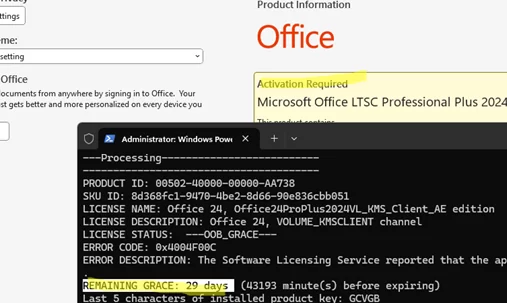
In my case, Office requires activation and is currently in grace period mode (with 29 days remaining).
OSPPREARM.EXE command).As a Microsoft 365 Enterprise subscriber, you have two options for activating your Office instance: using a MAK key or your internal KMS activation server.
If you have deployed an internal Office KMS activation server (either the official one or an alternative KMS server on Linux), then navigate to the Office installation directory:
CD %SystemDrive%\Program Files (x86)\Microsoft Office\Office16
Set your KMS server DNS name or IP address:
cscript ospp.vbs /sethst:192.168.111.222
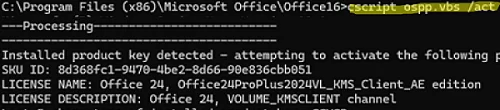
Activate Microsoft Office against the KMS server:
cscript ospp.vbs /act
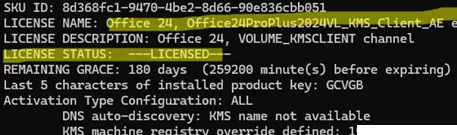
Check that the Office 24 Office24ProPlus2024VL_KMS_Client_AE edition product has been activated successfully ( LICENSE STATUS: ---LICENSED--- )
cscript ospp.vbs /dstatusall
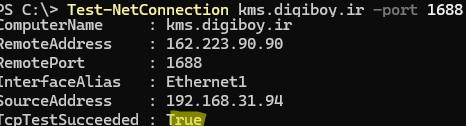
You can use one of the public KMS servers, for example, kms.digiboy.ir, for online activation (although this violates the license agreement and is illegal, it is safe since you are not modifying your system, unlike when you use activators). Check that the TCP/1688 port of this KMS host is accessible from your network using the command:
Test-NetConnection kms.digiboy.ir -port 1688
Perform activation:
cscript ospp.vbs /sethst:kms.digiboy.ir
 cscript ospp.vbs /act
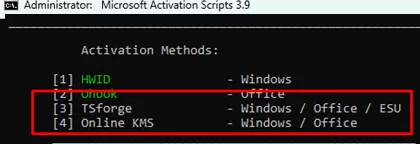
Or, at least, you can activate Office 2024 using the Massgrave script:
irm https://get.activated.win | iex
The OHook (Office OHook Activation) option allows you to activate Office permanently, as opposed to the 180-day KMS activation. However, this carries legal and security risks when installing an activator into the system.
So, we explained how to download, install, and activate the original Microsoft Office 2024 LTSC apps on your computer using official tools.