This article describes how to revert to a previous version of Microsoft Office if some apps stop working in your environment after installing the latest update. Rolling back to an earlier MS Office version is often much easier than locating and troubleshooting the problem. This article applies to C2R versions of Office 2021, 2019, 2016, and Microsoft 365 Apps.
In the scenarios with an MSI version of Office, if an update causes a problem, you can simply uninstall the most recently installed Office update by going to Settings -> Windows Update -> Update History -> Uninstall Updates. But this doesn’t work with the C2R versions of MS Office that are most common today.
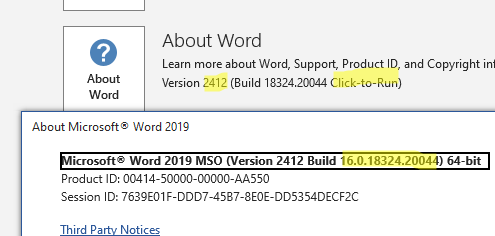
To check which version of Office is installed (C2R or MSI), start any Office application (for example, Word) and choose File -> Account. For example, I have the MS Office 2019 Click-to-Run (C2R) version installed on my computer. Click the About button to find out the current build number (you will need this later). In this example, MS Office 2019, version 2412, build 16.0.18324.20044 is installed on a computer.
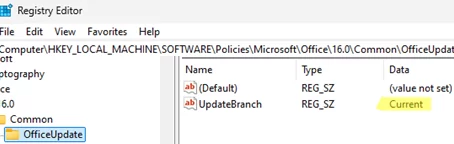
Next, check your Office Update channel. The UpdateBranch parameter under the HKLM\software\policies\microsoft\office\16.0\common\officeupdate registry key contains the name of the current update channel. In my example, the product is in the “Current” update channel.
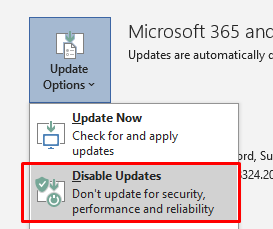
If you want to revert back to a previous build (version) of Office, first disable the auto-update feature. Go to File -> Account -> Update Options, and select Disable Updates. If you don’t turn off automatic updates, Office will update itself to the latest available version.
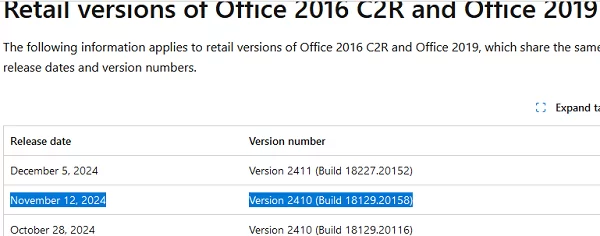
Now find out the exact build number of the previous C2R version of Office that you want to roll back to.
- If you are using Office 2016 or 2019, go to https://learn.microsoft.com/en-us/officeupdates/update-history-office-2019
- Office 2021 (including LTSC) — https://learn.microsoft.com/en-us/officeupdates/update-history-office-2021
- Microsoft 365 Apps (ex-Office 365) — https://learn.microsoft.com/en-us/officeupdates/update-history-microsoft365-apps-by-date
In this case, the computer has Office 2019, version 2412, build 16.0.18324.20044 installed. I want to revert to the previous version of Office from 12 November. Copy its build number (18129.20158) and paste it into the string 16.0.xxxxx.yyyyy. The resulting line is 16.0.18129.20158.
Now open a command prompt as an administrator and change to the directory:
cd %ProgramFiles%\Common Files\Microsoft Shared\ClickToRun\
In the following command, type the Office build number that you want to roll back to:
officec2rclient.exe /update user updatetoversion=<build number>
In my case, I will use the following command to install the previous version of Office:
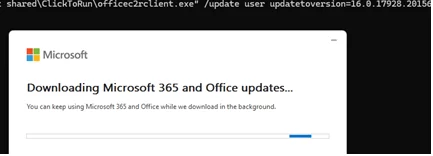
officec2rclient.exe /update user updatetoversion=16.0.18129.20158
The C2R installer will download the files and install the specified Office version.
If you use the Office Deployment Tool (ODT) to install Office, you can downgrade to a specific build by adding the target version information to the XML configuration file:
<Configuration>
  <Updates Enabled="TRUE" TargetVersion="16.0.18129.20158" />
</Configuration>
Then proceed to install Office using the ODT:
setup.exe /configure configuration.xml
Don’t leave your Office in the auto-update disabled mode for too long. You could miss an important hotfix or security patch. Add a reminder to your calendar to turn on the Office automatic update at a specific time (for example, in a month) and check to see if the problem has been fixed.

To immediately update C2R MS Office to the latest available version, run the following command
OfficeC2RClient.exe /update USER
1 comment
⚠️ Microsoft Excel updates released in September 2026 can break basic copy-and-paste functionality, fill operations by dragging, and cell drag-and-drop. They can also make it impossible to copy worksheets within the same Excel workbook.
The issue affects both classic MSI versions of Microsoft Excel (2016 and 2019) and Click-to-Run (C2R) versions of Excel 2019, 2021, and 2024.
🔹 MSI versions of Excel 2016
In Microsoft Excel 2016 MSI, the problem appears after installing security update KB5002914 (September 8, 2026).
There is currently no official fix, so for now the workaround is to uninstall the update:
wusa /uninstall /kb:5002914 /quiet /norestart
Or:
msiexec.exe /package Product_GUID /uninstall Update_GUID /qn
For example:
Product_GUID
Office 2016 Professional x64 — {90160000-0011-0000-1000-0000000FF1CE}
Office 2016 Professional x86 — {90160000-0011-0000-0000-0000000FF1CE}
Office 2016 Standard x64 — {90160000-0012-0000-1000-0000000FF1CE}
Update_GUID
{27882596-A8ED-4382-9C71-6CD2DD19F732}
You can retrieve the complete UninstallString for the installed Office update directly from the registry:
Get-ItemProperty `
“HKLM:\SOFTWARE\Microsoft\Windows\CurrentVersion\Uninstall\*” ,
“HKLM:\SOFTWARE\WOW6432Node\Microsoft\Windows\CurrentVersion\Uninstall\*” `
-ErrorAction SilentlyContinue |
Where-Object { $_.DisplayName -like “*KB5002914*” } |
Select-Object DisplayName, UninstallString
🔹 Click-to-Run Office versions
With Office C2R, KB5002914 cannot be uninstalled as an individual patch in the same way as with MSI versions. Instead, you need to roll back to a previous Office build using officec2rclient.exe.
1️⃣ First, temporarily disable Office updates so the problematic build isn’t installed again.
You can do this through: File → Account → Update Options → Disable Updates
Or via the registry:
reg add “HKLM\SOFTWARE\Policies\Microsoft\office\16.0\common\officeupdate” /v “EnableAutomaticUpdates” /t REG_DWORD /d 0 /f
reg add “HKLM\SOFTWARE\Policies\Microsoft\office\16.0\common\officeupdate” /v “HideEnableDisableUpdates” /t REG_DWORD /d 1 /f
reg add “HKLM\SOFTWARE\Microsoft\Office\ClickToRun\Configuration” /v “UpdatesEnabled” /t REG_SZ /d “False” /f
2️⃣ Then roll back to the previous build:
officec2rclient.exe /update user updatetoversion=
You can find available build numbers in Microsoft’s Update History for the corresponding Office product.
For example:
“C:\Program Files\Common Files\microsoft shared\ClickToRun\officec2rclient.exe” /update user displaylevel=true updatetoversion=16.0.14334.20848
3️⃣ Once Microsoft revokes the problematic update or releases a fix, re-enable Office updates:
reg delete “HKLM\SOFTWARE\Policies\Microsoft\office\16.0\common\officeupdate” /v “EnableAutomaticUpdates” /f
reg delete “HKLM\SOFTWARE\Policies\Microsoft\office\16.0\common\officeupdate” /v “HideEnableDisableUpdates” /f
reg add “HKLM\SOFTWARE\Microsoft\Office\ClickToRun\Configuration” /v “UpdatesEnabled” /t REG_SZ /d “True” /f
✅ How to Roll Back Microsoft Office to a Previous Version After an Update