Windows OS Hub
  • Windows
    • Windows 11
    • Windows 10
    • Windows Server 2025
    • Windows Server 2022
    • Windows Server 2019
    • Windows Server 2016
  • Microsoft
    • Active Directory (AD DS)
    • Group Policies (GPOs)
    • Exchange Server
    • Azure and Microsoft 365
    • Microsoft Office
  • Virtualization
    • VMware
    • Hyper-V
    • Proxmox
  • PowerShell
  • Linux
  • Home
  • About

Windows OS Hub

  • Windows
    • Windows 11
    • Windows 10
    • Windows Server 2025
    • Windows Server 2022
    • Windows Server 2019
    • Windows Server 2016
  • Microsoft
    • Active Directory (AD DS)
    • Group Policies (GPOs)
    • Exchange Server
    • Azure and Microsoft 365
    • Microsoft Office
  • Virtualization
    • VMware
    • Hyper-V
    • Proxmox
  • PowerShell
  • Linux

 Windows OS Hub / Microsoft Office / Fix: Can’t Open a Downloaded Word/Excel File

January 19, 2026

Fix: Can’t Open a Downloaded Word/Excel File

Windows users may encounter the following error when trying to open a Word or Excel document downloaded from the internet in the Microsoft Office app:

Word experienced an error trying to open the file.
Try these suggestions:
* Check the file permissions for the document or drive,
* Make sure there is sufficient free memory and disk space, o
* Open the file with the Text Recovery converter
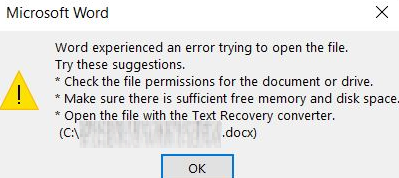
The user can't open Excel or Word files that have been downloaded

How can you open such documents?

The reason is that modern browsers add the Zone.Identifier alternate data stream to the NTFS metadata of files downloaded from the Internet, indicating that the files originate from the Internet security zone. This enables Windows and other apps to recognize that the file originated from an external untrusted source and apply appropriate security restrictions when a user attempts to open or execute it.

To unblock a DOC/DOCX/XLS/XLSX file, open its properties in File Explorer, check the Unblock box, and click OK. Or run the PowerShell command:

Unblock-File .\document.docx

This will remove the zone security identifier from the Office file, enabling Word to open it without prompting the user.
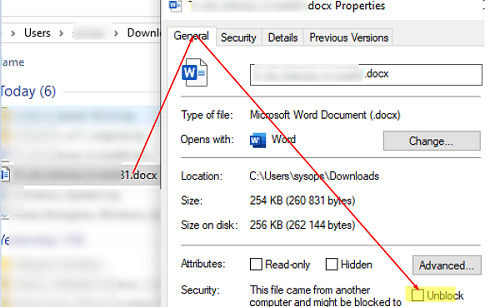
Unbloc file downloaded from the Internet

Learn how to unblock files that were downloaded from the internet.

MS Office apps have a special setting that restricts opening files that are downloaded from the internet. To completely disable checking the zone security labels when opening a file (not secure!):

  1. Open the Word app
  2. Click File -> Options -> Trust Center -> Trust Center Settings
  3. Navigate to the Protected View section and disable the option
    Enable Protected View for files originating from the Internet
This is unsafe because it could allow opening a document containing malicious content.

Outlook also has several options that allow users to open files from unsafe directories and email attachments:

  • Enable Protected View for files located on potentially unsafe locations
  • Enable Protected View for Outlook attachments
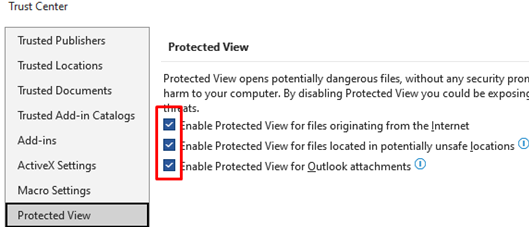
Disable Proteced mode for files Word origination from the Internet

Adding the folder path containing frequently opened Word and Excel documents to trusted locations provides greater security. In the Trust Center settings in Word, go to the Trusted Locations section. Click Add new location and add the path to the directory from which you want to open files without warnings. In this example, the Downloads folder (%UserProfile%\Downloads) has been added to trusted locations, though this is not entirely secure.
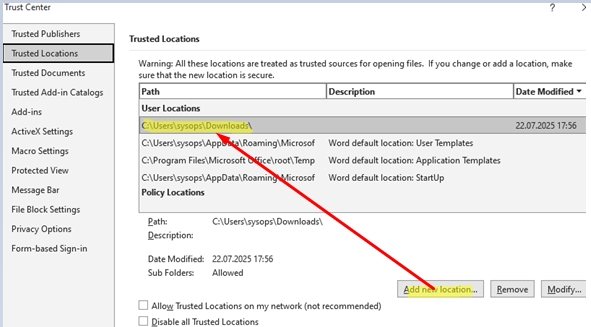
Add a path to Trusted Locations in Microsoft Office

In the File Block Settings section, you can allow files of certain template formats to open directly or without using Protected View. By default, Word blocks legacy document formats, such as Word 95 binary documents and templates.
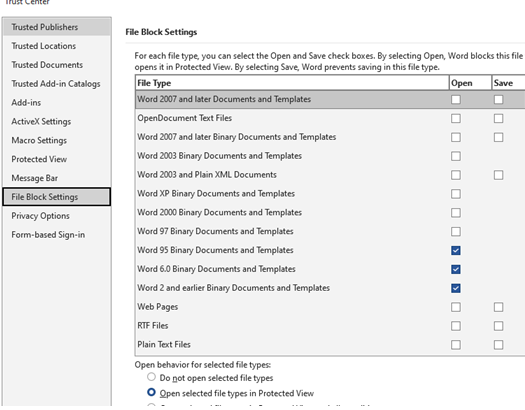
Unblock specific Word template file types

Latest versions of Microsoft Office (Office 2019 and newer, including Microsoft 365) open downloaded document files in Protected View by default. Instead of displaying an error message, such files open in read-only mode within a protected sandbox (Protected View mode).
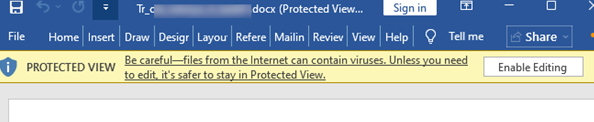
Protected View mode in Microsoft Office

0 comment
0
Facebook Twitter Google + Pinterest
Microsoft OfficeQuestions and Answers
previous post
How to Change the Proxmox Node IP Address or Hostname
next post
Disable Microsoft Edge First-Run Experience Wizard in Windows

Related Reading

Automatic Outlook User Profile Configuration with ZeroConfigExchange

May 21, 2024

Rollback Microsoft Office to an Earlier Version After...

December 10, 2024

Deploying Microsoft Office Language Packs

March 13, 2024

Hardware Graphics Acceleration Causes Visual Glitches in Microsoft...

December 23, 2024

Microsoft Key Management Service (KMS) Volume Activation FAQs

June 1, 2023

How to Copy/Paste to MS Word without Losing...

January 13, 2025

Remove “Your License isn’t Genuine” Banner in MS...

January 13, 2026

Leave a Comment Cancel Reply

join us telegram channel https://t.me/woshub
Join WindowsHub Telegram channel to get the latest updates!

Recent Posts

  • How to Remove Old (Unused) PowerShell Modules

    January 12, 2026
  • How to Move (Migrate) Existing Windows Shares to a New File Server

    December 24, 2025
  • Using KDC (Kerberos) Proxy in AD for Remote Access

    December 23, 2025
  • Windows: Create (Install) a Service Manually

    December 16, 2025
  • Windows: Auto Switch to Strongest Wi-Fi Network

    December 10, 2025
  • How to Enable or Disable VBScript in Windows after Deprecation

    December 10, 2025
  • Start Menu Not Working (Unresponsive) on Windows Server RDS

    November 27, 2025
  • AppLocker: Configure Application Restriction Policies in Windows

    November 19, 2025
  • Enable/Disable Random Hardware (MAC) Address for Wi-Fi on Windows

    November 14, 2025
  • Automate Software and Settings Deployment with WinGet Configure (DSC)

    November 13, 2025

Follow us

  • Facebook
  • Twitter
  • Telegram
Popular Posts
  • Remove “Your License isn’t Genuine” Banner in MS Office
  • Organization Policies Prevent Opening Hyperlinks in MS Office
Footer Logo

@2014 - 2024 - Windows OS Hub. All about operating systems for sysadmins


Back To Top