Many administrators usually use the netstat console tool or the graphical TCPView to display information about active TCP/IP connections and open TCP and UDP ports in Windows. In this article, we’ll look at how to use PowerShell cmdlets as network diagnostic tools on Windows, replacing the netstat command.
Unlike the classic netstat command, PowerShell separates TCP and UDP functionality into two dedicated cmdlets. Use the Get-NetTCPConnection to view active TCP connections and listening ports, or the Get-NetUDPEndpoint to display UDP endpoints and listening ports. This provides a more structured and object-oriented approach to working with TCP and UDP network connection data in PowerShell. PowerShell makes it easy to write complex scripts to obtain information and monitor open TCP ports, processes, and established network connections.
Get-NetTCPConnection: Check for Active TCP Sessions and Open Ports
The Get-NetTCPConnection cmdlet allows you to view detailed properties of active TCP connections, including local and remote IP addresses, ports, connection states, and the specific Process ID for each connection
Run the Get-NetTCPConnection command without any arguments.
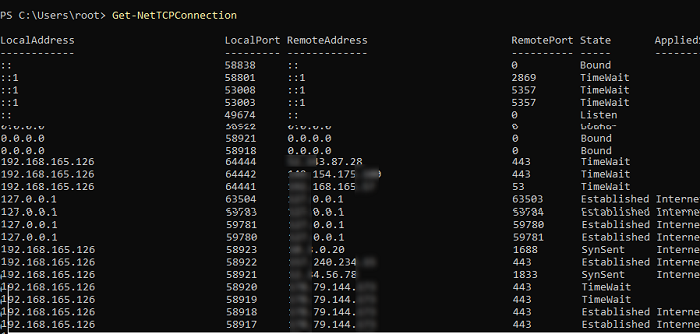
Similar to the netstat command, this cmdlet displays a list of all active TCP sessions, with local and remote IP addresses, TCP port numbers, the connection status. (Listen, Established Internet, TimeWait, Bound, CloseWait, SynReceived, SynSent), and the process ID (PID) that is using this TCP connection.
The list below contains useful PowerShell commands for viewing TCP/IP sessions and port information, which replicate common netstat tasks.
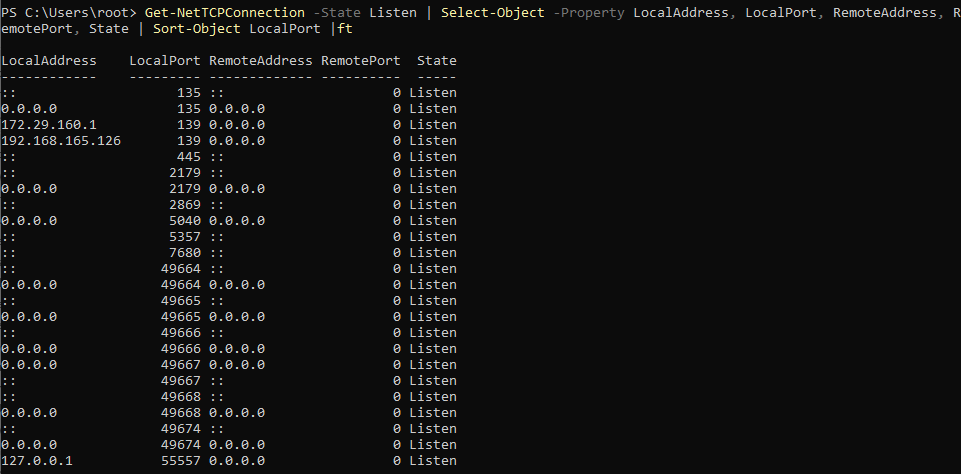
List the open (listening) ports on a local computer (the output is additionally sorted):
Get-NetTCPConnection -State Listen | Select-Object -Property LocalAddress, LocalPort, RemoteAddress, RemotePort, State | Sort-Object LocalPort |ft
Number of connections to a specific port:
(Get-NetTCPConnection -LocalPort 443).count
List the remote connections on a specific port (protocol):
Get-NetTCPConnection -RemotePort 445
List the sessions with a specific remote host (IP address):
Get-NetTCPConnection -RemoteAddress 192.168.10.24
Find out which process (program) is listening on the specified port in Windows:
Get-Process -Id (Get-NetTcpConnection -LocalPort 443).OwningProcess |Format-Table Id, ProcessName, UserName, Path
Show the external (Internet) connections only:
Get-NetTCPConnection -AppliedSetting Internet
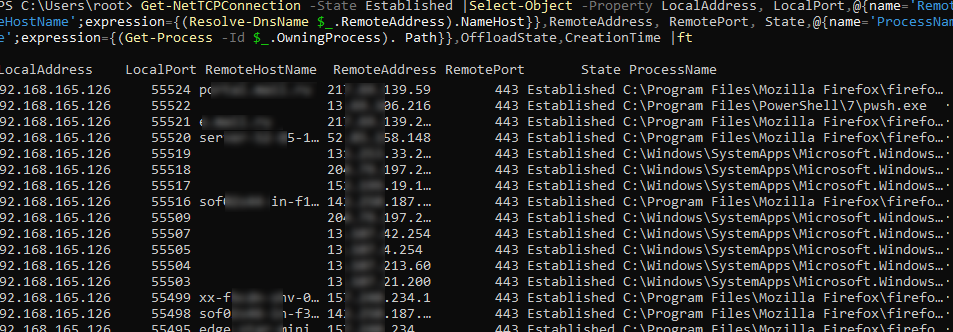
You can display DNS names of remote hosts (instead of IP addresses) and process names for TCP connections:
Get-NetTCPConnection -State Established |Select-Object -Property LocalAddress, LocalPort,@{name='RemoteHostName';expression={(Resolve-DnsName $_.RemoteAddress).NameHost}},RemoteAddress, RemotePort, State,@{name='ProcessName';expression={(Get-Process -Id $_.OwningProcess). Path}},OffloadState,CreationTime |ft
This PowerShell script uses the Resolve-DnsName cmdlet to convert the IP addresses of hosts into their DNS names. It also outputs the process name for each connection.
You can display a list of Windows services currently communicating over a network by the parent process PID:
Get-CimInstance Win32_Service | Where-Object -Property ProcessId -In (Get-NetTCPConnection).OwningProcess | Where-Object -Property State -eq Running | Format-Table ProcessId, Name, Caption, StartMode, State, Status, PathName
You can view only network connections initiated by the specific process. To do it, you can use the following PowerShell script:
Show the network connections initiated by a specific process. The following PowerShell script can be used, for example, to list remote TCP sessions by Chrome browser processes:
$ProcessName="chrome"
 Get-NetTCPConnection -State Established | ?{$_.OwningProcess -in (Get-Process $ProcessName -ea 0).Id} | ft LocalAddress, LocalPort, @{n='Host';e={(Resolve-DnsName $_.RemoteAddress -ea 0).NameHost}}, RemoteAddress, RemotePort, @{n='Path';e={(Get-Process -Id $_.OwningProcess).Path}}
The Get-NetTCPConnection cmdlet can be used to configure complex scripts for processing network activity in Windows.
For example, this PowerShell script checks if a connection from the specified IP address appears on the default RDP port 3389. If a TCP connection is established, the script will notification to the user and log the connection’s date and time to a text file.
$SourceIP = "192.168.13.125"
 $TargetPort ="3389"
 $log = "C:\PS\rdp_connection_log.txt"
 $Connection = Get-NetTCPConnection -State Established | Where-Object { $_.RemoteAddress -eq $SourceIP -and $_.LocalPort -eq $TargetPort }
 if ($Connection) {
 Add-Type -AssemblyName System.Windows.Forms
 $global:balmsg = New-Object System.Windows.Forms.NotifyIcon
 $path = (Get-Process -id $pid).Path
 $balmsg.Icon = [System.Drawing.Icon]::ExtractAssociatedIcon($path)
 $balmsg.BalloonTipIcon = [System.Windows.Forms.ToolTipIcon]::Warning
 $balmsg.BalloonTipText = " New RDP connection to your computer from $($Connection.RemoteAddress)"
 $balmsg.BalloonTipTitle = " New RDP connection from  $($Connection.RemoteAddress)"
 $balmsg.Visible = $true
 $balmsg.ShowBalloonTip(10000)
 "$(Get-Date) + $($Connection.RemoteAddress) + an RDP connection is established" >> $log
 }
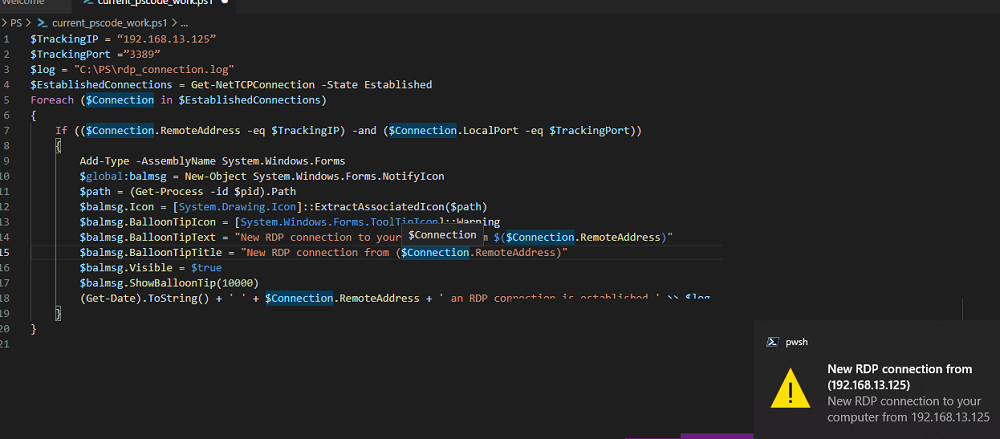
In the same way, you can monitor and log network connections over any other protocol, such as SSH, SMB, FTP, SMTP, etc. You can run such a PowerShell script in the background as a Windows service or run the PS1 script via the Task Scheduler.
You can use PowerShell Remoting cmdlets to get a list of open TCP ports and connections on remote computers. Use either the Enter-PSSession or Invoke-Command cmdlet.
Invoke-Command -ComputerName be-dc01 {Get-NetTCPConnection -State Established}
The Get-NetTCPConnection cmdlet (as well as the Test-NetConnection command) may be very useful for monitoring and diagnosing network connections in Windows.
Get-NetUDPEndpoint: View Active UDP endpoints and Open Ports
The Get-NetUDPEndpoint cmdlet used to get info relating to UDP endpoints. If run without parameters, the command will display a list of the computer’s open UDP ports.
The LocalAddress field contains the local IP address of the network interface on which the port is listening. A value of 0.0.0.0 (for IPv4) or :: (for IPv6), indicates that the port is listening on all network adapters. The local UDP port number that the process is listening to is contained in the LocalPort field.
You can also display the OwningProcess value in the output. This is the process identifier (PID) that created the UDP endpoint.
Get-NetUDPEndpoint | Select-Object LocalAddress,LocalPort,OwningProcess | Sort-Object -Property LocalPort
Instead of showing the ID of the owner process, you can show its name:
Get-NetUDPEndpoint | Select-Object LocalAddress,LocalPort,OwningProcess,@{Name="Process";Expression={(Get-Process -Id $_.OwningProcess).ProcessName}} | Sort-Object -Property LocalPort
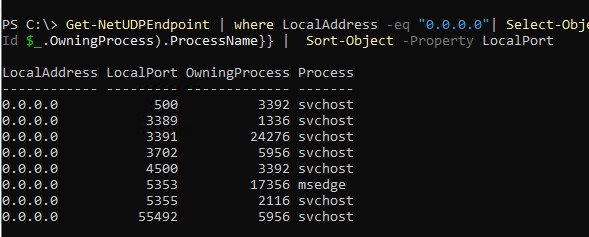
Find out which process is listening on a specific UDP port:
Get-Process -Id (Get-NetUDPEndpoint -LocalPort 53).OwningProcess
2 comments
Thanks for the article. Very useful.
One suggestion.
Insted of:
Foreach ($Connection in $EstablishedConnections)
{
If ($Connection.ProcessName -like $TrackProcessName)
{
$Connection|ft
}
}
Use:
$EstablishedConnections | Where-Object ProcessName -Like $TrackProcessName | Select-Object * | Format-Table
the command Get-NetTCPConnection show wrong IP addresses for some connections, eg in my case it shows:
0.0.0.0 49425 0.0.0.0 0 Bound – local address and remote address as 0.0.0.0 for port 49425 when command ‘netstat -ano’ and ‘resource monitor’ app shows 192.168.68.114 as local address and 40.113.103.199 as remote address:
TCP 192.168.68.114:49425 40.113.103.199:443 ESTABLISHED 6096