Windows OS Hub
  • Windows
    • Windows 11
    • Windows 10
    • Windows Server 2025
    • Windows Server 2022
    • Windows Server 2019
    • Windows Server 2016
  • Microsoft
    • Active Directory (AD DS)
    • Group Policies (GPOs)
    • Exchange Server
    • Azure and Microsoft 365
    • Microsoft Office
  • Virtualization
    • VMware
    • Hyper-V
    • Proxmox
  • PowerShell
  • Linux
  • Home
  • About

Windows OS Hub

  • Windows
    • Windows 11
    • Windows 10
    • Windows Server 2025
    • Windows Server 2022
    • Windows Server 2019
    • Windows Server 2016
  • Microsoft
    • Active Directory (AD DS)
    • Group Policies (GPOs)
    • Exchange Server
    • Azure and Microsoft 365
    • Microsoft Office
  • Virtualization
    • VMware
    • Hyper-V
    • Proxmox
  • PowerShell
  • Linux

 Windows OS Hub / Windows 11 / Failed to Open the Group Policy Object on a Computer

June 3, 2025

Failed to Open the Group Policy Object on a Computer

The following error may occur when trying to open the Local Group Policy Editor (gpedit.msc) in Windows:

Failed to open the Group Policy Object on the computer. You might not have the appropriate rights.
Details: Unspecified error
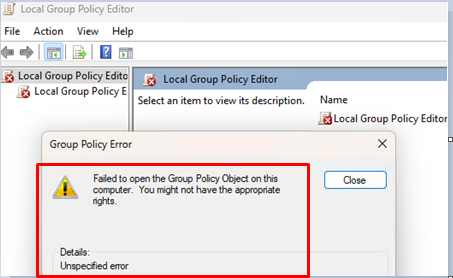
GPEDIT Error: failed to open Group Policy Object on the computer

When trying to update (apply) group policy settings on the client using the gpupdate command, a Group Policy processing error appears.

The processing of Group Policy failed. Windows could not apply the registry-based policy settings for the Group Policy object LocalGPO. Group Policy settings will not be resolved until this event is resolved. View the event details for more information on the file name and path that caused the failure.

Windows could not apply the registry-based policy settings for the Group Policy object LocalGPO

In this case, an event with ID 1096 appears in the System Event Viewer log.

The processing of Group Policy failed. Windows could not apply the registry-based policy settings for the Group Policy object LocalGPO. Group Policy settings will not be resolved until this event is resolved. View the event details for more information on the file name and path that caused the failure.

This error indicates that the local computer policy files in the %windir%\System32\GroupPolicy folder are either corrupted or missing. In this case, the problem is caused by damage to the registry settings policy file (Registry.pol).

To resolve the issue, remove (or rename) the Registry.pol file in the %windir%\System32\GroupPolicy\Machine folder (or in %windir%\System32\GroupPolicy\User).
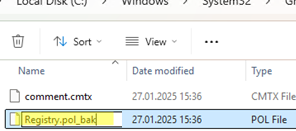
rename registry.pol file on windows

Then, run the local GPO editor with the gpedit.msc command and check that it starts without errors.

In some cases, you may need to recreate the GroupPolicy folder entirely. A folder can be renamed using either the Windows Explorer GUI or the PowerShell command:

Rename-Item -path "C:\Windows\System32\GroupPolicy" -NewName GroupPolicy_backup

This will reset the local Group Policy settings on the client, as well as the cached copies of the domain policies.

The GroupPolicy folder will be recreated automatically. Then, the GroupPolicy_backup folder can be deleted.

0 comment
1
Facebook Twitter Google + Pinterest
Windows 11
previous post
Remote Desktop Printing with RD Easy Print Redirection
next post
How to Manually Install Any Device Driver on a Windows Computer

Related Reading

How to Assign (Passthrough) a Physical GPU to...

June 11, 2024

Configuring RemoteApps Hosted on Windows 10/11 (without Windows...

January 25, 2025

Enable Hyper-V on Windows 10/11 Pro and Home...

February 19, 2026

Disable BitLocker Automatic Drive Encryption in Windows 11

October 16, 2024

Get Started with Docker on Windows (WSL2) without...

September 4, 2024

Change BIOS from Legacy to UEFI without Reinstalling...

April 23, 2025

Disable and Completely Remove Widgets from Taskbar in...

September 26, 2024

Fix: Windows Update Tab (Button) is Missing from...

December 16, 2024

Leave a Comment Cancel Reply

join us telegram channel https://t.me/woshub
Join WindowsHub Telegram channel to get the latest updates!

Recent Posts

  • How to Monitor Windows Machines with Zabbix

    May 26, 2026
  • Fixing Duplicate Security Identifier (SID) Issues in Windows

    May 25, 2026
  • Monitor a Folder for File Changes Using PowerShell and FileSystemWatcher

    May 15, 2026
  • Protect Windows Server from DDoS and Brute-Force Attacks with IPBan

    May 12, 2026
  • How to Force Uninstall ANY Stubborn Program in Windows

    May 7, 2026
  • How to Safely Disable IPv6 on Windows

    April 30, 2026
  • Updating UEFI Secure Boot Certificates on Windows Devices Explained

    April 20, 2026
  • Security Warnings When Opening RDP Files in Windows 11

    April 17, 2026
  • Find Computers with Pending Reboot Status Using PowerShell

    April 15, 2026
  • Mounting NFS Shares in Windows Using the Built-in Client

    March 26, 2026

Follow us

  • Facebook
  • Twitter
  • Youtube
  • Telegram
Popular Posts
  • Upgrading to Windows 11 on Unsupported Hardware
  • Create a Custom Windows Image with Pre-installed Apps (WIM/ISO)
  • SMB over QUIC: Mount File Share over Internet without VPN on Windows Server 2025
  • Install Any OS from ISO Image over Network with iVentoy
  • Configuring RemoteApps Hosted on Windows 10/11 (without Windows Server)
  • Permanently Disable Driver Signature Enforcement on Windows 11
  • Run PowerShell Scripts on a Schedule with Task Scheduler
Footer Logo

@2014 - 2026 - Windows OS Hub. All about operating systems for sysadmins


Back To Top