The taskbar search feature in Windows 10 and 11 is used far more frequently than in previous versions. Users can use it to quickly find apps, files, and configuration options within the new Settings app, or to search the Web directly from the Start menu. However, in some cases, Windows Search may stop working. When you try to find an app or a file, an empty list of search results is returned. If you are experiencing issues with Windows Search not working properly in the Start Menu, Taskbar, or other UI elements, the following basic tips should help.
- Restart the Windows Search Service
- Start Menu Search Not Working in Windows
- Check the Search Service and Indexing Settings in Windows
- Using Built-in Search and Indexing Troubleshooter in Windows
- Reset the Microsoft Store Search App in Windows
- Blank Search Results on Windows When Bing Search Enabled
- Search Not Working in Windows Settings App
- Reset Windows Search with PowerShell Script
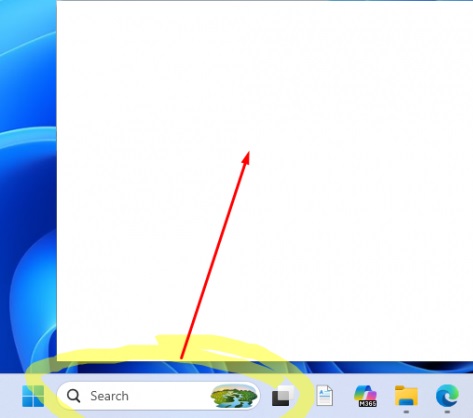
Restart the Windows Search Service
If the Taskbar and Start menu search stops working, check whether the relevant search-related processes are running (the exact process names vary depending on the Windows version):
- Windows 10 –
SearchUI.exe(one of Cortana’s executable files),SearchApp.exeandSerchIndexer.exe - Windows 11 –
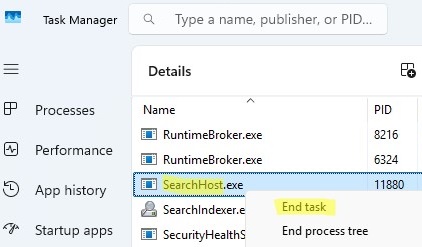
SearchHost.exe
Restart the specified processes using Task Manager:
- Run the Task Manager (
Ctrl+Alt+Del). - Go to the Details tab.
- Find
SearchHost.exe(on Windows 11) orSearchUI.exe(Windows 10) in the list of processes, right-click on it, and select End Task.
- Similarly, kill the
SearchApp.exeandSerchIndexer.exeprocesses. - The next time you perform a search using the Start menu or Search bar, this process will start automatically
- Run the Task Manager (
Start Menu Search Not Working in Windows
If the search doesn’t work in the Start Menu or Taskbar on your Windows 10/11 device (either the search returns nothing, or the user cannot type anything into the search bar), try the following:
- Open the Task Manager (
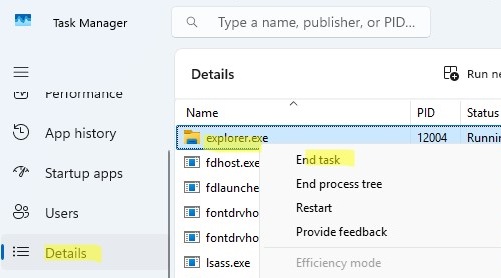
Ctrl + Shift + Esc) and end the File Explorer process (Explorer.exe).
- Run the Registry Editor from the Task Manager (Run new task ->
regedit.exe). - Delete the following registry key:
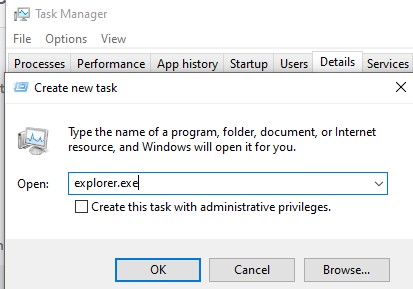
HKLM\SOFTWARE\Microsoft\Windows\CurrentVersion\Explorer\FolderTypes\{ef87b4cb-f2ce-4785-8658-4ca6c63e38c6}\TopViews\{00000000-0000-0000-0000-000000000000}. In Windows 10 x64, you need to delete another registry keyHKLM\SOFTWARE\Wow6432Node\Microsoft\Windows\CurrentVersion\Explorer\FolderTypes\{ef87b4cb-f2ce-4785-8658-4ca6c63e38c6}\TopViews\{00000000-0000-0000-0000-000000000000}. - Start explorer.exe using the Task Manager (File -> Create new task ->
explorer.exe).
Check the Search Service and Indexing Settings in Windows
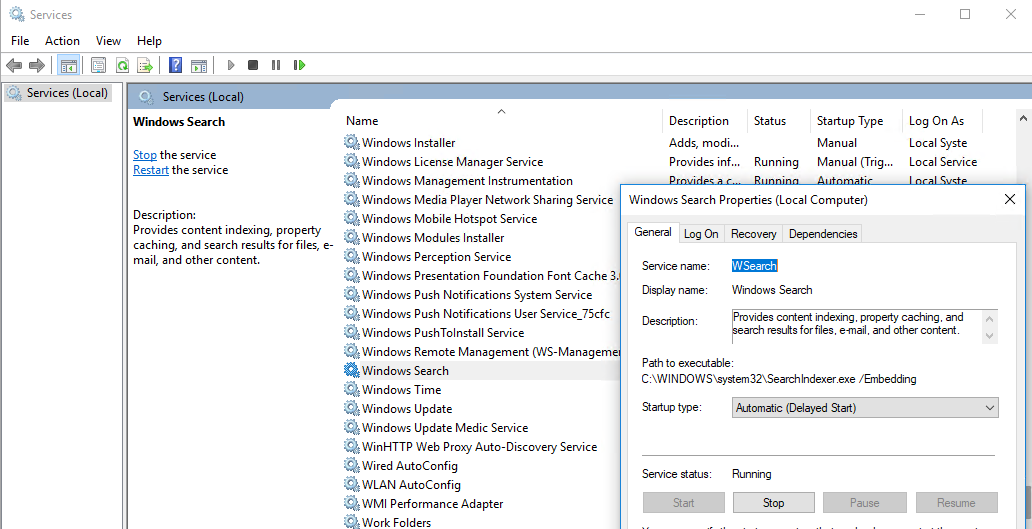
Check if the Windows Search service is running.
- Open the
services.mscconsole. - Find Windows Search in the list of services.
- Ensure that the service is running and that its startup type is set to Automatic (Delayed Start).

- Start/restart the WSearch service.
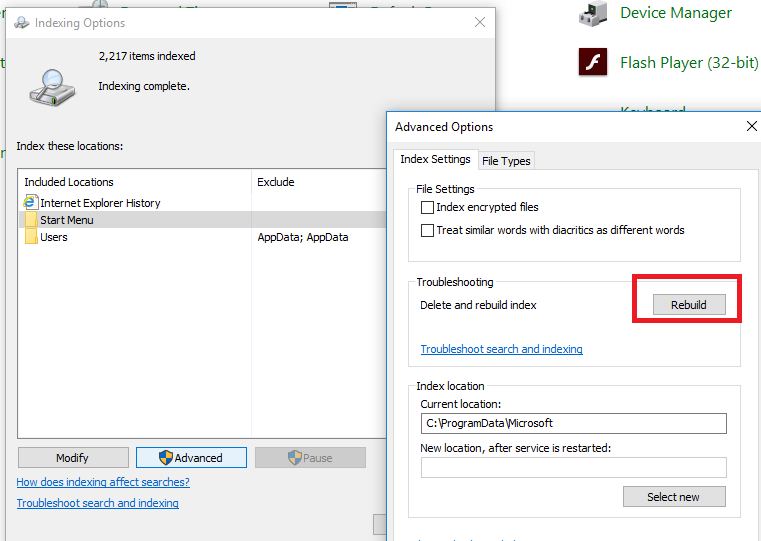
- Then open the Indexing Options by running the command:
control /name Microsoft.IndexingOptions - Make sure you enable indexing for all the necessary locations, at least for the Start Menu and the Users folder. You can also add your local drives and Outlook.
- To rebuild the search index, click the Advanced button and then press Rebuild in the Troubleshooting section.
- Reindexing can take quite a long time. Wait for it to finish.
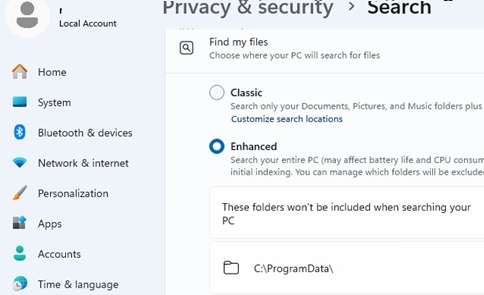
In Windows 11, go to Settings -> Privacy & security -> Search. Here, you can change the search mode from Classic to Enhanced. Also, check which directories are excluded from the search index.
The SearchEngine-Client-Package is the key search and indexing component that must be installed on Windows 11.
dism /Online /Get-FeatureInfo /FeatureName:SearchEngine-Client-Package
Sometimes, the problem of search and indexing in Windows can be fixed by reinstalling the search engine:
dism /Online /Disable-Feature /FeatureName:SearchEngine-Client-Package
 dism /Online /Enable-Feature /FeatureName:SearchEngine-Client-Package
Reboot your machine.

Using Built-in Search and Indexing Troubleshooter in Windows
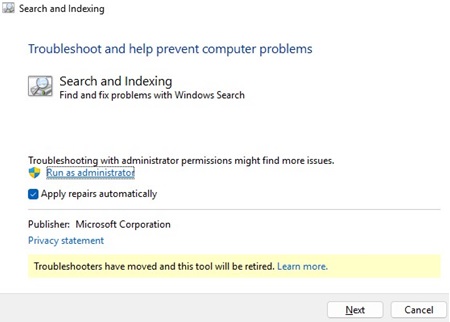
Try using the built-in Indexer Diagnostics (Troubleshooter) tool to find and fix common Windows Search issues. For this:
- Run the Search and Indexing Troubleshooter tool by running the command:
msdt.exe -ep WindowsHelp id SearchDiagnostic
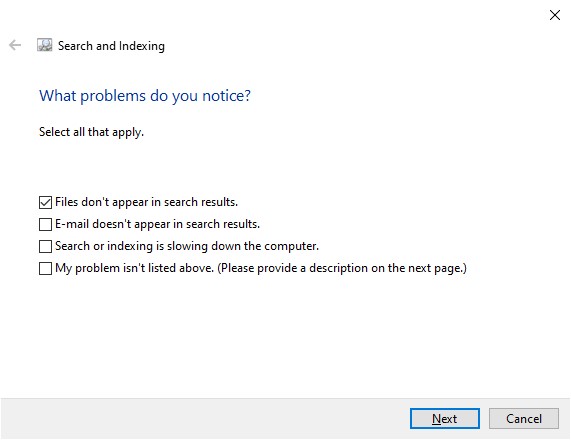
- This will open the ‘Search and Indexing Troubleshooter’ wizard.
- Choose the problem you’re facing (probably “Files not appearing in search results“) and hit Next.

- Wait for the troubleshooter to scan your computer and attempt to resolve any issues it finds. Then reboot the computer and check the search result
Reset the Microsoft Store Search App in Windows
Reinstalling the Microsoft.Windows.Search UWP app (a built-in Microsoft Store app) may help resolve search issues in Windows 10.
- Run the
powershell.exeas administrator. - Stop the Windows Search service. First, change its startup type to Disabled, and then stop it:
Get-Service WSearch| Set-Service –startuptype disabled –passthru| Stop-Service –Force - Restart Windows.
- Uninstall the
Windows.Searchuniversal app:
Get-AppxPackage -Name *Windows.Search* | Remove-AppxPackage -Verbose -ErrorAction SilentlyContinue -WarningAction SilentlyContinue
Get-AppxPackage -AllUsers -Name *Windows.Search* | Remove-AppxPackage -Verbose -ErrorAction SilentlyContinue -WarningAction SilentlyContinue - Now, clear the previous search cache and data by deleting the application folder
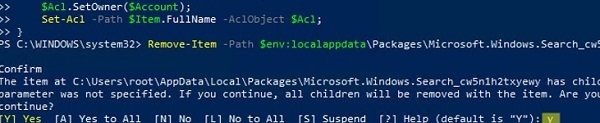
%LOCALAPPDATA%\Packages\Microsoft.Windows.Search_cw5n1h2txyewy. To do this, you must change the owner of the folder to the local Administrators group. This can be done either manually in Windows Explorer (via the Security tab in Folder Options) or by running the following PowerShell script:
$searchapp_path ="$env:localappdata\Packages\Microsoft.Windows.Search_cw5n1h2txyewy"
 $Account = New-Object -TypeName System.Security.Principal.NTAccount -ArgumentList 'BUILTIN\Administrators';
 $ItemList = Get-ChildItem -Path %searchapp_path -Recurse;
 foreach ($Item in $ItemList) {
 $Acl = $null;
 $Acl = Get-Acl -Path $Item.FullName;
 $Acl.SetOwner($Account);
 Set-Acl -Path $Item.FullName -AclObject $Acl;
} - Now you can clear the Windows.Search_cw5n1h2txyewy folder:
Remove-Item -Path $env:localappdata\Packages\Microsoft.Windows.Search_cw5n1h2txyewy –force
- Search in taskbar is now disabled.
- Reinstall the Windows Search app
Get-AppxPackage -AllUsers -Name *Microsoft.Windows.Search* | % {Add-AppxPackage -Path ($_.InstallLocation + "\Appxmanifest.xml") -Register -DisableDevelopmentMode -ForceApplicationShutdown -Verbose}
- Enable the WSearch service:
Set-Service WSearch –startuptype automatic - Restart Windows, log in with your account, and check that the search is now working.

The Microsoft.Windows.Client.CBS application is responsible for modern UI elements in Windows 11, including the Start Menu, Taskbar, Search UI, etc. One of its processes, SearchHost.exe, located in the C:\Windows\SystemApps\MicrosoftWindows.Client.CBS_cw5n1h2txyewy directory, is responsible for searching features in the taskbar and Start menu.
The most common solution is to update the package status in the registry. Go to the reg key HKLM\SOFTWARE\Microsoft\Windows\CurrentVersion\AppModel\StateChange\PackageList\MicrosoftWindows.Client.CBS_1000.26100.XXX.0_x64__cw5n1h2txyewy (replace XXX with your UWP app index), change the value of the PackageStatus parameter to 0 and then restart Explorer.
If this doesn’t help, try resetting the UWP app cache and reinstalling the app. To reset the app, run the command:
Get-AppxPackage -allusers MicrosoftWindows.Client.CBS | Reset-AppxPackage
Then clear the app cache in the directory:
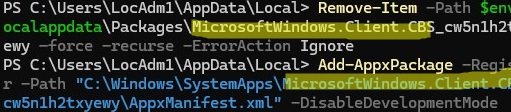
Remove-Item -Path $env:localappdata\Packages\MicrosoftWindows.Client.CBS_cw5n1h2txyewy –force
Re-register the MicrosoftWindows.Client.CBS app:
Add-AppxPackage -Register -Path "C:\Windows\SystemApps\MicrosoftWindows.Client.CBS_cw5n1h2txyewy\AppxManifest.xml" -DisableDevelopmentMode
In some cases, re-registering all Microsoft Store (UWP) apps can resolve issues with Windows Search not working. To do this, run the following command in an elevated PowerShell console:
Get-AppXPackage -AllUsers | Foreach {Add-AppxPackage -DisableDevelopmentMode -Register "$($_.InstallLocation)\AppXManifest.xml"}
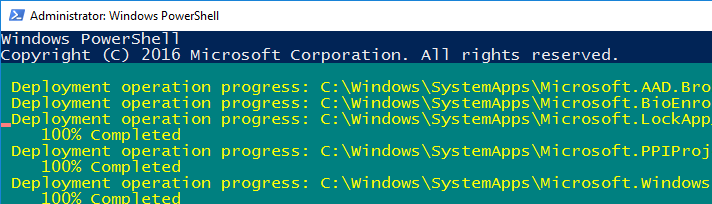
After the command is finished, reboot the computer.
Blank Search Results on Windows When Bing Search Enabled
On 5 February 2020, many Windows 10 users noticed that the search function in the Start Menu and taskbar had stopped working. The search box in the taskbar opened, but when a user entered a query, the search returned empty results.

Microsoft has acknowledged this issue, which was caused by the unavailability of Bing cloud search services. The issue is that, by default, Windows sends everything you type into the Start Menu search bar to Microsoft servers, which then return search results from Bing.
To resolve this issue, simply disable the integration between Windows Search and the Microsoft Bing search engine
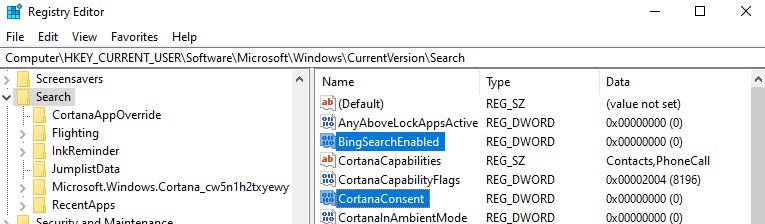
- Open the Registry Editor (Win+R ->
regedit.exe). - Go to the registry key
HKEY_CURRENT_USER\SOFTWARE\Microsoft\Windows\CurrentVersion\Search\ - Change the value of the BingSearchEnabled and CortanaConsent parameters to 0.
 If these registry settings are missing, create them manually using the commands below:
REG ADD HKCU\Software\Microsoft\Windows\CurrentVersion\Search /v BingSearchEnabled /t REG_DWORD /d 0 /fOr enable the Group Policy option Don’t search the web or display web results in Search under Computer Configuration > Policies > Administrative Templates > Windows Components.
REG ADD HKCU\Software\Microsoft\Windows\CurrentVersion\Search /v CortanaConsent /t REG_DWORD /d 0 /f - Restart the
explorer.exeprocess or reboot your computer.
Search Not Working in Windows Settings App
The Settings app in Windows 10 and 11 has its own search box that allows you to quickly jump to items in the system settings. If the search in the Settings app stops working:
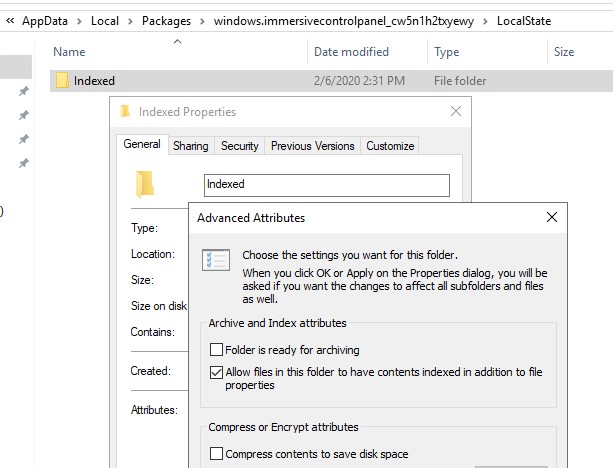
- Open the File Explorer and navigate to the directory
%LocalAppData%\Packages\windows.immersivecontrolpanel_cw5n1h2txyewy\LocalState - Open the properties of the Indexed folder and click the Advanced button. Make sure that the option “Allow files in this folder to have contents indexed in addition to file properties” is enabled.

- If the option is already enabled, disable it, click OK, and then re-enable it.
Reset Windows Search with PowerShell Script
If the above methods didn’t help you to restore search functionality in Windows 10/11, Microsoft recommends using the Reset Windows Search PowerShell script to reset Windows Search service settings. The script is compatible with Windows 11 and Windows 10 1903 (and newer).
To run this script, you need to:
- Download the ResetWindowsSearchBox.ps1 script https://www.microsoft.com/en-us/download/details.aspx?id=100295
- Open the PowerShell console as an administrator.
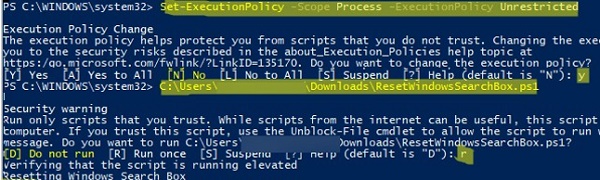
- Change the PowerShell Execution Policy settings (this command enables you to run PS1 scripts within the current PowerShell session):
Set-ExecutionPolicy -Scope Process –ExecutionPolicy Unrestricted - Run the PS1 script file:
.\ResetWindowsSearchBox.ps1
- The script will reset the Windows search settings to their default state.
- Restart your computer and check if the Windows search issue is fixed.
Here are some additional ways to fix search issues in Windows that might help if the previous options didn’t work for you:
- Create a new user account, sign in with it on the computer, and verify whether Start Menu and Taskbar search are working correctly under the new profile.
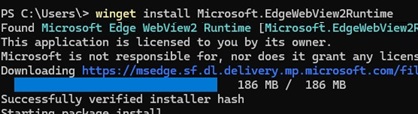
- The search service in Windows 11 uses the WebView2 component to display results. If WebView2 is not working correctly, the search bar may open, but it will not display any results. In such cases, updating (reinstalling) the WebView2 component may fix the issue. Use the built-in WinGet package manager to install a new version of this component:
winget install Microsoft.EdgeWebView2Runtime Restart the computer.
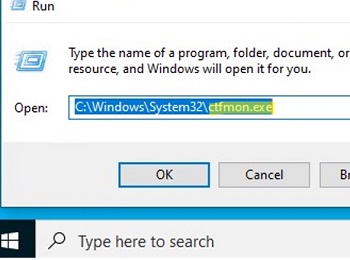
 - Check whether the ctfmon.exe process is running in your session. This standard Windows process controls both alternate user input and the Office Language Bar.(Touch Keyboard and Handwriting Panel Service). If this process is not running or has been stopped, you won’t be able to type characters into the Start Menu search bar. To start the process manually, press Win +R and run the command:
C:\Windows\System32\ctfmon.exe If this solves the search issue, add the ctfmon.exe process to Windows Startup.
 - Boot from the LiveCD and delete the folder
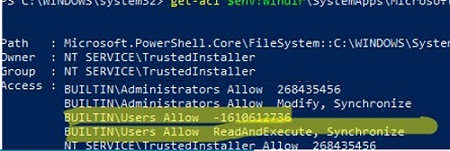
C:\Documents and Settings\username\AppData\Local\Packages\Microsoft.Windows.Cortana_******(or, use the Unlocker tool to kill the process that is locking this folder). Reboot your computer. The Cortana folder will appear and, after a few minutes, the search should work. - Check the NTFS permissions for the C:\Windows\SystemApps\Microsoft.Windows.Search_cw5n1h2txyewy.Users must have Read+Execute permissions (BUILTIN\Users -> Allow ReadAndExecute, Synchronize). You can list folder NTFS permissions with PowerShell:
Get-ACL $env:windir\SystemApps\Microsoft.Windows.Search_cw5n1h2txyewy
- Use these commands to check the system files and Windows image integrity:
sfc /scannowandDISM /Online /Cleanup-Image /RestoreHealth - If you are experiencing search problems in the Microsoft Outlook client, follow another guide: Outlook Search Not Working.
33 comments
Thanks a lot for this. The only explanation and solution of its kind that I could find.
Thanks so much! 1st one worked.
The last but one solution works. Thanks a lot.
1st one with deletion of registry key worked for me.
Do you know a root cause of that? Would be interesting to find out what is this key about and why we need to delete it.
I have tried all of these (and a number of others from other websites) with no success. However, I tried your suggestion to create a new user in Windows, and search works fine when I log in as that user. What does that suggest that I should try next?
I have the same situation. Using Search as a new User works perfectly, however, under my account it is not working properly. What can I do next?
Same here, search wasn’t running for me. The “Re-Register Universal Apps” method did the trick for me. (nothng else worked).
I had similar issues on multiple computers. This issue is related to user profile and not any of the recommendation above. Just delete user profile and recreate it.
Delete C:\users\%userProfile%
start regedit and go HKLM\Software\Microsoft\Windows NT\Current Version\Profile List and find out the guid that belong to that particular profile. Delete the corresponding listed profile
and go to HKLM\Software\Microsoft\Windows NT\Current Version\Profile List and delete the corresponding GUID for that profile
Thanx!
Followed the registry changes under “Windows 10 Start Menu Search Not Working”.
And now it works! Tiles are back and when I start typing after clicking the windows flag, I get suggestions again!
Be well!
nothing in this really worked in my case!
can u suggest me some other methods ?
thanks it work!
Thanks, first method worked!
I want to thank the author of this guide as it helped successfully on 2 machines which I migrated from Windows 10 1803 to 1903.
I followed all those instructions and the taskbar or start menu search started working again as they should (no more dreaded blank menu). I suspect it’s the last Powershell command (Re-Register Universal Apps in Windows 10) that fixed it in my case, but I did follow the whole procedure (deleting the registry key, rebuild the indexing, etc) before doing the Powershell command, just to be sure.
Thank you ! Blank search with bing integration solution worked perfectly.
Thanks a lot for this, you saved me
Thanks mate.
For me the following worked: Set BingSearchEnabled to 1
REG ADD HKCU\Software\Microsoft\Windows\CurrentVersion\Search /v BingSearchEnabled /t REG_DWORD /d 1 /f
Thanks
MY solution was a bit different than what has been described here – I went into the Task Manager, and I noticed the Search function was temporarily stopped. I killed the process, started a new Taskbar search, and the results started coming up!
Thank you, for me creating manually the registry settings was worked.
Thank you again
This problem exists for several months now and keeps getting back. Why couldn’t it be fixed in one of the updates. WTF Microsoft
My windows task bar search option is not work and SearchUI.exe folder not shown in my pc..kindly solve the problem…
Thank you so much!!!!
None of them except the following worked: Set BingSearchEnabled to 1
REG ADD HKCU\Software\Microsoft\Windows\CurrentVersion\Search /v BingSearchEnabled /t REG_DWORD /d 1 /f
Thanks
My Situation: “Type here to search” box wouldn’t accept text, or work in any way. Created a test user, test user could use the search box without issue. Also, search within File Explorer wouldn’t work.
Re-registering universal apps worked for me. I also messed around with the Bing/Cortana registry entries and modifying/starting/stoping indexing, but none of those appear to have helped. Thanks for the comprehensive troubleshooting guide on this one, very helpful!
I when through many of your recommendations. “Re-Register Universal Apps in Windows 10” ist the one that finally worked.
Thank you.
Thank you. This was very helpful.
This was extremely extremely helpful. Thank you for being so thorough!
Thank you – the second solution in the list worked for me by deleting 2 of the registry files and running explorer.exe again!
Happy
Thanks for this! After trying all solutions listed here the only one that worked was Removing the “Microsoft.Windows.Search_***” folder in my users AppData directory, and then restarting. I had to use a process unlocker tool like described, but it worked after the restart.
The exact directory to Remove is: “C:\Documents and Settings\username\AppData\Local\Packages\Microsoft.Windows.Search_******”
Thanks
Thanks solve my problem search..very help full thanks..a lot
thanls!!!! powershell did the trick
Thanks for the post, this re-install Microsoft.Windows.Search universal app worked for me.