The problems with adjusting the screen brightness are common on laptops running Windows 11 or 10. The brightness slider in the Settings app may be missing or inactive, or the keyboard function keys for increasing or decreasing brightness may also not work. There are a few simple ways to fix the problem when you can’t adjust the brightness on a Windows 11 or 10 laptop.
- How to Change Screen Brightness in Windows 11 or 10
- Restore the Generic PnP Monitor Driver on Windows
- Can’t Adjust Screen Brightness After Installing TeamViewer
- Enable Screen Brightness Control with Registry Tweak
- Update Graphic Card Driver to Fix Screen Brightness
- Brightness Control Function Keys Not Working in Windows
- Can’t Adjust Brightness on Laptop with Intel HD Graphics.
- Turn Off the Adaptive Screen Brightness in Windows
How to Change Screen Brightness in Windows 11 or 10
First, check if you can adjust the screen brightness using Windows built-in methods.
Option 1. Adjust the Screen Brightness from Settings App
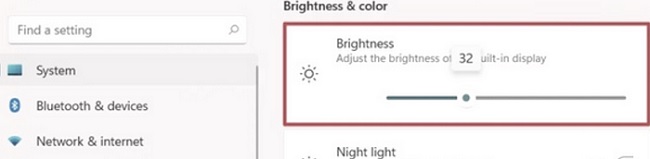
In Windows 10 and 11, you can change the display brightness from the Settings app. Go to Settings -> System -> Display (you can quick access this Settings item by running the URI ms-settings:display or desk.cpl command). Use the Brightness slider to adjust the screen brightness.
Option 2. Change the Display Brightness in Windows Quick Settings
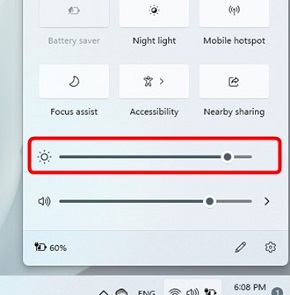
In Windows 11, you can adjust the screen brightness using the Quick Settings (Action Center). Click on any system icon in the taskbar (Wi-Fi, sound, battery, or press Win + A). Set the display brightness using the slider.
If the brightness control on your Windows laptop is not working (brightness slider missing or inactive in Control Panel/Settings app), then check the following.
- The most common cause of brightness control problems on Windows is incorrect or damaged display drivers.
- Video card/chipset drivers can also have an impact, but it’s much less frequent.
Option 3. Adjusting Brightness with Function Keys
Most laptops have special function keys labeled 🔆 and 🔅. Press the Fn button + the brightness up/down function key and verify that the display brightness has changed.
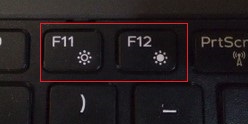
The Fn+F11 and Fn+F12 keys are used to adjust the brightness on my laptop. Depending on the manufacturer and device model, these key combinations may differ. These are often Fn + Up Arrow to increase brightness and Fn + Down Arrow to decrease it.
Option 4. Change Display Brightness via Windows Mobility Center
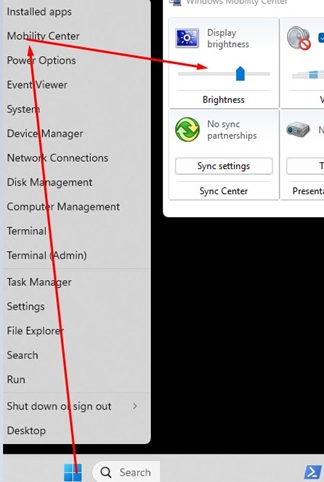
The Windows Mobility Center is a system app available on laptops that consolidates key portable device settings, such as display brightness, volume, and power plans
Press Win+X and select Mobility Center (or run the mblctr.exe command). Use the slider to adjust the screen brightness.
Option 5. Change Screen Brightness with PowerShell
You can manage screen brightness settings on laptops from the PowerShell command prompt.
To find out the current screen brightness (in % of maximum), run the command:
(Get-WmiObject -Namespace root/WMI -Class WmiMonitorBrightness).CurrentBrightness
To set the display to a specific brightness level:
(Get-WmiObject -Namespace root/WMI -Class WmiMonitorBrightnessMethods).WmiSetBrightness(1,70)
The brightness is set as a percentage of the maximum level, ranging from 0 to 100. In this example, I set the screen brightness to 70%.

Get-CimInstance cmdlet instead of Get-WmiObject.Get-Ciminstance -Namespace root/WMI -ClassName WmiMonitorBrightness | Select -ExpandProperty "CurrentBrightness"
Get-CimInstance -ns root/WMI -cn WmiMonitorBrightnessMethods).WmiSetBrightness(1,75)
If the display does not support software brightness control via WMI (as with most desktop monitors), running these commands will return a “Not Supported” error.

Option 6. Screen Brightness Settings in Video Driver Control Panels
Some GPUs let you change the screen brightness using the native graphics settings app. In my example, this is the Intel HD Graphics Control Panel, accessible from the desktop context menu.
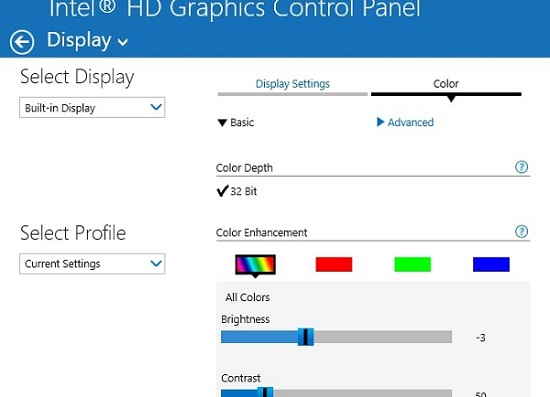
Follow these steps if you cannot adjust display brightness in Windows.
Restore the Generic PnP Monitor Driver on Windows
Open Device Manager by running the devmgmt.msc command. Expand the Monitors sections and verify that the Generic Pnp Monitor device is enabled. If it is not, right-click on it and select “Enable“. Then:
- Click on Generic Pnp Monitor and select Update Driver.

- Select Browse my computer for drivers -> Let me pick from a list of available drivers on my computer.

- Select Generic PnP Monitor from the list of compatible drivers and click Next.

- This will reset the current monitor driver and restore it to its default configuration.
- Check that the brightness slider is now active in the Display settings in the Settings app.
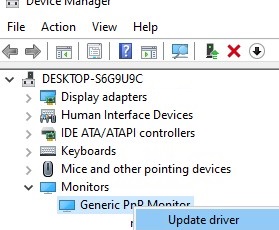
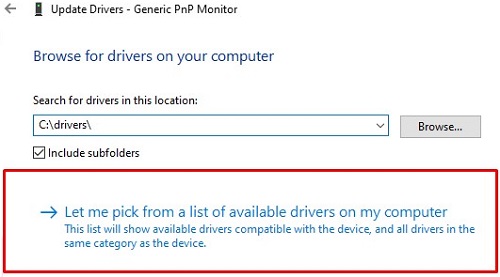
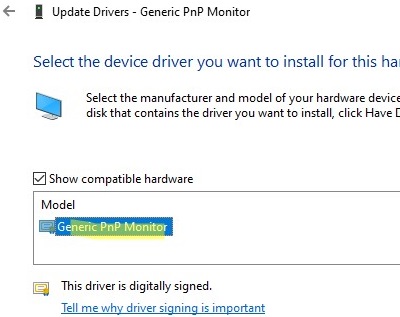
Resetting the monitor driver also resolves brightness adjustment issues caused by remote control programs, such as TeamViewer, AnyDesk, and similar programs, which install their own monitor drivers.
Can’t Adjust Screen Brightness After Installing TeamViewer
There is a known issue that the screen brightness control stops working in Windows after installing TeamViewer. The fact is that TeamViewer installs its own virtual Pnp-Monitor Standard display driver, which is used to compress graphics and optimize traffic.
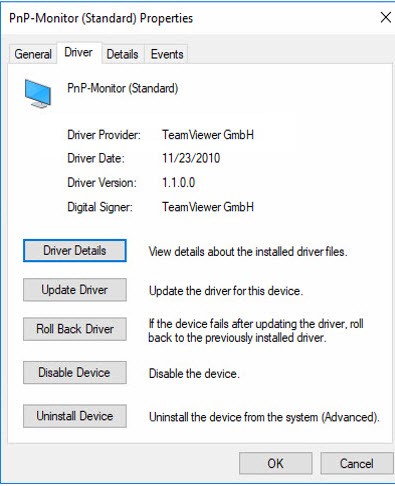
Try to replace the driver for this device to “Generic PnP Monitor” (Right Click -> Update Drivers -> and select the “Generic PnP Monitor” from the list of installed drivers).
Enable Screen Brightness Control with Registry Tweak
You can enable screen brightness control in Windows by using the KMD_EnableBrightnessInterface2 registry parameter under the reg key HKEY_LOCAL_MACHINE\SYSTEM\ControlSet001\Control\Class\{4d36e968-e325-11ce-bfc1-08002be10318}\0000
Open the Registry Editor (regedit.exe), go to the registry key above, find the DWORD parameter KMD_EnableBrightnessInterface2, and change its value from 1 to 0
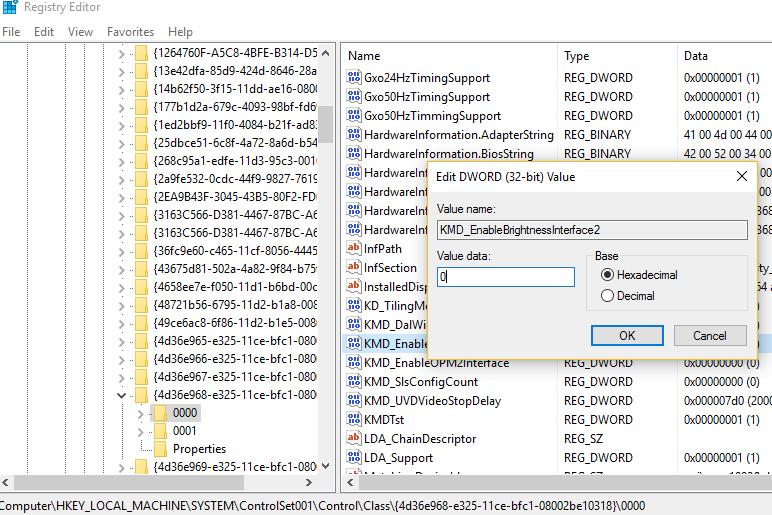
Reboot your laptop.
Update Graphic Card Driver to Fix Screen Brightness
Another possible reason you can’t change the display brightness is the video adapter driver.
- First, check that your display adapter is enabled in the Device Manager.
- Try updating your video adapter driver automatically (if not disabled). Open the Device Manager (
devmgmt.msc), expand the Display adapters section, and find your GPU. Right-click it and select Update Driver Software. Then, select “Search automatically for updated driver software” and wait for Windows to find and install the latest driver version.
If the automatic driver update fails to resolve the brightness control issue in Windows, uninstall the current driver. Then, manually install the latest driver version from the manufacturer’s website.
Sometimes, you may need to roll back your video adapter driver to a previous version: Update driver -> Browse my computers for drivers -> Let me pick from a list of available drivers on my computer -> enable Show compatible hardware. Select the previous version of the display adapter driver.
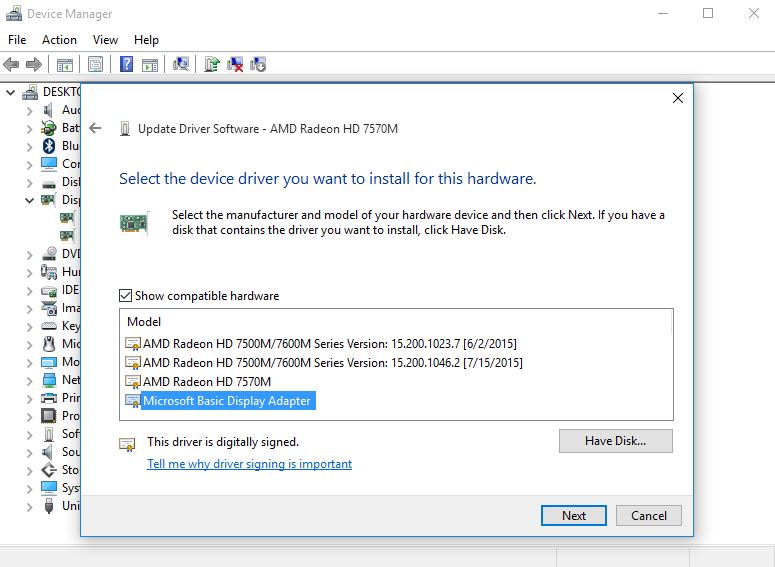
If nothing else works, try switching to the default Microsoft Basic Display Adapter driver for your video card (see the screenshot above).
Brightness Control Function Keys Not Working in Windows
If adjusting the screen brightness in the Windows settings works, but the brightness controls on the laptop’s Fn key do not, then install software from the laptop manufacturer.
Each vendor has its own keyboard tool. The names of the keyboard tools for popular laptop models are listed below:
- ASUS — ATK Hotkey Utility, ATK Package, ATKACPI
- Sony Vaio — Sony Notebook Utilities
- Dell – QuickSet
- Gigabyte — Gigabyte Control Center
- HP — HP Software Framework or HP Hotkey Support
- Lenovo — Hotkey Features Integration or AIO Hotkey Utility Driver
Download the program from the manufacturer’s official website and install it. Try adjusting the brightness using the laptop’s Fn keys.
Can’t Adjust Brightness on Laptop with Intel HD Graphics.
For Windows laptops with integrated Intel HD graphics cards, disable brightness correction through the registry. Go to the registry key HKEY_LOCAL_MACHINE\SYSTEM\ControlSet001\Control\Class\{4d36e968-e325-11ce-bfc1-08002be10318}\0000 (or 0001 in some cases) and look for the FeatureTestControl DWORD parameter. Change its value from f000 to f008 and restart your computer.
The following REG file can be used to make changes to the registry:
Windows Registry Editor Version 5.00
[HKEY_LOCAL_MACHINE\SYSTEM\ControlSet001\Control\Class\{4d36e968-e325-11ce-bfc1-08002be10318}\0000]
"FeatureTestControl"=dword:0000f008
"KMD_EnableBrightnessInterface2"=dword:00000000
"KMD_EnableBrightnesslf2"=dword:00000000
[HKEY_LOCAL_MACHINE\SYSTEM\ControlSet001\Control\Class\{4d36e968-e325-11ce-bfc1-08002be10318}\0001]
"FeatureTestControl"=dword:0000f008
[HKEY_LOCAL_MACHINE\SYSTEM\ControlSet001\Control\Class\{4d36e968-e325-11ce-bfc1-08002be10318}\0002]
"FeatureTestControl"=dword:0000f008
[HKEY_LOCAL_MACHINE\SYSTEM\ControlSet001\Services\intelkmd]
"FeatureTestControl"=dword:0000f008
Turn Off the Adaptive Screen Brightness in Windows
Windows can use your laptop’s light sensors (available on almost all modern tablets and laptops) to adjust the screen brightness. The screen brightness is adjusted according to the ambient light (adaptive brightness).
You can enable/disable adaptive display brightness via Settings -> System -> Brightness -> Change brightness automatically when lighting changes.
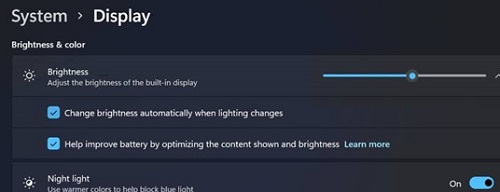
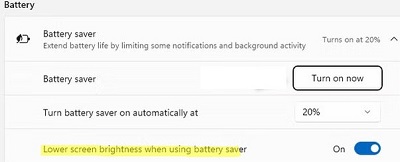
There is also another option Lower screen brightness when using battery saver used to reduce the brightness of the display if the device is running on battery.
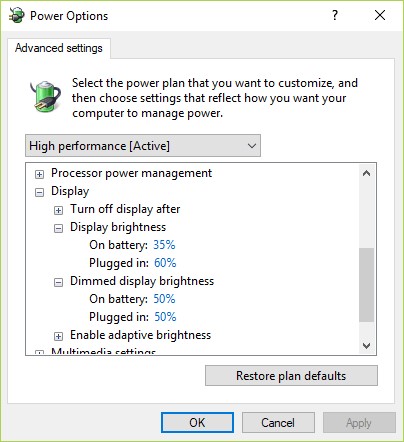
Also, you can disable adaptive brightness in the Windows Power Plan settings: Control Panel -> Power Options -> in the properties of the selected power plan, click the Change advanced power settings -> Change advanced power settings -> expand Display.
Disable the adaptive brightness for the On battery and Plugged in modes. If adaptive brightness is enabled, you won’t be able to significantly increase the screen brightness.
Also, try adjusting the brightness level under the following items:
- Dimmed display brightness
- Display brightness
18 comments
I have tried all of these solutions and it STILL does not work.
have tried all these, please help am going blind
I tried all still doesn’t work. I am on build 17692.rs_prerelease_flt.180625-1624
Thank you SO MUCH! The TeamViewer thing solved the problem for me! I went crazy the past days and I think I will have to hugely apologize to my display adapter wo got reinstalled a very lot of times, recently. Pfew! Thanks a lot for that hint!
You are welcome :). It was also a surprise for me that the TeamViewer causes problems with brightness control in Win10.
Wonderful, thank you SO MUCH! The “Generic monitor” switch helped bring back the screen brightness adjustment! You’re a lifesaver! 🙂 Very professional post!
Fantastic article!!!!!!!!
More than 1 year with this problem.
Thanks a lot!!!!
I had to change the FeatureTestControl DWORD to fb20 (f008 didn’t work for me), and I found it in 0001 (not 0000).
thank you for tip. I did use f008 value, but found it in 0001 (not 0000). Life saver.
thanks.
thank you very much.. i changed the hex value to F008 and it works..
Thank you. I have an AMD Radeon HD 7310. The fix that worked was the registry change.
Changed KMD_EnableBrightnessInterface2 from 1 to 0.
I found the KMD_EnableBrightnessInterface2 values in the following registry keys:
HKEY_LOCAL_MACHINE\SYSTEM\ControlSet001\Control\Class\{4d36e968-e325-11ce-bfc1-08002be10318}\0000
[HKEY_LOCAL_MACHINE\SYSTEM\ControlSet001\Services\amdkmdag]
THANKYOU SO MUCH, i had the problem with intel hd graphics and last solution worked for me. since so many month I was using my computer like this and changing brightness for bios settings only.But thanks to this website
My DELL M6600 laptop with Intel HD Graphics card can control its brightness now, TKS
ref to “Unable to Change Brightness on a Laptop with Intel HD Graphics”
Just download the latest official build Version Intel HD integrated graphics intel-hd-graphics-driver-download-4590
hope this will solve problem.
Thank you so much! The “Update Your Video Card Driver” was the one that helped me with my Lenovo L13 Yoga. EXCELLENT 🙂
thank you so much, the registry thing was the one that helped me finnally!! i was losing my mind
Thank you!! Some of the suggestions didn’t work for me but what helped was going back to a different driver!