This article will show how to disable UAC (User Account Control) only for a specific program without disabling this security feature entirely. To suppress the UAC elevation prompt for a single application, we will use the RunAsInvoker compatibility flag.
In my case, I want to disable the User Account Control prompt only for a specific app.
- A UAC elevation prompt appears to confirm the launch when a program is run with an administrator account.

- The program cannot be run as a regular user because administrator permissions are required. If you run the program as a non-admin user, a UAC prompt will appear, asking you to enter admin credentials.

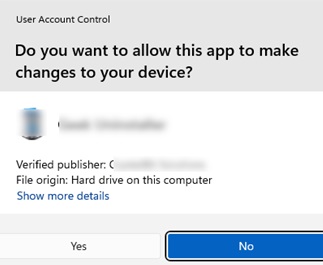
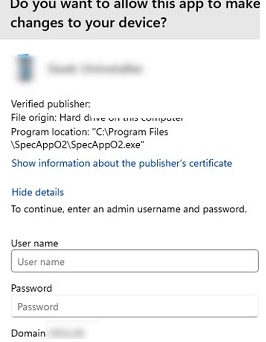
My task is to allow running this program as an unprivileged user and suppress the UAC prompt. This must be done without disabling User Account Control completely.
This can be achieved using the RunAsInvoker compatibility flag, which forces the program to inherit the parent process privileges while suppressing the UAC prompt. For example, launching the program from File Explorer (a non-elevated process) will also launch it in unprivileged mode.
Enable the RunAsInvoker Compatibility Flag in the Registry
Windows can automatically apply the RUNASINVOKER compatibility flag to certain programs. To implement this, create a REG_SZ value in the registry key HKCU\Software\Microsoft\Windows NT\CurrentVersion\AppCompatFlags\Layers using the full path to the target program’s EXE file as the value name:
- Value name:
C:\Program Files\SpecApp\SpecApp2.exe - Value data:
RunAsInvoker
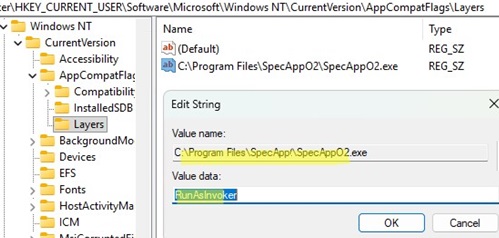
You can create this parameter in the registry using the following command:
reg add "HKCU\Software\Microsoft\Windows NT\CurrentVersion\AppCompatFlags\Layers" /v "full_path_to_app.exe" /t REG_SZ /d "RUNASINVOKER" /f
Create this registry parameter under the HKLM hive to enable app compatibility mode for all users of the computer: HKEY_LOCAL_MACHINE\SOFTWARE\Microsoft\Windows NT\CurrentVersion\AppCompatFlags\Layers .
The specified program will always run without a UAC prompt by default, unless it is explicitly launched with the “Run as administrator” option.
Disable User Account Control for a Program from the Command Line
There is another way to run the program without admin privileges and suppress the UAC prompt (see the article).
To run a program with the RunAsInvoker compatibility flag enabled, execute the following command from the command prompt.
cmd /C "set __COMPAT_LAYER=RunAsInvoker && start "" "C:\Program Files\SpecApp\SpecApp2.exe""
Or create a BAT file:
set ApplicationPath= C:\Program Files\SpecApp\SpecApp2.exe"
 cmd /min /C "set __COMPAT_LAYER=RUNASINVOKER && start "" %ApplicationPath%"

If you run this BAT file as a non-admin user, the specified program will start without a UAC prompt.
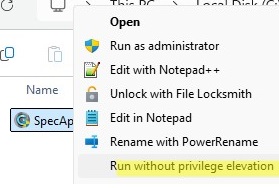
The following simple REG file will add an option to run programs without elevated privileges to the context menu of all programs in File Explorer.
Windows Registry Editor Version 5.00
[HKEY_CLASSES_ROOT\*\shell\forcerunasinvoker]
@="Run without privilege elevation"
[HKEY_CLASSES_ROOT\*\shell\forcerunasinvoker\command]
@="cmd /min /C \"set __COMPAT_LAYER=RUNASINVOKER && start \"\" \"%1\"\""
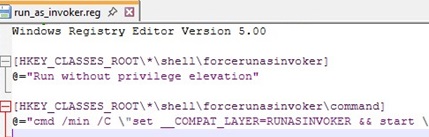
Now, by clicking on any app in the File Explorer, you can use the “Run without privilege elevation” option.
Disabling UAC Prompt for a Program Using the Application Compatibility Toolkit
An enterprise-level way to implement the RunAsInvoker is to use the the Application Compatibility Toolkit utility, which is part of the Windows ADK. Download the latest version of ADK for Windows 11 and 10 here.
Run the adksetup.exe file and during installation (the program needs Internet access), select only the Application Compatibility Tools item to install.
Or install the feature using the command:
adksetup.exe /features OptionId.ApplicationCompatibilityToolkit
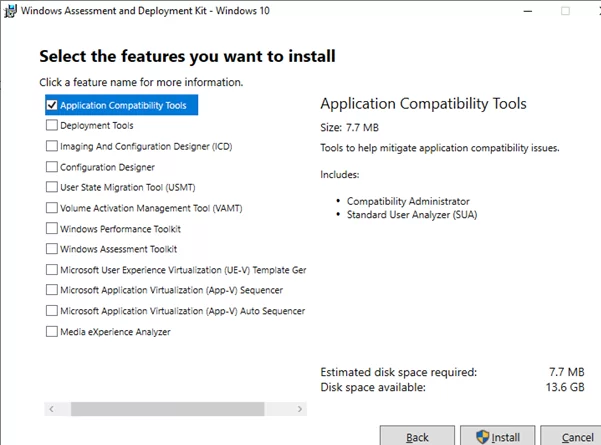
There are two versions of Application Compatibility Administrator in the system: a 32-bit and a 64-bit version. Run the Application Compatibility Administrator version that corresponds to the bitness of the program for which you want to disable the UAC request.
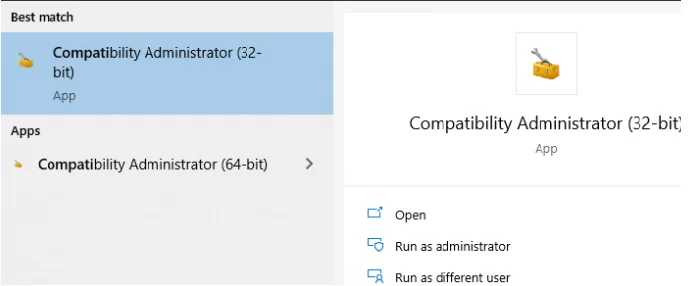
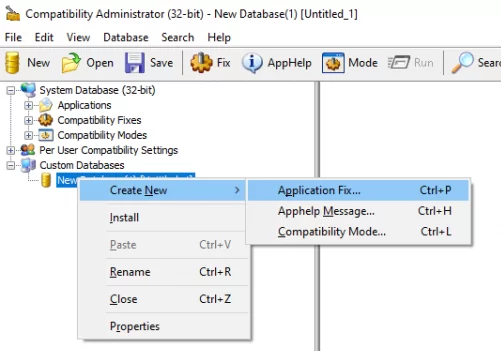
Run the Compatibility Administrator (32-bit) as an administrator (!). In the Custom Databases node, right-click New Database and select Create New -> Application Fix.
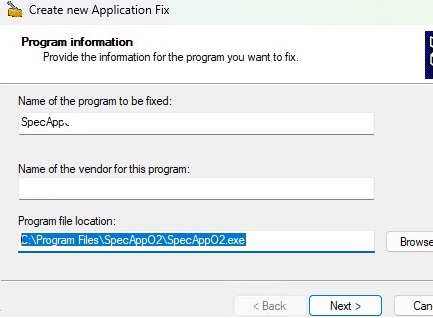
In the following dialog, specify the name of the application, the developer, and the path to the program’s executable file (C:\Program Files\SpecApp\SpecApp2.exe).
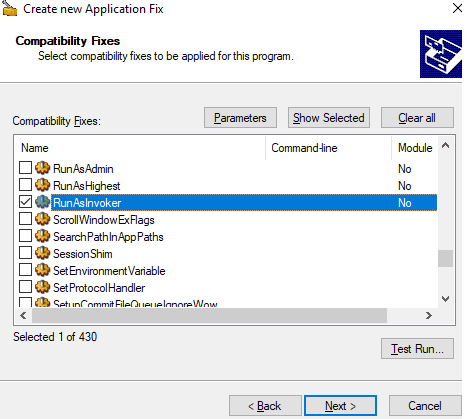
Skip the Compatibility Mode step in the configuration wizard by pressing Next. In the Compatibility Fixes list, check the RunAsInvoker option. To ensure that the application can run without UAC, click the Test Run button.
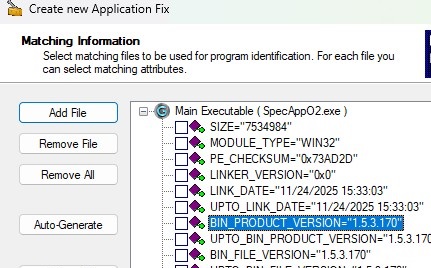
In the Matching Information dialog, you can specify which application parameters should be checked when running in compatibility mode (ORIGINAL_FILENAME, FILE_VERSION, SIZE, CHECKSUM, etc.). In the test environment, you can disable all options. For protection against file tampering, it is recommended that these options be configured in production.
Click Finish, then specify the name of the file to which the compatibility fixing package should be saved (for example, SpecApp_UAC_disabled.sdb). This file contains instructions for running the program in selected compatibility mode.
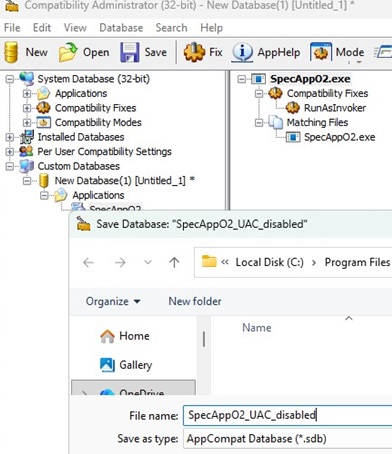
The only remaining task is to install the compatibility fix package. This can be done from the Compatibility Administrator console (select Install from the menu).
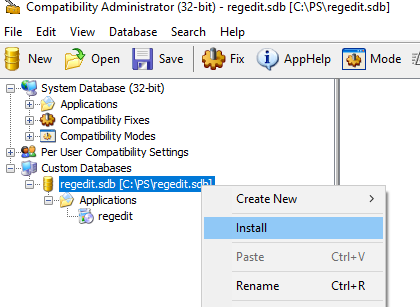
Also, the SpecApp_UAC_disabled.sdb file can be deployed to other computers running the same application and installed via the command prompt.
sdbinst -q c:\tools\SpecApp_UAC_disabled.sdb
If you have done it right, a message of successful package installation appears.
Installation of regedit complete.

After applying the compatibility fix, the corresponding entry will appear in the list of installed Windows apps.
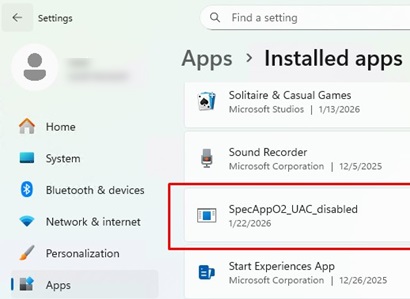
Now, try running the application as a non-admin user. It should now start without a UAC request.
To check the current app process privileges, open Task Manager, navigate to the Processes tab, and add the Elevated column. Make sure that your app is running in non-privileged mode ( Elevated=No).
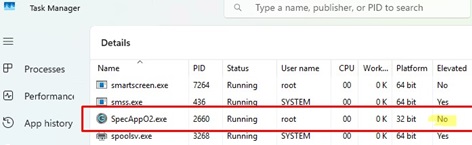
To remove the compatibility fix, run the command:
sdbinst –u c:\tools\SpecApp_UAC_disabled.sdb
Run an App without a UAC Prompt Using Task Scheduler
Another way to run a program without a UAC prompt is to use the Windows Task Scheduler. This method enables the program to execute with administrator privileges without prompting the UAC elevation dialog. Unlike other methods, this one only works in a user session with local administrator permissions.
The idea is to create a task in Task Scheduler with the Run with highest privileges option enabled to run the program.
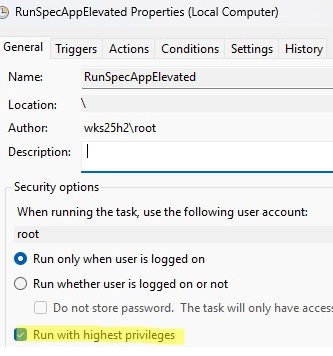
Such a task can be created manually from the graphical taskschd.mscconsole, but it is easier to create a task with a single command. Open a command prompt as an administrator and run:
schtasks /create /tn "\RunGeekAppElevated" /tr "'C:\Program Files\Geek Uninstaller\geek.exe'" /SC ONCE /ST 12:00 /RL HIGHEST /F

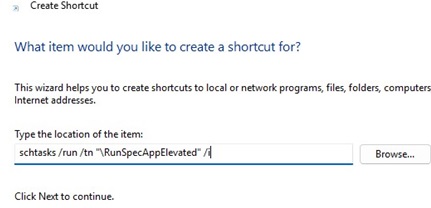
To launch the target program with administrator privileges and bypass the UAC prompt, run the following command (administrator privileges are not required for this step):
schtasks /run /tn "\RunGeekAppElevated" /i
For more convenience, you can create a desktop shortcut containing this command.
Verify that the program is running with administrator privileges (Elevated=Yes) without triggering a UAC prompt.
So, we looked at how to disable UAC for a specific program without completely disabling User Account Control. This will allow you to run Windows programs under a non-admin account without a UAC elevation prompt or entering administrator credentials.
40 comments
Great. Thanks
Heck yeah. Massively helpful. For some reason, certain Steam games dog-whistle the UAC prompt. I don’t want to have to tell the computer that – yes – I would like to play Phantasy Star Online 2 after saying that I would like to play it.
Many thanks!
Hi, I went through the steps, but it still prompted me with a UAC when i tried to open regedit. You’re supposed to open it like you normally would, correct?
Thanks,
Paul
Yeah, I tried it right now with a Windows 10 1709 build and using both 32 and 64 bits version of the Compatibility Administrator. Control panel shows regedit there but it keeps showing UAC.
The file on Windows 10 is in C:\Windows\regedit.exe
This doesn’t work on Windows 10?
You can try to run regedit.exe without showing UAC using this bat file:
startwithoutUAC.bat
Set AppPath=”C:\Windows\regedit.exe””
cmd /min /C “set __COMPAT_LAYER=RunAsAdmin && start “”%AppPath%”
Thanks, the way I’ve managed to make it work was using the command line below:
cmd /min /C “set __COMPAT_LAYER=RuAsAdmin && start C:\Windows\Regedit”
I have tried all this for VS Code (instead of Regedit). The bat file just opens the program regularly and not as admin. Is this something more to do for programs other than Regedit?
Eli,
I believe that this will only work for programs that trigger UAC, VS Code can run without administrator rights.
If you want VS Code to run always as admin, you have to configure the shortcut.
The prompt comes up for VS Code and any program I need to run Admin on for as far as I can tell. I didn’t want to turn UAC all together for security reasons, so thought this would allow selective turning off. Thanks for trying to assist Vandrey.
I’ve decided to switch to Linux and get away from all of Window’s problems. Don’t think I’ll ever look back 🙂
Eli,
As far as I know, there are different installs of Visual Studio Code, check on their website.
And you are free to switch to Linux whenever you want, but take a look at the news that Catalina is bringing UAC to macOS too.
It’s a great security feature from Microsoft and it won’t be a surprise if Linux gets something like that.
I am having same issue
Try: set __COMPAT_LAYER=RunAsInvoker
Let me ask you something about this. I have been trying to figure this out for a while. Close to almost 1 month hitting my head at my desk. I have a certain program we run on all workstation. Once in a while, we get an update from our vendor to update it. We download the .msi or exe file and place it in a shared folder that everyone has access too. When the user opens the file it checks that folder and see’s there’s an update. it tried to install the update but the UAC comes up. Since the users are just standard users we have to enter our username/password. I notice towards the bottom you talked about GPO in a domain and pushing this out. How does that work and do you have any documentation on how to set this up?
I need to bypass the UAC on this program. Maybe adding other software to the database too. Any kind of help would be awesome.
As far as I understand, in your case some app trying to install an update on users’ computers. Obviously, without administrator permissions, it is not installed at all.
I think it’s easier for you to install this update through installing a GPO software / SCCM / GPO startup script or something similar.
Works great for me using the ADK on Win 10 1803. Delighted to be able to stop those popups!
There has got to be a simple program out that will do this in 2 to 3 steps…this is crazy and complicated. A program you enter the file path to, boom….done. Anything? I’ve tried this using instructions above and not working in Win 10 v1903
Trying to use the program called “Everything” search program, 64 bit portable, without the UAC prompt coming up every time. I prefer it to MS search.
Got to be an easier way, I’m uninstalling the dang Windows Compatibility Manager. Too bloated and complicated for allowing this little program to run.
There is an easier way by using a batch file like this example:
set __COMPAT_LAYER=RunAsInvoker
start regedit.exe
I’m using GiMeSpace QuickMenu Version 2.0.3.18 (freeware available on Cnet). I’m running it as admin with the Windows Task Scheduler at startup. You can add programs in a menu that launches with a click/key you choose. Any program launched through it will run with admin right without UAC prompt on Windows 10 1909 x64.
You just have to run it normally to add programs in it, you can’t do it when it’s running as admin (bug?).
You may try more recent versions which are designed for very high screen resolutions. The one I tried was buggy on my system.
I suppose same thing can be done with shorcut managers or other kinds of program managers running with admin rights. It’s easy to configure them to run with admin rights at startup with the Task Scheduler.
My mistake: by “shortcut managers”, I meant Keyboard Hotkeys (Shortcuts) Managers. And it works fine with them also. You just have to configure a hotkey to run the program you want, and launch the manager on connection to user session with highest privileges through the Task Scheduler.
Here are some programs you can use: Clavier+ (UtilFr), Keyboard Shortcuts Manager (Softpedia), HotkeyP, and a bunch of others that are listed on TheWindowsClub, for instance.
Just tried getting a single application that’s been bugging me for months, on top of other apps that I use frequently, didn’t work. Spent over an hour going through this entire walk-through which I am grateful, but couldn’t get it to work at the installation of the .sdb part at command line. I didn’t see the installation complete dialog and when I tried to run the app, it says I need admin rights in order to run it when I’m the admin running admin privileges. I’m running the latest Windows 10 Pro 64bit 2004, MSDN build which I just downloaded and installed last night.
Anyways, I have the same gripe like most users, I don’t understand why MS can’t have an option that disables the UAC dialog box from appearing everytime startup launches my app, and every other app. Jumping through all these “fixes” just to find out hours later that it doesn’t work for me. Can’t believe there’s no easier way than this or the taskscheduler method, just pisses me off daily…
But thanks to the author for your time and effort in contributing this “fix” for the community, even though it didn’t work out for me. Thanks again.
Heck yeah. Massively helpful. For some reason, certain Steam games dog-whistle the UAC prompt. I don’t want to have to tell the computer that – yes – I would like to play Phantasy Star Online 2 after saying that I would like to play it.
Many thanks!
(Sorry. The layout of the comments is a bit ambiguous. I didn’t notice that the “Leave a Comment” form was at the bottom. I thought the “Reply” button *was* to leave a comment.)
Trying to use this, the applications I want to bypass UAC on runs fine in the Test Runs inside the application, but refuse to open outside of it. I have 3 applications these settings are applied to stored in one database, surely that’s not the issue. Installation of the database says it’s successful, but running the app brings up a text box titled ‘Fatal Error’ and the body contains ‘Failed to execute game’. No further details are presented.
After some poking around, apparently I can’t run the applications in question in administrator mode if I want them to run at all. A very peculiar issue, not sure why that would cause any problems.
[…] when I started Cool Edit. So my question was whether I could exclude ceregkey.exe from UAC. WindowsOSHub seemed to say that I could use the registry tweak summarized in this .reg […]
If I make this .reg, can I port it to another computer without installing the windows tool?
Thank you! For some reason my Adobe Illustrator and Premiere Pro kept asking for UAC despite of always removing the Run-As in the advanced options of each app, I’ve been looking for everywhere and got no fix until I found this.
Thank you very much!
Thanks for this. I had a licensed copy of Microsoft Money 2005 (the last version of Money that Microsoft provided) and it had the annoying launch question. Your fix worked and has made my life much pleasanter. For other Money users, please note: After I had followed through the recommended procedure, I still had to go into the Registry, find the MsMoney AppCompatFlags>Layers entry for Money and manually change the entry to “RunAsInvoker” as discussed. Only then did MsMoney work without the “Do you want to allow this App to make changes to your device?” warning. With the Registry change made, Money works as you’d typically expect.
Great guide thank you!
Thank you all for the guide. I have been searching for awhile now on how to do this. This one was flawless!
This fix worked perfectly for me too. Thanks!!
Just a word about the last resort (batch file) thing, it WILL work but you will probably (as far as I can guess) get security denials when trying to edit/add/delete certain keys or values whilst running regedit.exe, or access certain locations from within the program. It might even make some programs crash depending on the type of access they need to system resources. I assume with minimalist programs that run in a way that does not require special privileges, they most likely will run ok (might affect where you can save though!)
No joy here.
I’m doing this for dragon center. C:\Program Files (x86)\MSI\Dragon Center. It works fine from the compatibility administration. Then I create the entry at HKEY_CURRENT_USER\SOFTWARE\Microsoft\Windows NT\CurrentVersion\AppCompatFlags\Layers
Value name: C:\Program Files (x86)\MSI\Dragon Center\Dragon Center.exe
Value data: RunAsInvoker
But when it starts with the system, or if I execute it manually, the UAC still appears
About Windows ADK:
If you want to bypass UAC for something, you shouldn’t have to install an application that requires UAC anyway. Why even bother?
It can be a useful as a troubleshooting step or for simulating lower permissions in application development
Also, the other options don’t work anyway. load of BS.
When running the test on the compatibility administrtator UAC does not prompt but…… when install and run from the executable UCM still showed. 🙁 any help will be appreciated.
This method is not valid for win10 21H2. But I found another method that still works with the latest Win10
[Use the finished product directly] https://github.com/XIU2/UACWhitelistTool
[principle or manual execution] https://zhuanlan.zhihu.com/p/113767050
PS: but it’s in Chinese, but it’s easy to use
Sweet, just what I needed for “Clover” Explorer Extension.
XMuli said (August 18, 2022): “This method is not valid for win10 21H2.”
But I tried it on my win10 21H2 and it did work (tested on application PowerChute.exe, not regedit).
I installed the ADK for Windows 10, version 1903.
The process worked perfectly until “Click Finish”
It didn’t ask for the package name, and it didn’t create a c:\ps\ folder.
I created a C:\sdb files\ folder and used
File, Save, C:\sdb files\PowerChute
which created the PowerChute.sdb file.
Then
File, Install
which returned: “The database ‘PowerChute’ was successfully installed.”
and no more UAC prompt for PowerChute.
Thanks for this fix!
Thank you! This solution worked great for Win. 10 64 bit