In Windows Server, you can install or remove roles and features using either the graphical Server Manager console or the Windows Admin Center web interface. However, in most cases, you can perform the same task much more quickly from the PowerShell console, particularly on Windows Server Core instances, which lack a graphical interface. This article explains how to manage roles and features in current versions of Windows Server using PowerShell.
List Installed Roles and Features on Windows Server with PowerShell
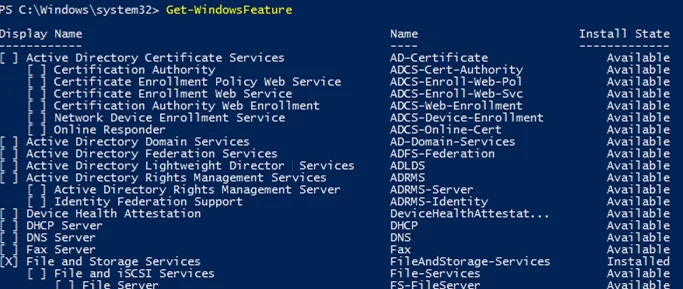
Run the following cmdlet without parameters to list all available Windows Server roles and features:
Get-WindowsFeature
The command will return a list of roles containing their display names, system names, and installation status (Installed, Available, or Removed). The list of roles and features is displayed as a hierarchical tree with nested roles, which mirrors the structure seen in the Server Manager graphical interface. In order to install or remove roles or features using PowerShell, you must use their system names, which are listed in the Name column.
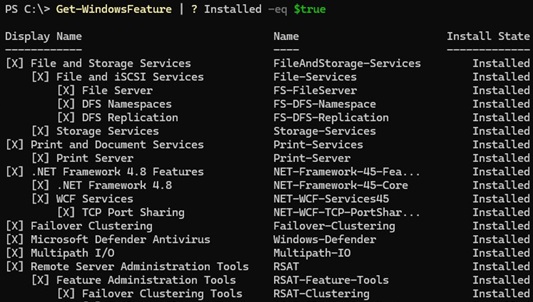
To show only installed roles and features:
Get-WindowsFeature | ? Installed -eq $true
Based on the screenshot below, this server is used as a file server (FileAndStorage-Services, Storage-Services roles installed). The remaining components are mostly used for server management (RSAT administration tools).
If you don’t know the exact name of the role, you can use wildcards (*). For example, to check which IIS web server role components are installed, run this command (the syntax has been shortened slightly):
Get-WindowsFeature -Name web-* | Where installed

A list of installed roles on a remote Windows Server host can be obtained by using the -ComputerName argument.
Get-WindowsFeature -ComputerName ny-spool1 | Where installed | ft Name,Installstate
It looks like this host is used as a print server based on the installed Print-Services and Print-Server roles.

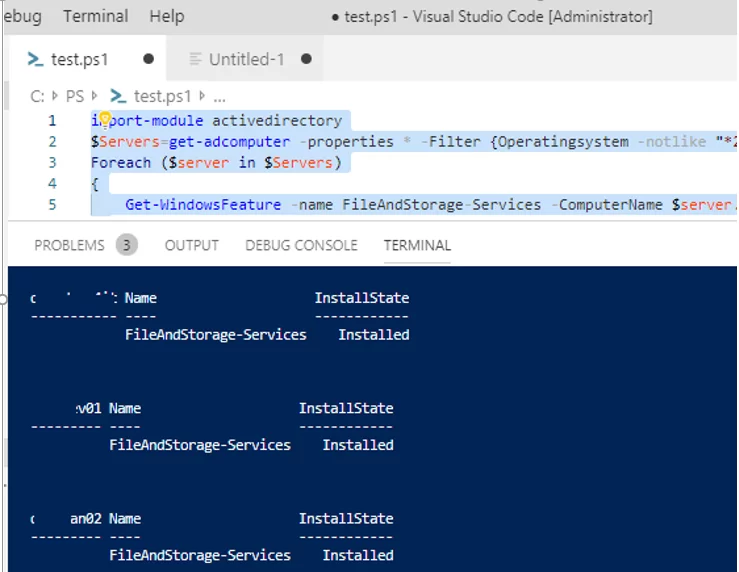
The Get-WindowsFeature cmdlet can be used to find servers in a domain that have a specific role installed. You can search for servers in a specific Active Directory OU using the Get-ADComputer cmdlet (from the PowerShell ActiveDirectory module) or by manually providing a server list ($servers = 'server1', 'server2')
For example, this PowerShell script can be used to locate all file servers with the “File and Storage Services” role enabled within the specified
$Servers=Get-ADComputer -properties * -Filter {enabled -eq "true" -and Operatingsystem -like "*Windows Server*"} -SearchBase ‘OU=Servers,OU=UK,DC=woshub,DC=com’ |select name
 Foreach ($server in $Servers)
 {
 Get-WindowsFeature -name FileAndStorage-Services -ComputerName $server.Name | Where installed | ft $server.name, Name, Installstate
 }
How to Install Windows Server Roles and Features with PowerShell
To add roles and features on Windows Server, the Install-WindowsFeature cmdlet is used.
To install the DNS server role and the management tools (including the PowerShell DNSServer module) on the current server, run this command:
Install-WindowsFeature DNS -IncludeManagementTools
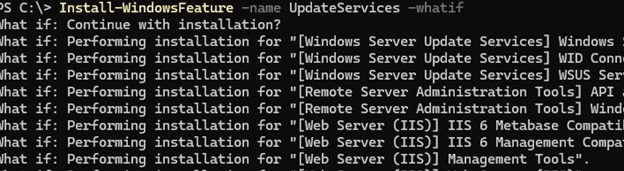
By default, this cmdlet installs all the dependent roles and features. Use the -WhatIf option to list dependency roles before installation:
Install-WindowsFeature -Name UpdateServices -WhatIf
For instance, installing the WSUS role requires installing certain IIS web server components.
To install the Remote Desktop Session Host role, the RDS licensing role, and the RDS management tools on a remote host, use the following command:
Install-WindowsFeature -ComputerName lon-rds3 RDS-RD-Server, RDS-Licensing –IncludeAllSubFeature –IncludeManagementTools –Restart

If you add the –Restart parameter, your server will be automatically restarted if required.
For example, in Windows Server 2025, the .NET Framework 3.5 feature is removed from the component store image and can be installed on request as a Feature on Demand.

When installing such a role, all necessary files will be downloaded from the Internet:
Install-WindowsFeature NET-Framework-Core (direct internet access is required)
Or, you can install the feature binaries from a mounted ISO image containing the installation image of your Windows Server version.
Install-WindowsFeature NET-Framework-Core -Source E:\sources\sxs
Export and Import Installed Roles and Features in Windows Server
The list of installed roles and features determines the current configuration of the Windows Server host. The list of installed roles can be exported to a file and then used as a template when deploying new servers with the same role set.
Export a list of the installed roles and features to an XML file:
Get-WindowsFeature | ? { $_.Installed } | Export-Clixml .\SRV1_InstalledRoles.xml
Or in TXT file format (which I like better, as it allows you to easily edit it manually if necessary):
Get-WindowsFeature | ? { $_.Installed } | Select Name | ForEach-Object { $_.Name } | Out-File .\SRV1_InstalledRoles.txt
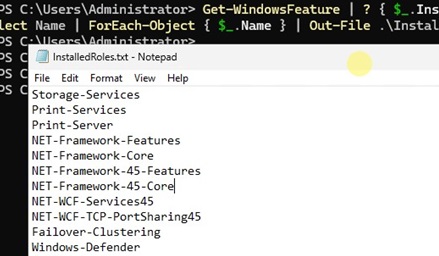
To install the same set of roles on another Windows Server host, copy this file to the host and run the following command:
$(Import-Clixml .\SRV1_InstalledRoles.xml) | Add-WindowsFeature
or
$(Get-Content .\SRV1_InstalledRoles.txt) | Add-WindowsFeature
The following command can be used to copy the list of roles from a remote server and apply it to the current one:
Get-WindowsFeature -computername MUN-FS01| where-object {$_.installstate -eq "Installed"} | Install-WindowsFeature
Deploy roles to multiple Windows servers in parallel (save the reference role configuration file to a shared network folder accessible to all hosts):
$servers = 'ny-rds1', 'ny-rds2', 'ny-rds3'
 $configFile = "\\nyfs01\conf\InstalledRoles.txt"
 $jobs = @()
 foreach ($server in $servers) {
 $jobs += Start-Job -ScriptBlock {
 param($file, $srv)
 $roles = Get-Content $file
 foreach ($role in $roles) {
 Install-WindowsFeature $role -ComputerName $srv -Restart
 }
 } -ArgumentList $rolesFile, $server
 }
 $jobs | Wait-Job | Receive-Job
If the role or feature is already installed, the command will return NoChangeNeeded and proceed to install the next role.
How to Remove Windows Server Roles and Features Using PowerShell
Use the Remove-WindowsFeature cmdlet to remove a Windows Server role or feature.
For example, to remove a print server role, run the command:
Remove-WindowsFeature Print-Server -Restart
Remove any roles missing from the source Windows Server host.
Get-WindowsFeature -ComputerName NY-FS01| ? Installed -ne $true | Remove-WindowsFeature
1 comment
I appreciate the effort in putting this together. I learned quite a bit here.
However, the section I was particularly interested in — “How to Deploy Roles on Multiple Remote Windows Servers” — didn’t work out very well for me. I’m not sure why yet, but a number of roles/features that were not on the source server ended up getting installed on the destination server. So, I had to go back and uninstall those “extra” roles.
That said, this is a good place to start learning on the topic. I just wouldn’t use it to install roles/features on a production server without first testing things out on a VM or in a lab.