The latest security updates for Windows 11 and Windows 10 have changed the default system behavior when connecting to a remote computer’s desktop via a saved *.rdp file. When a user first opens an RDP file, a one-time notification appears to explain the purpose of RDP files and the potential risks associated with using them. Each time a user opens an RDP file before establishing a connection with the remote host, they will be prompted by a security warning to manually approve the connection and select the local resources that need to be redirected to the Remote Desktop session.
Latest Microsoft Updates Add Warnings for RDP Files
After installing the April 2026 cumulative updates for Windows 11 (KB5083769 or KB5082052) and Windows 10 (KB5082200, as a part of the Extended Security Updates program for Windows 10), the following protections will be applied by default when opening an RDP file:
- A detailed warning about the target system will appear before a Remote Desktop connection is established.
- By default, redirection of local resources to a remote RDP session is disabled, and users are asked to explicitly select the resources they want to redirect to their session.
*.rdp file. When the victim opens the file, a connection is established with the attacker’s Remote Desktop server, and the user’s local resources are redirected to the terminal session. As a result, an attacker controlling the remote host can gain access to these resources (including local drives, clipboard, smart cards, redirected printers, microphone, PnP devices, etc.).The first time you open an RDP file, a notification will appear:
Opening Remote Desktop Connection
You are opening an RDP file which will establish a connection to another computer. Connecting to any remote system can expose your PC and data to security risks. Learn more.
In order to proceed with the Remote Desktop connection, the user needs to explicitly tick the box.
I understand and allow RDP files to open on this device for my account.
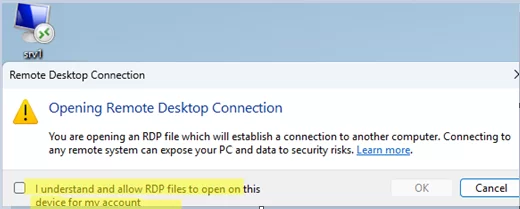
Then, a security warning will appear. The text of this warning depends on whether or not the RDP file is signed.
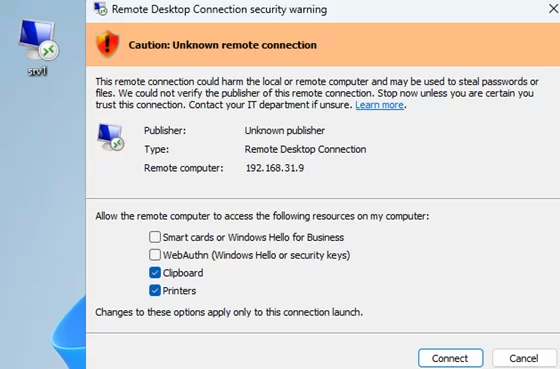
If the RDP file is not digitally signed or if Windows cannot verify it, a warning will appear:
Remote Desktop Connection Security warning

Caution: Unknown remote connection

This remote connection could harm the local or remote computer and may be used to steal passwords or files. We could not verify the publisher of this remote connection. Stop now unless you are certain you trust this connection.

Publisher: Unknown publisher
If users still want to connect, they need to select the local redirected resources required in the RDP session and click Connect.
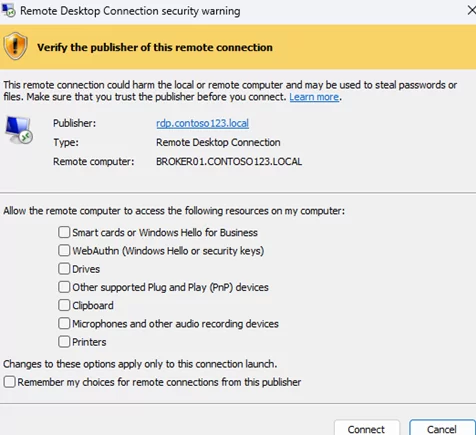
If the RDP file has been digitally signed, the warning will display information about the publisher:
Verify the publisher of this remote connection.
However, the user will still be prompted to verify the connection’s legitimacy and select the local resources to be redirected to the remote session.
mstsc.exe client, or if you run it from the command prompt using the command mstsc /v:woshubsrv1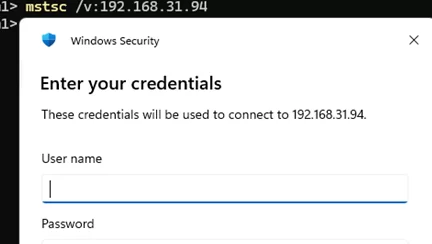
Thus, the built-in Remote Desktop Connection client now ignores local resource redirection settings specified in saved RDP files and always prompts the user to select the local resources to be redirected.
How to Disable the Remote Desktop Connection Security Warning when Opening an RDP File
To temporarily disable the new security measure for RDP files (this is not secure!), the administrator can create the RedirectionWarningDialogVersion registry parameter with a value of 1. This registry item can be created manually using the command below, or it can be deployed to clients via Group Policy (see How to create and configure registry items via GPO).
REG ADD "HKLM\Software\Policies\Microsoft\Windows NT\Terminal Services\Client" /v RedirectionWarningDialogVersion /t REG_DWORD /d "1" /F
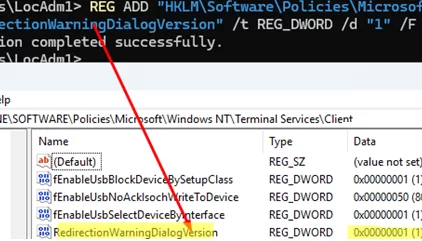
The first RDP security warning can be disabled by creating the following registry option for the user:
REG ADD "HKEY_CURRENT_USER\Software\Microsoft\Terminal Server Client" /v RdpLaunchConsentAccepted /t REG_DWORD /d "1" /F
How to Sign an RDP File Using RDPSign.exe
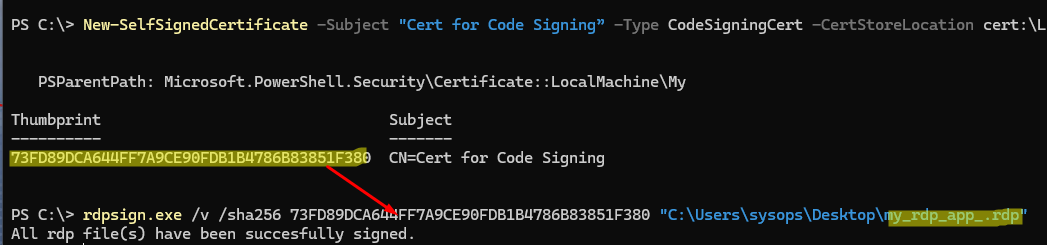
It is more secure to sign the required RDP file with a trusted digital signature. This will require you to use a special code-signing certificate type (Enhanced Key Usage, EKU = Code Signing). Request such a certificate from your CA, but in my case, I’ll create a self-signed certificate using PowerShell:
New-SelfSignedCertificate -Subject "WOSHUB Cert for Code Signing” -Type CodeSigningCert -CertStoreLocation cert:\LocalMachine\My
Copy the certificate thumbprint value and then sign the RDP file using the built-in RDPSign.exe tool:
rdpsign.exe /v /sha256 73FD89DCA644FF7A9CE90FDB1B4786B83851F380 .\Desktop\my_rdp_app.rdp
All rdp file(s) have been succesfully signed.
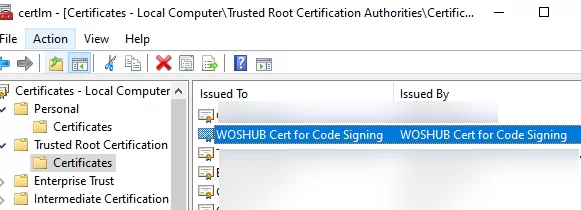
In order for the client to trust this certificate, it needs to be placed in the trusted root certificate store. The administrator can open the certlm.msc console manually and copy the certificate to the Trusted Root Certification Authorities. Or, export the certificate used for RDP file signing as a CER file and install the certificate on client computers via GPO.
Then add the certificate thumbprint to the GPO option Specify SHA1 thumbprints of certificates representing trusted .rdp publishers (under Computer Configuration -> Policies -> Administrative Templates -> Windows Components -> Remote Desktop Services -> Remote Desktop Connection Client).
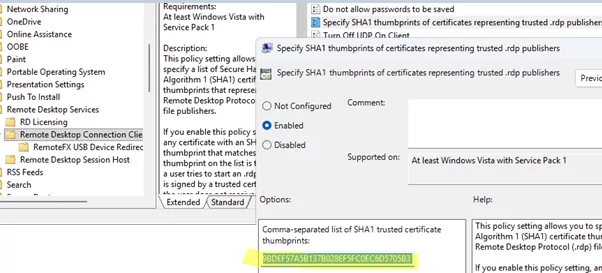
After applying new Group Policy settings, the client will open the signed RDP file without displaying a warning.
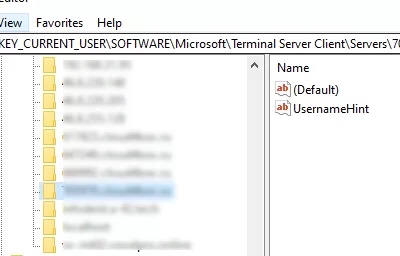
If a user has selected and saved options for redirecting local devices when connecting to a trusted RDP host, these saved redirected device options can be reset through the registry. Open the HKEY_CURRENT_USER\SOFTWARE\Microsoft\Terminal Server Client registry key (the RDP connection history is stored here) and manually delete the entries for the name or IP address of your RDP host from the Default and Servers sections.
5 comments
I added both registry keys
RdpLaunchConsentAccepted REG_DWORD 0x00000001 (1)
RedirectWarningDialogVersion REG_DWORD 0x00000001 (1)
and I still get errors.
I work with three computers:
Main
eMail
Office
and I daily RDP into Office to check on running tasks and look for errors and eMail to isolate my email from my main work computer.
I have been working in this mode since probably 2006 and now I get this dialog? And the HELP post posted the day I noticed this doesn’t help.
For me, the registry keys DO work, bypasses both new warning dialog boxes, and removing those same values re-enabled them.
What I have NOT been successful with, is bypassing those same warning messages by using the self-signed cert (which I did from the host that I’m RemoteApp ‘ing onto) installing same .cer onto my workstation into ‘Trusted Root Certification Authorities’ under (both) my User Account, and Computer account and then adding the certificate thumbprint to the GPO option “Specify SHA1 thumbprints of certificates representing trusted .rdp publishers” (under Computer Configuration -> Policies -> Administrative Templates -> Windows Components -> Remote Desktop Services -> Remote Desktop Connection Client)
AHA, there is a further policy in the same location that needed to be enabled.
Allow .rdp files from valid publishers and user’s default .rdp settings
(under Computer Configuration -> Policies -> Administrative Templates -> Windows Components -> Remote Desktop Services -> Remote Desktop Connection Client)
Ensure that the EKU of the certificate used to sign the RDP files includes the ‘
Code Signing (1.3.6.1.5.5.7.3.3)‘ property.And thanks for further clarification!
In my case, with Windows 11 25H2, everything worked without the policy being enabled. According to the description of the GPO setting ‘
Allow .rdp files from valid publishers and user's default .rdp settings‘, by default Windows allows signed .rdp files to run:If you enable or do not configure this policy setting, users can run .rdp files that are signed with a valid certificate.It’s possible that you previously configured this option directly through the AllowSignedFiles registry parameter with a value of 0 (HKCU\SOFTWARE\Policies\Microsoft\Windows NT\Terminal Services):
If you disable this policy setting, users cannot run .rdp files that are signed with a valid certificateWhat about users with Windows 11 Home Editions for their works ?