Windows OS Hub
  • Windows
    • Windows 11
    • Windows 10
    • Windows Server 2025
    • Windows Server 2022
    • Windows Server 2019
    • Windows Server 2016
  • Microsoft
    • Active Directory (AD DS)
    • Group Policies (GPOs)
    • Exchange Server
    • Azure and Microsoft 365
    • Microsoft Office
  • Virtualization
    • VMware
    • Hyper-V
    • Proxmox
  • PowerShell
  • Linux
  • Home
  • About

Windows OS Hub

  • Windows
    • Windows 11
    • Windows 10
    • Windows Server 2025
    • Windows Server 2022
    • Windows Server 2019
    • Windows Server 2016
  • Microsoft
    • Active Directory (AD DS)
    • Group Policies (GPOs)
    • Exchange Server
    • Azure and Microsoft 365
    • Microsoft Office
  • Virtualization
    • VMware
    • Hyper-V
    • Proxmox
  • PowerShell
  • Linux

 Windows OS Hub / PowerShell / Find Computers with Pending Reboot Status Using PowerShell

April 15, 2026

Find Computers with Pending Reboot Status Using PowerShell

After installing certain patches or security updates on Windows, a restart may be required for them to take effect. However, if users continually postpone rebooting their computers or if the automatic reboot after updates is disabled on servers/workstations (for example, via the Windows Update Group Policy), hosts may remain with installed but unapplied updates pending a restart. In large enterprise networks, dozens of devices often remain stuck in PendingReboot status for weeks, posing a significant operational challenge. Let’s look at how to find computers on the network that are waiting for a reboot after installing updates.

In my case, the Windows Server host has completed the installation of updates but has not yet rebooted. It shows a Pending restart status in the Windows Update control panel.
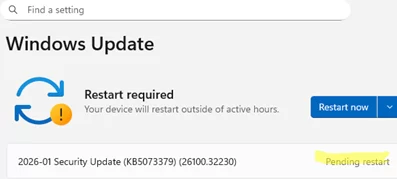
Windows Update shows 'Pending Restart'

The PendingReboot module from the PowerShell Gallery can be used to query a computer’s pending restart status. To install this PowerShell module, run the command:

Install-Module -Name PendingReboot

It is possible to install the PowerShell module offline.

Check if your computer requires a restart:

Test-PendingReboot

IsRebootPending: True
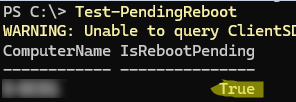
Test-PendingReboot - PowerShell cmdlet

Adding the -Detailed option causes the cmdlet to display extra information, including the reason for the pending reboot (whether it is due to installing updates, joining a domain, or installing/removing roles and features).

Test-PendingReboot -Detailed
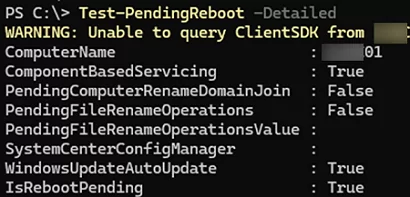
Test-PendingReboot Detailed status

ComponentBasedServicing : True
PendingComputerRenameDomainJoin : False
PendingFileRenameOperations : False
PendingFileRenameOperationsValue :
SystemCenterConfigManager :
WindowsUpdateAutoUpdate : True
IsRebootPending : True

You can use the Invoke-Command cmdlet (PowerShell Remoting must be enabled and configured) to check whether a reboot is required on a remote computer.

Invoke-Command -ComputerName m-dc01 -ScriptBlock {Test-PendingReboot}

If you don’t want to install any extra PowerShell modules, you can check the status of the pending reboot in the registry. The presence of entries in the following registry keys indicates that a restart is required:

  • HKLM\SOFTWARE\Microsoft\Windows\CurrentVersion\Component Based Servicing\RebootPending
  • HKLM\SOFTWARE\Microsoft\Windows\CurrentVersion\WindowsUpdate\Auto Update\RebootRequired
  • HKLM\SYSTEM\CurrentControlSet\Control\Session Manager\PendingFileRenameOperations
  • HKLM\SYSTEM\CurrentControlSet\Control\Session Manager\PendingFileRenameOperations2

For example, you can use the command below to check for a pending reboot entry:

Get-Item 'HKLM:\SOFTWARE\Microsoft\Windows\CurrentVersion\WindowsUpdate\Auto Update\RebootRequired' -ErrorAction SilentlyContinue

PowerShell - check if the restart is required

If the parameter is present under the RebootRequired registry key, it indicates that the host requires a reboot.

Check for RebootRequired registry key

Here is an example of a PowerShell function to check for the presence of parameters in these registry keys:

function Get-PendingReboot {
param([string[]]$ComputerName = "localhost")
foreach ($Computer in $ComputerName) {
$HKLM = [Microsoft.Win32.RegistryKey]::OpenRemoteBaseKey('LocalMachine', $Computer)
$CBS = $HKLM.OpenSubKey('SOFTWARE\Microsoft\Windows\CurrentVersion\Component Based Servicing\RebootPending')
$WU = $HKLM.OpenSubKey('SOFTWARE\Microsoft\Windows\CurrentVersion\WindowsUpdate\Auto Update\RebootRequired')
$SM = $HKLM.OpenSubKey('SYSTEM\CurrentControlSet\Control\Session Manager')
$Rename = $SM.GetValue('PendingFileRenameOperations')
$Rename2 = $SM.GetValue('PendingFileRenameOperations2')
[PSCustomObject]@{
Computer = $Computer
RebootNeeded = [bool]($CBS -or $WU -or $Rename -or $Rename2)
}
}
}

This function will allow you to check whether the local computer requires a reboot. You can also check the pending reboot status on several remote machines at once.

Get-PendingReboot "m-fs01","m-fs02","m-dc01"
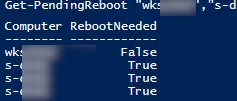
Get-PendingReboot state from remote computers

If Windows persistently prompts for a restart due to a failed Windows Update installation, you can manually cancel the pending update and stop the pending restart loop.
0 comment
2
Facebook Twitter Google + Pinterest
PowerShellWindows 11Windows Server 2022
previous post
Microsoft Office 2024 LTSC: How to Download, Install, & Activate
next post
Security Warnings when Opening RDP files in Windows 11

Related Reading

Uninstalling Windows Updates via CMD/PowerShell

March 10, 2026

Monitor Windows Log Files in Real Time with...

March 26, 2026

Automate Software and Settings Deployment with WinGet Configure...

November 20, 2025

Pin and Unpin Apps to Taskbar in Windows...

March 26, 2026

Enable/Disable Random Hardware (MAC) Address for Wi-Fi on...

November 20, 2025

How to Extract Printer Drivers from Windows

March 26, 2026

Run Elevated Commands with Sudo on Windows 11

August 21, 2025

How to Disable PowerShell on Windows for Non-Admin...

November 27, 2025

Leave a Comment Cancel Reply

join us telegram channel https://t.me/woshub
Join WindowsHub Telegram channel to get the latest updates!

Recent Posts

  • Find Computers with Pending Reboot Status Using PowerShell

    April 15, 2026
  • Mounting NFS Shares in Windows Using the Built-in Client

    March 26, 2026
  • Monitor Windows Log Files in Real Time with PowerShell

    March 17, 2026
  • Pin and Unpin Apps to Taskbar in Windows 11 via PowerShell

    March 10, 2026
  • Load and Initialize Network Drivers in Windows PE or Recovery Environment

    February 25, 2026
  • How to Set a Custom Drive Icon in Windows

    February 17, 2026
  • Managing Per-User Services in Windows

    February 11, 2026
  • Change Default OU for New Computers and Users in AD

    February 2, 2026
  • Where Windows Stores Certificates and Private Keys

    January 22, 2026
  • How to Extract Printer Drivers from Windows

    January 21, 2026

Follow us

  • Facebook
  • Twitter
  • Youtube
  • Telegram
Popular Posts
  • Automate Software and Settings Deployment with WinGet Configure (DSC)
  • Run Elevated Commands with Sudo on Windows 11
  • Fix: Slow Startup of PowerShell Console and Scripts
  • How to Hide (Block) a Specific Windows Update
  • Enable/Disable Random Hardware (MAC) Address for Wi-Fi on Windows
  • How to Pause (Delay) Update Installation on Windows 11 and 10
  • Pin and Unpin Apps to Taskbar in Windows 11 via PowerShell
Footer Logo

@2014 - 2026 - Windows OS Hub. All about operating systems for sysadmins


Back To Top