Secure Boot is a UEFI security feature that protects against the loading of unsigned or malicious code before the operating system initializes. The original Microsoft Secure Boot certificates issued in 2011 (Microsoft Corporation UEFI CA 2011) will begin to expire starting in June 2026. This may lead to Secure Boot protection being disabled on affected systems, increasing the risk of bootkit-level attacks and other pre-OS compromises.
To replace the Secure Boot certificates expiring in 2026, Microsoft will begin rolling out updates in 2025 to automatically replace the expiring UEFI Secure Boot certificates. In this article, we’ll show you how to manually initiate an update of the Secure Boot certificate and Windows bootloader signed by the new Windows UEFI CA 2023 certificate, without waiting for automatic installation.
Microsoft automatically delivers updates containing the new certificates to all computers running supported versions of Windows with UEFI Secure Boot enabled. This includes: all versions of Windows 11; LTSC editions of Windows 10; Windows 10 22H2 devices enrolled in the Extended Security Updates (ESU) program; Windows Server 2025, 2022, 2019, and 2016.
Secure Boot Certificates have been updated, but are not yet applied in Windows
Microsoft began deploying new Secure Boot certificates and a newly signed bootloader to Windows 11 devices through Windows Update in January 2026. If you regularly install cumulative Windows updates, the certificates will already have been copied to your device, but they will most likely not yet have been written to UEFI firmware.
Use this PowerShell command to check whether new UEFI Secure Boot certificates have been installed on a computer:
[System.Text.Encoding]::ASCII.GetString((Get-SecureBootUEFI -Name db).Bytes) -match "Windows UEFI CA 2023"

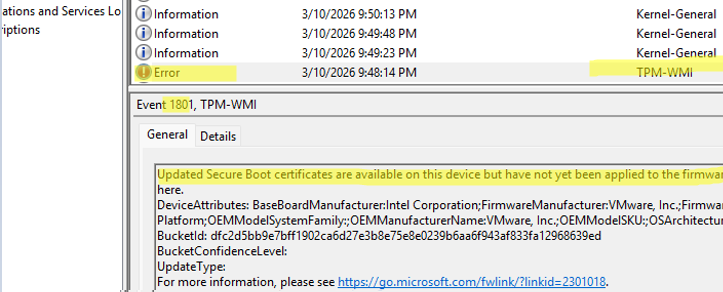
If your computer has received updates containing new Secure Boot certificates that have not yet been applied, you will find a TPM-WMI error with Event ID 1801 in the System log:
Updated Secure Boot certificates are available on this device but have not yet been applied to the firmware. Review the published guidance to complete the update and maintain full protection. This device signature information is included here.
DeviceAttributes:
BaseBoardManufacturer:Intel Corporation;
FirmwareManufacturer: you will find information about UEFI firmware here.
Platform: BucketId:
BucketConfidenceLevel: UpdateType: For more information, please see https://go.microsoft.com/fwlink/?linkid=2301018
Microsoft will initiate automatic installation of the certificates on compatible devices before June 2026.
If your computer doesn’t receive an update for some reason, or if the new certificates are not installed before the old ones expire, this will not cause problems with Windows boot or prevent machines with old certificates from being used. Only the Secure Boot trusted boot mechanism will stop working, leaving computers vulnerable to bootkit infections.
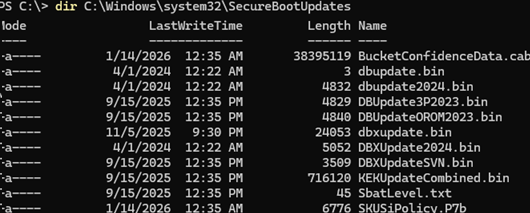
New certificates and signed files for the Secure Boot environment are downloaded via Windows Update to the C:\Windows\system32\SecureBootUpdates folder.
However, some computer models (mostly older devices manufactured before 2023) require the UEFI firmware to be updated manually beforehand. Before installing the Windows UEFI CA 2023 certificates, check the vendor’s website to determine whether your device requires a UEFI firmware update.
Let’s check which certificate the Windows bootloader is signed with. On UEFI-based machines, this file is called bootmgfw.efi and is stored on the EFI system partition. This partition does not have a drive letter assigned to it by default, but this can easily be done (see the article about the EFI system partition in Windows for details).
Use PowerShell or the SigCheck tool to extract information about the certificate used to sign the bootloader file:
(Get-AuthenticodeSignature "e:\efi\microsoft\Boot\bootmgfw.efi").SignerCertificate | Select-Object NotAfter, Issuer
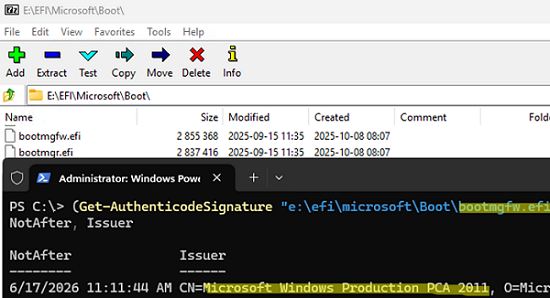
As you can see, this is a Microsoft Windows Production PC 2011 certificate, which will expire on 17 June 2026.
Install-Module UEFIv2
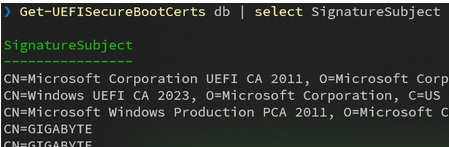
List installed certificates:
Get-UEFISecureBootCerts db | select SignatureSubject
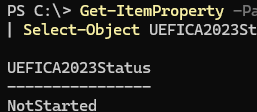
After installing security updates released after October 2025, several registry keys have been added to control the update status of Secure Boot certificates. The current certificate update status can be checked by the UEFICA2023Status registry parameter value:
Get-ItemProperty -Path HKLM:\SYSTEM\CurrentControlSet\Control\SecureBoot\Servicing\ -Name UEFICA2023Status | Select-Object UEFICA2023Status
Possible values:
- NotStarted – the update has not started
- InProgress – either the update has started, or one of the stages has been completed: adding a certificate to UEFI or updating the bootloader
- Updated – the update has been completed. Both the certificates and the bootloader signature have been updated
How to Manually (Force) Update the Secure Boot Certificate on Windows
You can manually initiate an update of Secure Boot certificates on your Windows device without waiting for them to be automatically deployed. This may be useful for developers and system administrators who want to test specialized software or hardware that could be affected by the Windows UEFI CA 2023 certificate and bootloader update.
Before updating the Secure Boot certificates and the bootloader, it is recommended that you suspend BitLocker protection or make sure that you have saved the 48-digit recovery key and can access it (you can store the BitLocker recovery key in Active Directory, on external media, or in your Microsoft account, or you can print it).
To allow the installation of new Secure Boot certificates, change the value of the AvailableUpdates parameter to 0x5944:
Set-ItemProperty -Path ‘HKLM:\SYSTEM\CurrentControlSet\Control\SecureBoot’ -Name ‘AvailableUpdates’ -Value 0x5944
You can also run the installation of certificates by enabling the Enable Secure Boot Certificate Deployment GPO option under Computer Configuration -> Administrative Templates -> Windows Components -> Secure Boot (this option is available in the latest Group Policy ADMX templates for Windows 11).
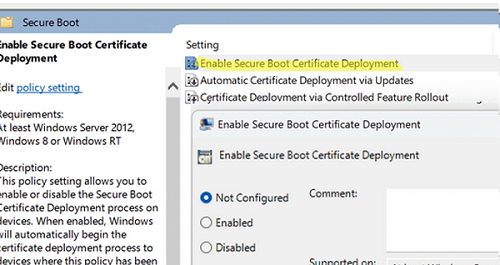
Next, run the Secure-Boot-Update scheduled task. This will trigger a series of tasks to replace the UEFI certificates and update the Windows bootloader. Use this PowerShell command to run a scheduled task immediately:
Start-ScheduledTask -TaskName ‘\Microsoft\Windows\PI\Secure-Boot-Update’

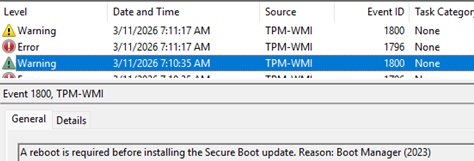
Check the Event Viewer to confirm whether the certificate update has completed, based on the events logged by TPM-WMI in the System log. In my case, the event ID 1800 indicates that my computer requires a reboot:
Event ID: 1800:
A reboot is required before installing the Secure Boot update. Reason: Boot Manager (2023)).
After restarting the device, you will most likely need to run the Secure-Boot-Update task again. Monitor the task execution status in the Event Viewer. After some time, another reboot will be required.
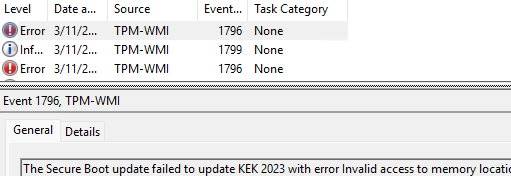
TPM-WMI:1796
The Secure Boot update failed to update KEK 2023 with error Invalid access to memory location.
This indicates that your UEFI firmware is rejecting the installation of the 2023 Secure Boot KEK certificates. This is typical of both virtual machines and old physical computers. This is required either to update the virtual hardware version, UEFI firmware, or manually enroll certificates into UEFI.
The following link provides an example of how to manually update the Platform Key (PK) in the Secure Boot database for VMware ESXi virtual machines.
https://knowledge.broadcom.com/external/article/423919/manual-update-of-secure-boot-variables-i.html
For a complete list of possible TPM-WMI errors that may occur when deploying new Secure Boot certificates, refer to this Microsoft article https://support.microsoft.com/en-gb/topic/secure-boot-db-and-dbx-variable-update-events-37e47cf8-608b-4a87-8175-bdead630eb69
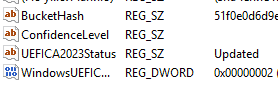
Once the certificate update is complete, verify that the UEFICA2023Status in the registry has been set to Updated.
Check whether the Windows UEFI CA 2023 certificate has been added to the active Secure Boot database of authorized signatures.
([System.Text.Encoding]::ASCII.GetString((Get-SecureBootUEFI db).bytes) -match 'Windows UEFI CA 2023')

7 comments
This is by far the most comprehensive and informative post I’ve seen on this whole Secure Boot update fiasco. I wish I had access to this before already having sunk countless hours trying to make sense of MS’s own KBs.
Yes just a real disaster at MS
It should be automatically. The Uefi update and certificates update. MS complicate things as usual, probably because of lack of expertise.
Earlier today I let windows update run a pending fimware update, that I had missed.
Now, when I run [([System.Text.Encoding]::ASCII.GetString((Get-SecureBootUEFI db).bytes) -match ‘Windows UEFI CA 2023’)]
in powershell, I get the answer TRUE – but Windows security keep flagging [secure bootstart] with a yellow warning?
What sjpuld I do?
Go to Github, search garlin cant code get – is testing tool v2026.05.27. run the UEFI check tool.
Thanks Dan, I’ll look into that.
This is a ridiculously helpful article – thank you so much for the clear, concise info here.