In some cases, programs installed on Windows cannot be removed using standard tools, whether through the Settings app (Apps -> Installed Apps or the quick access URI command: ms-settings:appsfeatures), the classic Programs and Features panel (appwiz.cpl), or the command prompt/ PowerShell. This may be caused by a damaged or deleted program installer, incorrect registry entries, stubborn files, or other configuration corruption. In this article, we’ll look at how to forcefully uninstall any program in Windows that cannot be removed using the standard methods.
How to Uninstall an App with a Corrupted or Missing MSI Installer
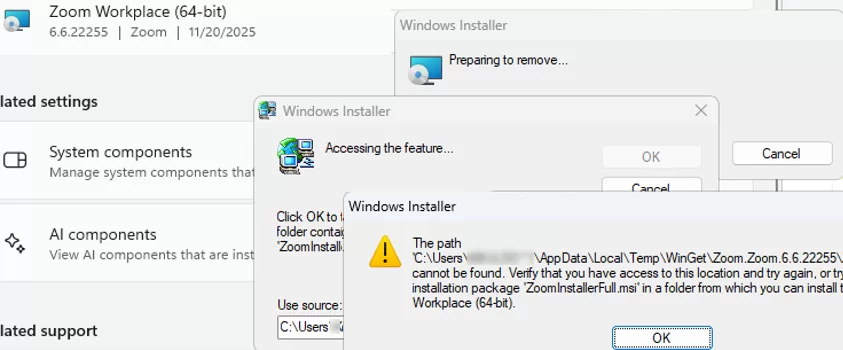
In my case, I was unable to uninstall the Zoom client that was installed on my computer using the official MSI installer. When I select “Uninstall” for the Zoom item in the list of installed programs in the Settings panel, a Windows Installer error occurs stating that the application’s MSI installation file could not be found. This may be due to missing or corrupt installation files or registry entries.
The path to "c:\yourpath\program_name.msi" cannot be found. Verify you have access to this location and try again, or try to find the installation package in a folder from which you can install the product.
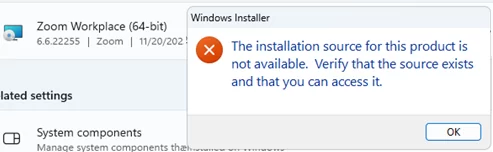
The installation source for this product is not available. Verify that the source exists and that you can access it.
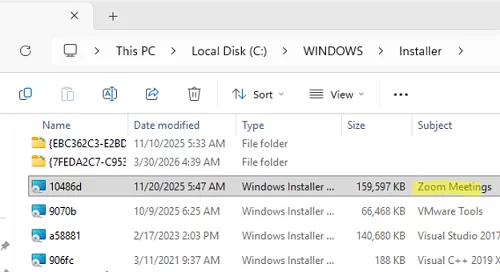
When installing an application via Windows Installer, the source MSI installation package is saved in the %windir%\Installer directory. Later, the Windows Installer uses this MSI file as the source for application removal, repair, or modification operations
This PowerShell script can be used to list the installed MSI apps and their corresponding MSI source files in the C:\Windows\Installer directory:
$installer = New-Object -ComObject WindowsInstaller.Installer
 $products = $installer.ProductsEx("", "", 7)
 $result = foreach ($p in $products) {
 [pscustomobject]@{
 ProductName = $p.InstallProperty("ProductName")
 ProductCode = $p.ProductCode()
 LocalPackage = $p.InstallProperty("LocalPackage")
 }
 }
 $result | Sort-Object ProductName | Format-Table -AutoSize
The full path to the cached version of the MSI installation file is contained in the LocalPackage property.

%windir%\Installer folder. It stores copies of MSI application installers, MSP update files, and MST files containing Windows Installer installation parameters.When applications are installed, Windows Installer creates registry entries used for proper uninstallation. The location of these entries in the registry depends on whether the application is 32-bit or 64-bit, and whether it is installed for all users (per-machine scope) or only the current user (per-user deployment scope).
HKLM\SOFTWARE\Microsoft\Windows\CurrentVersion\Uninstall
 HKLM\SOFTWARE\Wow6432node\Microsoft\Windows\CurrentVersion\Uninstall
or
HKCU\SOFTWARE\Microsoft\Windows\CurrentVersion\Uninstall
 HKCU\SOFTWARE\Wow6432node\Microsoft\Windows\CurrentVersion\Uninstall
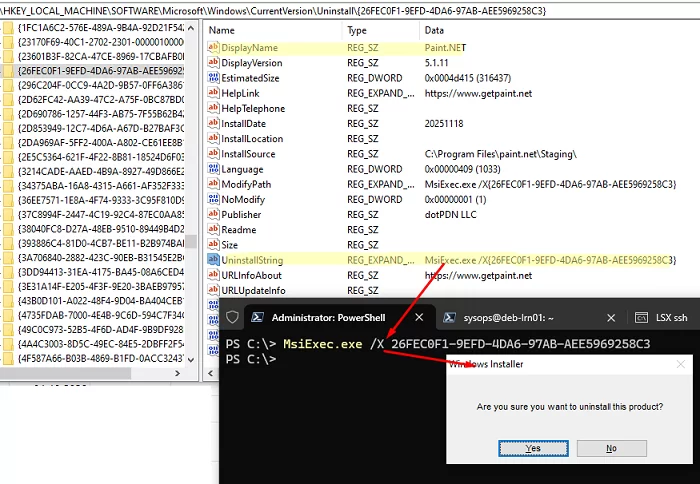
Such application entries can be located manually by browsing the corresponding registry branches, searching for the application name in the DisplayName parameter, and then retrieving the uninstall command from the UninstallString value (see the post explaining how to uninstall programs in Windows using the command line or PowerShell). Try removing the application properly by running the UninstallString command you got from the registry. It usually contains the msiexec.exe /x command with the MSI application GUID as a parameter.
If the registry entry for an installed application is corrupted or deleted, the program may no longer appear in the Settings -> Apps -> Installed Apps or in the classic “Uninstall or change a program” panel (appwiz.cpl). In such cases, you can try to manually locate the source MSI installer package in the %windir%\Installer directory and use it to repair or uninstall the application.
Go to this folder and turn on the option to show the Subject property in File Explorer. This will allow you to find the application’s cached MSI package file in that directory.
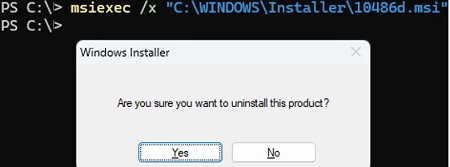
To run the standard MSI uninstall wizard, open a command prompt and run the command:
msiexec /x "C:\WINDOWS\Installer\file_name.msi"
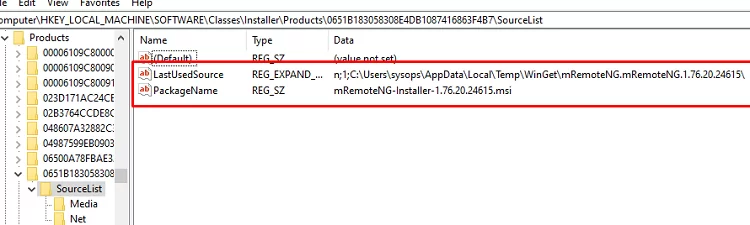
If you cannot find the MSI installation file for the app in the %windir%\Installer directory, try looking for information about the software source file in the HKLM\software\classes\installer\products registry key. Expand each subkey and check the following properties under SourceList: LastUsedSource (the source directory) and PackageName (the MSI file name). Run the MSI file to uninstall the program.
Using the Microsoft Program Install and Uninstall Troubleshooter
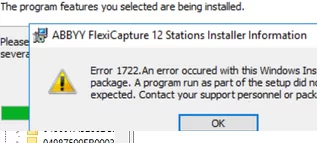
If the registry entry for an installed program is missing or the MSI file is damaged, an error such as the following may appear during application removal:
Error 1722: There is a problem with this Windows installer package. A program run as part of the setup did not finish as expected. Contact your support personnel or package vendor.
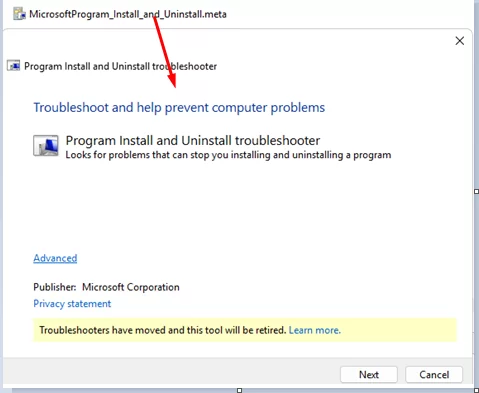
You can also try using the official Microsoft Program Install and Uninstall Troubleshooter, which helps resolve common software removal issues, including corrupted registry keys and installer dependencies. It is designed primarily for applications installed via the MSI Installer. If the application was deployed using a custom .EXE installer, it is unlikely that the troubleshooter will help.
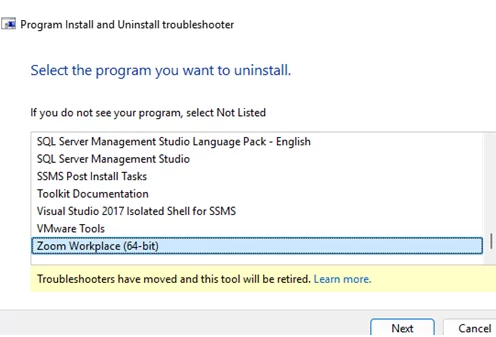
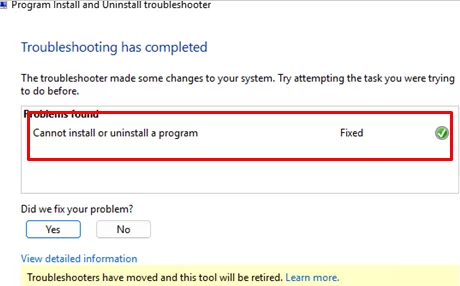
Run the Microsoft Program_Install_and_Uninstall.meta.diagcab file (in Windows 11, the tool is available under Settings -> Troubleshoot -> Other Troubleshooters).
Select the option that you want to uninstall the program. The tool will list the installed apps. Select the program that you want to remove. The tool scans the system, attempts to restore dependencies, cleans up junk files, and locates and runs the MSI uninstaller.
What else can you try if the previous methods didn’t help?
- If you cannot locate the cached MSI package, download the MSI installer for the same program version from the vendor’s website and run it to perform the uninstallation.
- Before uninstalling the program, check if you need to manually kill any running processes and/or services (in the
services.mscsnap-in) - Boot the computer into Safe Mode and attempt to uninstall the application. To enable the Windows Installer service to run in Safe Mode, create the following registry item:
REG ADD "HKLM\SYSTEM\CurrentControlSet\Control\SafeBoot\Minimal\MSIServer" /VE /T REG_SZ /F /D "Service"and start the service:net start msiserver - Use third-party uninstaller tools, but be aware of the risks! For example, GeekUninstaller or RevoUninstaller
1 comment
Daily mahjong match game unknowingly installed on phone..how do I uninstall