In this article, we’ll look at how to use the IPBan tool to configure Windows Server host protection against DDoS attacks. The idea is to detect failed logons, untargeted or suspicious traffic in text log files and/or Windows event logs, and block the detected IP addresses using Windows Firewall rules. This will allow you to implement a simple Windows host protection system against DDoS attacks without using additional external security tools.
In my case, I encountered an abnormally high network interface load on the Windows Server host in the DMZ network running a lightweight web app. This consumed all the available WAN channel bandwidth.
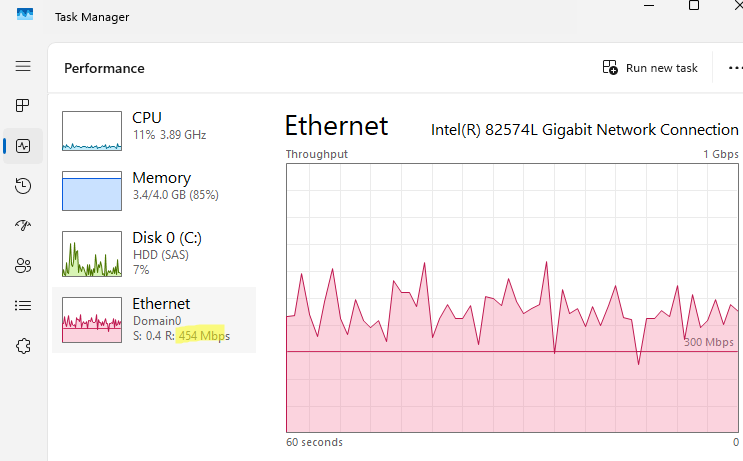
Using ResMon, I discovered that hundreds of external clients were establishing HTTP sessions with the Windows host simultaneously, which is an unusual pattern for historical web server workloads.
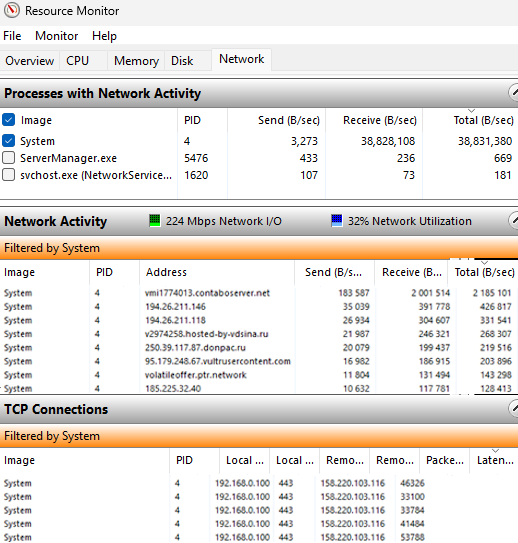
The following PowerShell command can be used to show the number of simultaneous network connections to a host via HTTPS:
netstat -ano | findstr :443 |measure

We will use the open-source tool IPBan (DigitalRuby.IPBan) to block bot IP addresses. IPBan is similar to Fail2Ban, but for Windows. Although IPBan was originally developed to block brute-force attacks on terminal (RDP) servers, it can also be used to protect other Windows services against DDoS attacks.
How to Install IPBan on Windows Server
We’ll use the IPBan tool to parse the web service’s text log files (or events in Event Viewer) and take action when specific count thresholds are reached. This tool uses regular expressions to parse text log files or Windows Event logs, identify recurring malicious patterns, extract the source IP addresses, and block those IPs in Windows Firewall after a defined threshold of failed requests is met.
To install IPBan on Windows from the GitHub repository, run this PowerShell script:
$ProgressPreference = 'SilentlyContinue'; [Net.ServicePointManager]::SecurityProtocol = [Net.SecurityProtocolType]::Tls12; iex ((New-Object System.Net.WebClient).DownloadString ('https://raw.githubusercontent.com/DigitalRuby/IPBan/master/IPBanCore/Windows/Scripts/install_latest.ps1'))
The script will download the IPBan files to the C:\Program Files\IPBan folder and create a new Windows service.
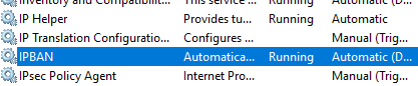
The IPBan service settings can be found in the ipban.config file.
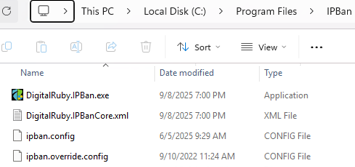
The ipban.config file is an XML file that contains the following sections:
- LogFilesToParse – rules that define text log files to be parsed, regular expressions for extracting information from them, and patterns for detecting unwanted events.
- ExpressionsToBlock – it defines patterns and regular expressions to extract suspicious events and IP addresses from Windows Event Logs, which can then be blocked in the Windows Firewall.
- ExpressionsToNotify – similar to the previous one, but only for notification purposes (without immediately blocking IP addresses).
- appSettings – this section contains the IPBan service’s basic settings.
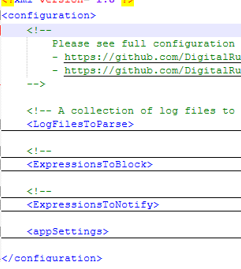
Several rules for tracking failed login attempts are enabled by default in the ipban.config file. For example:
- Parsing is enabled for the following text logs under the LogFiles section: OpenSSH server on Windows; IPBanCustom (used as a template for configuring your own text log parsing rules), Exchange authentication logs, SmarterMail, MailEnable, Apache logs, and RDWeb login logs.
- Under the ExpressionsToBlock section, auditing of events in Event Viewer logs for the following services is enabled: RDP login events (find out how to protect against RDP brute-force attacks), Microsoft SQL, PostgreSQL, MSExchange, phpMyAdmin, VNC, RRAS, SVN
Remove rules for all unused services from ipban.config, or use an empty ipban.override.config file as a template for your custom ipban configuration.
I configured the following parameters in the appSettings section:
- BanTime – the time for which the IP address is blocked in the firewall, after which it is automatically unblocked. I block addresses for 1 day(
value="01:00:00:00"/) - Whitelist – a whitelist of IP addresses and subnets that should never be blocked, such as your ISP ranges and customer subnets:
value="123.123.0.0/16,111.111.111.11/24"
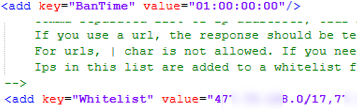
Block Malicious IP Addresses from IIS Logs in Windows Firewall
In my case, the DDoS attack was aimed at a small IIS website that was published on the internet and was running on my Windows Server. Additionally, the Remote Desktop Gateway role is configured on the server used for connecting remote users to internal RDSH.
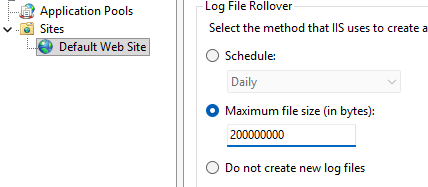
An active DDoS attack on IIS can be confirmed by the unusually large size of the log files in the C:\inetpub\logs\LogFiles\W3SVC1 directory (each file spans several GB). To make it easier for IPBan to parse the IIS log files, I changed the log format in the IIS Manager console (inetmgr) so that a new log file is created when the specified file size is reached, rather than a new log file being created every day (the default setting). IIS -> Web Site -> Logging -> Select the method that IIS uses to create a new log file -> Maximum file size. Here, we specified 200 MB.
Next, analyse the IIS logs to identify the type of requests that are overloading your site. In my case, the log contained tens of thousands of requests from different IP addresses with an HTTP error code of 405 (Method Not Allowed).
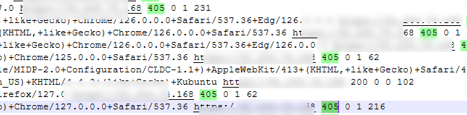
I have configured the following rule in the <LogFilesToParse> -> <LogFile> section:
<LogFile>
<Source>IIS405</Source>
<PathAndMask>C:/inetpub/logs/LogFiles/W3SVC1/*.log</PathAndMask>
<FailedLoginRegex>
<![CDATA[
^(?<timestamp_utc>\d{4}-\d{2}-\d{2}\s+\d{2}:\d{2}:\d{2})\s+\S+\s+\S+\s+\S+\s-\s\d+\s-\s(?<ipaddress>\S+).*?\s405\s+\d+\s+\d+\s+\d+$
]]>
<![CDATA[ ^\d{4}-\d{2}-\d{2}\s+\d{2}:\d{2}:\d{2}\s+\S+\s+\S+\s+\S+\s+-\s+\d+\s+-\s+(?<ipaddress>[^ ]+).*405\s ]]>
</FailedLoginRegex>
<PlatformRegex>Windows</PlatformRegex>
<PingInterval>5000</PingInterval>
<MaxFileSize>100000000</MaxFileSize>
<FailedLoginThreshold>5</FailedLoginThreshold>
<MinimumTimeBetweenFailedLoginAttempts>00:00:5</MinimumTimeBetweenFailedLoginAttempts>
</LogFile>
- PathAndMask – Path to logs (note that the slashes in the path must be inverted).
- FailedLoginRegex – contains a regular expression for searching for events with a 405 response code and extracting the IP addresses.
- FailedLoginThreshold – the threshold for the number of connection attempts before an IP address is blocked.
A different regular expression may be used in your custom case. You can use PowerShell to test the regexp. Copy the access line from the IIS log and check it using your regular expression. (run these tests in PowerShell ISE or VSCode):
$logLine = "2026-05-10 21:17:13 192.168.158.103 POST / - 443 - 95.123.123.12 Mozilla/5.0+(Macintosh;+Intel+Mac+OS+X+10.15;+rv:128.0)+Gecko/20100101+Firefox/128.0 https://123 405 0 1 172 "
 $regex = '^\d{4}-\d{2}-\d{2}\s+\d{2}:\d{2}:\d{2}\s+\S+\s+\S+\s+\S+\s+-\s+\d+\s+-\s+(?<ip>[^ ]+).*405\s'
 if ($logLine -match $regex) {
 Write-Host "✓ Match: unwanted IP: $($Matches.ip)" -ForegroundColor Green
 } else {
 Write-Host "✗ NO MATCH!" -ForegroundColor Red
 }
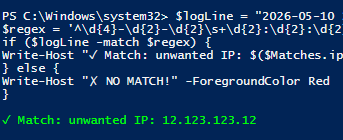
Restart the IPBan service to reload the rules.
Restart-Service ipban
All actions and events performed by IPBan are logged in the logfile.txt file.

<LogFile>
<Source>IIS404</Source>
<PathAndMask>C:/inetpub/logs/LogFiles/W3SVC1/u_extend*.log</PathAndMask>
<FailedLoginRegex>
<![CDATA[
<![CDATA[ ^\d{4}-\d{2}-\d{2}\s+\d{2}:\d{2}:\d{2}\s+\S+\s+\S+\s+\S+\s+-\s+\d+\s+-\s+(?<ipaddress>[^ ]+).*404\s ]]>]]>
</FailedLoginRegex>
<PlatformRegex>Windows</PlatformRegex>
<PingInterval>5000</PingInterval>
<MaxFileSize>206777216</MaxFileSize>
<FailedLoginThreshold>4</FailedLoginThreshold>
<MinimumTimeBetweenFailedLoginAttempts>00:00:5</MinimumTimeBetweenFailedLoginAttempts>
</LogFile>
To block the IP addresses for which the threshold is exceeded, IPBan creates Windows Firewall rules named IPBan_Block_0, IPBan_Block_1000, etc. As the maximum size of a Windows Firewall rule is limited, a new rule is created for each 1,000 blocked IP addresses.
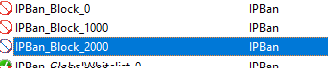
You can use PowerShell to view the list of blocked IP addresses in the IPBan rule.
(Get-NetFirewallrule -DisplayName 'IPBan_Block_1000'|Get-NetFirewallAddressFilter).remoteaddress
 (Get-NetFirewallrule -DisplayName 'IPBan_Block_1000'|Get-NetFirewallAddressFilter).remoteaddress |measure
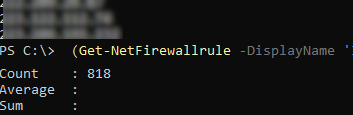
In my case, in less than a day of IPBan operation, nearly 3,000 IP addresses from which DoS attacks originated were blocked. After this, the load on the server’s network interface returned to normal, and the number of active sessions to IIS dropped from several thousand to hundreds.

Once the blocking time has expired, the IP address will be removed from the rule.
Moreover, it is possible to block spam user agents by using IIS filtering. iismanager -> Request Filtering -> Rules -> Header: user-agent -> Deny strings. According to your IIS log, add all the obvious spam user agent headers (AppleWebKit, Lynx, etc.).
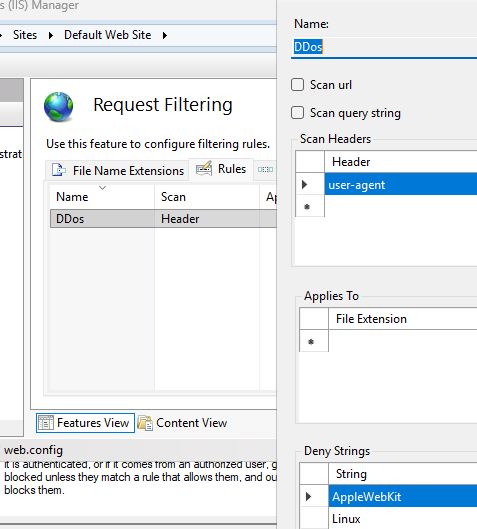
IIS will return 404 error to clients whose headers contain such user agents.
Thus, we implemented the simplest protection against DDoS attacks on a Windows web server using the IPBan. Similarly, you can mitigate suspicious traffic by blacklisting IP addresses associated with anomalous request patterns, which can be identified by extending the log analysis to other text or system event logs.
2 comments
Which did you prefer? This or CrowdSec?
It depends on the situation. CrowdSec is more universal and better suited to standard scenarios, but IPBan is faster and easier to customize.