Strict uniqueness requirements for local machine Security Identifiers (SIDs) were enforced in security updates released by Microsoft in autumn 2025 for Windows 11 25H2, 24H2, and Windows Server 2025. These updates require each computer across the network to have a unique SID and prevent network authentication (and therefore access to network shares) between computers with duplicate SIDs. The problem occurs when attempting to authenticate via NTLM/Kerberos with a computer SID that matches the local SID of the machine.
Following these changes, administrators who had deployed Windows images to user computers and virtual machines via simple cloning (without generalizing the SID via Sysprep) experienced network connectivity failures between computers with the identical SIDs.
This is how the problem manifests itself:
If a user attempts to establish a remote connection to a computer whose SID matches the local SID of the source machine, the authentication attempt will fail with the error message The username or password is incorrect, even if valid credentials are provided.
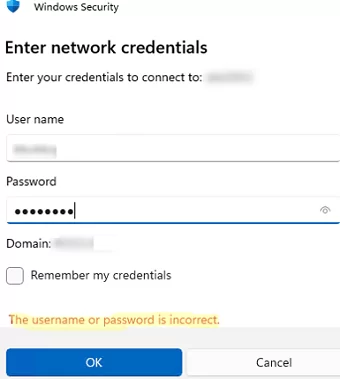
As a result, the user will not be able to:
- Open a shared (SMB) folder or connect a shared network printer from a remote computer
- Connect to such a computer via Remote Desktop (RDP).
- Connect via WinRM (PSRemoting)
In this case, an error with Event ID 6167 will appear in the System log in the Event Viewer console on the remote computer.
Source: LSA (LsaSrv)
There is a partial mismatch in the machine ID. This indicates that the ticket issued by user WOSHUB\maxbak has either been manipulated or it belongs to a different boot session. Failing authentication.
This can also happen if the machine was cloned without using sysprep. More information can be found at https://go.microsoft.com/fwlink/?linkid=2349106
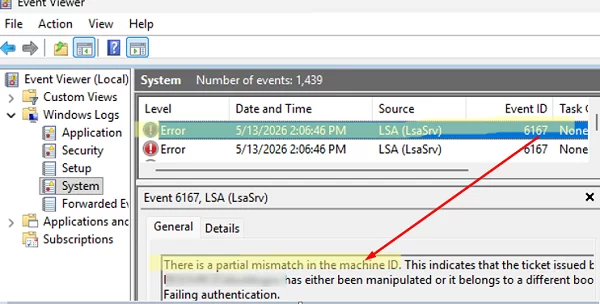
This means you won’t be able to remotely connect to or access resources on computers that were cloned or deployed from the same image (without Sysprep) and have the same SID.
Accordingly, Microsoft addressed this issue at the architectural level by introducing security updates that block remote communication between computers when duplicate SIDs are detected, including the prevention of Kerberos and NTLM authentication.
The following methods can be used to resolve the issue of duplicate SIDs on computers in your network:
- When deploying a custom Windows image with preinstalled software and configurations, or when cloning physical or virtual Windows machines, the built-in Sysprep utility must be executed with the
/generalizeparameter prior to capturing, imaging, or cloning the Windows installation. This allows the Machine SID to be reset completely. When the operating system is first started from the image on any computer, a new, unique local security identifier is generated. However, this method is not suitable for existing Windows installations that have already been deployed or are running from a clone (more on this below). - If computers have been deployed from a non-sysprepped image, the local machine SID will need to be changed. This is not officially supported, but there are third-party tools available to regenerate the SID.
- Workaround: you can temporarily disable the new SID uniqueness requirement via GPO or registry.
How to Find Out the Local Machine SID in Windows
It is important to understand the difference between a computer’s local SID (Machine SID) and a computer object’s SID in an Active Directory domain, as they are not the same. A domain SID is generated for a machine when it is joined to an Active Directory domain. A domain machine SID is guaranteed to be unique because it is generated and issued by the domain itself.
The local SID is generated during a clean Windows installation or after running the Sysprep utility with the generalize option. If multiple machines are deployed by cloning from a single image, they will all have the same local SID.
To get the SID of the local computer (Machine SID), you can use the PsGetsid tool from Microsoft. You can either download it to your computer or run it directly from the Sysinternals Live share.
& \\live.sysinternals.com\tools\psgetsid64.exe
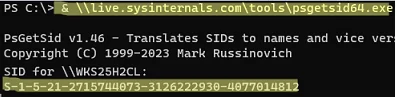
It is easier to obtain the local SID of a machine by extracting the value of the AccountDomainSid property from any local user:
(Get-LocalUser |Select-Object -First 1 -ExpandProperty SID).AccountDomainSid.Value

Find Computers with Duplicate SIDs in Active Directory
If you want to find computers with duplicate Security Identifiers in an Active Directory domain, you can use a PowerShell startup script approach. The idea is that each computer writes its local SID to one of its AD account attributes when booting up. We discussed this approach in a post about automatically filling in a computer’s description in Active Directory.
The following PowerShell script adds the local machine SID to the ‘Description’ field of the computer in AD (make sure you do not use this attribute for other purposes).You can either assign this script to the OUs containing the computers as a startup script or run it via a scheduled task in GPO.
$localSID=(Get-LocalUser |Select-Object -First 1 -ExpandProperty SID).AccountDomainSid.Value
 $Computer = $env:COMPUTERNAME
 $DOMAIN= (Get-WmiObject -Namespace root\cimv2 -Class Win32_ComputerSystem).Domain
 $ComputerSearcher = New-Object DirectoryServices.DirectorySearcher
 $ComputerSearcher.SearchRoot = "LDAP://$("DC=$(($DOMAIN).Replace(".",",DC="))")"
 $ComputerSearcher.Filter = "(&(objectCategory=Computer)(CN=$Computer))"
 $computerObj = [ADSI]$ComputerSearcher.FindOne().Path
 $computerObj.Put( "Description", "$localSID" )
 $computerObj.SetInfo()
As a result, the local SIDs of the machines will be displayed in the computer accounts’ properties in AD.
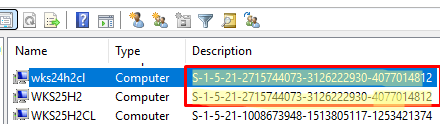
Find and display all computers with the same SIDs using the PowerShell cmdlet Get-ADComputer:
# Find all AD computers with a filled-in Description field, excluding those that are empty.
 $computers = Get-ADComputer -Filter 'Description -like "*"' -Properties Description
 # Group computers with the same SID and display duplicates
 $computers | Group-Object Description | Where-Object { $_.Count -gt 1 } | Select-Object Name, Count, Group|fl

How to Change (Reset) Machine Security Identifier (SID) in Windows
The only method officially recommended and supported by Microsoft for resetting and regenerating computer Security Identifiers (SIDs) is to use the Sysprep tool with the /generalize option:
cd C:\Windows\System32\Sysprep
 sysprep.exe /generalize /oobe /shutdown
However, this SID regeneration method is unsuitable for already-deployed computers, as it is essentially equivalent to reinstalling the operating system. In addition to resetting the old SID, using the generalize option in Sysprep removes third-party drivers (can be bypassed using the PersistAllDeviceInstalls parameter), resets user profiles and all their settings, configured file associations, and licenses in some apps that are tied to the machine SID or hardware ID (HWID).
Therefore, SysPrep with the ‘Generalise’ option is only suitable for rebuilding existing ‘gold’ Windows images that are deployed to user workstations. In all other cases, it will be necessary to completely reinstall Windows.
Another unofficial method of changing the SID of a deployed machine without reinstalling or resetting Windows involves using the third-party utility SIDCHG ( SID changer utility ).
You can download the SIDCHG utility here: https://www.stratesave.com/html/sidchg.html. To use the tool, either purchase it or copy the trial key from the product download page, which changes every month.
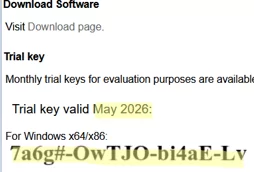
Before resetting the machine’s SID, consider the factors that could be affected by this change, as these may stop working afterwards (to find out more about these and other risks, please visit the tool’s official webpage):
- If you use EFS encryption for files, export the key and certificate used for encryption.
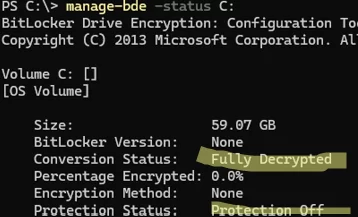
- BitLocker volume encryption must be disabled, and the machine’s drives are fully decrypted (BitLocker automatic drive encryption is enabled by default in Windows 11):
manage-bde -status
- Export the saved passwords from Credential Manager.
- The computer will fail to establish a trust relationship with the Active Directory domain and will need to rejoin the domain or repair the trust using the
Test-ComputerSecureChannel -Repair cmdlet
So, let’s navigate to the directory containing the tool and run the command:
.\sidchg64-3.0n.exe /R
Enter the trial key.
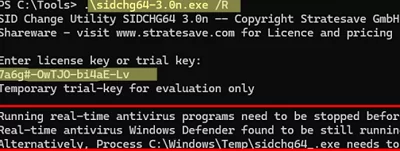
In my case, the tool detected that real-time protection in the built-in Windows antivirus was enabled, and asked me to either pause it or add its process to the exceptions list.
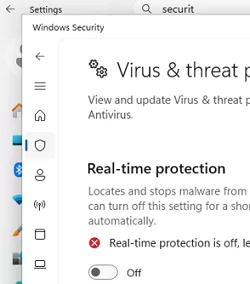
Disable real-time protection in Windows Security, then try running the command again. After some time, you will be logged out and taken to the Windows login screen. A warning will appear notifying you that the SID is being changed on the computer, and you need to wait until it is finished and then reboot. While you wait, do not attempt to log in to your profile or manually restart the machine.
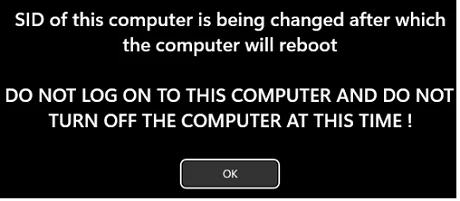
After restarting the machine, check that its SID has changed.

RESETAPPS=App1_*;App2_* option in the SIDCHG tool to reset the settings of specific Microsoft Store apps. To reset the settings of all Store apps, add the /RESETALLAPPS option.Bypass SID Uniqueness Checks via GPO
There is a temporary fix that bypasses the new Windows behavior, which blocks network access and authentication between computers with duplicate SIDs.
To temporarily disable SID uniqueness checking, download and install the Windows 11 24H2, Windows 11 25H2 and Windows Server 2025 KB5065426 250923_06201 Known Issue Rollback.msi update.
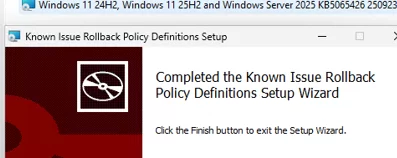
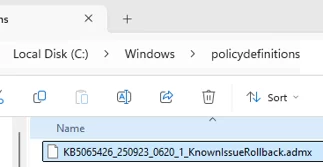
This update adds the new ADMX group policy template file (KB5065426_250923_0620_1_KnownIssueRollback.admx) to the C:\Windows\PolicyDefinitions folder.
To enable this option on a specific computer, open the local Group Policy Editor (gpedit.msc) and navigate to Computer Configuration -> Administrative Templates -> Windows 11 24H2, Windows 11 25H2 and Windows Server 2025 KB5065426 250923_06201 Known Issue Rollback. Open the settings for the KB5065426_20250923_06201 Known Issue Rollback option and disable it. This will prevent the checking of SID uniqueness when accessing remote computers.
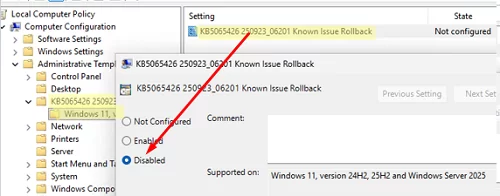
This GPO option creates just one registry item that can be enabled manually without installing the ADMX template:
reg add "HKLM\SYSTEM\CurrentControlSet\Policies\Microsoft\FeatureManagement\Overrides" /v 1517186191 /t REG_DWORD /d 0 /f
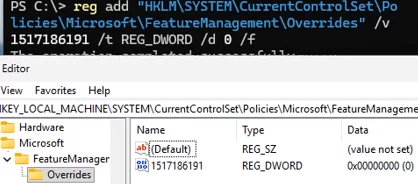
Then restart the computer to apply the changes. After rebooting, you will be able to connect to the remote computer (open a shared folder, map a network drive, or a printer), even if the local machine SIDs are the same. However, this is only a temporary fix. According to Microsoft, it will only work until the end of 2027, after which you will still need to change duplicate SIDs on computers.