Users often save files directly to their %userprofile%\Desktop folders, which not only clutters them but also makes it more difficult for administrators to maintain user profile directories across workstations and servers. Storing a large number of user files on the Desktop or in standard user profile library folders (such as Downloads, Documents, Pictures, Videos) can be especially problematic for terminal RDS servers, VDI user profiles, and other scenarios involving the centralized user profile storage and backup. In this article, we’ll explore methods to prevent Windows users from creating, copying, or saving new files on the Desktop or in other library folders.
First, let’s look at how to manually change the NTFS permissions on the Desktop folder within a user profile to prevent the owner from creating or saving new files.
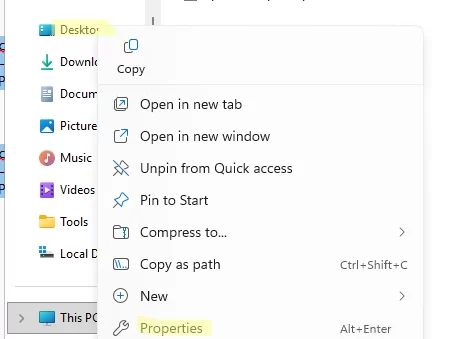
Open the Desktop folder properties in File Explorer, go to the Security tab, click the Advanced button, and click the Disable Inheritance option.
Select a username from the list of permissions entries and click Edit. Click on the Show advanced permissions link. Disable the following NTFS permissions for a user:
- Create files / write data
- Create folders / append data
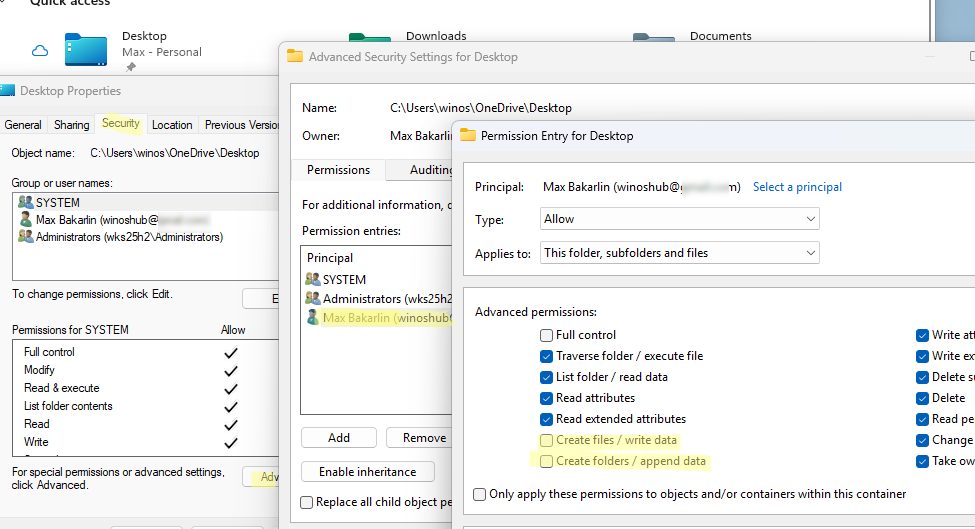
Save the changes.
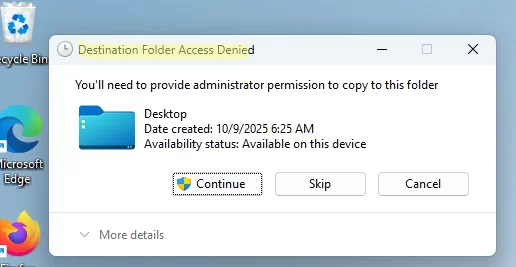
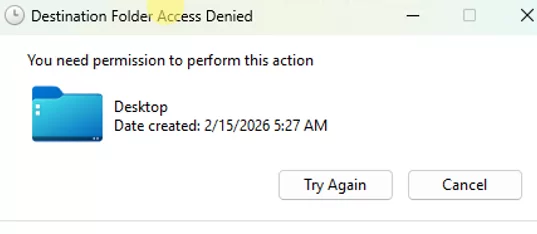
Now, the user will only be able to list and read files, but not create or modify them. Explicit file system permissions restrict write access to the %userprofile%\Desktop path. If a user tries to save or copy a file to the Desktop, an Access denied error appears along with a User Account Control (UAC) prompt indicating that elevated administrator privileges are required.
Destination Folder Access Denied
You’ll need to provide administrator permissions to copy to this folder.
Administrators group in the same way.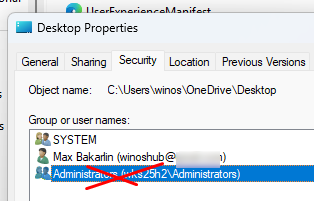
The Access Denied error will now be displayed without the UAC button.
Destination folder access denied
You can use the icacls command-line tool to explicitly set write-denial permissions to block users from saving files to their Desktop directory.
icacls "%USERPROFILE%\Desktop" /reset /T /C /Q
 icacls "%USERPROFILE%\Desktop" /inheritance:d /T /C /Q
 icacls "%USERPROFILE%\Desktop" /deny %USERNAME%:(OI)(CI)(WD,WA) /T /C /Q
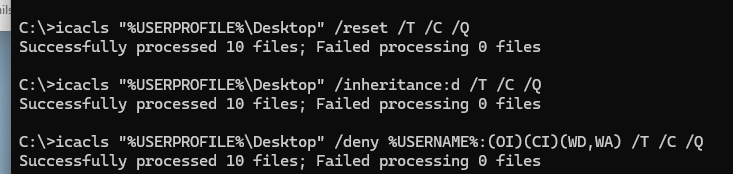
However, an advanced user can override this restriction while remaining the owner of the Desktop folder.
Let’s look at how to use Group Policies in an Active Directory domain to prevent users from saving files to the desktop or other locations. The idea is to run a logon script via GPO at user logon that prevents writing to the specified folders.
- Open the Domain Group Policy Management Console –
gpmc.msc - . Create a new GPO and then edit it.
- Go to User Configuration -> Policies -> Windows Settings -> Script (logon/Logoff) -> Logon
- Create a batch file named denydesktopwrite.bat and paste the code above into it.

- Save the GPO settings and link them to the user’s OU.
- Restart the user’s computer to apply the new Group Policy settings.
- Check the restriction by confirming that write access to the Desktop directory is now explicitly denied for the user.
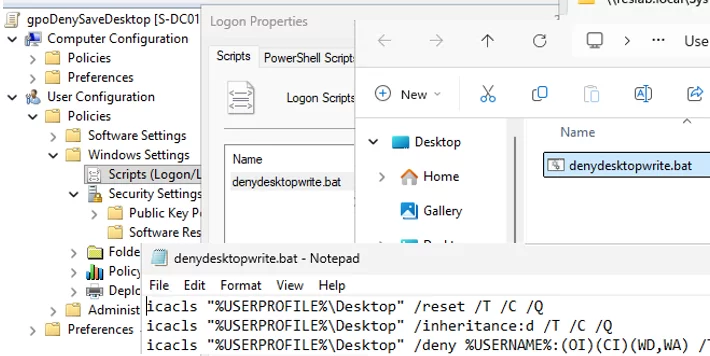
In the same way, you can also deny users from copying or saving files to other library folders in the user profile. For example, you can stop users from saving data to Downloads, Music, Documents, and folders.