In Windows Server 2012 R2 and earlier versions with the Remote Desktop Services (RDS) role installed, you could configure a specific program to run automatically when a user logged into their RDP session by using a setting in the user’s profile. The application (shell) that should be launched instead of the standard Windows Explorer shell (explorer.exe) can be specified in the user’s properties on the Environment tab, using the Start the following program at logon option. When the remote user closes the program, the RDS session is automatically terminated. This approach can be used as a simple alternative to publishing software on RDS as RemoteApps.
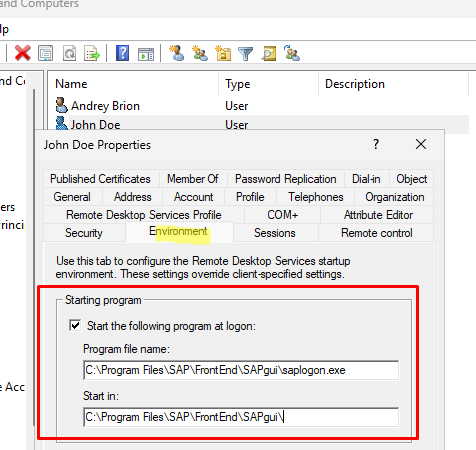
In Windows Server 2016 and later versions, the option to automatically start a specific program assigned to an RDS user has stopped working and is now disabled by default. Even if you use this profile option to specify an autorun program, it will be ignored, and the user will be logged on to a full remote desktop session.
This is because Microsoft changed the behavior of the Remote Connection Manager (RCM) in Windows Server 2016 and later versions. In the latest versions of Windows Server, when a user logs on, the RCM service no longer retrieves their settings from the domain controller that were previously configured on the Environment and Remote Desktop Services Profile tabs. This includes settings such as the assigned autostart program, roaming profile path, and home folder, all of which are ignored.
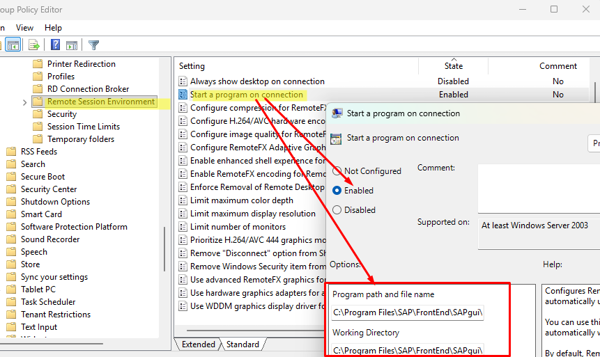
userParameters attribute in Active Directory.Microsoft recommends using Group Policy instead of this option to configure a program to run automatically when a user logs on to an RDP session. To do this, open the GPO editor and navigate to User Configuration -> Policies -> Administrative Templates -> Windows Components -> Remote Desktop Services -> Remote Desktop Session Host -> Remote Session Environment.
Configure the following options:
- Start a program on connection =
Enabled– specify the full path to the executable file of the program to be run, and its working directory (if required). - Always show desktop on connection =
Disabled– this prevents the RDS host desktop from being displayed.
To re-enable querying user configuration and startup program settings during RDP logon through the Environment tab in user properties in Active Directory, revert the host to the legacy RCM behavior. To do this, create the fQueryUserConfigFromDC registry value and set it to 1 in the following two registry keys on the Windows Server host on which the RDS role is installed:
reg add "HKLM\SYSTEM\CurrentControlSet\Control\Terminal Server\WinStations\RDP-Tcp" /v fQueryUserConfigFromDC /t REG_DWORD /d 1
reg add "HKLM\SOFTWARE\Policies\Microsoft\Windows NT\Terminal Services" /v fQueryUserConfigFromDC /t REG_DWORD /d 1
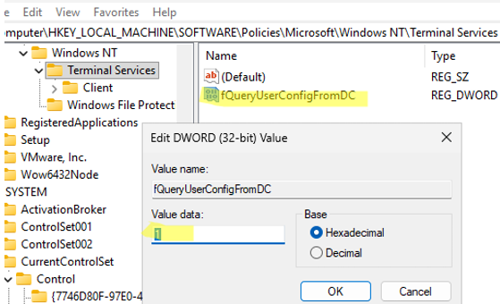
Then restart the Remote Desktop Services (TermService) service, or reboot the host
HKLM\SYSTEM\CurrentControlSet\Control\Terminal Server .Now, if you specify the path to the application’s executable file (or a startup script) in the user’s properties on the Environment tab. The specified program will be launched automatically when the user connects to the RDS server. The user’s RDP session will be terminated automatically if they close the application window.
1 comment
The detail about Server 2016+ ignoring the Environment tab autostart program because the RCM service no longer queries userParameters is the key point here. Setting fQueryUserConfigFromDC to 1 in both the RDP-Tcp and Terminal Services policy registry keys to restore that legacy behavior is a useful workaround.