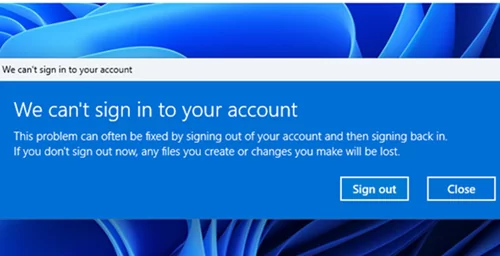
If a user profile is corrupted or unavailable, the User Profile Service will be unable to load the user’s environment and will sign the user in with a temporary profile. Any files and settings saved in this temporary profile are not preserved and are lost after a computer restart. If this happens, users may find that Windows takes a long time to sign in, displaying the Preparing Windows message instead of the standard welcome message. The following warning appears on the desktop after signing in with a temporary profile.
We can't sign in to your account
This problem can often be fixed by signing out of your account and then signing back in. If you don’t sign out now, any files you created or changes will be lost.
Users who sign in with a temporary profile will not be able to access their previous desktop environment. This means that the user will see an empty desktop and blank folders in the Documents and other Windows libraries.
In this article, we’ll look at the possible causes of user profile sign-in problems in Windows, explain how user profiles work and why they sometimes become unavailable, and show how to fix the temporary profile issues.
How to Check Whether a User Is Logged in with a Temporary Profile
In Windows 10 and previous versions, when a user signed in with a temporary user profile, in addition to the warning We can’t sign in to your account, a pop-up notification appeared:
You’ve been signed in with a temporary profile
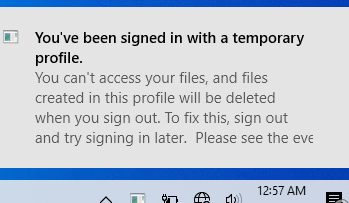
However, for some reason, such a notification doesn’t appear in the current Windows 11 build (at least on my lab machine).
To find out which profile was actually used for user sign-in, open the PowerShell console and run the command:
$env:USERPROFILE
In my case, the user profile refers to a directory with a name that looks like this: C:\Users\TEMP.WKS26H2, where WKS26H2 is the hostname of this Windows computer.

If you see TEMP in the path to your user profile folder, it means that you have logged in with a temporary profile because your normal user profile (local or remote) failed to load because it is unavailable or corrupted.
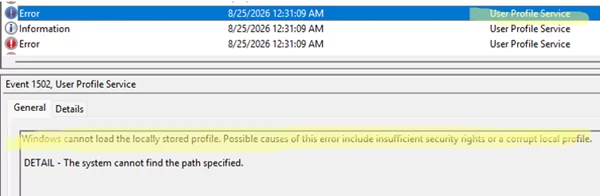
Check the Windows Event Viewer to find the possible cause of why the profile failed to load. Open the eventvwr.msc snap-in, expand Windows Logs -> System, and then filter for error events from the User Profile Service source.
Here are some typical event IDs that appear in the Event Viewer logs when Windows fails to load a user profile:
- Event ID 1502: Windows cannot load the locally stored profile. Possible causes of this error include insufficient security rights or a corrupted local profile. The system cannot find the path specified.
- Event ID 1508: Windows was unable to load the registry. This problem is often caused by insufficient security rights or a corrupted local profile.
- Event ID 1511: Windows cannot load the local profile and is logging you on with a temporary profile. Changes you make to this profile will be load when you log off.
How to Fix a Temporary User Profile in Windows
Let’s look at the most common reasons why Windows may be unable to load a user profile.
- Some of the files in the user profile are corrupted.
- An incorrect user profile path in the system registry.
- An error occurring while reading the NTUSER.DAT file within a user profile. This may be caused by disk or file system corruption, the profile file being locked by antivirus software, incorrect file permissions, or the accidental deletion of the user profile directory from the C:\Users folder.
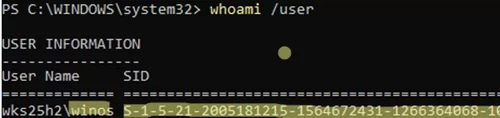
First, let’s check in which directory the target user’s profile is stored. To do this, you need to find the user’s security identifier (SID). Open the PowerShell terminal and run the command:
whoami /user
Next, list all user profiles registered on this machine:
Get-CimInstance Win32_UserProfile|select LocalPath, loaded, SID

We found two user profiles in the system with the same SID (the value which we obtained in the previous command). One profile, which is currently loaded, points to C:\Users\TEMP.WKS25H2, which is a temporary user profile directory. The second profile, which is not loaded, points to the C:\Users\winos4 directory. This is the directory from which Windows should load this user’s profile during a normal sign-in.
Open File Explorer or use PowerShell to check if the specified directory exists under C:\Users.
Test-Path -Path "C:\Users\winos4"
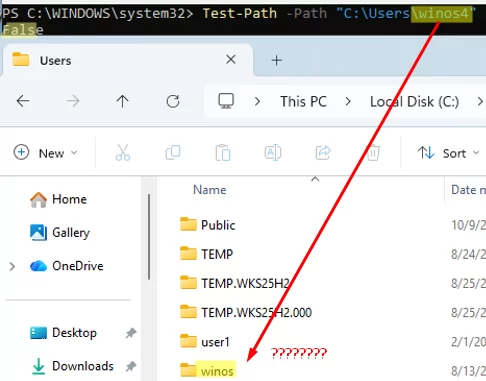
We found that the specified profile directory does not exist. However, another directory, C:\Users\winos, is shown under C:\Users. This is probably the correct user profile directory, but for some reason, the user profile configuration points to a different location.
You can edit the user profile path in the registry. Open the Registry Editor by running regedit.exe.
Navigate to the registry key HKEY_LOCAL_MACHINE\SOFTWARE\Microsoft\Windows NT\CurrentVersion\ProfileList. This registry key stores the settings for all user profiles registered on the current Windows machine.
The configuration of each user profile is stored in its own subkey, which is named after the user’s SID (beginning with S-1-5). In my case, I found two subkeys with the same user SID, one of which had a .bak suffix. The path to the user profile directory is set in the ProfileImagePath registry value.
The ProfileImagePath value in the first subkey refers to the temporary profile directory ( C:\Users\TEMP.WKS25H2)
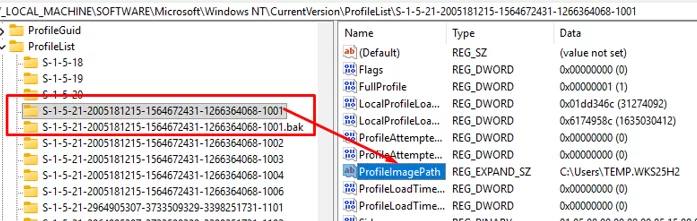
The second subkey, which has the .bak suffix, points to the profile directory: C:\Users\winos4.
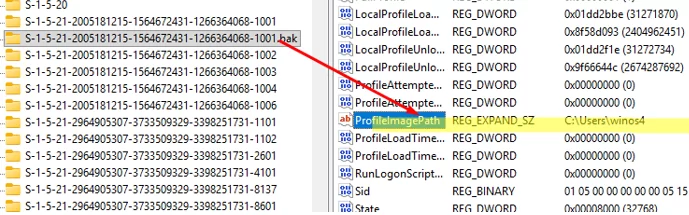
To switch the user from the temporary profile back to the normal one, follow these steps:
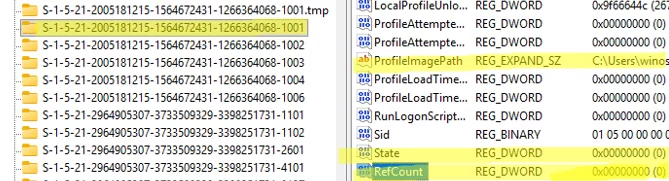
- Rename the first registry subkey containing the problem user’s SID by adding the
.tmpsuffix. - Remove the
.baksuffix from the second subkey. This will make the profile entry active. - Manually edit the ProfileImagePath value under this key and specify the correct path to the user profile directory.
- Also here, set the value of the State registry DWORD parameter to
0. If the RefCount parameter exists, set it to0as well (don’t create this registry item if it is missing).
- Close the Registry Editor and restart the computer. Check whether the user can sign in to their normal profile.
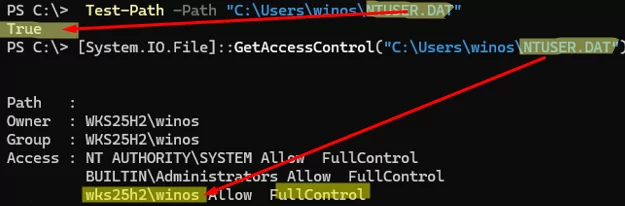
If you are still unable to sign in to your Windows account, check whether the NTUSER.DAT file exists in the user profile directory, whether the user has permission to read the file, and whether the file is corrupted.
HKEY_CURRENT_USER registry hive during sign-in.Test-Path -Path "C:\Users\winos\NTUSER.DAT"
[System.IO.File]::GetAccessControl("C:\Users\winos\NTUSER.DAT") |FL
In my case, the file exists, and the specified user has full access permissions on it (username: Allow, FullControl).
To check that the NTUSER.DAT registry file in a user profile directory is not corrupted, you can try loading it manually into the registry.
reg load HKU\Default C:\Users\winos\NTUSER.DAT
 reg unload HKU\Default
Check what both commands returned:
The operation completed successfully.

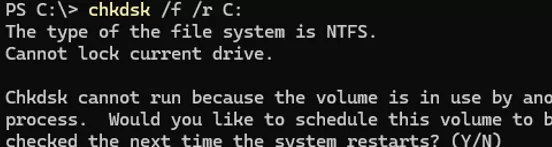
It might happen that the NTUSER.DAT file or other files in the user profile are corrupted. Be sure to check the disk for errors and repair any file system problems:
chkdsk /f /r C:
Windows cannot check the system drive while it is in use, but it will offer to schedule a disk check with CHKDSK at the next restart.
Other possible ways to fix the user profile problems:
- The user profile directory was manually deleted. This can happen, for example, when old user profiles are accidentally removed. To recover the deleted user profile files, try one of the following:
- Restore the files from a previous System Restore point using
rstrui.exe. - Use third-party tools to search for and recover deleted profile files from the disk (file recovery on SSDs with TRIM is unlikely to be successful).
- Restore the files from a previous System Restore point using
- Create a new user profile and copy the data from the old one. To do this, delete all registry subkeys for the user’s SID under:
HKEY_LOCAL_MACHINE\SOFTWARE\Microsoft\Windows NT\CurrentVersion\ProfileListThe next time the user signs in, Windows will create a new profile, including a new registry entry and profile directory. You can then manually copy personal files from the old profile directory. - If the previous methods fail, create a new local user. In this example, we’ll create an account with administrator privileges:
net user mynewadm1 /add *
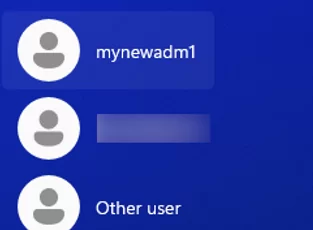
net localgroup Administrators mynewadm1 /addRestart the computer. The new account should appear in the list of users on the Windows sign-in screen. Copy the contents of the old profile’s Desktop and user library folders (Documents, Downloads, and so on) into the new profile. Avoid copying every folder from the old profile, especially theAppDatadirectory. - A third-party app may be locking the profile file. If the profile file is fine and the registry configuration is correct, it is possible that the profile file is being locked during computer startup by third-party software (which keeps the file open, preventing the User Profile Service from accessing it exclusively). This may be caused by antivirus software, security tools, or backup processes. In this case, add
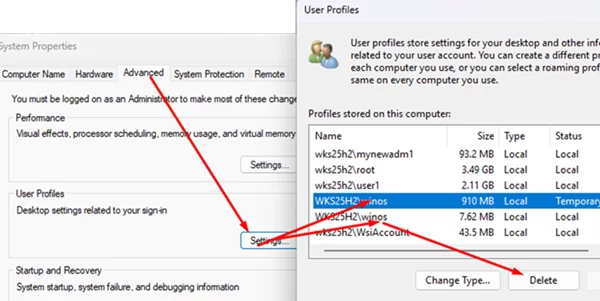
C:\Users\*\NTUSER.DATto your antivirus exclusions or adjust the backup schedule. - Remove the corrupted or temporary profile using System Properties. You can use the System Properties applet to remove user profiles. Open it by running the command:
control.exe sysdm.cpl,3
Go to the Advanced tab, click Settings under User Profiles, and delete any unnecessary profiles. This removes the selected user profile from both the registry and the disk.Warning: All files in the deleted profile will be permanently removed. The next time the user signs in, Windows will create a new, clean profile. - Check for user profile disk file-locking issues on Remote Desktop Services (RDS). If the sign-in problem occurs on an RDS terminal host that is configured to use external user profile storage ( User Profile Disks or FSLogix roaming profiles), it usually indicates that the profile’s VHDX file is locked or already open on another host or by another process.
Check the list of files opened via the network on the server hosting the user profile VHDX images, and then disconnect any sessions associated with the user’s VHDX file. The profile’s VHDX filename contains the user’s SID, which makes it easier to identify the correct profile file.