Windows OS Hub
  • Windows
    • Windows 11
    • Windows 10
    • Windows Server 2025
    • Windows Server 2022
    • Windows Server 2019
    • Windows Server 2016
  • Microsoft
    • Active Directory (AD DS)
    • Group Policies (GPOs)
    • Exchange Server
    • Azure and Microsoft 365
    • Microsoft Office
  • Virtualization
    • VMware
    • Hyper-V
    • Proxmox
  • PowerShell
  • Linux
  • Home
  • About

Windows OS Hub

  • Windows
    • Windows 11
    • Windows 10
    • Windows Server 2025
    • Windows Server 2022
    • Windows Server 2019
    • Windows Server 2016
  • Microsoft
    • Active Directory (AD DS)
    • Group Policies (GPOs)
    • Exchange Server
    • Azure and Microsoft 365
    • Microsoft Office
  • Virtualization
    • VMware
    • Hyper-V
    • Proxmox
  • PowerShell
  • Linux

 Windows OS Hub / Windows 11 / Re-Enable Command Prompt Blocked by Administrator or Policy in Windows

September 22, 2026

Re-Enable Command Prompt Blocked by Administrator or Policy in Windows

There are several ways to prevent users from launching the Command Prompt in Windows. They are typically used by system administrators who want to restrict users’ access to the Windows command line (shell). This technique can be used by malware that has compromised a system and disabled access to the Command Prompt, making it more difficult to troubleshoot, detect, and remove malicious programs or scripts.

Suppose that when you try to open the Command Prompt (cmd.exe) or run a BAT/CMD script, the following message appears:

The command prompt has been disabled by your administrator.
Press any key to continue . . .
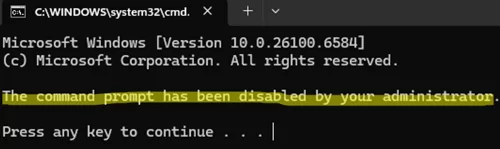
Error: The command prompt has been disabled by your administrator

This clearly indicates that Command Prompt has been disabled using the DisableCMD registry option. Open the Registry Editor (regedit.exe) and navigate to HKEY_CURRENT_USER\Software\Policies\Microsoft\Windows\System
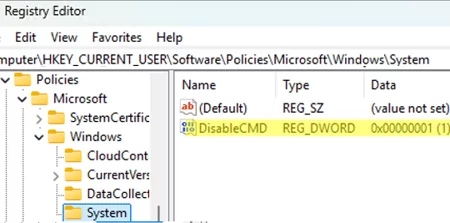
If the DisableCMD value is set to 1 or 2, it prevents the user from launching the Command Prompt.

If this registry option is missing, check for it under the System registry hive HKEY_LOCAL_MACHINE\Software\Policies\Microsoft\Windows\System

DisableCMD registry option

In order to allow cmd.exe to run, change the value to 0.

REG ADD HKCU\Software\Policies\Microsoft\Windows\System /v DisableCMD /t REG_DWORD /d 0 /f

However, first check whether this setting has been enabled via Group Policy. Otherwise, your registry change will be overwritten the next time Group Policy settings are refreshed.

To view the resultant Group Policy settings on a computer, press Win+R and run rsop.msc command.

In this example, you can see that the command prompt has been disabled by a local Group Policy option.
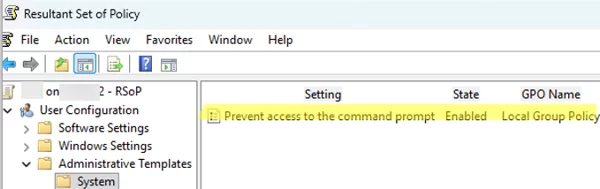
cmd is disabled via GPO

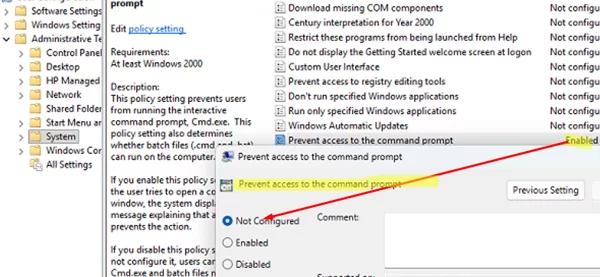
To disable this GPO setting:

  1. Open the Local Group Policy Editor ( gpedit.msc )
  2. Navigate to User Configuration –> Administrative Templates –> System
  3. Open the Prevent access to the Command Prompt policy and disable it by setting it to Disabled or Not Configured .GPO option: Prevent access to the Command Prompt
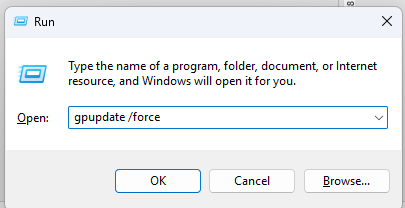
  4. Update the local Group Policy settings by pressing Win+R and then running the command: gpupdate /force gpupdate
Using multiple local GPOs (MLGPOs), administrators can disable CMD only for non-admin users. These policies can be set via Win + R -> mmc -> Add/Remove Snap-in -> Group Policy Object Editor -> Add -> Browse -> Users tab-> Non-Administrators.
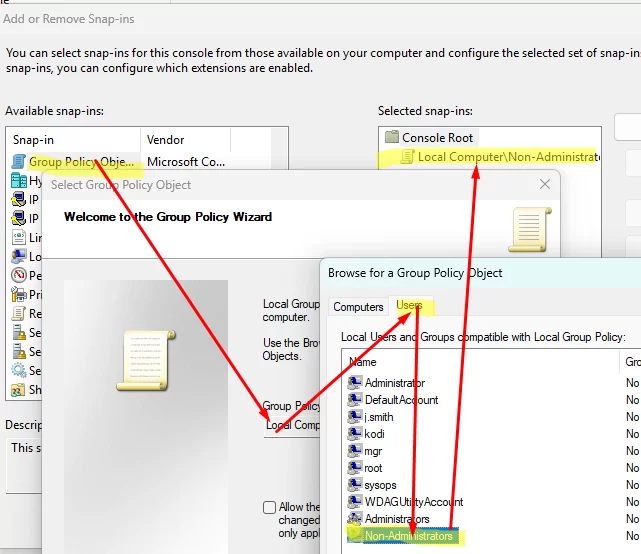
Local GPO can disable CMD for certain groups of non-admin users [/alert]

There are also two other simple ways to prevent users from launching the command prompt in Windows.

The first method is to block specific executable files. If you enable the Don’t run specified Windows applications policy under User Configuration -> Administrative Templates -> System and add cmd.exe to the list, an error will be displayed when the user attempts to run Command Prompt.

Restrictions
This operation has been cancelled due to restrictions in effect on this computer. Please contact your system administrator.
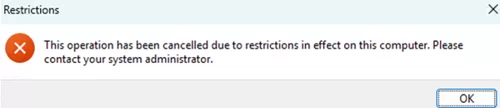
Restrictions This operation has been cancelled due to restrictions in effect on this computer. Please contact your system administrator

Use the rsop.msc snap-in to check whether this policy is enabled.
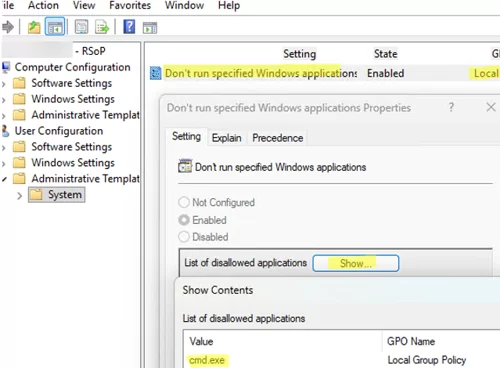
CMD.exe is disallowed to run via Don't run specified Windows applications GPO

Administrators can also use Software Restriction Policies (SRP) or AppLocker policies to prevent specific applications from running. If either of these executable control policies is configured, attempting to launch cmd.exe will result in an error:

This app has been blocked by your administrator.
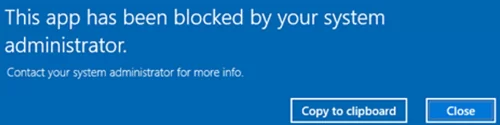
This app has been blocked by your administrator when running CMD

These policies are configured in the GPO editor under the section Computer Configuration -> Windows Settings -> Security Settings -> Software Restriction Policies or under Application Control Policies.
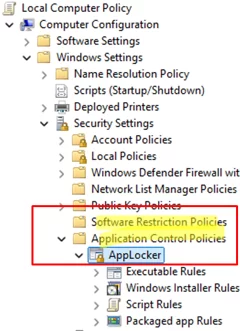
Software Restriction Policies can prevent CMD from running

Note. For more information about these policies, see the post about disabling PowerShell in Windows.

Another way to prevent users from launching a specific executable while still allowing administrators to run it is to modify the NTFS permissions for that executable.

For example, attempting to run cmd.exe may result in the following error:

Access is denied.

Or

C:\WINDOWS\system32\cmd.exe
Windows cannot access the specified device, path, or file. You may not have the appropriate permissions to access the item.
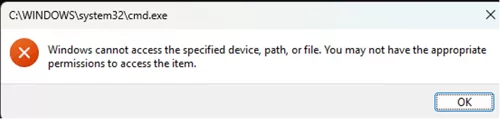
cmd.exe Windows cannot access the specified device, path, or file. You may not have the appropriate permissions to access the item

In this case, open the PowerShell.exe console and use the icacls command to check the current NTFS permissions for the file.

icacls C:\Windows\System32\cmd.exe
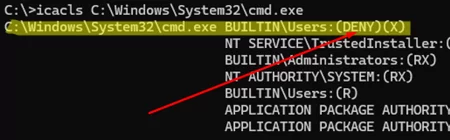
icacls - check cmd.exe current permissions

In this example, the output contains a DENY permission that prevents the BUILTIN\Users group from executing the file. To remove the restriction, run:

icacls C:\Windows\System32\cmd.exe /remove:d Users

Note: You may first need to take ownership of this file:

takeown /f C:\Windows\System32\cmd.exe

0 comment
0
Facebook Twitter Google + Pinterest
Questions and AnswersWindows 10Windows 11
previous post
AutoStart Program at RDP Logon in Windows RDS
next post
How to Set Task Priority in Windows Task Scheduler

Related Reading

How to Move (Migrate) Windows Shares to a...

February 26, 2026

SMB over QUIC: Mount File Share over Internet...

December 24, 2025

Monitor Windows Log Files in Real Time with...

March 26, 2026

Security Warnings When Opening RDP Files in Windows...

April 20, 2026

Stop Windows Server from Auto-Shutdown Every Hour

February 11, 2026

Automate Software and Settings Deployment with WinGet Configure...

August 24, 2026

CrowdSec on Windows: From Installation to Threat Blocking

July 6, 2026

Remove the Max Path Length Limit (260-Characters) on...

November 19, 2025

Leave a Comment Cancel Reply

join us telegram channel https://t.me/woshub
Join WindowsHub Telegram channel to get the latest updates!

Recent Posts

  • AutoStart Program at RDP Logon in Windows RDS

    September 8, 2026
  • How to Convert Windows Machine into a Proxmox VM

    August 30, 2026
  • Enable or Disable Fast User Switching in Windows 11

    August 18, 2026
  • How to Hide Wi-Fi Network in Windows with WLAN Filters (Blacklist and Whitelist)

    August 14, 2026
  • Invalid Signature Detected: Check Secure Boot Policy [Fix]

    August 5, 2026
  • Windows Installer Service Could Not Be Accessed? How to Fix It

    July 28, 2026
  • Why Windows Reports No Internet Access: How Connectivity Detection Works

    July 26, 2026
  • Inactive TS Ports in Windows: Causes and Fixes

    July 20, 2026
  • Add Wireless Wi-Fi Profiles on Windows Devices via Export/Import or GPO

    July 13, 2026
  • CrowdSec on Windows: From Installation to Threat Blocking

    July 3, 2026

Follow us

  • Facebook
  • Twitter
  • Youtube
  • Telegram
Popular Posts
  • Converting Windows 10 to Enterprise LTSC Without Losing Data
  • How to Remove ‘Some Settings are Managed by Your Organization’ on Windows 11 or 10
  • Remove the Max Path Length Limit (260-Characters) on Windows
  • Installing Windows without USB/DVD or Other External Drives
  • How to Pause (Delay) Update Installation on Windows 11 and 10
  • WMIC Command Not Found on Windows
  • How to Add or Delete Fonts in Windows 11/10
Footer Logo

@2014 - 2026 - Windows OS Hub. All about operating systems for sysadmins


Back To Top