In this article, we will show how to enable and configure the built-in Keyboard Filter feature in Windows to prevent users from using certain keyboard shortcuts. You may encounter the task of blocking specific keyboard shortcuts on various embedded devices, public computers running in Kiosk Mode, as well as operator terminals and industrial workstations.
The Keyboard Filter can be used to prevent the accidental use of certain key combinations and system hotkeys. For example, it can prevent users from closing or switching away from an open app window by using shortcuts such as Ctrl+Alt+Del, Alt+F4, or Alt+Tab. It can also prevent users from opening the Task Manager (Ctrl+Shift+Esc), using clipboard copy and paste shortcuts (Ctrl+C and Ctrl+V), or from using other key combinations.
Input filtering using the Keyboard Filter feature is only supported in the Enterprise, Education, IoT Enterprise, and LTSC editions of Windows. It is not supported in the Professional edition without an edition upgrade.
You can install the Keyboard Filter component through the classic Windows Features dialog (optionalfeatures) by selecting it under Device Lockdown. Or you can enable this feature using PowerShell:
Enable-WindowsOptionalFeature -Online -FeatureName Client-KeyboardFilter
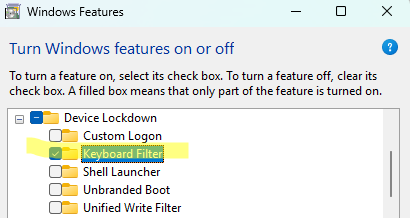
Restart the computer after adding the feature. Make sure that the Microsoft Keyboard Filter service (MsKeyboardFilter) is running and configured to start automatically:
Set-Service -Name MsKeyboardFilter -StartupType Automatic -Status Running

Next, you need to define which keys and/or key combinations should be prevented from being sent to the operating system.
A list of predefined Windows keyboard shortcuts is stored under the registry key HKEY_LOCAL_MACHINE\SOFTWARE\Microsoft\Windows Embedded\KeyboardFilter . By default, all keyboard shortcuts are permitted (the value is set to Allowed). To block a specific keyboard shortcut, change its value to Blocked.
You can edit the value manually using the Registry Editor or change it from the command prompt. For example, to block the Alt+Tab keyboard shortcut, run the following command:
reg add "HKLM\SOFTWARE\Microsoft\Windows Embedded\KeyboardFilter" /v "Alt+Tab" /t REG_SZ /d "Blocked" /f
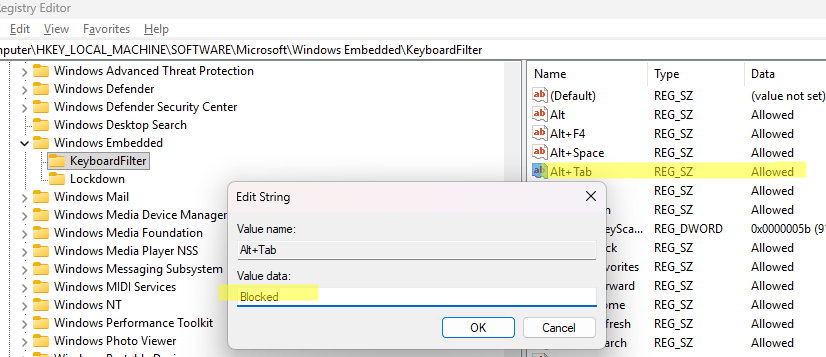
Set the value to Blocked for any keyboard combinations you want to prevent users from using. The changes take effect after restarting the computer or restarting the MsKeyboardFilter service.
Once the keyboard filter is activated, pressing a blocked keyboard shortcut will have no effect.
This registry key contains several additional global settings that control keyboard shortcut filtering:
- DisableKeyboardFilterForAdministrators – set this value to
1if you want keyboard shortcut blocking rules to be ignored by local administrators. The default value is 0. - ForceOffAccessibility – set this value to
1to prevent users from accessing Windows accessibility keyboard features, such as Sticky Keys, Magnifier, or Narrator. - BreakoutKeyScanCode — specifies the keyboard key that is used to log out of the current user session. The default value is
5Bwhich is the hexadecimal scan code for the left Windows key. Pressing the left Win key five times will take the user to the Windows sign-in screen. This is useful if you have enabled the Keyboard Filter feature and blocked the Ctrl+Alt+Del combination and other methods of exiting the user’s session.
You can also enable or disable specific predefined keyboard shortcuts via WMI. The following PowerShell function provides a simple way to block or unblock standard keyboard shortcuts:
function Disable-Predefined-Key {
 param (
 [Parameter(Mandatory=$true)]
 [string]$Id,
 [Parameter(Mandatory=$true)]
 [bool]$State
 )
 $key = Get-CimInstance -Namespace "root\standardcimv2\embedded" -ClassName "WEKF_PredefinedKey" -Filter "Id = '$Id'"
 if ($key) {
 $key.Enabled = $State
 Set-CimInstance -CimInstance $key
 Write-Host "Keyboar filter set to $State for: $Id" -ForegroundColor Green
 } else {
 Write-Error "$Id is not a valid predefined key."
 }
 }
To block a specific shortcut, run:
Disable-KeyboardKey -Id "Alt+F4" -State 1
To allow a keyboard shortcut:
Disable-KeyboardKey -Id "Alt+F4" -State 0
List all predefined keyboard shortcuts and their current status:
Get-CimInstance -Namespace root\standardcimv2\embedded -ClassName WEKF_PredefinedKey
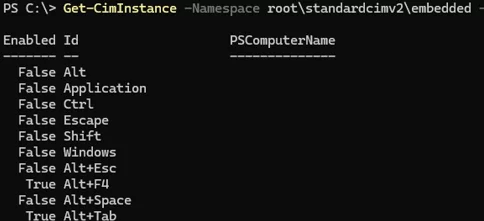
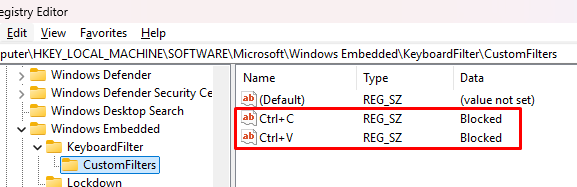
You can also create custom keyboard shortcuts to block. To do this, create a subkey called CustomFilters under the KeyboardFilter registry key.
For example, to block the Ctrl+C and Ctrl+V key combinations, run the following command:
reg add "HKLM\SOFTWARE\Microsoft\Windows Embedded\KeyboardFilter\CustomFilters" /v "Ctrl+C" /t REG_SZ /d "Blocked" /f
reg add "HKLM\SOFTWARE\Microsoft\Windows Embedded\KeyboardFilter\CustomFilters" /v "Ctrl+V" /t REG_SZ /d "Blocked" /f
You can block a specific key on the keyboard. For example, to prevent the Z key on the keyboard from being used:
reg add "HKLM\SOFTWARE\Microsoft\Windows Embedded\KeyboardFilter\CustomFilters" /v "Z" /t REG_SZ /d "Blocked" /f
To block a specific key, create a value under HKLM\SOFTWARE\Microsoft\Windows Embedded\KeyboardFilter\CustomScancodes . The value name should contain the key’s hexadecimal scan code, and the value should be set to Blocked. For example, the following registry rule blocks the left Windows key by its hexadecimal scan code:
reg add "HKLM\SOFTWARE\Microsoft\Windows Embedded\KeyboardFilter\CustomScancodes" /v "E05B" /t REG_SZ /d "Blocked" /f
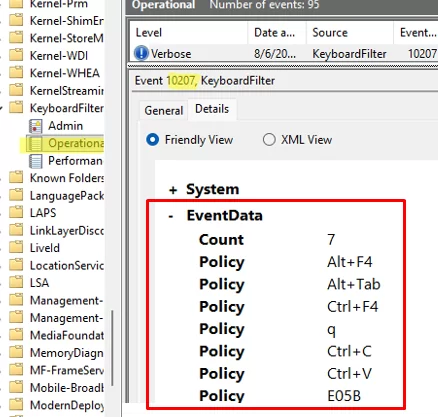
You can view the list of active Keyboard Filter policies under the Event Viewer Application and Services Logs -> Microsoft -> Windows -> KeyboardFilter -> Operational. Look for an event with Event ID 10207 from the KeyboardFilter source with description:
The Keyboard Filter Service has found the following enabled policies.
Switch to the event Friendly View mode to see the list of blocked keyboard shortcuts.
Keyboard Filter is a useful Windows feature for restricting the use of keyboard shortcuts, blocking specific keys, and preventing users from entering certain characters.