Windows OS Hub
  • Windows
    • Windows 11
    • Windows 10
    • Windows Server 2025
    • Windows Server 2022
    • Windows Server 2019
    • Windows Server 2016
  • Microsoft
    • Active Directory (AD DS)
    • Group Policies (GPOs)
    • Exchange Server
    • Azure and Microsoft 365
    • Microsoft Office
  • Virtualization
    • VMware
    • Hyper-V
    • Proxmox
  • PowerShell
  • Linux
  • Home
  • About

Windows OS Hub

  • Windows
    • Windows 11
    • Windows 10
    • Windows Server 2025
    • Windows Server 2022
    • Windows Server 2019
    • Windows Server 2016
  • Microsoft
    • Active Directory (AD DS)
    • Group Policies (GPOs)
    • Exchange Server
    • Azure and Microsoft 365
    • Microsoft Office
  • Virtualization
    • VMware
    • Hyper-V
    • Proxmox
  • PowerShell
  • Linux

 Windows OS Hub / Windows 11 / Enable or Disable Fast User Switching in Windows 11

August 18, 2026

Enable or Disable Fast User Switching in Windows 11

The built-in Fast User Switching feature in Windows allows multiple users to share the same computer without signing out the previous user session or closing their running apps and documents. This makes it possible to quickly switch between user accounts without having to close and reopen applications each time, wait for the user profile to load, or wait for logon policies and logon scripts to complete.

Contents:
  • How to Switch Between User Accounts in Windows
  • Disabling Fast User Switching in Windows 11

How to Switch Between User Accounts in Windows

In Windows 10 and Windows 11, there are several ways to switch between user accounts.

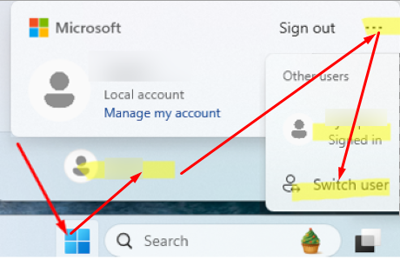
  • From the Windows Start Menu: click Start -> select the current user account -> click on the three dots (...) button on the user’s account card. If there are any other active user sessions on the computer, they will be listed, and you will be able to switch to them. Or click the Switch User button to sign in with a different user account. Switch between user accounts in Windows 11
  • You can also switch users via the Windows Lock screen. To lock the current session, press Win + L or run rundll32.exe user32.dll,LockWorkStation command
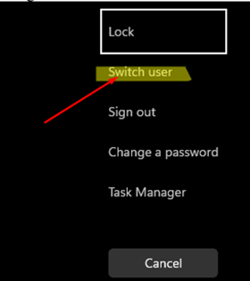
  • The Switch User button is available on the Windows Security screen, which you can open by pressing Ctrl + Alt + Del Switch user from Windows Security screen
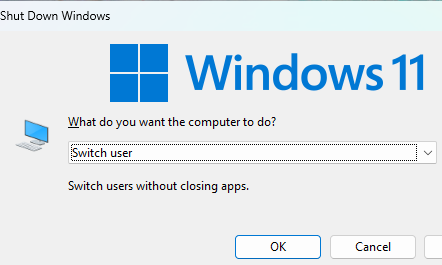
  • Pressing Alt + F4 while on the desktop (all open apps must be minimized first) will open the Shut Down Windows dialog, which also provides an option to switch user. Switch user dialog without closing apps
  • You can switch from the current session to the user selection screen by running the tsdiscon command. This built-in command disconnects the current session without terminating it. The tsdiscon command was originally designed for Windows Terminal Services / Remote Desktop Services (RDS) environments. tsdiscon command
All of these methods allow you to switch Windows users without terminating other users’ sessions. A disconnected user can later return to their session and resume from the exact point at which they were disconnected. Right-clicking a user in this session list provides an additional option to switch between active user sessions.
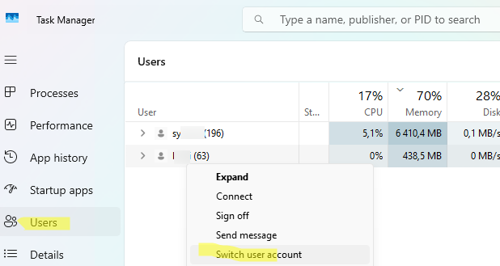
Switch user account from Task Manager

Disabling Fast User Switching in Windows 11

In Windows, there is no way to completely disable the ability to create multiple local user sessions. However, an administrator can hide all the available fast user switching options in the Windows GUI via Group Policy.

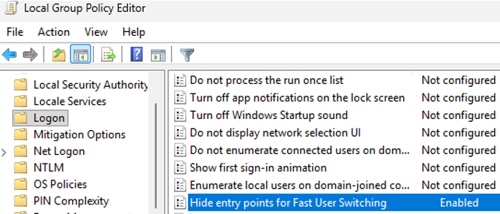
  1. Open the local Group Policy editor ( gpedit.msc )
  2. Navigate to Computer Configuration -> Administrative Templates -> System -> Logon
  3. Enable the GPO option Hide entry points for Fast User Switching. Hide entry points for Fast User Switching - GPO options
  4. Once the Group Policy settings have been updated on a computer, all the user interface options that enable users to switch between accounts in Windows will be hidden
This option can also be configured directly via the registry. Create the HideFastUserSwitching registry parameter and set it to 1, either manually or by running the command:

reg add "HKLM\Software\Microsoft\Windows\CurrentVersion\Policies\System" /v "HideFastUserSwitching" /t REG_DWORD /d "1" /f
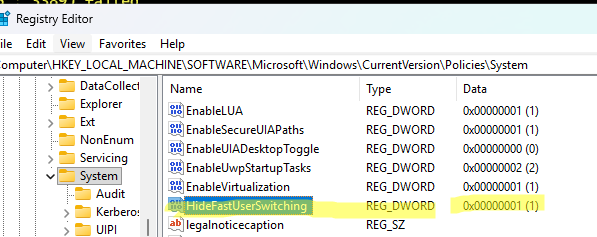
HideFastUserSwitching - registry option

What happens when Fast User Switching is disabled?

  • The list of other user accounts will be hidden from the Start menu.
  • All user accounts except the current one will be hidden on the Windows lock screen.
  • The Switch User button will be removed from the Windows Security screen, which is opened with Ctrl + Alt + Del.

Hiding the Fast User Switching interface forces users to sign out of their current session before signing in with another account. However, this doesn’t completely prevent users from switching between sessions. For example, the tsdiscon command can still be used to disconnect the current session and return to the Windows sign‑in screen with the list of users.

0 comment
0
Facebook Twitter Google + Pinterest
Questions and AnswersWindows 10Windows 11
previous post
How to Hide Wi-Fi Network in Windows with WLAN Filters (Blacklist and Whitelist)

Related Reading

How to Move (Migrate) Windows Shares to a...

February 26, 2026

SMB over QUIC: Mount File Share over Internet...

December 24, 2025

Security Warnings When Opening RDP Files in Windows...

April 20, 2026

Monitor Windows Log Files in Real Time with...

March 26, 2026

Stop Windows Server from Auto-Shutdown Every Hour

February 11, 2026

Automate Software and Settings Deployment with WinGet Configure...

November 20, 2025

Remove the Max Path Length Limit (260-Characters) on...

November 19, 2025

Updating UEFI Secure Boot Certificates on Windows Devices...

April 27, 2026

Leave a Comment Cancel Reply

join us telegram channel https://t.me/woshub
Join WindowsHub Telegram channel to get the latest updates!

Recent Posts

  • How to Hide Wi-Fi Network in Windows with WLAN Filters (Blacklist and Whitelist)

    August 14, 2026
  • Invalid Signature Detected: Check Secure Boot Policy [Fix]

    August 5, 2026
  • Windows Installer Service Could Not Be Accessed? How to Fix It

    July 28, 2026
  • Why Windows Reports No Internet Access: How Connectivity Detection Works

    July 26, 2026
  • Inactive TS Ports in Windows: Causes and Fixes

    July 20, 2026
  • Add Wireless Wi-Fi Profiles on Windows Devices via Export/Import or GPO

    July 13, 2026
  • CrowdSec on Windows: From Installation to Threat Blocking

    July 3, 2026
  • Manage Microsoft Store Apps with Store CLI in Windows 11 from Terminal

    July 2, 2026
  • Windows Sandbox on Windows 11: Enable, Configure, and Use

    June 10, 2026
  • How to Monitor Windows Machines with Zabbix

    May 26, 2026

Follow us

  • Facebook
  • Twitter
  • Youtube
  • Telegram
Popular Posts
  • Converting Windows 10 to Enterprise LTSC Without Losing Data
  • How to Remove ‘Some Settings are Managed by Your Organization’ on Windows 11 or 10
  • Remove the Max Path Length Limit (260-Characters) on Windows
  • Installing Windows without USB/DVD or Other External Drives
  • How to Pause (Delay) Update Installation on Windows 11 and 10
  • Fix: Device Installation is Forbidden by System Policy
  • How to Fix Windows 11 Keyboard Language Switch Lag & Hotkey Issues
Footer Logo

@2014 - 2026 - Windows OS Hub. All about operating systems for sysadmins


Back To Top