Windows OS Hub
  • Windows
    • Windows 11
    • Windows 10
    • Windows Server 2025
    • Windows Server 2022
    • Windows Server 2019
    • Windows Server 2016
  • Microsoft
    • Active Directory (AD DS)
    • Group Policies (GPOs)
    • Exchange Server
    • Azure and Microsoft 365
    • Microsoft Office
  • Virtualization
    • VMware
    • Hyper-V
    • Proxmox
  • PowerShell
  • Linux
  • Home
  • About

Windows OS Hub

  • Windows
    • Windows 11
    • Windows 10
    • Windows Server 2025
    • Windows Server 2022
    • Windows Server 2019
    • Windows Server 2016
  • Microsoft
    • Active Directory (AD DS)
    • Group Policies (GPOs)
    • Exchange Server
    • Azure and Microsoft 365
    • Microsoft Office
  • Virtualization
    • VMware
    • Hyper-V
    • Proxmox
  • PowerShell
  • Linux

 Windows OS Hub / SQL Server / Connect to MS SQL Server Database in Visual Studio Code

March 15, 2024

Connect to MS SQL Server Database in Visual Studio Code

To manage databases on Microsoft SQL Server, you can use the lightweight, cross-platform Visual Studio Code editor (VS Code) instead of SQL Server Management Studio (SSMS). Visual Studio Code with the mssql extension allows administrators and developers to manage databases, tables, and stored procedures, as well as run Transact-SQL (T-SQL) queries against on-premises MS SQL Server and Azure SQL databases.

If you already have VSCode installed on your computer, all you need to do is download and install the mssql extension (https://marketplace.visualstudio.com/items?itemName=ms-mssql.mssql):

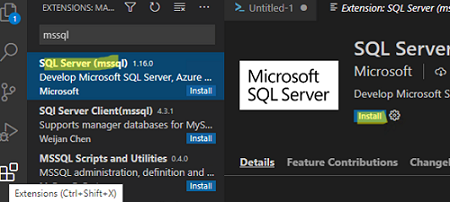
  1. Go to Extension (Ctrl+Shift+X) and search for mssql;
  2. Install mssql for Visual Studio Code;
    Install mssql extension for Visual Studio Code
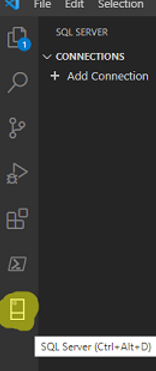
  3. After installation, the SQL Server extension icon will appear in the left panel of the VS Code. Click it (or press Ctrl+Alt+D).
    Connect to Microsoft SQL Server from VScode

Now let’s try connecting remotely from VS Code to a host on which MS SQL Server 2019 is installed:

  1. Click Add Connection and specify the name of the server and the MS SQL instance (hostname\instance_name);
    The Default instance of SQL Server (MSSQLSERVER) listens on a static TCP port 1433. Specify the SQL Server name and connection port: hostname:1430
  2. Select the type of authentication (SQL Login, Integrated, or Azure Active Directory).
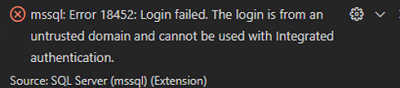
    An error may occur when connecting with an MSSQL account:
    mssql: Error 18452: Login failed.
    The login is from an untrusted domain and cannot be used with Integrated authentication.

    mssql: Error 18452: Login failed
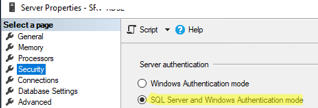
    If so, check that SQL Server and Windows Authentication mode is enabled in the Security tab of the MSSQL settings.

    MSSQL Server quthentication mode

  3. Enter your username and password. VSCode will prompt you to save the connection credentials;
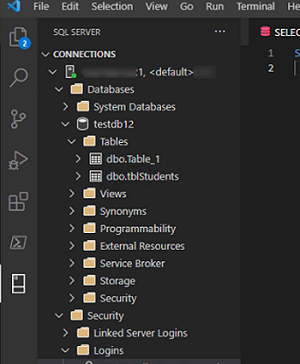
  4. Once connected, you will see a list of databases and other objects. You can expand any database and see a list of tables, views, procedures, etc;
    MS SQL Server Database Browser
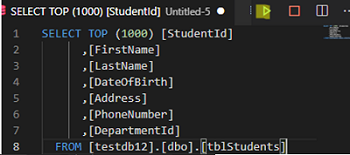
  5. You can now run various T-SQL queries from the VS Code Editor window. Click the corresponding button in the interface or use the CTRL+SHIFT+E shortcut to run the SQL query. The query results will appear in the next window;
    Run T-SQL query from vscode
  6. You can also export a table with the SQL query results directly from VS Code into a CSV, Excel, or JSON file.
VS Code supports all the IntelliSense features for T-SQL: hints, command autocomplete, color schemes for different objects, etc. Visual Studio Code also supports intelligent SQL code snippets for the quick generation of typical SQL queries.
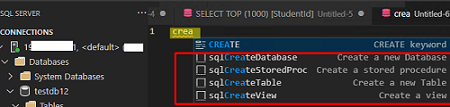
vscode sql intellisense

The MSSQL connection settings in VSCode are stored in a JSON file. To view its contents, go to File-> Preferences -> Settings -> Extensions -> MSSQL configuration -> Edit in settings.json. The file contains your MSSQL connection details.
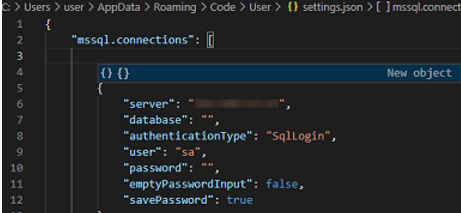
MSSQL connection settings in json file

You can also use VSCode instead of PowerShell ISE as your PowerShell script editor. There is also a plugin for VSCode that allows you to remotely connect to a host via SSH.

0 comment
2
Facebook Twitter Google + Pinterest
SQL Server
previous post
How to Downgrade Windows Server Edition or License
next post
How to Get a List of Local Administrators on Computers

Related Reading

Upgrade Microsoft SQL Server Evaluation Edition to Standard/Enterprise

April 1, 2026

Find and Remove Locks in Microsoft SQL Server

March 3, 2023

Configuring Always-On High Availability Groups on SQL Server

March 12, 2024

Leave a Comment Cancel Reply

join us telegram channel https://t.me/woshub
Join WindowsHub Telegram channel to get the latest updates!

Recent Posts

  • How to Monitor Windows Machines with Zabbix

    May 26, 2026
  • Fixing Duplicate Security Identifier (SID) Issues in Windows

    May 25, 2026
  • Monitor a Folder for File Changes Using PowerShell and FileSystemWatcher

    May 15, 2026
  • Protect Windows Server from DDoS and Brute-Force Attacks with IPBan

    May 12, 2026
  • How to Force Uninstall ANY Stubborn Program in Windows

    May 7, 2026
  • How to Safely Disable IPv6 on Windows

    April 30, 2026
  • Updating UEFI Secure Boot Certificates on Windows Devices Explained

    April 20, 2026
  • Security Warnings When Opening RDP Files in Windows 11

    April 17, 2026
  • Find Computers with Pending Reboot Status Using PowerShell

    April 15, 2026
  • Mounting NFS Shares in Windows Using the Built-in Client

    March 26, 2026

Follow us

  • Facebook
  • Twitter
  • Youtube
  • Telegram
Popular Posts
  • Find and Remove Locks in Microsoft SQL Server
  • MS SQL Server Setup Stucks on Install/Uninstall
Footer Logo

@2014 - 2026 - Windows OS Hub. All about operating systems for sysadmins


Back To Top