Windows OS Hub
  • Windows
    • Windows 11
    • Windows 10
    • Windows Server 2025
    • Windows Server 2022
    • Windows Server 2019
    • Windows Server 2016
  • Microsoft
    • Active Directory (AD DS)
    • Group Policies (GPOs)
    • Exchange Server
    • Azure and Microsoft 365
    • Microsoft Office
  • Virtualization
    • VMware
    • Hyper-V
    • Proxmox
  • PowerShell
  • Linux
  • Home
  • About

Windows OS Hub

  • Windows
    • Windows 11
    • Windows 10
    • Windows Server 2025
    • Windows Server 2022
    • Windows Server 2019
    • Windows Server 2016
  • Microsoft
    • Active Directory (AD DS)
    • Group Policies (GPOs)
    • Exchange Server
    • Azure and Microsoft 365
    • Microsoft Office
  • Virtualization
    • VMware
    • Hyper-V
    • Proxmox
  • PowerShell
  • Linux

 Windows OS Hub / Windows 11 / Manage Microsoft Store Apps with Store CLI in Windows 11 from Terminal

July 2, 2026

Manage Microsoft Store Apps with Store CLI in Windows 11 from Terminal

Microsoft recently released a new Store CLI tool, which is a native command-line utility that allows users to interact with the Microsoft Store app in Windows 11 directly from Terminal, Command Prompt, or PowerShell. The Store CLI is a command-line interface alternative to the graphical Microsoft Store app in Windows 11. It lets users search, install, and update Store apps without opening the Store app GUI using a simple text-based store command interface with visual formatting.

To use the tool, open a Windows Terminal prompt and run the command:

store

The command will display a list of available arguments (subcommands) along with examples of typical commands.
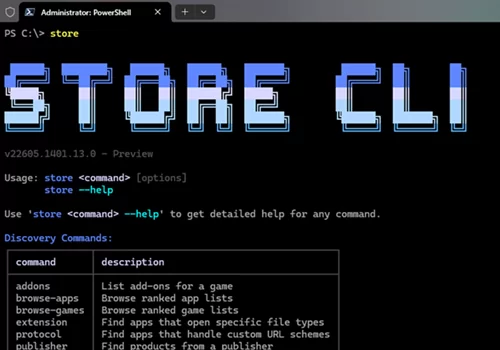
Store CLI, command-line tool in Windows 11

To search for a specific app in the Store, use the command:

store search [appname]

For example:

store search "adobe reader"

The command will list all the applications in the catalog that match the query (including similar ones). In addition to the name, the list includes the ID, category, and whether the app is free or paid, as well as the price.
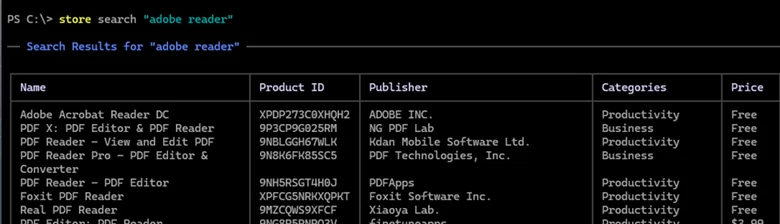
Search for a specific and similar apps in Microsoft Store from CLI

Find similar apps:

store similar telegram

Find an app that can open a specific file extension:

store extension psd

There are commands available for browsing Store apps. To list the most popular free apps, for example, run:

store browse-apps top-free

Or, for example, show the top popular paid games:

store browse-games top-paid
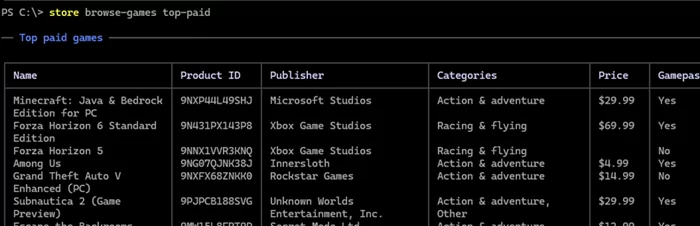
store browse-games top-paid

List available app categories in the Microsoft Store:

store app-categories

List popular apps in a specific category or subcategory.

store browse-apps top-free --subcategory Database

Show detailed information about a specific app, including its name, ID, rating, and description:

store show 9NK1GDVPX09V

store show "Termius - Modern SSH Client"

To install an app, specify its name or ID:

store install "Termius - Modern SSH Client"
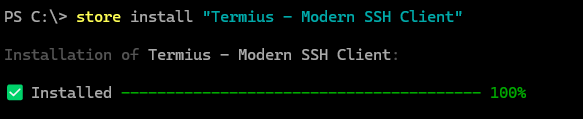
install app using store CLI

The storcli client will download and install the specified program.

List the Microsoft Store apps that are installed:

store installed

List the apps for which updates are available (by default in Windows 11, Microsoft Store apps update automatically in the background).

store updates
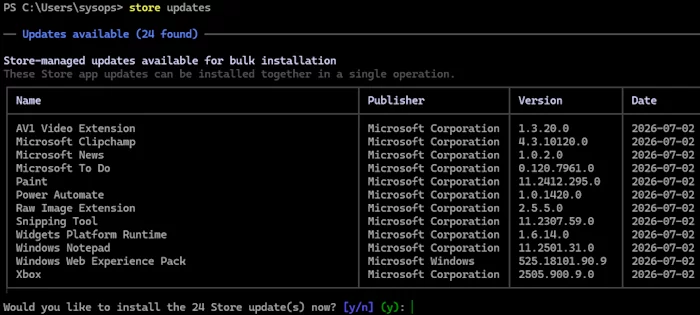
list store apps available updates

To forcibly update an app, specify its name:

store update "xbox" --apply

Update all apps:

store updates --apply

The current version of StoreCLI does not support deleting apps.

Although Windows already includes a built-in package manager, WinGet, which can also be used to install Microsoft Store apps, StoreCLI serves a distinct niche.

Key differences between StoreCLI and WinGet:

  • Can only be used to install apps from the Microsoft Store
  • It allows users to manage paid apps linked to their Microsoft account (WinGet’s primary focus is on free and open-source software)
  • StoreCLI always installs the most recent version of the target Store app
  • Support searching for similar and related apps using the similar option (this option can be used to find a free alternative to the paid app)
0 comment
0
Facebook Twitter Google + Pinterest
PowerShellQuestions and AnswersWindows 11
previous post
Upgrading from Windows 11 Home to Pro without Reinstalling

Related Reading

How to Move (Migrate) Windows Shares to a...

February 26, 2026

Security Warnings When Opening RDP Files in Windows...

April 20, 2026

Find a Process Causing High Disk Usage on...

July 16, 2025

Monitor Windows Log Files in Real Time with...

March 26, 2026

SMB over QUIC: Mount File Share over Internet...

December 24, 2025

Updating UEFI Secure Boot Certificates on Windows Devices...

April 27, 2026

Windows Stucks at ‘Getting Windows Ready, Don’t Turn...

September 24, 2025

How to Monitor Windows Machines with Zabbix

May 29, 2026

Leave a Comment Cancel Reply

join us telegram channel https://t.me/woshub
Join WindowsHub Telegram channel to get the latest updates!

Recent Posts

  • Windows Sandbox on Windows 11: Enable, Configure, and Use

    June 10, 2026
  • How to Monitor Windows Machines with Zabbix

    May 26, 2026
  • Fixing Duplicate Security Identifier (SID) Issues in Windows

    May 25, 2026
  • Monitor a Folder for File Changes Using PowerShell and FileSystemWatcher

    May 15, 2026
  • Protect Windows Server from DDoS and Brute-Force Attacks with IPBan

    May 12, 2026
  • How to Force Uninstall ANY Stubborn Program in Windows

    May 7, 2026
  • How to Safely Disable IPv6 on Windows

    April 30, 2026
  • Updating UEFI Secure Boot Certificates on Windows Devices Explained

    April 20, 2026
  • Security Warnings When Opening RDP Files in Windows 11

    April 17, 2026
  • Find Computers with Pending Reboot Status Using PowerShell

    April 15, 2026

Follow us

  • Facebook
  • Twitter
  • Youtube
  • Telegram
Popular Posts
  • Run Elevated Commands with Sudo on Windows 11
  • Fix: Slow Startup of PowerShell Console and Scripts
  • Automate Software and Settings Deployment with WinGet Configure (DSC)
  • How to Hide (Block) a Specific Windows Update
  • How to Pause (Delay) Update Installation on Windows 11 and 10
  • Pin and Unpin Apps to Taskbar in Windows 11 via PowerShell
  • Enable/Disable Random Hardware (MAC) Address for Wi-Fi on Windows
Footer Logo

@2014 - 2026 - Windows OS Hub. All about operating systems for sysadmins


Back To Top