One common issue when using an RDS/RDP terminal server with local user printers redirected via RD Easy Print mode is the steady growth of orphaned print ports labeled Inactive TS Ports from redirected printers over time. This can degrade the overall performance of the RDSH host, increase delays during RDP session logons, cause local printer redirection to fail for some users, and lead to other issues. In such cases, the Event Viewer may contain many timeout errors from the UmRdpService service (Remote Desktop Services UserMode Port Redirector).
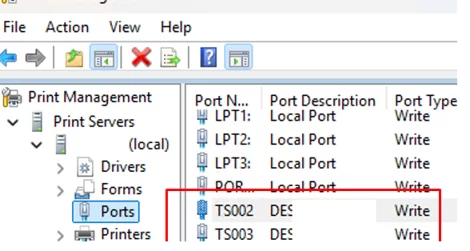
If you’re experiencing printing issues with redirected printers on an RDS server, open the Print Management console (printmanagement.msc) and go to the Ports section. In my case, the list of print ports contains several dozen inactive ports, all of which have names like TS001 – Inactive TS Port.
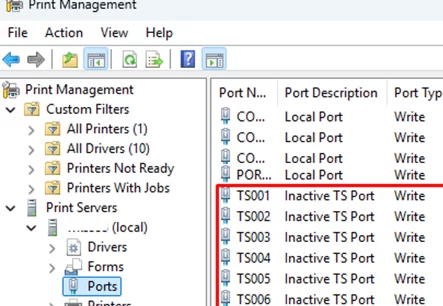
When a printer is connecting via Remote Desktop Services, the Print Spooler creates a virtual TS port for it. If a user disconnects from their RDP session, the port will not be deleted automatically. Over time, the number of inactive TS ports can reach the tens or even hundreds, causing problems with the Windows print service.
The following approaches can be used to prevent printing problems on RDP servers:
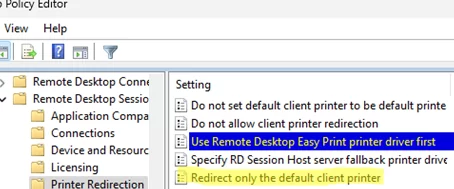
- Redirect only the default printer from the local machine to the user’s RDP session. This reduces the number of TS000 ports created on the terminal server host. To do this, enable the Group Policy option Redirect only the default client printer on the RDS host (Computer Configuration -> Administrative Templates -> Windows Components -> Remote Desktop Services -> Remote Desktop Session Host -> Printer Redirection).

- Periodically reboot the RDS host to clear the orphaned print ports.
- Manually remove inactive TS ports.
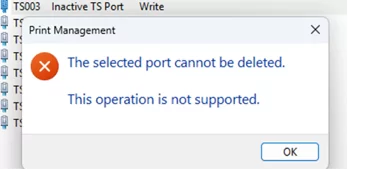
When trying to manually remove an inactive TS port from the Print Management console, the following error appears:
The selected port cannot be deleted. The operation is not supported.
You can clear TS ports by manually removing their entries from the registry key HKLM\SYSTEM\CurrentControlSet\Control\DeviceClasses\{28d78fad-5a12-11d1-ae5b-0000f803a8c2}\##?#ROOT#RDPBUS#0000#{28d78fad-5a12-11d1-ae5b-0000f803a8c2}
As you can see, a separate subkey has been created for each port. They are named #TS001, #TS002, #TS003, and so on.
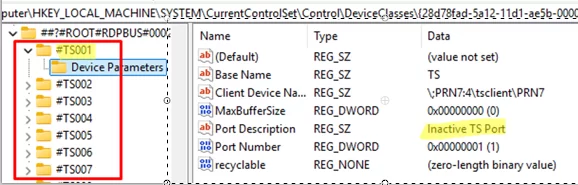
The #TS001 registry subkey can be deleted entirely if the Port Description value in the Device Parameters subkey contains Inactive TS Port. After deleting the registry key, you must restart the Print Spooler service. This will temporarily disrupt printing from the terminal server.
Restart-Service Spooler
A PowerShell script is a more efficient way to remove print ports when there are dozens or hundreds of them:
# Delete inactive TS Ports on RDS host
 $Gegevens = Get-ChildItem -Path 'HKLM:SYSTEM\CurrentControlSet\Control\DeviceClasses\{28d78fad-5a12-11d1-ae5b-0000f803a8c2}\##?#ROOT#RDPBUS#0000#{28d78fad-5a12-11d1-ae5b-0000f803a8c2}' -Recurse -ErrorAction SilentlyContinue
 $DeviceParams = $Gegevens | Where-Object { $_.PSChildName -eq "Device Parameters" }
 foreach ($ParamKey in $DeviceParams) {
 try {
 $PortDescription = (Get-ItemProperty -LiteralPath $ParamKey.PSPath -ErrorAction Stop)."Port Description"
 if ($PortDescription -eq "Inactive TS Port") {
 $PortKeyPath = Split-Path -Path $ParamKey.PSPath -Parent
 $subkeydelete = $PortKeyPath -replace "Microsoft.PowerShell.Core\\Registry::", ""
 $subkeydelete = $subkeydelete -replace "HKLM:", "HKEY_LOCAL_MACHINE"
 Write-Host "Deleting subkey on $env:COMPUTERNAME => $subkeydelete" -ForegroundColor Cyan
 Remove-Item -LiteralPath $PortKeyPath -Recurse -Force -ErrorAction Stop
 }
 } catch {
 Write-Host "Error processing key $($ParamKey.PSChildName): $_" -ForegroundColor Red
 }
 Restart-Service Spooler -Force
This will clear any inactive print ports on the Remote Desktop server.