Windows has a built-in service Network Connectivity Status Indicator (NCSI), which determines the current network status and whether the computer has Internet access. Based on the results of these connectivity tests, Windows displays status messages such as No Internet, secured for Wi-Fi connections or No Internet access for Ethernet connections. However, there are situations where Windows reports that no Internet connection is available even though the computer can successfully access websites and other external resources.
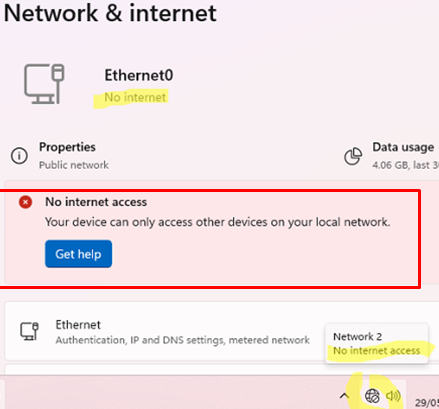
How NCSI Determines Internet Connectivity
To determine whether a device has Internet access, Windows performs a series of active connectivity tests (probes) against the Microsoft website http://www.msftconnecttest.com/. The NCSI component must be able to resolve this DNS hostname and successfully download the connectivity test file using an HTTP GET request. The service performs the following checks:
- Resolves the DNS name
dns.msftncsi.com. The lookup must return:- IPv4:
131.107.255.255 - IPv6:
fd3e:4f5a:5b81::1
- IPv4:
- Sends an HTTP GET request to the file
http://www.msftconnecttest.com/connecttest.txt - Verifies that the web server returns
HTTP 200 (OK)response. - Confirms that the downloaded file contains the expected text:
Microsoft Connect Test - These tests are performed for both IPv4 and IPv6 addresses. Windows considers a computer to have internet connectivity if a connectivity test for any protocol completes.
If any of these checks fail, Windows displays a notification indicating that Internet connectivity is unavailable or limited.
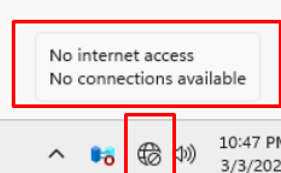
connecttest.txt file to determine whether user authentication is required before Internet access is available.Why NCSI May Report ‘No Internet’ Incorrectly
There are several scenarios in which NCSI can incorrectly report that there is no internet connection, including:
- Access to the http://www.msftconnecttest.com/ website by a firewall, proxy server, web filter, or other security device.
- DNS resolution issues. For example: an invalid or unreachable DNS server is specified on a computer, a filtering DNS server is used, a custom DNS record overrides the default address of the NCSI test server (including a scenario with an incorrect entry in the local
%windir%\System32\drivers\etc\hostsfile)
The NCSI Internet connectivity test configuration is stored under the following registry key HKLM\SYSTEM\CurrentControlSet\Services\NlaSvc\Parameters\Internet
The most important registry options here are:
- EnableActiveProbing – enables (
1) or disables (0) active Internet connectivity detection - ActiveDnsProbeHost and ActiveDnsProbeHostV6 – DNS hostnames used for the Internet connectivity test. The DNS server is set to
dns.msftncsi.comby default for both IPv4 and IPv6 protocols. - ActiveDnsProbeContent and ActiveDnsProbeContentV6 – the expected IPv4 and IPv6 addresses of the DNS servers that the first DNS lookup check should return
- ActiveWebProbeHost and ActiveWebProbeHostV6 – the Microsoft web servers used for HTTP connectivity testing (by default,
www.msftconnecttest.comandipv6.msftconnecttest.com) - ActiveWebProbePath and ActiveWebProbePathV6 – the path to the test file on the web server (by default,
connecttest.txt) - ActiveWebProbeContent and ActiveWebProbeContentV6 – the expected contents of the downloaded test file (
Microsoft Connect Test), which NCSI uses to verify a successful response.
The remaining registry options are used to configure the various timeout intervals and the frequency of connectivity checks performed by the NCSI service.
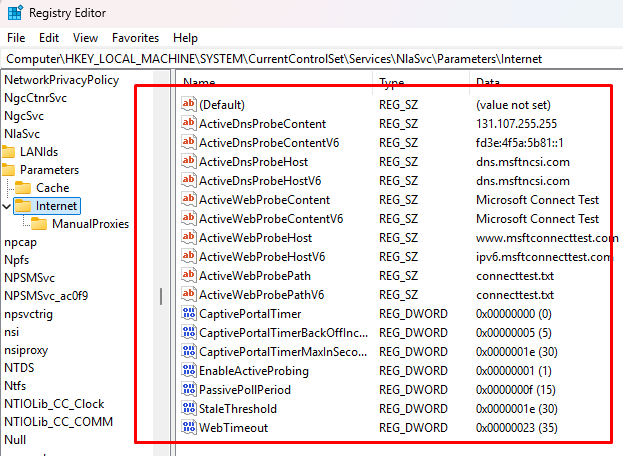
These registry options allow you to completely disable NCSI Internet connectivity checks on a device or redirect all NCSI requests to an alternative web server under your control. This configuration prevents false “No Internet access” notifications on client computers when Microsoft’s official connectivity test endpoints are unreachable, for example in corporate environments that restrict outbound access to those hosts.
Disabling NCSI Active Internet Connectivity Probe in Windows
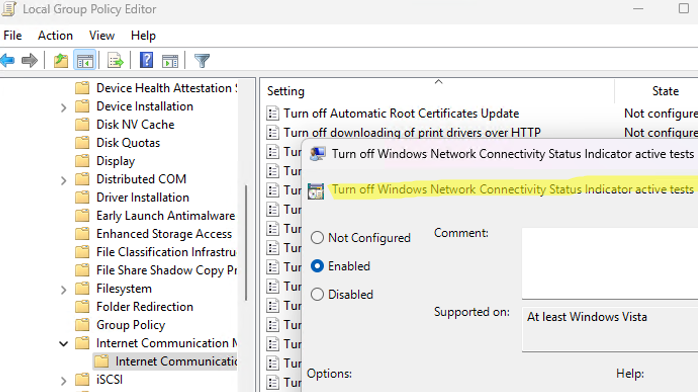
To completely disable NCSI active probing, enable the Group Policy option Turn off Windows Network Connectivity Status Indicator active tests (it can be found in the following section of the local GPO editor: Computer Configuration -> Administrative Templates -> System -> Internet Communication Management -> Internet Communication settings).
Once this policy has been enabled, Windows will stop performing active NCSI connectivity probes and will no longer notify users about internet availability or loss based on the results of these tests.
If Internet connectivity is genuinely unavailable, you should perform standard network troubleshooting checks to identify and resolve the underlying issue. This may include checking the network adapter status and drivers, IP address configuration, default gateway availability, DNS resolution, firewall and proxy settings, and other relevant parameters.