The built-in Windows Installer service (msiserver) is used to install software distributed as classic MSI packages (Windows Installer Package format). This service handles the installation, updates, and removal of applications, including registry modifications, file and dependency deployment, service registration, system restore point creation, and so on. If the Windows Installer service is missing, disabled, or corrupted, MSI-based application installations will fail with an error:
The Windows Installer Service could not be accessed. This can occur if the Windows Installer is not correctly installed. Contact your support personnel for assistance.
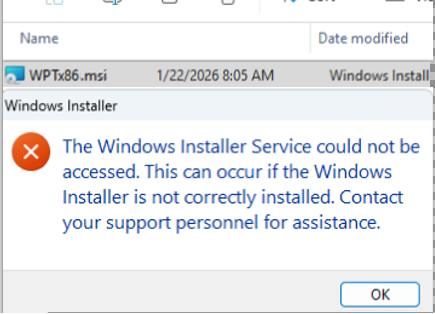
This article explains how to check the status of the Windows Installer service and how to repair or restore it if needed. We will also cover how to use the Windows Installer service in Safe Mode, which can be used to uninstall system software and antivirus products that cannot be removed during a normal Windows boot.
Checking the Windows Installer Service Status
Open the Services snap-in (services.msc) and check that the Windows Installer service is listed. By default, the Windows Installer service in Windows 11 and 10 is configured with the Manual startup type (not Automatic) and starts on demand whenever an application installation is launched from an MSI package or an update is applied using an MSP package.
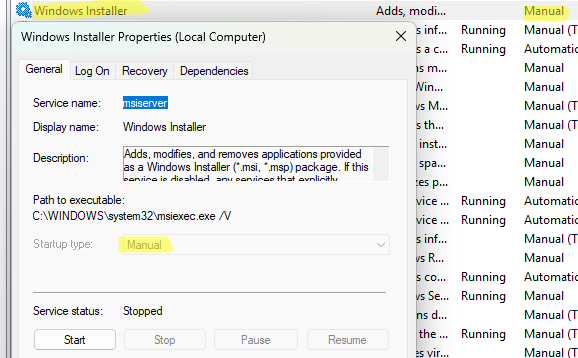
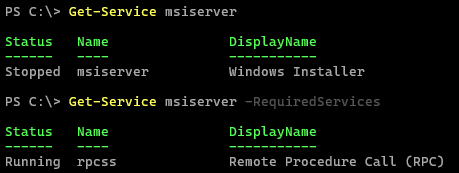
You can use PowerShell to check whether the service is present and what its status is:
Get-Service msiserver
Also, make sure that the Remote Procedure Call: RPC (rpcss), service is running. This service is required for msiserver to run.
Get-Service msiserver -RequiredServices
If the service is disabled, you need to change its startup type to Manual. It is not possible to change the startup type of the Windows Installer service using the MMC service management console, because the Start and Startup Type control elements are inactive (grayed out).
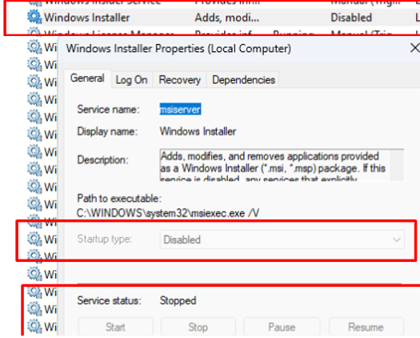
You can change the MSIserver service startup type via the Registry:
- Open the Registry Editor
regedit.exe - Go to
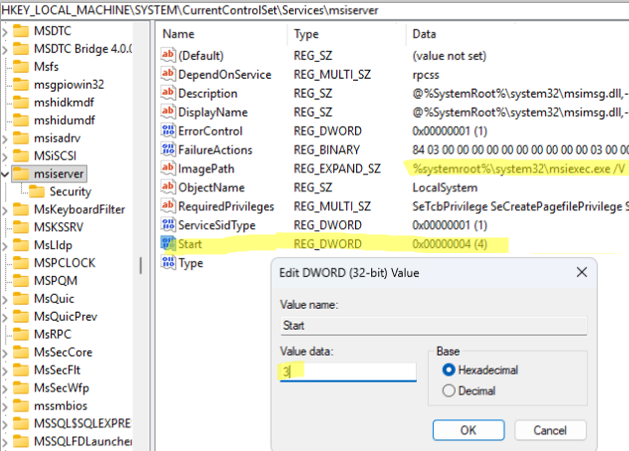
HKLM\SYSTEM\CurrentControlSet\Services\msiserver - Change the value of the Start parameter from 4 (service disabled) to 3 (manual start).
- Also, check that the value of the ImagePath parameter points to the executable file
%systemroot%\system32\msiexec.exe /V
- Check that this file exists:
Test-Path $env:SystemRoot\System32\msiexec.exe
- Restart the computer and verify that the Msiserver service’s startup type has been changed to Manual.

How to Repair the Windows Installer Service
If the Windows Installer service is present in Services but not working correctly, re-register it from an elevated Command Prompt using the following commands:
msiexec /unreg
 msiexec /regserver
 net stop msiserver
 regsvr32 /u /s %windir%\System32\msi.dll
 regsvr32 /u /s %windir%\System32\msihnd.dll
 regsvr32 /u /s %windir%\System32\msisip.dll
 regsvr32 /s %windir%\System32\msi.dll
 regsvr32 /s %windir%\System32\msihnd.dll
 regsvr32 /s %windir%\System32\msisip.dll
 net start msiserver
Restart Windows afterward.
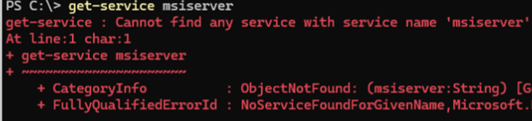
If the Windows Installer service is missing from the list of Windows services (for example, if the service has been deleted) or fails to start because its service permissions have been modified, you can try restoring it by importing a registry file (*.REG) that contains the default Msiserver configuration for Windows 11 and Windows 10.
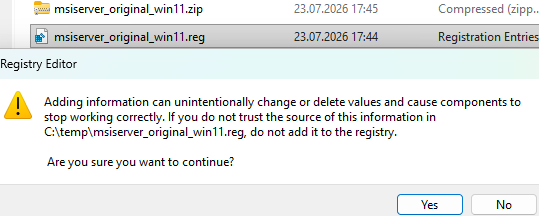
Download the archive msiserver_original_win11.zip, extract it, and import the msiserver_original_win11.reg file into the registry. This restores the default registry configuration for the Windows Installer service. After importing the registry file, restart the computer and verify that the Msiserver service starts and operates correctly.
msiexec.exe executable or any of its required system libraries are missing or corrupted, you should check and repair the Windows system files using the DISM and SFC commands:DISM /Online /Cleanup-Image /RestoreHealth
sfc /scannow
How to Run the Windows Installer Service in Safe Mode
In some cases, you may need to forcibly uninstall software installed with Windows Installer, such as antivirus applications or other system software that prevents Windows from booting properly, or that cannot be uninstalled in normal mode. In these cases, you can try uninstalling the application from Safe Mode.
To boot Windows into Safe Mode:
- Hold the
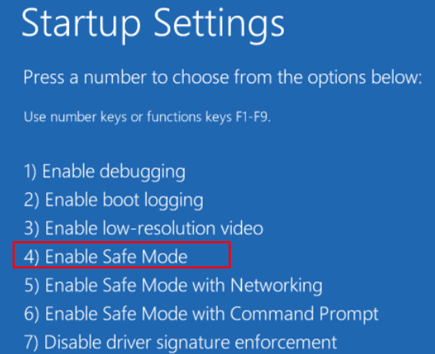
Shiftkey and click Restart. - Navigate to Troubleshoot -> Advanced options -> Startup Settings
- After the computer restarts, press
F4to boot Windows into Safe Mode
If you try to uninstall software using the standard method, or if you force remove the program using the source MSI package, Windows may display the following error:
The Windows Installer Service is not accessible in Safe Mode. Please try again when your computer is not in Safe Mode or you can use System Restore to return your machine to a previous good state.
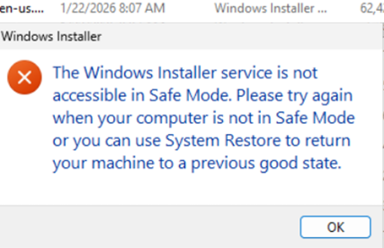
This behavior is by design. The Windows Installer service is disabled in Safe Mode to improve system security and stability. While this makes sense in most scenarios, it becomes problematic when you need to remove software that is preventing Windows from booting normally or functioning correctly.
Attempting to start the Windows Installer service manually via the Services (services.msc) tool also fails because the service is not allowed to run in Safe Mode.
Windows could not start the Windows Installer service on Local Computer. Error 1084: This service cannot be started in Safe Mode.
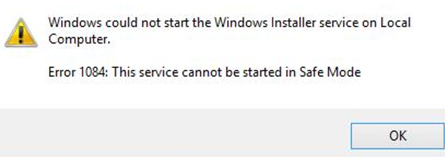
Fortunately, there is a simple workaround that enables the Windows Installer service in Safe Mode, allowing MSI-based applications to be installed or removed.
To enable the Windows Installer service in Safe Mode:
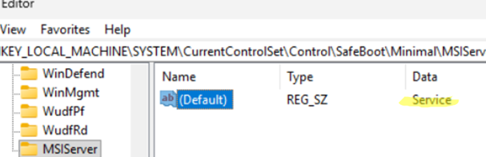
- Open the Registry Editor and go to HKEY_LOCAL_MACHINE\SYSTEM\CurrentControlSet\Control\SafeBoot\Minimal (if the device is booted into Minimal Safe Mode) or to HKEY_LOCAL_MACHINE\SYSTEM\CurrentControlSet\Control\SafeBoot\Network (if you are using Safe Mode with Networking)
- Create a new key named MSIServer
- A new parameter named
Defaultwill automatically appear in the new reg key. Change its value toServiceOr use the following command to create this registry entry:REG ADD "HKLM\SYSTEM\CurrentControlSet\Control\SafeBoot\Minimal\MSIServer" /VE /T REG_SZ /F /D "Service"If you booted your computer into Safe Mode with Networking, create this registry parameter:REG ADD "HKLM\SYSTEM\CurrentControlSet\Control\SafeBoot\Network\MSIServer" /VE /T REG_SZ /F /D "Service" - After applying the change, run the Windows Installer service either from the Services console (
services.msc) or using the command:net start msiserver
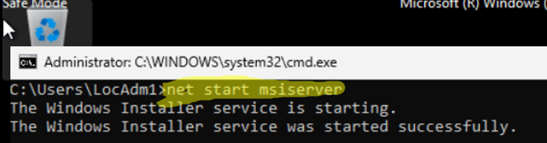
Once the MSIServer service is running, you can install or uninstall any application that uses the Windows Installer (MSI) engine directly from Safe Mode.