Windows OS Hub
  • Windows
    • Windows 11
    • Windows 10
    • Windows Server 2025
    • Windows Server 2022
    • Windows Server 2019
    • Windows Server 2016
  • Microsoft
    • Active Directory (AD DS)
    • Group Policies (GPOs)
    • Exchange Server
    • Azure and Microsoft 365
    • Microsoft Office
  • Virtualization
    • VMware
    • Hyper-V
    • Proxmox
  • PowerShell
  • Linux
  • Home
  • About

Windows OS Hub

  • Windows
    • Windows 11
    • Windows 10
    • Windows Server 2025
    • Windows Server 2022
    • Windows Server 2019
    • Windows Server 2016
  • Microsoft
    • Active Directory (AD DS)
    • Group Policies (GPOs)
    • Exchange Server
    • Azure and Microsoft 365
    • Microsoft Office
  • Virtualization
    • VMware
    • Hyper-V
    • Proxmox
  • PowerShell
  • Linux

 Windows OS Hub / Windows 11 / How to Find a Previous Computer Name in Windows

October 29, 2025

How to Find a Previous Computer Name in Windows

After changing the name of the Windows computer (hostname), I needed to find out its previous (old) computer name.

It is possible to retrieve the previous computer name from the HKLM\SOFTWARE\Microsoft\SchedulingAgent registry key. Use the Registry Editor to check the value of the OldName parameter, or query the registy item value using PowerShell:

(Get-ItemProperty HKLM:\SOFTWARE\Microsoft\SchedulingAgent\).oldname
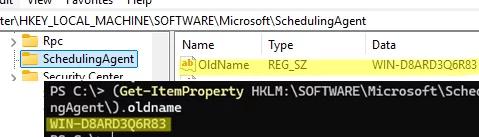
get previous windows computer oldname from registry

It contains the computer name that was generated during the installation of Windows. Any further computer renames will not be displayed here.

To view the full history of a computer’s hostname changes, check the Event Viewer logs for host rename events.

  1. Open the Event Viewer snap-in (eventvwr.msc)
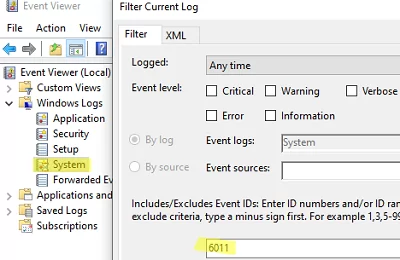
  2. Expand Windows Logs -> System
  3. Filter the event log by Event ID 6011filter event viewer by event 6011
  4. Open the latest event with this ID. The event description contains details of the previous and new computer name:
     The NetBIOS name and DNS host name of this machine have been changed from WIN10-OLD01 to Win10-NEW01
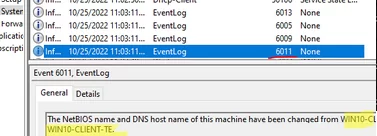
    event shows previous hostname in windows

You can list all available hostname change events from the Event Viewer log using PowerShell.

Get-WinEvent -FilterHashtable @{ LogName = 'System';Id = 6011} | Select-Object TimeCreated, Id, Message

If the Windows Event Logs have been cleared or if new events have been overwritten by the old ones (due to the insufficient size of the Event Viewer log files), the history of hostname changes can be obtained from the C:\WINDOWS\Debug\NetSetup.LOG file.

To quickly search for events relating to changes to the hostname or joining/leaving a domain/workgroup, use the Select-String cmdlet to filter the contents of this log file.

Select-String c:\WINDOWS\Debug\NetSetup.LOG -Pattern "NetpValidateName"

filter NetSetup.LOG

0 comment
1
Facebook Twitter Google + Pinterest
Windows 10Windows 11
previous post
How to Enable or Disable Windows Defender Firewall
next post
Remote Desktop (RDP) Not Working in Windows 11

Related Reading

Configuring RemoteApps Hosted on Windows 10/11 (without Windows...

January 25, 2025

Change BIOS from Legacy to UEFI without Reinstalling...

April 23, 2025

Fix: Windows Update Tab (Button) is Missing from...

December 16, 2024

Bridging Multiple Network Interfaces on Windows

November 21, 2024

How to Prefer IPv4 over IPv6 in Windows...

April 15, 2025

Unable to Select Edition During Windows 10/11 Installation

February 4, 2025

Uninstalling Windows Updates via CMD/PowerShell

March 10, 2026

How to Detect Which User Installed or Removed...

June 25, 2025

Leave a Comment Cancel Reply

join us telegram channel https://t.me/woshub
Join WindowsHub Telegram channel to get the latest updates!

Recent Posts

  • Find Computers with Pending Reboot Status Using PowerShell

    April 15, 2026
  • Mounting NFS Shares in Windows Using the Built-in Client

    March 26, 2026
  • Monitor Windows Log Files in Real Time with PowerShell

    March 17, 2026
  • Pin and Unpin Apps to Taskbar in Windows 11 via PowerShell

    March 10, 2026
  • Load and Initialize Network Drivers in Windows PE or Recovery Environment

    February 25, 2026
  • How to Set a Custom Drive Icon in Windows

    February 17, 2026
  • Managing Per-User Services in Windows

    February 11, 2026
  • Change Default OU for New Computers and Users in AD

    February 2, 2026
  • Where Windows Stores Certificates and Private Keys

    January 22, 2026
  • How to Extract Printer Drivers from Windows

    January 21, 2026

Follow us

  • Facebook
  • Twitter
  • Youtube
  • Telegram
Popular Posts
  • Upgrading to Windows 11 on Unsupported Hardware
  • Converting Windows 10 to Enterprise LTSC Without Losing Data
  • Create a Custom Windows Image with Pre-installed Apps
  • Permanently Disable Driver Signature Enforcement on Windows 11
  • Configuring RemoteApps Hosted on Windows 10/11 (without Windows Server)
  • How to Assign (Passthrough) a Physical GPU to a Hyper-V Virtual Machine
  • Get Started with Docker on Windows (WSL2) without Docker Desktop
Footer Logo

@2014 - 2026 - Windows OS Hub. All about operating systems for sysadmins


Back To Top