Windows OS Hub
  • Windows
    • Windows 11
    • Windows 10
    • Windows Server 2025
    • Windows Server 2022
    • Windows Server 2019
    • Windows Server 2016
  • Microsoft
    • Active Directory (AD DS)
    • Group Policies (GPOs)
    • Exchange Server
    • Azure and Microsoft 365
    • Microsoft Office
  • Virtualization
    • VMware
    • Hyper-V
    • Proxmox
  • PowerShell
  • Linux
  • Home
  • About

Windows OS Hub

  • Windows
    • Windows 11
    • Windows 10
    • Windows Server 2025
    • Windows Server 2022
    • Windows Server 2019
    • Windows Server 2016
  • Microsoft
    • Active Directory (AD DS)
    • Group Policies (GPOs)
    • Exchange Server
    • Azure and Microsoft 365
    • Microsoft Office
  • Virtualization
    • VMware
    • Hyper-V
    • Proxmox
  • PowerShell
  • Linux

 Windows OS Hub / Windows 11 / Upgrading from Windows 11 Home to Pro without Reinstalling

June 11, 2026

Upgrading from Windows 11 Home to Pro without Reinstalling

Most laptops and computers sold today come with Windows 11 Home (or Windows 11 Home Single Language) pre-installed. This Windows edition is sufficient for most home users’ typical tasks. However, if you need features that are available only in the Pro or Enterprise editions of Windows 11, you can upgrade the installed Home edition to the more feature-rich Pro edition without reinstalling the operating system. This is officially supported. In this tutorial, we’ll show how to upgrade Windows 11 Home to Windows 11 Professional without reinstalling the operating system, while preserving user data, installed apps, and settings.

There are several ways to upgrade from Windows 11 Home to Windows 11 Pro.

Contents:
  • Upgrade From Windows 11 Home to Pro via Microsoft Store
  • Converting Windows 11 Home to Pro Using CMD

Windows 11 Pro includes several frequently used features not available in the Home edition, such as BitLocker for data encryption, the Hyper-V virtualization role for running VMs, the local Group Policy Editor, Remote Desktop (RDP) access, AD domain join capability, Kiosk Mode, and others.

Upgrade From Windows 11 Home to Pro via Microsoft Store

The official, Microsoft-recommended method for upgrading from Windows 11 Home to a higher edition is to use the Microsoft Store. With it, you can immediately purchase a license for the Windows edition you need and upgrade the operating system.

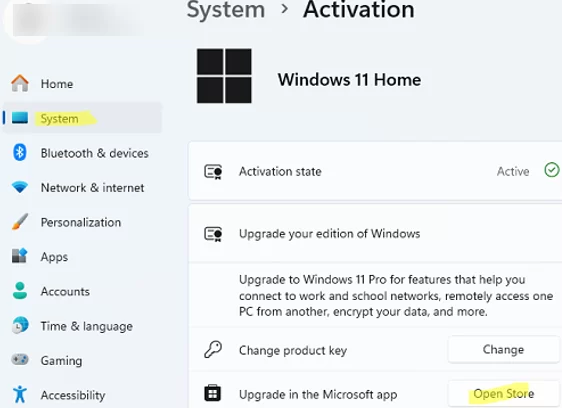
  1. Go to Settings -> System -> Activation
  2. Click the Open Store button under the Upgrade in the Microsoft App section. Upgrade Windows Home in the Microsoft Store app
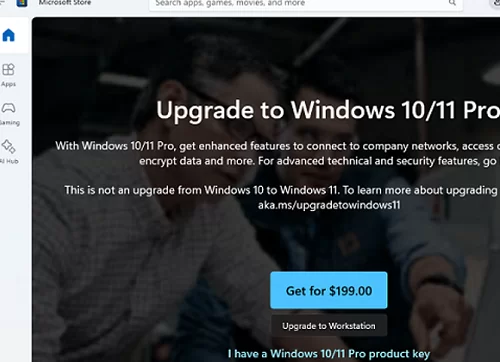
  3. To upgrade to Windows 11 Pro, select the upgrade option in the Microsoft Store and pay for the license. Once complete, the new license will be linked to your Microsoft account, and the operating system edition will be upgraded. Upgrade to Windows 11 Pro via Microsoft Store
Converting Windows 11 Home to Pro Using CMD

Now, let’s look at how to upgrade from Windows Home to the Professional edition using command-line tools. Open a command prompt and check your current Windows version and edition:

DISM /online /Get-CurrentEdition

The command returned that the current edition is Core, meaning that the Home edition of Windows 11 is installed. If the command returns CoreSingleLanguage, then the Home Single Language edition is in use.
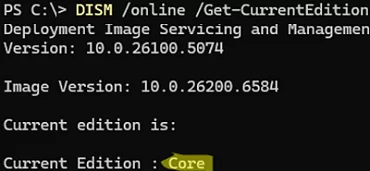
DISM /online /Get-CurrentEdition

List the editions to which you can upgrade from your current version of Windows:

DISM /online /Get-TargetEditions
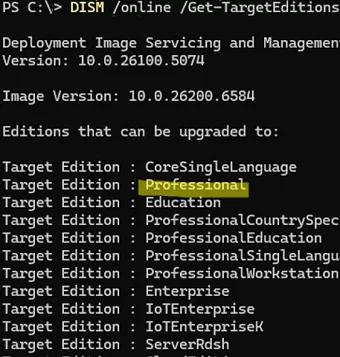
DISM /online /Get-TargetEditions - checks which Windows editions your current installation can be upgraded to

Professional is listed in the Target Editions, meaning that an in-place upgrade is possible. Run the command:

сhangepk.exe

This will take you to the activation section of the Settings app. Click the Change product button and enter the retail product key that you purchased for Windows 11 Pro.

If you do not yet have a Windows 11 Pro product key, you can use the generic installation key VK7JG-NPHTM-C97JM-9MPGT-3V66T, which is applied by default during a clean installation of Windows 11 when no key is entered. In this case, the operating system will run in evaluation mode and will require later activation with a valid product key.
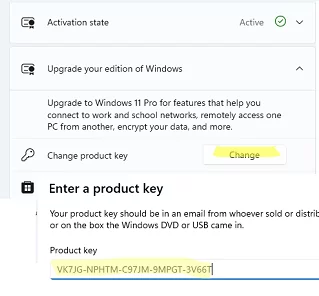
Enter a valid Windows 11 Pro product key

Confirm that you want to upgrade your Windows edition.
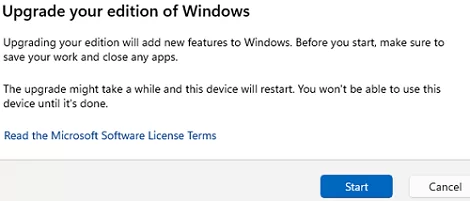
Confirm upgrading from Windows Home to Pro

You may encounter error 0x803fa067 when upgrading Windows:

Unable to upgrade your edition
We can’t activate Windows on this device because you don’t have a valid license or product key. If you think you do have a valid license or key, select Troubleshoot bellow (0x803fa067).

0x803fa067 - We can’t activate Windows on this device because you don’t have a valid license or product key

To work around this issue, disconnect the computer from the network temporarily (disable the network adapter) and then retry the upgrade.
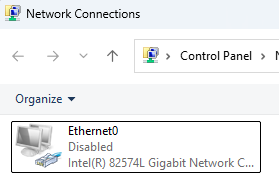
disconnect computer from a network

If this doesn’t help either, try deleting the Windows product key that was previously installed:

slui.exe /upk
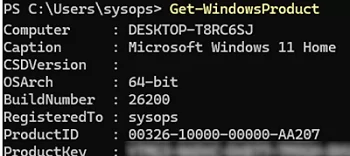
You can extract the product key used to activate Windows.

Extract Windows product key using a PowerShell script

Then install the new product key:

changepk.exe /ProductKey xxxxx-xxxxx-xxxxx-xxxxx-xxxxx

Preparation for the edition upgrade will begin, after which the computer will automatically restart.
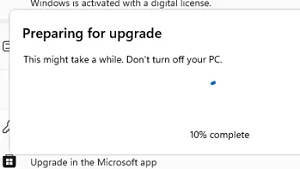
Upgrading from Windows 11 Home to Pro

The upgrade process will take 5–10 minutes. After the reboot, check that your Windows 11 edition has been upgraded to Pro:

winver.exe

or use DISM:

DISM /online /Get-CurrentEdition

All your files and installed apps will remain in place, as will your user profiles.
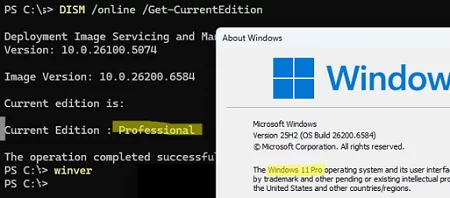
winver - check current Windows edition

If you used a public generic key to upgrade to the Pro edition, note that this key is only intended for upgrading from Home to Pro. It does not allow you to activate Windows, which results in an error 0x80072EE7. To activate your copy of Windows 11 Pro, you will need to use either a retail key, a digital license, or a corporate KMS server (refer to the KMS Activation FAQ).
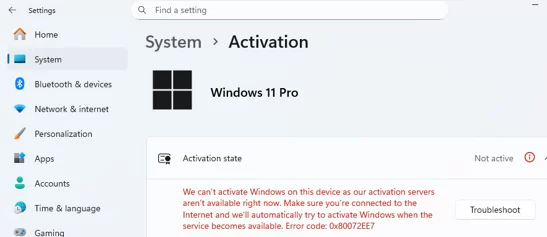
0x80072EE7 - computer cannot connect the Microsoft activation servers

Once the upgrade is complete, check that Windows has been activated using your product key. Check the Windows activation status:

slmgr /xpr

The following errors may occur when upgrading your Windows edition:

  • 0xc004f050 – the product key specified is either invalid or does not match the edition of Windows currently installed on your computer.
  • 0xC004F069 – before installing a new product key, you must first uninstall the previous one: slui.exe /upk Then use the changepk.exe command to install the new key.

To find out more about Windows activation or edition upgrade errors, use the built-in slui.exe command. Specify the error code that Windows returned to you as the second argument to the command. For example:

slui.exe 0x2a 0xc004f050
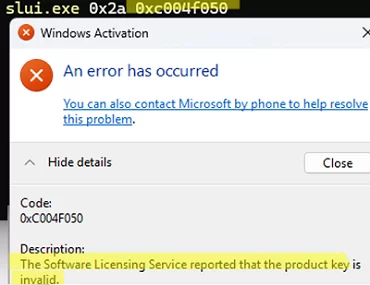
slui.exe - decode the alphanumeric activation error code

0 comment
0
Facebook Twitter Google + Pinterest
Questions and AnswersWindows 11
previous post
Windows Sandbox on Windows 11: Enable, Configure, and Use

Related Reading

How to Move (Migrate) Windows Shares to a...

February 26, 2026

How to Detect Which User Installed or Removed...

June 25, 2025

Security Warnings When Opening RDP Files in Windows...

April 20, 2026

Find a Process Causing High Disk Usage on...

July 16, 2025

Monitor Windows Log Files in Real Time with...

March 26, 2026

SMB over QUIC: Mount File Share over Internet...

December 24, 2025

Windows Stucks at ‘Getting Windows Ready, Don’t Turn...

September 24, 2025

How to Monitor Windows Machines with Zabbix

May 29, 2026

Leave a Comment Cancel Reply

join us telegram channel https://t.me/woshub
Join WindowsHub Telegram channel to get the latest updates!

Recent Posts

  • Windows Sandbox on Windows 11: Enable, Configure, and Use

    June 10, 2026
  • How to Monitor Windows Machines with Zabbix

    May 26, 2026
  • Fixing Duplicate Security Identifier (SID) Issues in Windows

    May 25, 2026
  • Monitor a Folder for File Changes Using PowerShell and FileSystemWatcher

    May 15, 2026
  • Protect Windows Server from DDoS and Brute-Force Attacks with IPBan

    May 12, 2026
  • How to Force Uninstall ANY Stubborn Program in Windows

    May 7, 2026
  • How to Safely Disable IPv6 on Windows

    April 30, 2026
  • Updating UEFI Secure Boot Certificates on Windows Devices Explained

    April 20, 2026
  • Security Warnings When Opening RDP Files in Windows 11

    April 17, 2026
  • Find Computers with Pending Reboot Status Using PowerShell

    April 15, 2026

Follow us

  • Facebook
  • Twitter
  • Youtube
  • Telegram
Popular Posts
  • Converting Windows 10 to Enterprise LTSC Without Losing Data
  • How to Remove ‘Some Settings are Managed by Your Organization’ on Windows 11 or 10
  • Remove the Max Path Length Limit (260-Characters) on Windows
  • Installing Windows without USB/DVD or Other External Drives
  • How to Pause (Delay) Update Installation on Windows 11 and 10
  • Windows: How to Turn Off Monitor with Command Line
  • NVMe SSD Not Detected During Windows 11 Installation
Footer Logo

@2014 - 2026 - Windows OS Hub. All about operating systems for sysadmins


Back To Top