The following error may occur when you use the built-in RDP client (mstsc.exe) to connect to the desktop of a remote computer:
Remote Desktop Connection
An authentication error has occurred.
The function requested is not supported.
Remote computer: computer_name
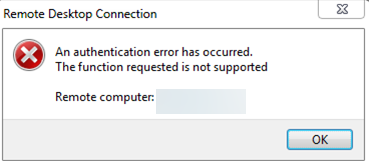
This bug is caused by the fact that Windows by default blocks RDP connections to remote computers that are running a vulnerable version of the CredSSP protocol (CVE-2018-0886). The Credential Security Support Provider (CredSSP) protocol is used to pre-authenticate users when the Network Level Authentication (NLA) protocol is enabled for RDP. Microsoft released an update for the CredSSP vulnerability in 2018, but for some reason, the update hasn’t been installed on the remote host you’re trying to connect to (https://support.microsoft.com/en-us/topic/credssp-updates-for-cve-2018-0886-5cbf9e5f-dc6d-744f-9e97-7ba400d6d3ea).
How to Fix RDP Authentication Error on Windows
- (Recommended way) The correct solution is to install the latest Windows cumulative security updates on the remote computer you are connecting to via RDP. It is most likely that this computer has recently been deployed from an out-of-date image, or that Windows Update has been disabled on it. You can use the PSWindowsUpdate module or the following command to check the latest installation date of Windows updates:
gwmi win32_quickfixengineering |sort installedon -desc

You can get updates automatically from Windows Update, or you download and install Windows updates manually. Any cumulative update released after 2019 for your version of Windows will need to be installed; - Workaround 1 (not recommended). You can temporarily allow your computer (the client) to connect to the RDP host with an insecure version of the CredSSP. To do this, you need to change the AllowEncryptionOracle registry parameter using the command:
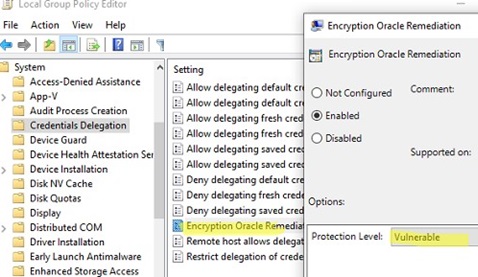
REG ADD). Or you can change the local Group Policy ‘Encryption Oracle Remediation‘ option by setting its value to Vulnerable. (See the detailed description in the post RDP error: CredSSP Encryption Oracle Remediation).
HKLM\SOFTWARE\Microsoft\Windows\CurrentVersion\Policies\System\CredSSP\Parameters /v AllowEncryptionOracle /t REG_DWORD /d 2 This will allow you to connect to a remote server via RDP and install the latest security updates (method 1). After upgrading the remote server, disable the policy or change the AllowEncryptionOracle key value on your computer (client) to 0: (
REG ADD HKLM\SOFTWARE\Microsoft\Windows\CurrentVersion\Policies\System\CredSSP\Parameters /v AllowEncryptionOracle /t REG_DWORD /d 0. - Workaround 2 (not recommended). You can turn off Network Level Authentication (NLA) on the side of the RDP server (as described below).

Disable Network Level Authentication (NLA) for Remote Desktop on Windows
If NLA is enabled on the side of the RDP server you are connecting to, the CredSPP protocol is used to pre-authenticate RDP users.
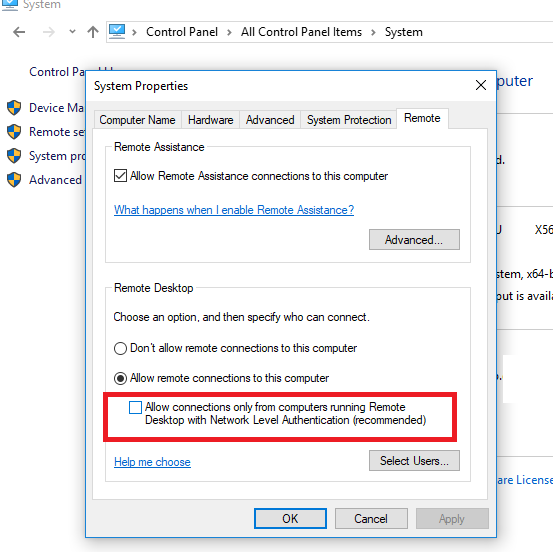
You can disable Network Level Authentication in System Properties (SystemPropertiesRemote.exe), on the Remote tab, by unchecking the “Allow connection only from computers running Remote Desktop with Network Level Authentication (recommended)” option.
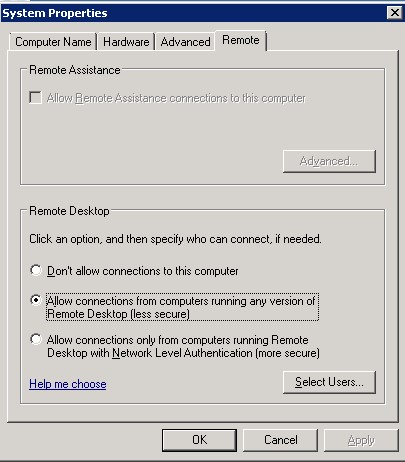
This option is called differently in Windows 7 and Windows Server 2008 R2. On the Remote tab, select ‘Allow connections from computers running any version of Remote Desktop (less secure)‘.
It is also possible to disable Network Level Authentication (NLA) by using the local Group Policy Editor (gpedit.msc).
Go to Computer Configuration -> Administrative Templates -> Windows Components -> Remote Desktop Services -> Remote Desktop Session Host -> Security, find the policy ‘Require user authentication for remote connections using network level authentication‘ and disable it.
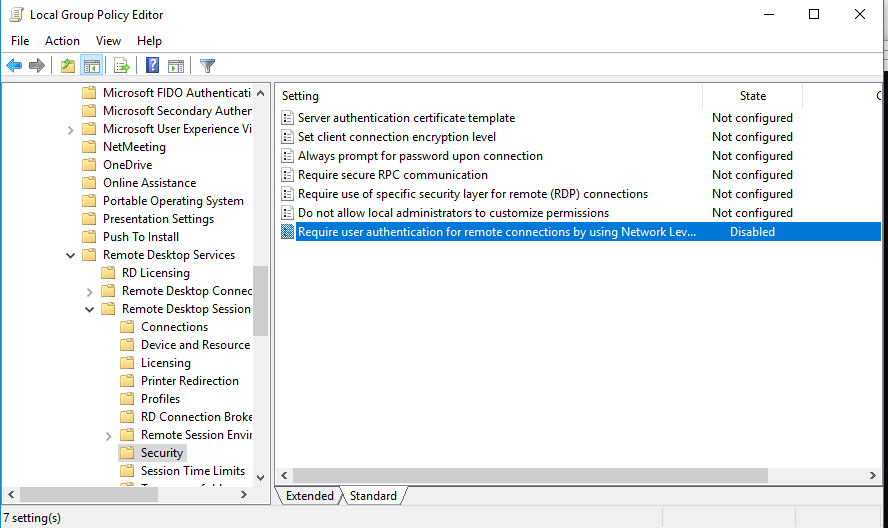
You must also set the RDP security layer in the ‘Require the use of a specific security layer for remote (RDP) connections‘ policy settings
To apply new RDP settings, you need to update the Group Policies on a local computer (gpupdate /force) or reboot your desktop. You should then be able to successfully connect to the Remote Desktop.
16 comments
Thanks for update its work for me.:)
great thanks! it helped!
It helped!.
Thanks you for this information. I deploy the virtual machine from ISO 1703 win10 ent. with same problem…. disabling this options NLA fix my problem. thanks you!
We have experienced same error issue.A re-start of server has solved.
There is neither such option like Remote Desctop in System Properties->Remote nor utility gpedit in my latest version of Windows 10… Insane OS, insane company!
There is a differences between Windows 10 Home and Windows 10 Pro 😉
this worked for me. thanks!
I experienced the same issue with a new installation. After all updates were applied, this was resolved.
Thanks , its works for me
I just reinstalled Windows 10. How how many updates do I need and many years does it take before I can use RDP?
Wait until the latest monthly security update is installed and restart your device.
Windows 10 home does not support RDP
Disable NLA for Remote Desktop in Windows was the solution
Thanks so much! Just upgraded an old 2012 R2 server to Windows Server 2016 and ran into this problem straight away. The registry fix works a treat and you an undo the change after updating Windows 2016 through Windows Update.
In case of RD connection error: An internal error has occurred
1) Run the Certificates MMC as Local Machine -> find your Remote Desktop certificate -> Delete it -> and restart Remote Desktop Service (TermService )
2) If the error appears immediately after clicking connect (the connection attempt seem to be immediately rejected by remote desktop server), try to increase the maximum outstanding RDP connections limit. On Windows 10 the SKUs by default is set to 100, but on Windows Server is 3000. Run the regedit.exe and create the DWORD registry parameter MaxOutstandingConnections with the value 10000 in the reg key HKEY_LOCAL_MACHINE\SYSTEM\CurrentControlSet\Control\Terminal Server\. (The special RDP counter takes into account not quite correct RDP logins, and upon reaching the specified MaxOutstandingConnections value, the RDP access is blocked.)
3) Also check SSL/TLS settings and authentication level on RDP app in case performing RDP connection frow Win10 to Win7.
The problem is RD client from Windows 10 automatic use TLS 1.2 (default Security Protocol) negotiation, but Windows 7 only support TLS 1.0