Windows OS Hub
  • Windows
    • Windows 11
    • Windows 10
    • Windows Server 2025
    • Windows Server 2022
    • Windows Server 2019
    • Windows Server 2016
  • Microsoft
    • Active Directory (AD DS)
    • Group Policies (GPOs)
    • Exchange Server
    • Azure and Microsoft 365
    • Microsoft Office
  • Virtualization
    • VMware
    • Hyper-V
    • Proxmox
  • PowerShell
  • Linux
  • Home
  • About

Windows OS Hub

  • Windows
    • Windows 11
    • Windows 10
    • Windows Server 2025
    • Windows Server 2022
    • Windows Server 2019
    • Windows Server 2016
  • Microsoft
    • Active Directory (AD DS)
    • Group Policies (GPOs)
    • Exchange Server
    • Azure and Microsoft 365
    • Microsoft Office
  • Virtualization
    • VMware
    • Hyper-V
    • Proxmox
  • PowerShell
  • Linux

 Windows OS Hub / Windows Server 2022 / How to Enable Wireless Network (Wi-Fi) on Windows Server

March 5, 2026

How to Enable Wireless Network (Wi-Fi) on Windows Server

By default, wireless network (Wi-Fi) support is disabled in all Windows Server 2025/2022/2019/2016/2012R2 versions. You won’t be able to enable a Wi-Fi network adapter (USB or PCI) through the Network Connections Control Panel if you plug it into a host running Windows Server. I will show how to enable wireless support on Windows Server in this short note.

Contents:
  • Enable Wireless Networking Support on Windows Server
  • Unable to Install Wi-Fi Drivers on Windows Server

Enable Wireless Networking Support on Windows Server

Connect a physical Wi-Fi adapter to a Windows Server host and install the drivers. Make sure that the new adapter has appeared in the Network Adapters section of the Device Manager (devmgmt.msc).

In my case, the Wi-Fi adapter appeared in Device Manager, but the system could not initialize it.

Windows cannot initialize the device driver for this hardware. (Code 37)
The request is not supported.
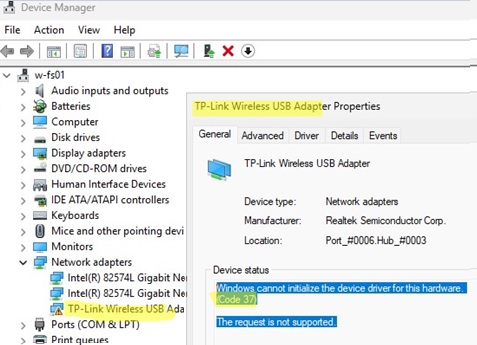
Cannot initialize wireless network adapter on Windows Server 2025

Open the PowerShell console as an administrator and check if the Wireless LAN Service is missing:

Get-WindowsFeature *Wireless*

Wireless LAN Service in not enabled in WIndows Server by default

Use the Install-WindowsFeature PowerShell cmdlet to add a feature on a Windows Server:

Install-WindowsFeature -Name Wireless-Networking

Install-WindowsFeature Wireless-Networking

Or install the Wireless LAN Service via the Server Manager (Add Roles and Features -> Features).
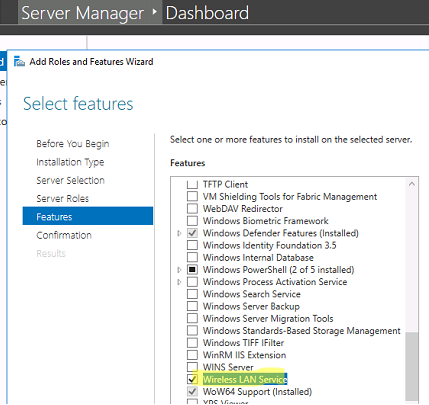
Install Wireless LAN Service in Server Manager

After the installation is complete, reboot the host:

shutdown –f –r –t 0

After the restart, the Wireless LAN Service (WLAN AutoConfig) appears in Windows, but it is disabled by default. Run the service and change its startup type to automatic:

Set-Service WlanSvc –startuptype automatic –passthru
Start-Service WlanSvc –PassThru
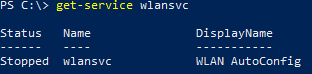
checking WlanSvc on Windows Server

Then, navigate to the Network Connections section in the Control Panel (ncpa.cpl) manually enable the Wi-Fi adapter (right-click it and select Enabled).
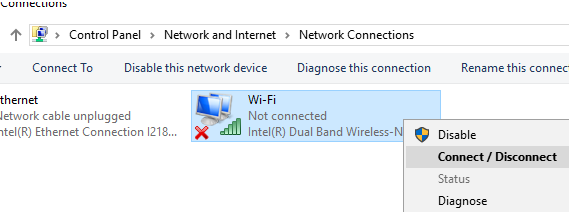
connect wifi on windows server

Enable Wi-Fi using the Quick Settings panel accessible from the taskbar.
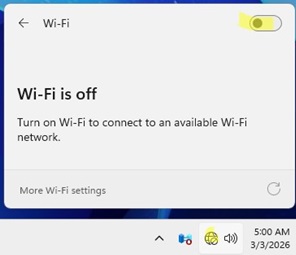
Turn on Wi-Fi on Windows Server

You can now connect to the Wi-Fi network you need (you can check the signal strength of available Wi-Fi access points via PowerShell ) or even create a Wi-Fi access point on your Windows Server.
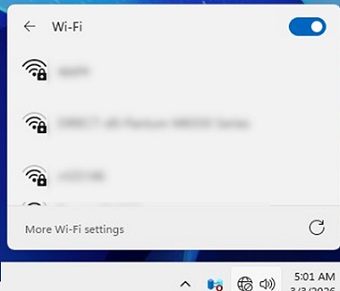
Connect WiFI network on Windows Server

Note that the wireless networking support feature has been removed from Server Core (non-GUI) editions of Windows Server 2022 and 2025. An error appears when trying to add Wireless-Networkingfeature in the Server Core:

Install-WindowsFeature : ArgumentNotValid: The role, role service, or feature name is not valid: 'Wireless-Networking'. The name was not found.
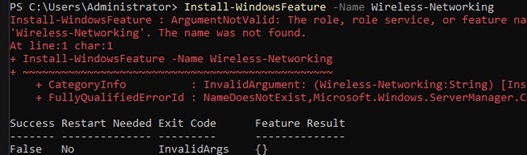
Windows Server Core missing wireless wlan networking

Unable to Install Wi-Fi Drivers on Windows Server

Some Wi-Fi adapter vendors restrict the installation of drivers for desktop wireless adapters on Windows Server operating systems, citing the need for specialized equipment in server environments. This type of OS version lock is typically configured in the driver’s INF file. In particular, I encountered issues installing the Wi-Fi adapter driver with Broadcom and some Intel devices.

This article details how to bypass driver INF file restrictions and successfully install network adapter drivers on Windows Server.

4 comments
15
Facebook Twitter Google + Pinterest
PowerShellWindows Server 2019Windows Server 2022Windows Server 2025
previous post
Managing Calendar Permissions on Exchange Server and Microsoft 365
next post
Fixing VPN Error: Can’t Establish Connection, Change Network Settings

Related Reading

How to Convert (Upgrade) Windows Server Evaluation to...

March 15, 2024

How to Delete Old User Profiles in Windows

March 15, 2024

Install and Manage Windows Updates with PowerShell (PSWindowsUpdate)

March 17, 2024

Shared Folder Content Not Updating in Windows

February 25, 2026

Start Menu or Taskbar Search Not Working in...

April 22, 2025

Configuring SSH Public Key Authentication on Windows

March 15, 2024

How to Check, Enable or Disable SMB Protocol...

July 3, 2025

How to Update Trusted Root Certificates in Windows:...

February 26, 2026

4 comments

Russ January 5, 2023 - 7:34 pm

Thank you for posting this. I am not that experienced in Server OS and didnt know WiFi adapters were disabled by default. explains why my adapter didnt work. Even the adapter manufacturer tech support is clueless on Server OS installations, told me to change my OS.

Reply
MGumbs March 1, 2024 - 3:13 pm

Thanks For the post…
Help me a lot!!!

Reply
KTD March 3, 2024 - 9:37 pm

Like a charm, it works. Thanks a ton

Reply
Kosta September 17, 2025 - 12:18 pm

Thank a lot for that. It’s the best instruction for the topic!!!

Reply

Leave a Comment Cancel Reply

join us telegram channel https://t.me/woshub
Join WindowsHub Telegram channel to get the latest updates!

Recent Posts

  • Load and Initialize Network Drivers in Windows PE or Recovery Environment

    February 25, 2026
  • How to Set a Custom Drive Icon in Windows

    February 17, 2026
  • Managing Per-User Services in Windows

    February 11, 2026
  • Change Default OU for New Computers and Users in AD

    February 2, 2026
  • Where Windows Stores Certificates and Private Keys

    January 22, 2026
  • How to Remove Old (Unused) PowerShell Modules

    January 12, 2026
  • How to Move (Migrate) Windows Shares to a New File Server

    December 24, 2025
  • Using KDC (Kerberos) Proxy in AD for Remote Access

    December 23, 2025
  • Windows: Create (Install) a Service Manually

    December 16, 2025
  • Windows: Auto Switch to Strongest Wi-Fi Network

    December 10, 2025

Follow us

  • Facebook
  • Twitter
  • Youtube
  • Telegram
Popular Posts
  • Install and Manage Windows Updates with PowerShell (PSWindowsUpdate)
  • How to Download Offline Installer (APPX/MSIX) for Microsoft Store App
  • How to Update Trusted Root Certificates in Windows: Manual and Automatic Methods Explained
  • Fix: Remote Desktop Licensing Mode is not Configured
  • How to Delete Old User Profiles in Windows
  • Configuring Port Forwarding in Windows
  • How to Install Remote Server Administration Tools (RSAT) on Windows
Footer Logo

@2014 - 2026 - Windows OS Hub. All about operating systems for sysadmins


Back To Top