This article explores ways to access a shared network folder from the current session using a different user account, including mapping a network drive with alternate credentials and saving the user’s credentials used to access the share to the Credential Manager. These methods can be useful when you need to temporarily access a file server in another domain or workgroup from the current user session without having to log out and sign in as a different user.
Mapping a Network Drive with Different User Credentials
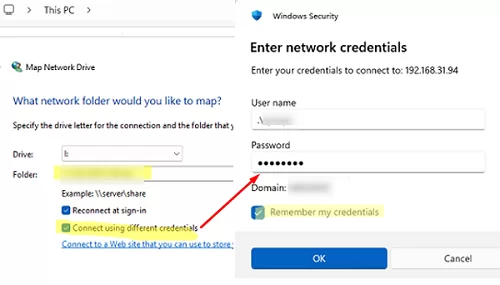
When mapping a network drive in File Explorer, you have the option of connecting to the shared folder using a different user account. When you enable the Remember my credentials option, this user’s credentials will be saved to the Windows Credential Manager.
Open the Credential Manager (run control /name Microsoft.CredentialManager -> go to Windows Credential) and check that it now contains the saved credentials for that user account. 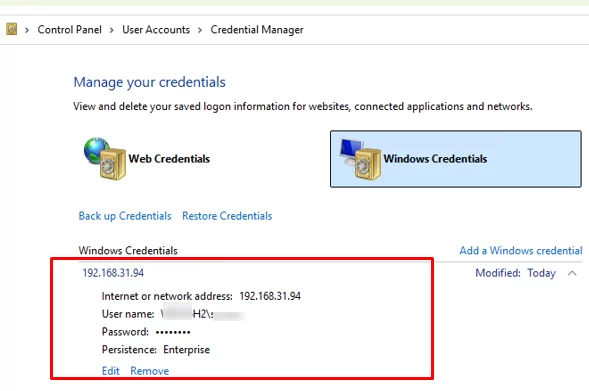
Now, when accessing the specified file server from the current user session, Windows will use the saved credentials. This method can be used when you need to access a shared folder or file server under a different account from the current one or from another domain.
Access a Network Share as a Different User with NET USE
Open the non-elevated command prompt (without using the ‘Run as administrator’ option). Use the following command to map a network folder using a different user account:
net use J: \\192.168.123.123\backup /USER:WOSHUB\maxbak * /PERSISTENT:YES
The specified network folder will be mounted as a network drive J:. In this case, the account password is prompted interactively and is not actually saved. Accessing this mapped network driver without re-entering the password is only possible within the current user session.
You can create a connection to a shared folder under a different user account without mounting it as a network drive. Use the following command:
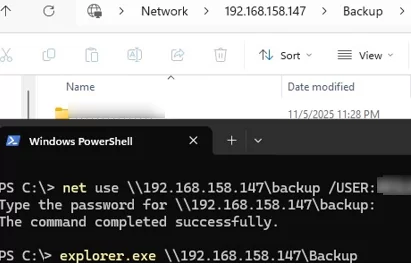
net use \\192.168.123.123\Backup /USER:WOSHUB\mark * /PERSISTENT:YES
To open the specified shared folder in File Explorer, run:
explorer.exe \\192.168.123.123\Backup
It is not possible to access shared folders on the same file server simultaneously under different accounts. If you try to access the same file server using a different user, a multiple connection error will appear:
System error 1219 has occurred
Multiple connections to a server or shared resource by the same user, using more than one user name, are not allowed.

You will have to either delete the previous connection to a share:
net use
 net use \\192.168.123.123\Backup /del
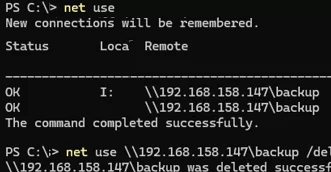
or disconnect all sessions at once:
net use * /del
Alternatively, you can establish a second connection to the same network share using different credentials by connecting through the server’s FQDN or IP address, depending on how the first connection was created.
Open a Shared Folder Using Saved Credentials
In Windows, you can manually add other users’ credentials to Credential Manager and then use them to automatically access a specific file server (shared folder).
Open a non-elevated command prompt and save the user credentials required to access the file server or NAS storage:
cmdkey /add:m-fs01.woshub.com /user:WOSHUB\maxbak /pass
The command will prompt you for a password, which will then be saved in Credential Manager.

Now, when you open File Explorer and access a file server via the UNC path (using the server name specified in the previous command, for example \\m-fs01.woshub.com\share), the saved credentials will automatically be used for accessing any network shares on that server.
You can also open a shared folder under a specific user by using the runas command:
runas /netonly /user:WOSHUB\maxbak "explorer.exe \\m-fs01.woshub.com\Backup"
The /netonly parameter in the runas command means that the saved user credentials provided are only used to access remote network resources, but not to run a local program.
List saved credentials in Credential Manager:
cmdkey /list
Delete the previously saved credentials:
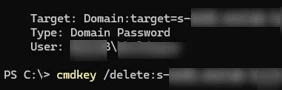
cmdkey /delete:m-fs01.woshub.com