In this article, we’ll look at ways to extract the product key used to activate Windows on your device using only the built-in tools, without the need for any third-party programs. A Windows product key is a sequence of 25 characters divided into five groups of five characters each (XXXXX-XXXXX-XXXXX-XXXXX-XXXXX). It is used to activate the operating system and confirm the license is legitimate.
- Older computer and laptop models with preinstalled Windows may have a Certificate of Authenticity (COA) sticker affixed to the device chassis. This sticker contains the vendor OEM information, the Windows edition, and the product key. This was commonly used around ten years ago with older OEM devices that had Windows 7 or 8.1 pre-installed.
- Around 2012, Microsoft transitioned from physical COA stickers to embedding the Windows product key directly in the system firmware (BIOS/UEFI).
Retrieving the OEM Windows Product Key From UEFI/BIOS
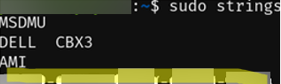
On many OEM laptops with preinstalled Windows, vendors embed the activation key in system firmware, either in BIOS (the product key is stored in a special SLIC table) or in UEFI (as an OEM key in the ACPI MSDM table).
Such an embedded OEM key can be extracted from the UEFI/BIOS firmware using the SoftwareLicensingService WMI class. Open a PowerShell console as an administrator and run the command:
Get-CimInstance SoftwareLicensingService | Select -Expand OA3xOriginalProductKey
This command should display the Windows OEM key stored in the UEFI.

If the command returns nothing, this means that the device does not have any keys in its BIOS/UEFI firmware. It is most likely that the OS is activated by a retail key or by using KMS/MAK.
$ sudo strings /sys/firmware/acpi/tables/MSDM | tail -1
Script to Extract the Windows Product Key from the Registry
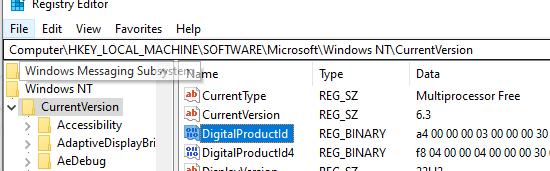
Even if your BIOS/UEFI contains a product key, the key used to activate Windows may be different. The installed product key is stored encrypted in the Windows registry, in the value of the DigitalProductID parameter under HKLM\SOFTWARE\Microsoft\Windows NT\CurrentVersion. The value is encoded using a simple base-24 algorithm, which makes it easy to decode (it is an obfuscation method rather than real encryption).
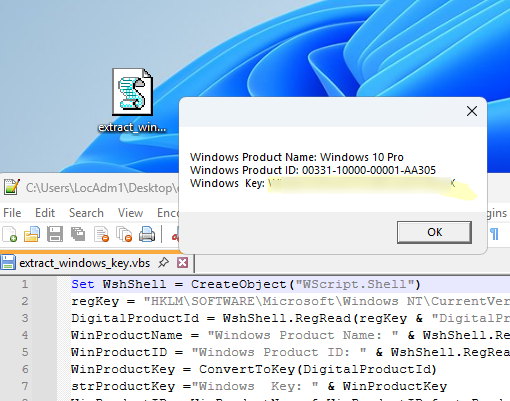
The VBScript code below extracts the DigitalProductID value from the registry and decodes it, returning the product key used to activate Windows in clear text. Create a text file extract_windows_key.vbs on your desktop. Copy the code below into this file, save it, and then double-click the file to run it.
Set WshShell = CreateObject("WScript.Shell")
regKey = "HKLM\SOFTWARE\Microsoft\Windows NT\CurrentVersion\"
DigitalProductId = WshShell.RegRead(regKey & "DigitalProductId")
WinProductName = "Windows Product Name: " & WshShell.RegRead(regKey & "ProductName") & vbNewLine
WinProductID = "Windows Product ID: " & WshShell.RegRead(regKey & "ProductID") & vbNewLine
WinProductKey = ConvertToKey(DigitalProductId)
strProductKey ="Windows  Key: " & WinProductKey
WinProductID = WinProductName & WinProductID & strProductKey
MsgBox(WinProductKey)
MsgBox(WinProductID)
Function ConvertToKey(regKey)
Const KeyOffset = 52
isWin8 = (regKey(66) \ 6) And 1
regKey(66) = (regKey(66) And &HF7) Or ((isWin8 And 2) * 4)
j = 24
Chars = "BCDFGHJKMPQRTVWXY2346789"
Do
Cur = 0
y = 14
Do
Cur = Cur * 256
Cur = regKey(y + KeyOffset) + Cur
regKey(y + KeyOffset) = (Cur \ 24)
Cur = Cur Mod 24
y = y -1
Loop While y >= 0
j = j -1
winKeyOutput = Mid(Chars, Cur + 1, 1) & winKeyOutput
Last = Cur
Loop While j >= 0
If (isWin8 = 1) Then
keypart1 = Mid(winKeyOutput, 2, Last)
insert = "N"
winKeyOutput = Replace(winKeyOutput, keypart1, keypart1 & insert, 2, 1, 0)
If Last = 0 Then winKeyOutput = insert & winKeyOutput
End If
a = Mid(winKeyOutput, 1, 5)
b = Mid(winKeyOutput, 6, 5)
c = Mid(winKeyOutput, 11, 5)
d = Mid(winKeyOutput, 16, 5)
e = Mid(winKeyOutput, 21, 5)
ConvertToKey = a & "-" & b & "-" & c & "-" & d & "-" & e
End Function
The script will return the Windows version and the product key that was used to activate it.
In recent Windows 11 builds, the VBScript engine may be disabled, so use this PowerShell function instead of a VBS script to retrieve the Windows product key.
function Get-WindowsProductKey { param ($Targets = [System.Net.Dns]::GetHostName())
function PIDDecoderFromRegistry($digitalProductId) {
$base24 = 'BCDFGHJKMPQRTVWXY2346789'; $decodeStringLength = 24; $decodeLength = 14; $decodedKey = ''
$containsN = ($digitalProductId[$decodeLength] / 8) -band 1
$digitalProductId[$decodeLength] = [byte]($digitalProductId[$decodeLength] -band 0xF7)
for ($i = $decodeStringLength; $i -ge 0; $i--) {
$digitMapIndex = 0
for ($j = $decodeLength; $j -ge 0; $j--) {
$digitMapIndex = $digitMapIndex * 256 -bxor $digitalProductId[$j]
$digitalProductId[$j] = [math]::Truncate($digitMapIndex / $base24.Length)
$digitMapIndex = $digitMapIndex % $base24.Length
}
$decodedKey = $base24[$digitMapIndex] + $decodedKey
}
if ($containsN) {
$firstLetterIndex = $base24.IndexOf($decodedKey[0])
$decodedKey = $decodedKey.Remove(0,1); $decodedKey = $decodedKey.Substring(0,$firstLetterIndex) + 'N' + $decodedKey.Remove(0,$firstLetterIndex)
}
for ($t = 20; $t -ge 5; $t -= 5) { $decodedKey = $decodedKey.Insert($t, '-') }
return $decodedKey
}
$hklm = 2147483650; $regPath = 'Software\Microsoft\Windows NT\CurrentVersion'; $regValue = 'DigitalProductId'
foreach ($target in $Targets) {
$wmi = [WMIClass]"\\$target\root\default:stdRegProv"
$binArray = $wmi.GetBinaryValue($hklm,$regPath,$regValue).uValue[52..66]
$win32os = Get-CimInstance -Class 'Win32_OperatingSystem'
$product = [PSCustomObject]@{
Computer = $target
Caption = $win32os.Caption
CSDVersion = $win32os.CSDVersion
OSArch = $win32os.OSArchitecture
BuildNumber = $win32os.BuildNumber
RegisteredTo = $win32os.RegisteredUser
ProductID = $win32os.SerialNumber
ProductKey = PIDDecoderFromRegistry $binArray
}
Write-Output $product
}
}
Copy the following code into a PowerShell console (or save it in a PowerShell script file with a .PS1 extension), and then run the WindowsProductKey command to call the function. The function will return information about the version of Windows and the activation key used.
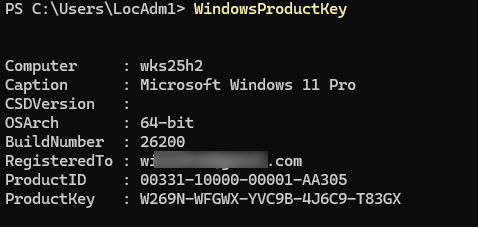
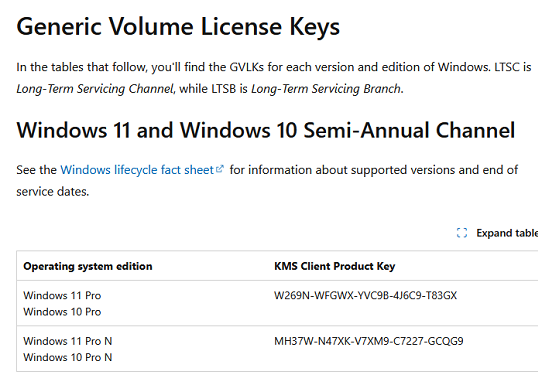
In my case, the public GVLK key W269N-WFGWX-YVC9B-4J6C9-T83GX was installed on my Windows 11 Pro device, meaning that this Windows instance was activated on a KMS server.
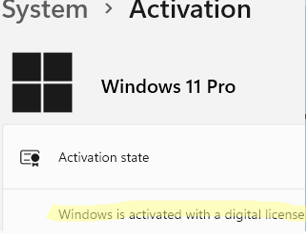
If your product key is displayed as BBBBB-BBBBB-BBBBB-BBBBB-BBBBB, it means that Windows was activated using a Multiple Activation Key (MAK). Due to security concerns, this MAK key is not stored in the registry. Or such a key indicates that the OS was upgraded using the free upgrade procedure from a previous version (for example, from Windows 8.1 to Windows 10). And then a digital license was issued for the device.
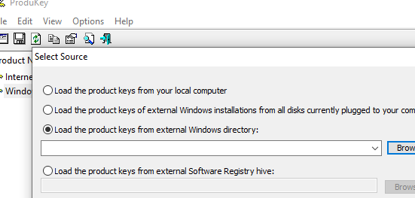
To extract a product key from an offline system (for example, a failed computer with an intact Windows drive), you can use the free ProduKey tool from NirSoft. The tool allows you to manually specify the Windows directory to scan for the product key or load the product keys from an external Software registry file (for example, from a registry backup).