As Microsoft increasingly pushes Windows users toward Microsoft online accounts instead of traditional local accounts (see the workarounds for installing Windows 11 with a local account), more users are relying on Windows Hello PINs to sign in to their computers. In some cases, users may experience an error when trying to sign in to Windows 11 with a PIN:
Something happened and your PIN isn't available. Click to set up your PIN again.
Your PIN is no longer available due to a change in your security settings on this device, click to reset PIN.
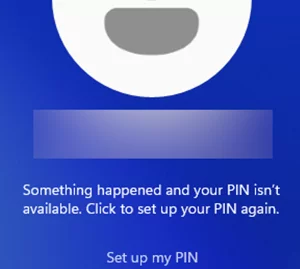
This article explains what the PIN unavailable error means, what can cause it, and how to regain access to Windows when PIN sign‑in is no longer available
Before we continue, there are a few important details to understand about how Windows Hello PIN authentication works:
- Unlike a Microsoft account (MSA) password, a Windows Hello PIN is a local cryptographic authenticator. It is bound to a specific device and is used to unlock a private key protected by the computer’s hardware TPM chip. If a TPM 2.0 chip is missing from the device, Windows 11 can still offer similar protection through Virtualization-Based Security (VBS).
- Windows Hello credentials, including cryptographic keys and certificates, are stored in the protected Next Generation Credentials (NGC) container in the
C:\Windows\ServiceProfiles\LocalService\AppData\Local\Microsoft\Ngcfolder - When a user enters their PIN on the Windows sign-in screen, Windows uses it to unlock the private key stored in the NGC container that is protected by the TPM. If authentication is successful, Windows uses the private key to generate a challenge-response signature, which is then used to authenticate the user.
Therefore, if the TPM becomes unavailable or its state or configuration changes (for example, after a UEFI firmware update or reset, TPM key reset, or disabling Secure Boot), Windows Hello PIN authentication will become unavailable and the PIN can no longer be used to sign in.
Below is a list of solutions that can help resolve common Windows Hello PIN sign-in problems in Windows 11.
Check the BIOS/UEFI and TPM Settings
Open the BIOS/UEFI settings on your device and check that both Secure Boot and TPM are enabled. If the compatibility mode (Legacy, CSM) is enabled in the UEFI firmware settings, Windows Hello PIN sign-in may not work properly. Disable the compatibility mode and use native UEFI boot with Secure Boot and TPM enabled.
Login Windows 11 Using Your Microsoft Account Password
If PIN sign-in isn’t available, you can sign in using your Microsoft account password instead.
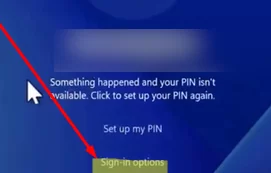
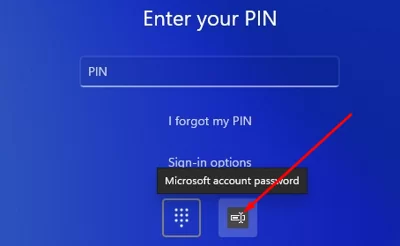
On the Windows sign-in screen, select Sign-in options and sign in to your Microsoft account using either your account password or a one-time verification code sent to your email address.
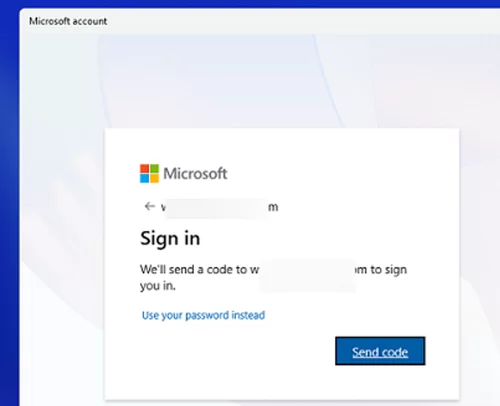
After successfully signing in to Windows, you can set a new Windows Hello PIN.
If other sign-in methods are not available on the Windows sign-in screen, or the option to authenticate with your Microsoft account does not appear, you can add a password sign-in option to the Windows sign-in screen using the Windows Recovery Environment (WinRE) or Windows installation media (such as a USB stick).
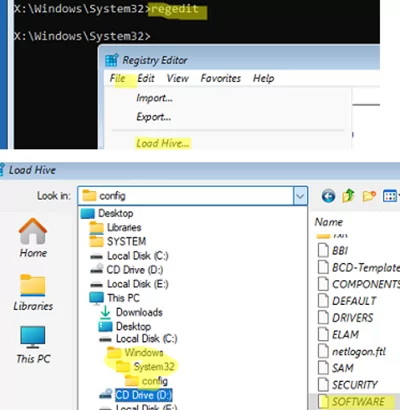
- Boot into the WinRE and open a command prompt.
- Open the Registry Editor (
regedit.exe), then go to File -> Load Hive and load the SOFTWARE registry file stored in theC:\Windows\System32\Configdirectory.
- In the mounted registry hive, navigate to the
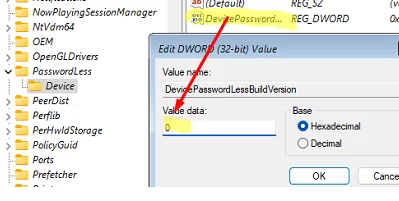
\Microsoft\Windows NT\CurrentVersion\PasswordLess\Deviceand change the DevicePasswordLessBuildVersion value to 0. - Then go to
\Microsoft\PolicyManager\default\Settings\AllowSignInOptionsand set the Value registry entry to 0 - Unload the registry hive.
- Restart the computer and check that the Microsoft account password option appears on the Windows 11 sign-in screen.
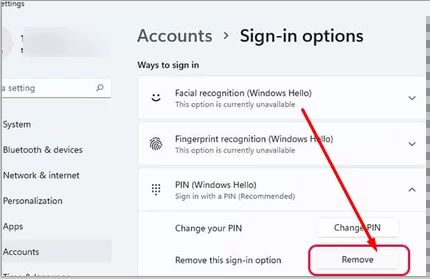
- Log in to Windows with your Microsoft account (MSA) password and set a new PIN, first deleting the old one (Settings -> Accounts -> Sign-in options -> PIN -> Remove).
Core System Services Required for Windows Hello PIN
For Windows Hello PIN sign-in to work, the following Windows services must be running:
- CNG Key Isolation – CNG stands for Cryptography Next Generation API:
- Credential Manager
Sign in to the computer using any other account (if necessary, you can enable the built-in local Administrator account in Windows). Check the status of both services and make sure they are running.
Get-Service KeyIso, VaultSvc
If any of these services are stopped, the user will not be able to log in with a PIN or biometric. Set these services to start automatically or manually (on demand).
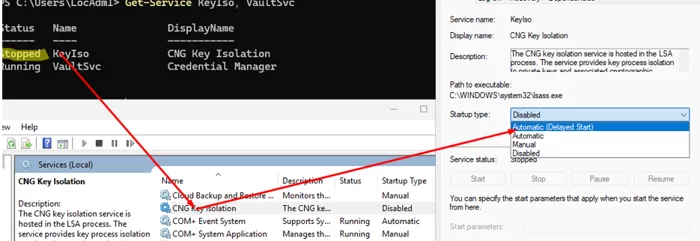
These services can be set to start automatically if you boot the computer from external media:
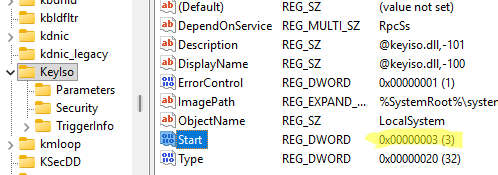
- Open the Registry Editor and load the local registry hive five
C:\Windows\System32\config\SYSTEM - Go to the mounted hive and navigate to ControlSet001\Services\KeyIso
- Find the KeyIso and VaultSvc service subkeys, then change the Start parameter value to 3 in each one. This means that these services will start automatically.
- Unload the registry hive, then reboot the computer.
Windows Hello PIN is not Available in Safe Mode
If Windows is configured to boot into Safe Mode, PIN sign-in will not be available. As the services and components required for Windows Hello authentication do not start in Safe Mode, you must use an alternative sign-in method.
To disable Safe Mode:
- Hold down the Shift key on the sign-in screen, then click the Restart button.
- From the startup settings screen, select Troubleshoot and then open the Command Prompt.
- To stop the computer from booting into Safe Mode, change the bootloader configuration by running the command:
bcdedit /deletevalue {default} safeboot - Restart the computer and try logging in using a PIN.
Clean the NGC Folder
To reset all the keys and certificates used for Windows Hello PIN authentication for all users on the computer, clear the contents of the NGC directory.
To do this, boot the computer into the Windows Recovery Environment or WinPE and run the following commands.
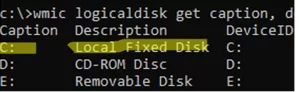
C: in WinPE. If you are unsure which drive letter has been assigned to the volume containing the Windows installation, you can list the available volumes and their drive letters using:wmic logicaldisk get caption, deviceid, description
Run the following commands one by one:
takeown /f C:\Windows\ServiceProfiles\LocalService\AppData\Local\Microsoft\Ngc /r /d y
icacls C:\Windows\ServiceProfiles\LocalService\AppData\Local\Microsoft\Ngc /grant *S-1-5-32-544:F /t
RD /S /Q C:\Windows\ServiceProfiles\LocalService\AppData\Local\Microsoft\Ngc
MD C:\Windows\ServiceProfiles\LocalService\AppData\Local\Microsoft\Ngc
icacls C:\Windows\ServiceProfiles\LocalService\AppData\Local\Microsoft\Ngc /T /Q /C /RESET
Restart the computer. Sign in to your account using your MSA password and then set up a new PIN.