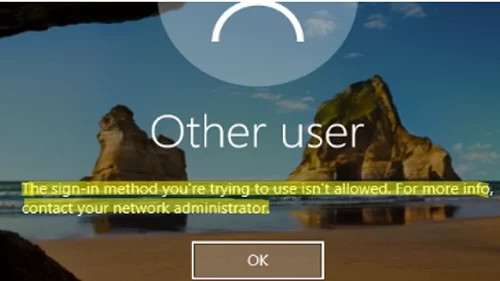
If you see The sign-in method is not allowed error when logging into Windows, it means the computer’s security policy settings are preventing local sign-in for the current user account or one of its security groups. This error most commonly occurs when attempting to sign in to a computer using a guest account or to a domain controller using a user account without domain admin privileges. However, there may be other reasons.
The sign-in method you're trying to use isn't allowed. For more info, contact your network administrator.
These logon attempts can be tracked by monitoring Event ID 4625 in the Security log in the Event Viewer.
An account failed to log on
Failure Reason: The user has not been granted the requested logon type at this machine.
Status: 0xC000015B
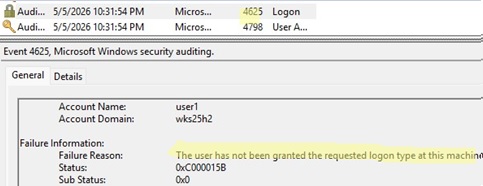
According to the event description, this user does not have the necessary permissions to log on locally to the computer.
In order to troubleshoot and fix the issue, you will need to log in to this computer locally using a different account:
- This could be any other domain or local user with local administrator rights.
- If no other accounts with administrator permissions exist on the computer, you must use the built-in local Administrator account (this account is disabled by default). The linked article describes how to use installation media (or a Live CD) to enable the built-in local Administrator account and reset its password.
Local Logon Rights in Windows Security Policy
The list of users and groups allowed to sign in interactively to a computer is configured via the security settings in Group Policy.
- Open the Local Group Policy Editor (
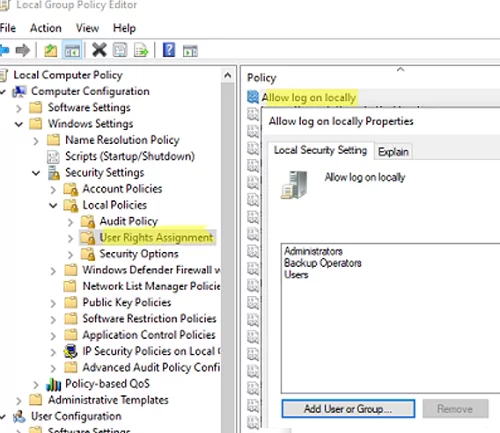
gpedit.msc). - Go to Computer Configuration -> Windows Settings -> Security Settings -> Local Policies -> User Rights Assignment.
- Find Allow log on locally in the list of policies.
- The policy contains the list of groups and users allowed to sign in to the computer locally.
 The list of groups allowed to sign in locally may differ depending on the operating system and machine role. For example, local sign-in is allowed for the following user groups on workstations running Windows 11/10 and member server hosts running Windows Server:
- Administrators
- Backup Operators
- Users
On servers running Windows Server with the Active Directory domain controller role (ADDS), interactive local sign-in is allowed for the following groups:
- Account Operators
- Administrators
- Backup Operators
- Print Operators
- Server Operators
- By default, members of these groups are allowed to log on to this computer locally. Check the list of local groups that the problem user is a member of:
net user problem_user_name|Select-String "Group Memberships"

To add a user to the local Users group, run the command:
net localgroup users problem_user_name /add - You can also allow other users or groups to log on locally directly by changing the settings in the Local Security Policy. Click Add User or Group and select the users you want to add. For example, you can prevent non-admin users from logging on to the computer. To do this, just remove the Users group from the policy settings.
- After making the changes, update the Group Policy settings using the
gpupdate /forcecommand (no reboot required).

Also note that there is another policy in this same GPO section that allows you to prevent local interactive sign-ins. The policy is called Deny log on locally. In my case, an anonymous local logon under the Guest account is denied on the computer.
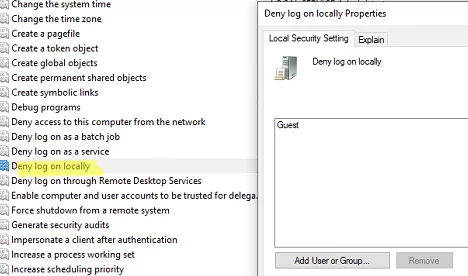
You can prevent a specific group or a user from logging on to the computer locally by adding them to this policy. Since the Deny log on locally policy takes precedence over the Allow log on locally, users won’t be able to log on to a computer with the error:
The sign-in method isn’t allowed.
In a domain environment, multiple GPOs may be assigned to a computer. Therefore, to find out the actual local logon policy settings, you need to check the resulting Group Policy settings. To view the resulting GPO settings on your computer, you can use either the rsop.msc console or the gpresult command.
You can also grant local logon permissions by using the ntrights command (included in the old Admin Pack for Windows Server). For example, to allow local logon for a domain group, run the command below:
ntrights +r SeInteractiveLogonRight -u "GroupName"
To deny local logon:
ntrights -r SeInteractiveLogonRight -u "UserName"
Another possible cause of the The sign-in method you are trying to use isn’t allowed error is the LogonWorkstations attribute configured for the user in Active Directory, which restricts the computers that the user is permitted to log on to (read more here). Using the Get-ADUser PowerShell cmdlet, you can list computers to which a user is allowed to log on (by default, the list is empty):
(Get-ADUser maxbak -Properties LogonWorkstations).LogonWorkstations
In some cases, you may need to allow certain users to log on to the domain controller or Windows Server host over RDP or locally. It is enough to add a user account to the local policy Allow log on locally on such a server. In any case, this is better than directly adding a user to the local Administrators group. However, it is even better to use an RODC domain controller for security reasons.
This Sign-in Method is Not Allowed on Entra ID-Joined Azure VM
If you are unable to sign in to your Windows 11 virtual desktop machine in Azure (AVD) with the error:
This sign-in method is not allowed
- Make sure that your account has been added to the local Remote Desktop Users group:
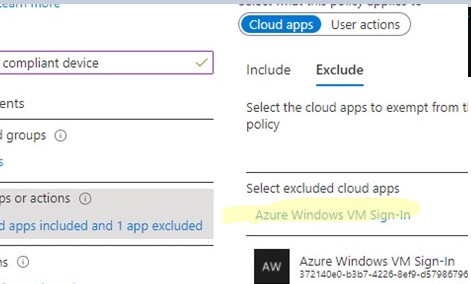
net local group "Remote Desktop Users" /add "AzureAD\email" - With the default settings, the tenant’s Conditional Access policies require MFA for authentication. Authentication to Azure Virtual Desktops is performed through the Azure Windows VM Sign-in app. The MFA settings for this app require the use of smart card authentication or Windows Hello for Business to sign in. As a workaround, you can add the “Azure Windows VM Sign-in” app to the MFA policy exceptions in the Conditional Access Policy.

2 comments
I am having this issue with a laptop I am unable to logon to. I am unable to open windows and as a result I am not able to do the steps you outlined above. I am not sure what happened, but I am not able to access the operating system, and this laptop has never been on any network, my account is a local account.
Use the built-in Administrator account to log in locally and reconfigure local security policy settings.
This post explains how to enable the Administrator account and reset its password: https://woshub.com/enable-built-in-administrator-account-in-windows-10/#h2_3