In this article, we’ll look at how to centrally configure proxy server settings and the system-level WinHTTP proxy for Internet access on Windows workstations in an Active Directory domain using Group Policy. Most popular browsers (including Microsoft Edge, Google Chrome, Opera, and Firefox) and apps automatically use the proxy server configured in Windows when accessing the Internet.
How to Set Proxy Settings on Windows Using Group Policy Preferences
Windows proxy settings can be centrally configured using the Group Policy Preferences (GPP) extension. Let’s look at how to use GPP to deploy proxy settings to all users within a specific Organizational Unit (OU) in an Active Directory domain.
Open the domain GPO Editor console (Group Policy Management Console GPMC.msc), select the OU with the users to which you want to apply proxy settings, and create a new policy (Create a GPO in this domain, and Link it here).
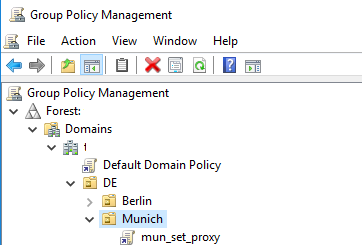
Go to User Configuration -> Preferences -> Control Panel Settings -> Internet Settings. Right-click Internet Settings, select New, and choose Internet Explorer 10.
Despite the name, Internet Explorer 10 is the appropriate template for configuring internet settings on all supported Windows versions starting with Windows 8 and Windows Server 2012. This option should be used regardless of whether Internet Explorer 10/11 is actually installed or used on the client.
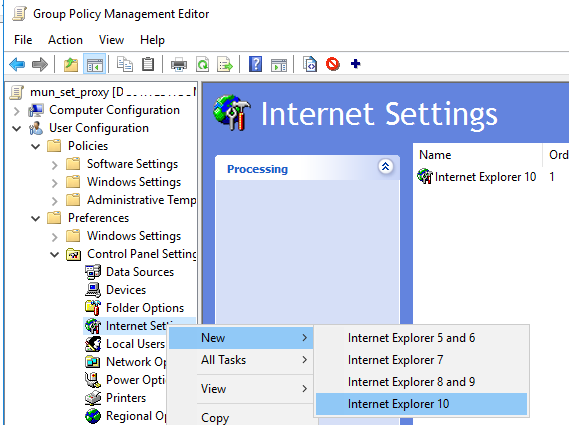
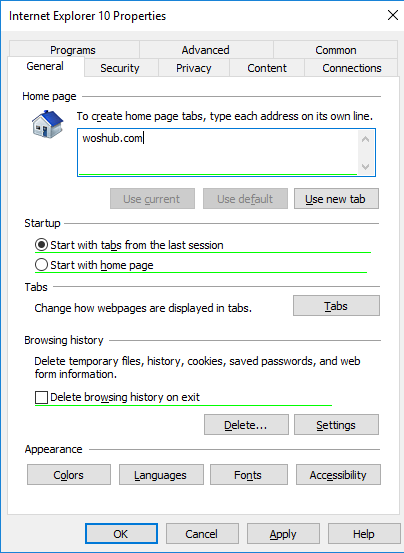
A special Group Policy Preferences Internet Explorer 10 Properties form will appear, which is almost completely identical to the Internet Options settings in the Windows Control Panel.
To configure the proxy settings, go to the Connections tab and click the LAN Settings button. The proxy server can be configured in one of the following ways:
- Automatically detect settings – proxy settings are automatically detected using the WPAD (Web Proxy Auto-Discovery) protocol (via the shared wpad.dat file, which describes the proxy server to use for different scenarios)
- Use automatic configuration script – auto-configuration script (proxy.pac)
- Proxy Server – the proxy server address and port are specified in the policy settings. This is the easiest way, and we will use it.
Check the option Use a proxy server for your LAN, and specify the IP/FQDN name of the proxy server and the connection port in the corresponding Address and Port fields.
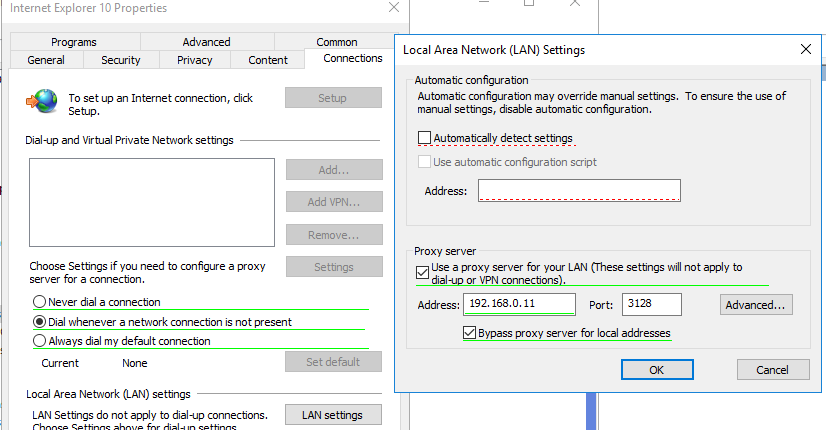
To save these settings, press the F5 key to change the edit field’s underline from red to green.
The following function keys are available:
- F5 – Enable all settings on the current tab
- F6 – Enable the selected setting
- F7 – Disable the selected setting
- F8 – Disable all settings in the current tab
Enabling the Bypass proxy server for local addresses option prevents applications (including browsers) from using a proxy server when accessing local resources (in the format http://localnetwork).
If your users are accessing addresses like http://web1.woshub.loc or http://192.168.1.5, then these addresses are not recognized by Windows as local ones. These addresses and the addresses of other resources, for access to which you do not need to use a proxy, must be specified manually. Press the Advanced button and add these addresses to the field Do not use proxy servers for addresses beginning with in the following format:
10.1.*;192.168.*;*.woshub.loc;*.local.net.
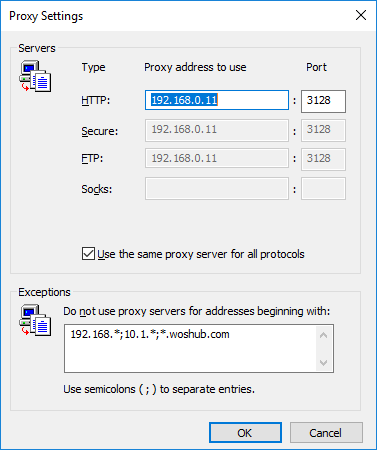
The browser and proxy settings configured through Group Policy preferences are stored in the InternetSettings.xml file in the GPO directory in the SYSVOL folder on a domain controller.
\\UKDC1\SYSVOL\woshub.com\Policies\{PolicyGuiID}\User\Preferences\InternetSettings\InternetSettings.xml

GPP allows you to more finely target policy to users/computers. For this, GPP Item Level Targeting is used. Go to the Common tab and enable the option Item-level targeting -> Targeting.
In the form that opens, specify the conditions for applying the policy. As an example, I indicated that the proxy configuration policy will be applied only to users who are members of the proxy_users domain security group. You can use your own logic to assign proxy parameters (depending on the IP network, AD site, department, etc.).
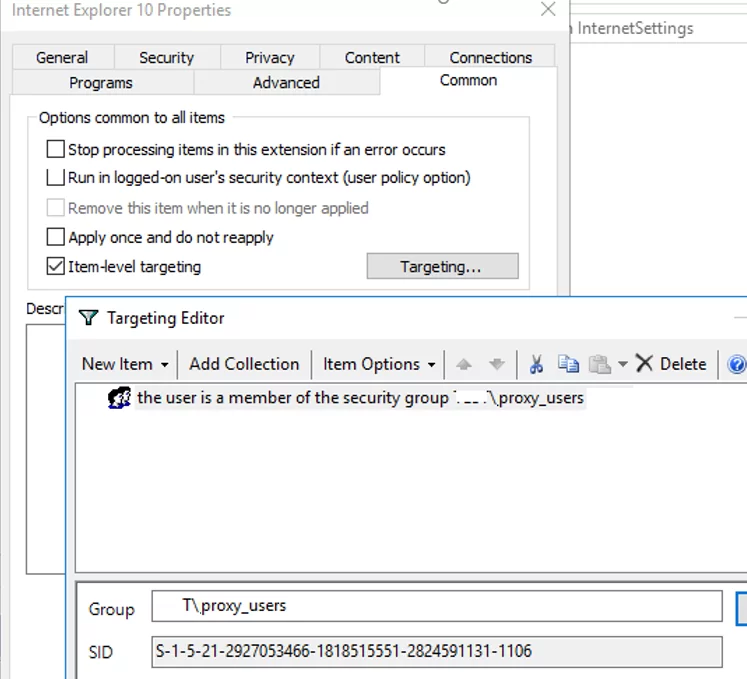
Make sure your GPO is linked to the OU with the user accounts. Then you can proceed to check whether your proxy settings have been applied to the users’ computers.
How to Check Current Proxy Server Settings in Windows
Wait for the Group Policy settings to be updated on the client workstation, or update them manually using the gpupdate command.
In Windows 11, you can view your current proxy settings through the modern Settings app. Navigate to Settings -> Network and Internet -> Proxy (or run the command ms-settings:network-proxy. The proxy must be enabled in Windows (status set to On). Specific settings can be viewed by clicking the Edit button.
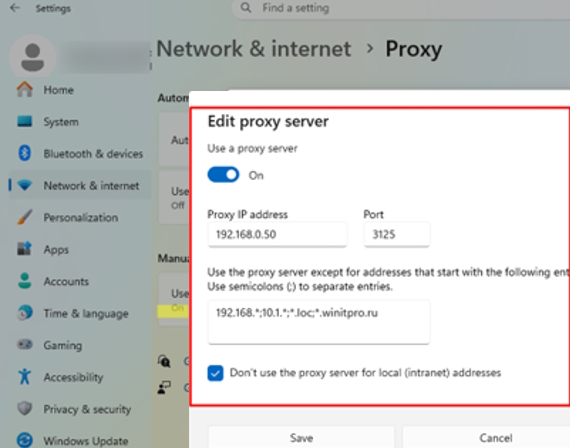
Or query the user’s current proxy settings from the registry using PowerShell.
Get-ItemProperty -Path "HKCU:\Software\Microsoft\Windows\CurrentVersion\Internet Settings" | Select-Object ProxyServer, ProxyEnable, ProxyOverride
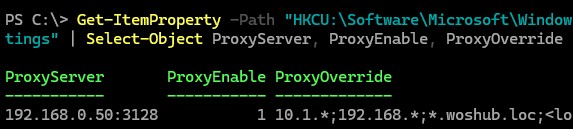
By default, all modern browsers based on the Chromium engine use the proxy settings configured in the current user’s Windows profile through the Use system proxy settings option.
Note that with this Group Policy configuration, users can still manually change the proxy settings assigned to them or even disable proxy server usage. To prevent users from changing the proxy configuration, enable the Prevent changing proxy settings policy in your GPO (User Configuration -> Administrative Templates -> Windows Components -> Internet Explorer).
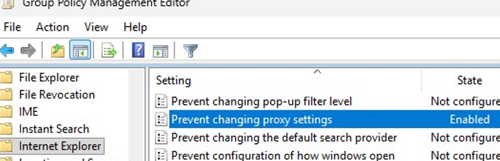
Once this policy is enabled, users will no longer be able to modify the proxy settings configured by the administrator. The proxy configuration fields in Windows will become locked (greyed out), and the Settings app will display a message:
Some of these settings are managed by your organization.
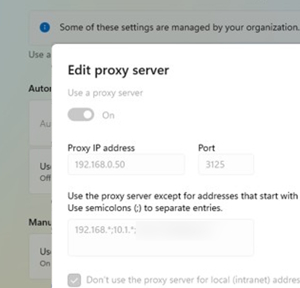
This method of configuring a proxy server using Group Policy preferences is supported on all versions of Windows, from Windows 8 to the most recent Windows 11 and Windows Server 2025 builds.
Deploying Proxy Server Settings to Registry via GPO
As mentioned earlier, a user’s proxy settings are actually stored under the registry key HKEY_CURRENT_USER\Software\Microsoft\ Windows\CurrentVersion\Internet Settings.
Therefore, rather than using Group Policy Preferences -> Internet Settings, you can deploy proxy-related registry values to users via the Group Policy Preferences Registry extension.
In the GPO editor, go to the section User Configuration -> Preferences -> Windows Settings -> Registry and create three registry parameters under the mentioned registry key:
ProxyEnable(REG_DWORD) =00000001(enable user’s proxy)ProxyServer(REG_SZ) =192.168.0.11:3128(proxy server address and port, separated by a colon)ProxyOverride(REG_SZ) =https://*.woshub.com;192.168.*;10.1.*;*.contoso.com;<local>(proxy exception list; the<local>tag indicates that direct access to local addresses should be used, bypassing the proxy)
You can also use Item-level targeting here to target your policy settings for specific users/devices.
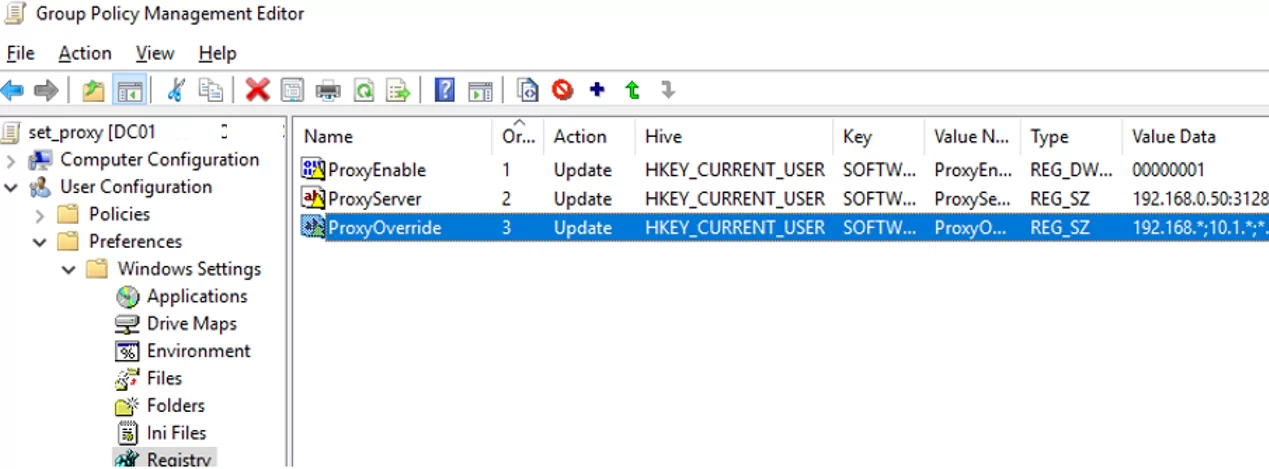
If you need to apply proxy policies to the entire computer (per-computer) rather than to individual users (per-user), configure the GPP settings in Computer Configuration -> Preferences -> Windows Settings -> Registry. Configure the same registry parameters under the registry key HKEY_LOCAL_MACHINE\Software\Policies\Microsoft\Windows\CurrentVersion\Internet Settings
Configure WinHTTP Proxy Settings via GPO
Some system services and apps that use the WinHTTP API (such as the Windows Update service, .NET Core apps, PowerShell) by default don’t use the user-level proxy settings configured in Windows. This differs from browsers and other apps that rely on the WinINet networking stack.
In order for such services and apps to access the internet via your corporate proxy, the system-level WinHTTP proxy must be configured separately.
To check whether a WinHTTP proxy is currently configured on the computer, run:
netsh winhttp show proxy
The result Direct access (no proxy server) means that no proxy is configured and that system apps are accessing the internet directly.
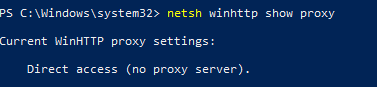
You can manually set a proxy for WinHTTP on your computer with the command:
netsh winhttp set proxy proxy.woshub.com:3128 "localhost;10.1.*;192.168.*;*.woshub.com"
Or import proxy-server settings from the user’s Internet Options configuration:
netsh winhttp import proxy source=ie
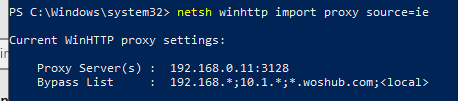
However, WinHTTP settings cannot be configured directly through a standard Group Policy setting, since the GPO Editor doesn’t provide a dedicated policy for configuring the system-level WinHTTP proxy.
WinHTTP proxy settings are stored in the Windows registry as a binary value named WinHttpSettings under HKLM\SOFTWARE\Microsoft\Windows\CurrentVersion\Internet Settings\Connections. As the WinHttpSettings value uses a binary data format, it cannot be edited directly via a GPO registry preference.
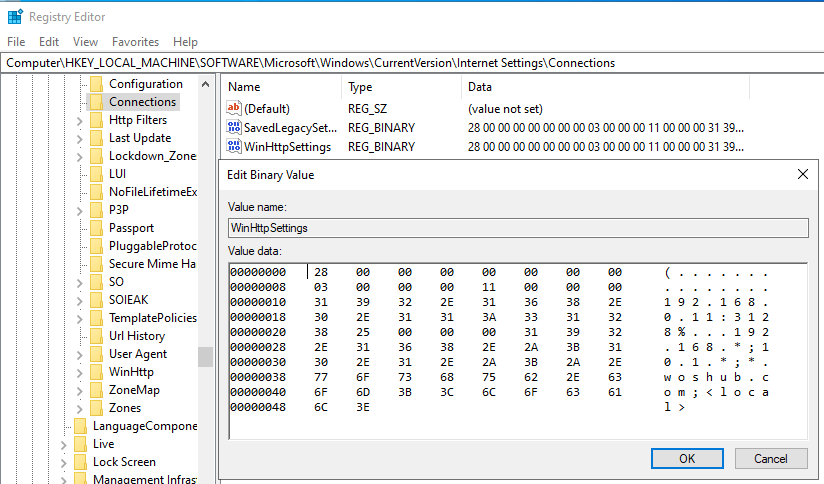
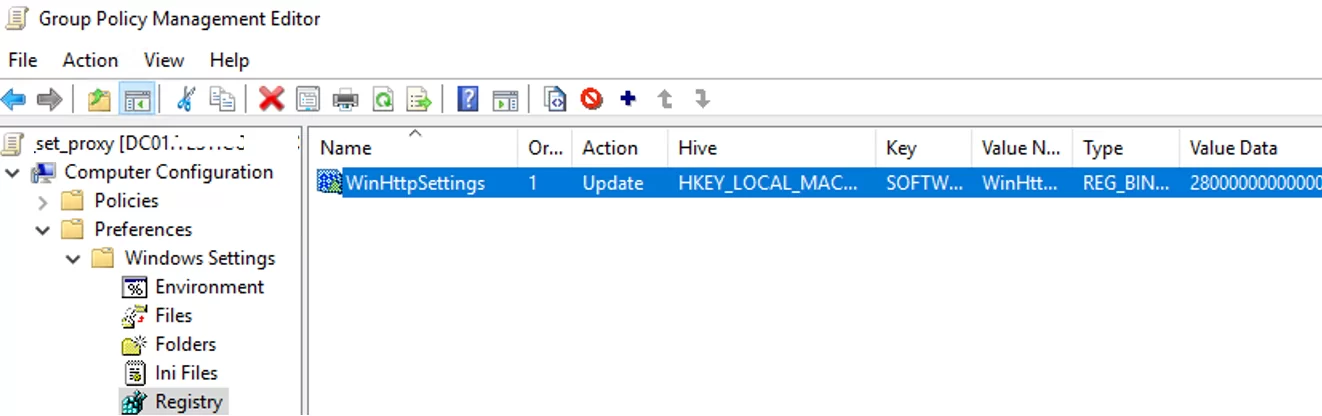
The only practical way to configure WinHTTP proxy settings through Group Policy is to configure the proxy on a reference computer, export the WinHttpSettings registry value to a .REG file, and then deploy this registry setting todomain-joined computers through the GPP registry extension.
In this article, we’ve covered several ways to centrally deploy user and system proxy settings to computers in an Active Directory domain via Group Policy. This approach allows administrators to centrally configure the proxy server used for Internet access across all managed devices, thereby eliminating the need to configure proxy settings manually on each computer individually.
17 comments
Do we have to restart the user machine for this group policy to take effect
To apply user policy, user must logoff and login to machine or execute the command :
gpupdate /force
when I restarts the client and I do gpupdate / force the gpo not working to block the websites but she managed to display ONLY the URL of the home page sets but I can not bring down the parameters proxy to block certain sites on my client machines
Very Good Tutorial.
Works 100 percent. I tried varies different methods trying to set up the homepages on my
WINDOWS SERVER ESSENTIALS 2012 R2. BE VERY CAREFUL AND DO NOT FORGET TO PRESS “F5” TO SAVE THE CHANGES.
Add the websites and make sure your CURSOR is still blinking in the box where you added the website address. And then press “F5”. The red line changes to blue and then hit save and in Command prompt , RUN the command GPUPDATE /FORCE.
Thanks a million to the author. Really good resource.
However, after applying this GPO, the user still has the ability to go in and remove the proxy settings. I don’t see an option to force the proxy settings and not allow the user to remove them.
And taking away admin rights to the local machine for the user is not an option.
To prevent users from changing proxy servers settings, you can hide the IE Connection page using GPO:
User Configuration\Administrative Templates\Windows Components\Internet Explorer\Internet Control Panel -> Disable the Connections page
I created this policy and it is not being applied. Does anyone have this working on Windows 7 Clients with IE 11 ??
Can you check that the policy apply to the new operating systems: Windows 2012, Windows 8.1?
[…] Do you have Group Policy Preferences in Server 2008? Configure Internet Explorer 11 Settings Using GPO | Windows OS Hub […]
I cannot edit the settings on the Security tab and in Trusted Sites. Its grayed out. How would I add a site to the Trusted Sites?
You can add site to the trusted list using the rigistry:
for current user:
HKCU\SOFTWARE\Microsoft\Windows\CurrentVersion\Internet Settings\ZoneMap\EscDomainsor for all users:
HKLM\SOFTWARE\Microsoft\Windows\CurrentVersion\Internet Settings\ZoneMap\EscDomainsOr you can use this policy:
User Settings -> Administrative Templates -> Windows Components -> Internet Explorer -> Internet Control Panel -> Security Page -> Site to Zone Assignment List
I cannot disable with F7 and F8 Languages. If I delete or add some language it will be deleted/added on user side. If I delete all languages from the list then they will be deleted also from user side. Do you know how can I disable any changes in languages?
I’ve never configured languages preferences in IE using a GPO. Have you tried clicking on the Suffix field and pressing the F8 button?
As I see all the available options have changed the underscore to red.
There’s a problem here when the IE feature is disabled as the GPP searches the iexplore.exe to filter out the machines asn that file doesn’t exist in that case.
_https://igorpuhalo.wordpress.com/2022/07/15/windows-proxy-settings-ultimate-guide-part-ii-configuring-proxy-settings/
Hi I use this method it work well my problem is in proxyoverde .I add website that I want to access .I add like 90 website link it work but when I add more than 90 those above 90 won’t bypassed .how to add more than 90 site on exception? Am using windows server r12
Bloom my a sestam not use me plz